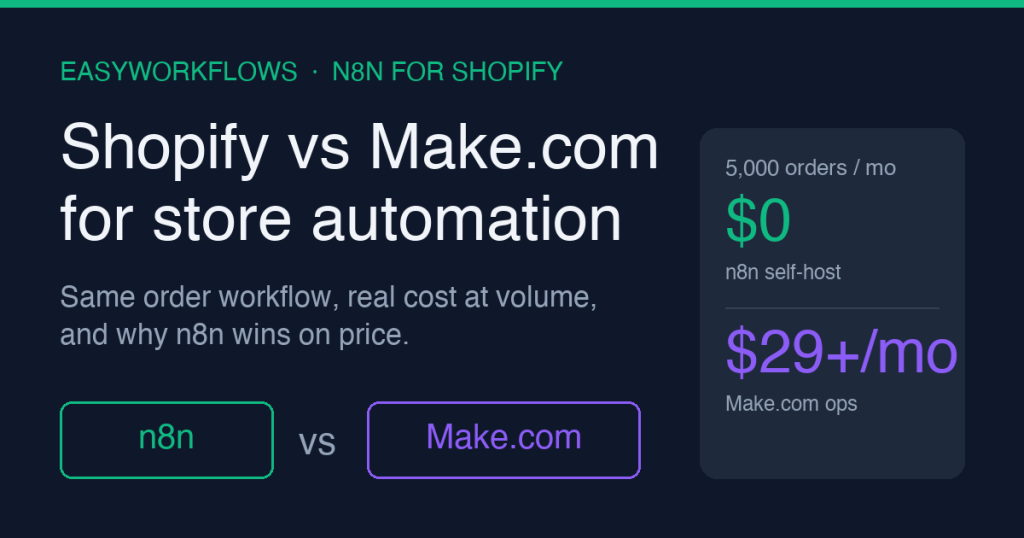
If you are weighing Shopify vs Make.com for store automation, the short answer is that Make.com is the quickest place to start but the most expensive place to scale. Make bills by operation, so every order that touches several modules burns several operations. This guide rebuilds a real order workflow in n8n, tags VIP customers, logs to Google Sheets, and alerts Slack, then shows the cost at 5,000 orders a month.
What it does
A Shopify store automation does the boring order work for you. When an order comes in, it logs the sale somewhere you can read it, flags your best customers, and tells your team about the orders that matter. The question is not whether to automate that. It is which engine runs it.
This post compares the two engines most store owners land on. Make.com is the polished, fully hosted choice. n8n is the open workflow tool that you can self-host or run on its cloud. To keep the comparison honest, the same Shopify workflow is built in n8n below: one trigger, a Google Sheets log, a VIP tag, and a Slack alert. That is a workload almost every store runs, so the cost numbers later are grounded in a real scenario rather than a marketing chart.
For a wider view of what n8n can drive on a store, see the pillar guide on n8n Shopify automation.
Why it beats the default
Make.com is the default because it is friendly. You sign up, connect Shopify, drag modules, and a scenario runs in minutes. Nothing to host, nothing to patch. For a store doing a handful of orders a day, that convenience is worth paying for and the bill stays small.
The problem is the meter. Make.com charges by operation, and an operation is one module run, not one order. The order workflow in this post touches five modules. So one Shopify order is roughly five operations, before any retries or extra branches. A store doing 5,000 orders a month is therefore spending around 25,000 operations a month on this single workflow, and most stores run more than one workflow.
n8n changes the unit of cost. Self-hosted, it has no per-operation fee at all. You pay for a small server and run as many executions as that server handles. On n8n Cloud you pay by execution, where one execution is the whole workflow for one order, not five separate charges. Either way, the per-order cost stops climbing the moment your store gets busy. That is the core reason n8n beats the Make.com default for an active Shopify store: the tool that is cheapest to start is rarely the one that is cheapest to scale.
Where Make.com still wins
Be fair to Make. If you run very low volume, never want to touch a server, and value a large library of prebuilt app modules, Make is a reasonable home. The break point is volume and the number of workflows, not features. Below a few hundred orders a month the price gap is tiny and convenience can decide it.
What you need
- A Shopify store with admin access to create an app or use the Shopify connection.
- An n8n instance, either self-hosted (Docker on a small VPS) or n8n Cloud.
- A Google account with a Sheet ready to receive order rows, connected through Google Sheets OAuth.
- A Slack workspace and a channel for order alerts, connected through the Slack OAuth credential.
- About thirty minutes for the first build, less once you have done it once.
Node-by-node list
The worked example is a single linear workflow with one branch. Here is every node, in order, with the version that matters.
- Shopify Trigger: fires on the orders/create event. This is the only trigger and it sits at the very start of the flow.
- Edit Fields (Set, v3.4): normalizes the raw order into four clean fields, order_number, customer_email, total, and currency.
- Google Sheets (Append, v4): writes one row per order to your tracking sheet.
- IF (v2): checks whether total is at or above your VIP threshold, for example 100.
- Shopify (Update customer): on the true branch, adds the VIP tag to the customer record.
- Slack (Send message, v2): posts the VIP order alert to your team channel using a channel selected through the channel picker.
Connections run Shopify Trigger to Edit Fields to Google Sheets to IF. The IF true output goes to the Shopify update node, which then goes to Slack. The IF false output ends quietly, because a normal order is already logged and needs no alert.
Step-by-step build
- Add the Shopify Trigger node. Select your Shopify credential, set the topic to orders/create, and save. n8n registers the webhook with Shopify for you.
- Add an Edit Fields node and set it to Manual Mapping. Create four assignments. Name the first order_number with type string and value
{{ $json.order_number }}. Add customer_email as string mapped to{{ $json.email }}. Add total as a number mapped to{{ $json.total_price }}. Add currency as string mapped to{{ $json.currency }}. - Add a Google Sheets node. Choose the Append operation, pick your spreadsheet and sheet, and map the four fields from the previous node into the matching columns. Run once to confirm a row lands.
- Add an IF node after Google Sheets. Set one condition: value 1 is
{{ $json.total }}, the operator is a number that is greater than or equal to, and value 2 is your threshold, for example 100. Match the data type to number so the comparison is numeric, not text. - From the IF true output, add a Shopify node set to Update a customer. Identify the customer by the email captured earlier and add VIP to the customer tags. This is how your best buyers get flagged automatically.
- From the Shopify update node, add a Slack node set to Send a Message. Pick the target channel from the channel list, then write a short message such as
New VIP order {{ $json.order_number }} for {{ $json.total }} {{ $json.currency }}. - Activate the workflow. Place a test order in Shopify, confirm the row appears in Sheets, the customer gains the VIP tag when over threshold, and the Slack alert posts. You now have the same scenario people build in Make, running for a flat cost.
Common mistakes
A few errors trip up store owners moving from Make.com to n8n. None of them are hard once you know them.
- Comparing operations to executions. A Make operation is one module run; an n8n execution is the whole workflow. Compare like for like or the price gap looks smaller than it is.
- Leaving the IF condition as text. If the total is compared as a string, 90 can look larger than 100. Set the data type to number on the IF node.
- Wiring a second trigger mid-flow. n8n workflows start from one trigger. Do not drop another trigger node in the middle to pull extra data; use a regular node or an HTTP Request instead.
- Hardcoding the Slack channel as plain text. In recent Slack nodes you select the channel through the channel picker, not by typing a raw string, or the message silently fails to route.
- Forgetting Shopify API scopes. The customer update needs write access to customers. If tagging fails, check the app scopes before blaming the workflow.
Cost at realistic volume
Here is the part that decides most store choices. Take the five-node workflow above and run it at 5,000 orders a month.
On Make.com, one order is about five operations. Five thousand orders is roughly 25,000 operations a month for this one workflow. Make’s paid tiers are priced in operation bundles, so a single busy workflow can already push you off the cheapest plan, and every extra workflow you build spends from the same operation pool. Add retries, a second branch, or a daily report and the operation count climbs further.
On self-hosted n8n, those same 25,000 executions cost nothing beyond your server. A small VPS that comfortably runs this load is in the range of a few dollars a month, and it runs all your other workflows too, not just this one. On n8n Cloud, you pay by execution rather than by operation, so the same order is one execution instead of five, which keeps the bill far below the operation math even before self-hosting.
The pattern holds across stores: at low volume the difference is pennies, and at real order volume n8n is the cheaper engine by a wide margin because cost does not scale with every module you add.
Ready-to-import template
You can build this workflow from the steps above, or skip the setup. We package the Shopify order workflow as an importable n8n template with the VIP tagging, Google Sheets log, and Slack alert already wired, plus a setup guide. If you would rather have it built, configured, and tested for your store, our team does that for you through EasyWorkflows services.
FAQ
Is Make.com or n8n better for Shopify automation?
Make.com is faster to start and fully hosted, which suits very low volume. n8n wins once a store runs steady order traffic, because self-hosted n8n has no per-operation fee. A busy Shopify store usually pays less and keeps more control on n8n.
Does Make.com charge per Shopify order?
Make.com bills by operation, and each node run inside a scenario counts. A single Shopify order that touches five modules spends five operations. At a few thousand orders a month those operations add up and push you onto a higher paid tier.
Can I move my Make.com scenarios to n8n?
There is no one-click import, but the logic maps almost directly. Each Make module becomes an n8n node, routers become IF or Switch nodes, and Shopify triggers stay the same. Rebuilding a typical store scenario in n8n takes an afternoon, not a project.
Do I need to self-host n8n to save money?
Self-hosting gives the largest saving because there is no usage fee, only a small server bill. n8n Cloud is also available if you prefer no server work; it is priced by executions, not per operation, so it still beats Make.com at order volume.
Is n8n harder to learn than Make.com?
The learning curve is slightly steeper because n8n exposes more raw data and expressions. For Shopify store owners the gap is small. The node layout, triggers, and field mapping follow the same mental model, and you gain code nodes when you need them.