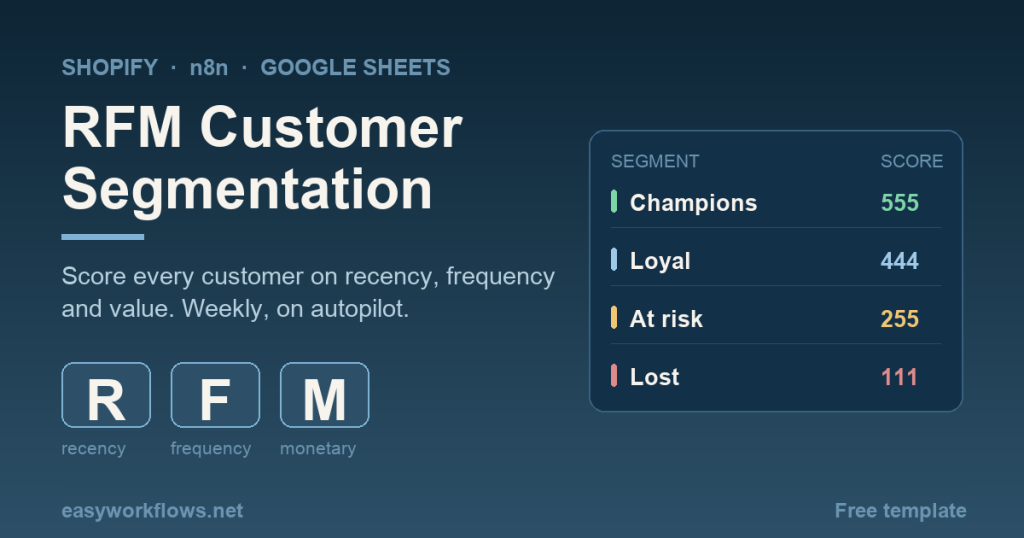
A shopify rfm customer segmentation google sheets n8n workflow pulls a year of paid orders every Monday, scores each customer from 1 to 5 on recency, frequency and monetary value, sorts them into named segments, and upserts the table into a Google Sheet. No analytics app, no monthly fee, no CSV exports. Seven nodes and a sheet that tells you who to email this week. Below: the node map, the build, the mistakes, and the real cost.
Prefer to skip the setup? Grab the ready-made template and be running in under 10 minutes.
What it does
Shopify Analytics shows you total sales and a list of top spenders. It will not tell you that the customer who spent 1,400 dollars has not been back in ten months, or that the person who ordered four times in six weeks is about to become your best account. Those are different people who need different emails, and a revenue leaderboard hides both.
RFM is the oldest reliable answer to that. You rank every customer on three things: how recently they bought, how often they buy, and how much they have spent. Each becomes a score from 1 to 5, relative to everyone else on your list. A 555 is a Champion. A 255 is someone who used to be a Champion and is drifting away, which is the most valuable email you will send all month. A 111 is gone.
This workflow builds that table for you on a schedule and keeps it current.
- Reads paid orders from a rolling window you set, 365 days by default.
- Groups them by customer email, merging case variants and skipping guest checkouts with no email.
- Scores recency, frequency and monetary value into quintiles, then labels each customer.
- Upserts every row into a Google Sheet keyed on email, so the sheet updates rather than duplicating.
- Emails you a segment breakdown when it finishes.
Why it beats the default
The default is a customer analytics app from the Shopify App Store, at anywhere from 30 to 200 dollars a month depending on list size. Those apps compute RFM competently. The trade is that your segmentation logic lives inside someone else’s product, priced per contact, and you cannot see or change the thresholds. The other default is worse: exporting orders to a spreadsheet by hand every quarter, which works exactly once because nobody keeps it up.
Building it in n8n gives you the part the apps hide. The scoring lives in one Code node you can read in a minute, so a threshold that does not match your store is a one line change rather than a support ticket. The output is a plain Google Sheet, which means anyone on your team can filter it and any other workflow can read it. And because it is your own instance, the price does not move when your customer list doubles.
The honest caveat: an app gives you a dashboard, and this gives you a sheet. If a chart is what you want, this is not that. If acting on the segments is what you want, a sheet is the better input anyway.
Tip: Before you connect n8n to Shopify, set up access the modern way. Our guide on how to connect Shopify to n8n in 2026 walks through the Dev Dashboard method that this workflow relies on. The old admin custom-app flow no longer exists.
What you need
- An n8n instance, cloud or self-hosted. A free self-hosted install handles this comfortably.
- A Shopify store connected to n8n the 2026 way, with read access to orders and customers. See the 2026 connection guide.
- A Google account for Sheets and Gmail, connected to n8n by OAuth.
- One empty Google Sheet with a header row, described in step 2 below.
- Roughly 20 minutes, and enough order history that the scoring has something to divide. See the FAQ on list size.
No AI model is needed here. RFM is arithmetic, and arithmetic does not need a language model. Anything that sells you an LLM for this is selling you a sorting function at a markup.
Node-by-node list
Seven nodes in one straight line, no branches.
Every Monday 6am  (Schedule Trigger)
       ↓
Set window        (Edit Fields, v3.4)      lookbackDays = 365, reportEmail
       ↓
Get paid orders   (Shopify, order:getAll)  returnAll, financialStatus=paid
       ↓
Compute RFM scores (Code, run once for all items)
       ↓
Upsert RFM sheet  (Google Sheets, appendOrUpdate, match on email)
       ↓
Build summary     (Code, run once for all items)
       ↓
Email the summary (Gmail, send)| Node | Type | Job |
|---|---|---|
| Every Monday 6am | Schedule Trigger | Fires weekly. The only entry point. |
| Set window | Edit Fields v3.4 | Holds the two settings you tune: lookback days and the report address. |
| Get paid orders | Shopify | Pulls every paid order created since the lookback date. |
| Compute RFM scores | Code | Groups by email, computes R, F and M, assigns quintiles and a segment label. |
| Upsert RFM sheet | Google Sheets v4.5 | Writes one row per customer, matched on email so reruns update in place. |
| Build summary | Code | Counts customers and revenue per segment for the email. |
| Email the summary | Gmail | Sends you the breakdown. |
Step-by-step build
1 Add the schedule trigger
Create a new workflow and add a Schedule Trigger. Set the interval to Weeks, trigger day Monday, hour 6, minute 0. Weekly is the right cadence: RFM bands move slowly, and a daily run mostly rewrites identical rows.
2 Create the Google Sheet
Make a new sheet, name the tab RFM, and put these headers in row 1, spelled exactly like this because the mapping matches on them:
email | name | recency_days | frequency | monetary | last_order_date |
r_score | f_score | m_score | rfm_score | segment | updated_at
Keep the sheet ID from the URL. It is the long string between /d/ and /edit.
3 Add the Set window node
Add an Edit Fields node and create two assignments: lookbackDays as a Number set to 365, and reportEmail as a String set to your own address. Putting these in their own node means you tune the workflow in one place instead of hunting through expressions later.
4 Pull the orders
Add a Shopify node, resource Order, operation Get Many, and turn on Return All. Under Options add Status any, Financial Status paid, and Created At Min set to this expression:
{{ new Date(Date.now() - $json.lookbackDays * 86400000).toISOString() }}Filtering to paid orders at the source matters. Unpaid and abandoned checkouts are not purchases, and letting them into the scoring inflates frequency for people who never actually bought.
5 Score the customers
Add a Code node named exactly Compute RFM scores, since a later node references it by name. Set mode to Run Once for All Items. The logic does four things in order: group orders by lowercased email, derive recency, frequency and monetary value per customer, rank each of the three into quintiles, then map the scores to a label.
The quintile ranking is the part worth understanding. It sorts the whole customer list on one measure and cuts it into five equal bands, so scores are always relative to your store rather than to a number someone guessed. Recency is inverted, because a low recency in days is good:
function scoreByQuintile(list, key, target, higherIsBetter) {
  const sorted = [...list].sort((a, b) => a[key] - b[key]);
  const n = sorted.length;
  sorted.forEach((c, i) => {
    let q = Math.floor((i / n) * 5) + 1;
    if (q > 5) q = 5;
    c[target] = higherIsBetter ? q : 6 - q;
  });
}

scoreByQuintile(customers, 'recencyDays', 'r', false);
scoreByQuintile(customers, 'frequency',   'f', true);
scoreByQuintile(customers, 'monetary',    'm', true);
Then the labels. These are the rules to argue with once you know your own store, and they are deliberately readable so you can:
function labelFor(r, f, m) {
  if (r >= 4 && f >= 4 && m >= 4) return 'Champions';
  if (r >= 3 && f >= 3)           return 'Loyal';
  if (r >= 4 && f <= 2)           return 'New and promising';
  if (r <= 2 && f >= 4 && m >= 4) return 'At risk, was valuable';
  if (r <= 2 && f >= 3)           return 'At risk';
  if (r <= 2 && f <= 2 && m >= 4) return 'Big spender, lapsed';
  if (r === 1 && f === 1)         return 'Lost';
  if (r === 3)                    return 'Needs attention';
  return 'Hibernating';
}
Order matters in that chain, because the first match wins. The node returns one item per customer, sorted by revenue, each carrying the twelve fields your sheet expects.
6 Upsert into the sheet
Add a Google Sheets node, operation Append or Update Row. Pick your document and the RFM tab, set mapping to Map Each Column Manually, and choose email as the column to match on. Map each remaining field to its matching value from the Code node.
Append or Update is what makes this rerunnable. Plain Append would give you a fresh set of duplicate rows every Monday until the sheet is unusable. Matching on email means week two updates week one’s rows in place.
7 Summarise and email
Add a second Code node named Build summary, also Run Once for All Items. It reads back from the scoring node with $('Compute RFM scores').all(), tallies customers and revenue per segment, and builds a small HTML list. Then add a Gmail node, Send operation, with the address pulled from your config node:
To:      {{ $('Set window').first().json.reportEmail }}
Subject: RFM refresh: {{ $json.total_customers }} customers scored ({{ $json.generated_on }})
Body:    {{ $json.summary_html }}
Run the workflow manually once. You should get an email like this, and a populated sheet behind it:
Champions: 2 customers, 2310 in revenue
At risk, was valuable: 1 customer, 1860 in revenue
Big spender, lapsed: 1 customer, 1400 in revenue
Loyal: 2 customers, 260 in revenue
New and promising: 3 customers, 160 in revenue
Lost: 1 customer, 15 in revenue
That second line is the whole point of the exercise. Activate the workflow and it runs every Monday.
Common mistakes
- Using Append instead of Append or Update. Your sheet grows by a full copy of your customer list every week and the segments become impossible to read. Match on email.
- Leaving unpaid orders in the pull. Abandoned checkouts are not purchases. Without the paid filter, frequency scores drift upward for people who never gave you money.
- Reading recency backwards. A recency of 4 days is excellent and should score 5, not 1. This is the single most common RFM bug, which is why the scoring function takes an explicit flag rather than assuming higher is better.
- Running it on a tiny list. Quintiles need a spread to divide. With fifteen customers the bands are three people wide and one order swings someone from Loyal to Champion. The workflow runs fine, the labels just mean less.
- Renaming the scoring node. The summary node calls it by name, so a rename in the editor breaks the reference. Rename in both places or leave it alone.
- Expecting guest checkouts to appear. Orders with no email cannot be grouped to a person, so they are skipped by design. If a large share of your orders are guest orders, your RFM covers less of your revenue than you think.
- Treating the labels as gospel on day one. Look at fifteen customers in the sheet and check the labels match your instinct. The thresholds are a starting point, not a verdict.
Cost at realistic volume
Nothing here bills per customer, which is the entire argument against the app version.
| Piece | Cost | Notes |
|---|---|---|
| n8n (self-hosted) | $0 | Four executions a month |
| Shopify Admin API | $0 | Order reads are included in your plan |
| Google Sheets | $0 | Free, well inside the write limits |
| Gmail | $0 | Four emails a month to yourself |
The only real resource is the order pull. A store doing 500 orders a month has about 6,000 orders in a 365 day window, which the Shopify node pages through in a couple of minutes on a weekly schedule. A store doing 5,000 orders a month will want to trim the lookback to 180 days or run it overnight, but the arithmetic itself stays trivial: it is a sort and a division, on data that fits in memory.
On n8n Cloud this is four executions a month against your plan allowance, which is a rounding error. Compare that to 30 to 200 dollars a month for a segmentation app, and the sheet wins on cost before you count the fact that you can change the rules.
🚀 Get the Shopify RFM segmentation template
The guide above is free to follow. If you would rather skip the build, download the ready-to-import workflow, then just add your credentials. Prefer it installed and tuned for you? See our done-for-you services.
Instant download · Works on n8n Cloud and self-hosted
FAQ
What is RFM segmentation in ecommerce?
RFM stands for recency, frequency and monetary value. You score every customer from 1 to 5 on how recently they bought, how often they buy, and how much they have spent. The three digits together sort your list into groups such as Champions, At risk, and Lost, so each group can get different messaging.
How many customers do I need for RFM scoring to be useful?
The scoring is relative, so it needs a real spread to divide. Below roughly 50 buying customers the quintiles get thin and a single order can move someone two bands. The workflow still runs and still returns labels, but treat the output as directional until your list grows.
Does this workflow change anything in my Shopify store?
No. It only reads orders. Every score and label is written to your Google Sheet and nothing is pushed back to Shopify, so a wrong threshold cannot damage customer records. Once you trust the output you can add a tagging step as a separate workflow.
Why score against orders instead of the Shopify customer record?
The customer object gives you totals but not the order dates you need for recency, and it counts orders you may want to exclude. Rebuilding from paid orders lets you control the window, drop unpaid checkouts, and recompute the whole picture from one clean source each week.
How often should the segmentation run?
Weekly suits most stores. RFM bands move slowly, a daily run mostly rewrites identical rows, and a monthly run lets a Champion drift into At risk before you notice. The schedule lives in one trigger node, so changing the cadence is a single edit.
Related guides
The sheet this workflow produces is an input. These are the automations that consume it.
- The full guide to n8n Shopify automation
- How to connect Shopify to n8n in 2026
- Shopify customer win-back email, the natural next step for your At risk and Lost rows
- Shopify repeat customer reward email, for the Champions
- Shopify high value customer Slack alert
- Shopify order tagging automation
- More Shopify automations