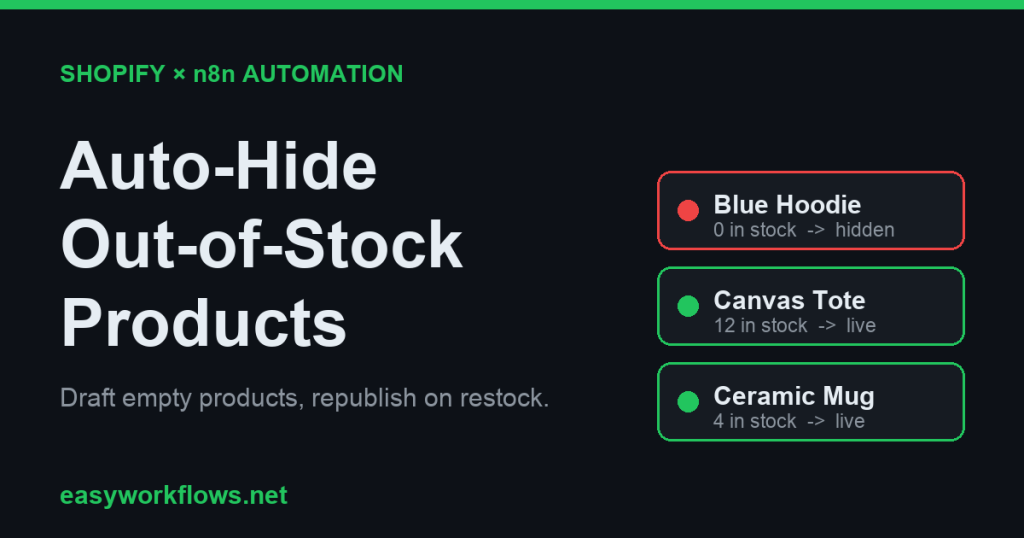
This guide builds a Shopify auto hide out of stock products n8n workflow that scans your catalog on a schedule, sets any product with zero total inventory to draft so it drops off your storefront, then republishes it the moment stock comes back. It marks every product it touches with an “auto-hidden” tag so it never republishes something you drafted on purpose. Free to run, no monthly app fee, and you own the logic.
What it does
An empty product page is a small leak that runs all day. A shopper clicks an ad or a search result, lands on a hoodie that says “Sold out”, and leaves. Google keeps crawling the dead page, and your collection grids stay cluttered with items nobody can buy. The usual fix is a paid app that hides sold-out products for you, billed every month whether or not your stock moves.
This workflow does the same job inside n8n, on infrastructure you already control. On a fixed interval it pulls every product from the Shopify Admin API, adds up the inventory across all variants, and decides one of three things per product:
- Total inventory is zero and the product is currently active, so set it to draft and tag it
auto-hidden. - Total inventory is back above zero, the product is a draft, and it carries the
auto-hiddentag, so set it back to active and remove the tag. - Anything else, leave it alone.
A drafted product disappears from the online store, collections, and search, but keeps its URL, reviews, and history intact. When you restock, the exact same page comes back live with its ranking signals preserved.
Why it beats the default
Shopify’s built-in behaviour is to show sold-out products with a disabled “Sold out” button. That is fine for a hype drop where scarcity sells, but for most catalogs it wastes ad clicks and buries in-stock items. Shopify Flow can react to inventory changes, but it does not have a clean built-in action to unpublish a product based on the summed stock of all its variants, and it cannot run the periodic full-catalog sweep that catches products drafted before you turned automation on.
Paid hide-out-of-stock apps solve it but charge a recurring fee and lock the logic inside their dashboard. The n8n version costs nothing beyond the server you may already run for other automations, and every rule is visible and editable. Want to keep products with a “backorder” tag live even at zero stock? That is one line in a Code node, not a support ticket. This is one of the cleaner builds in the wider world of n8n Shopify automation, because it touches only the standard products and inventory endpoints.
What you need
- An n8n instance, either self-hosted or n8n Cloud.
- A Shopify custom app access token with
read_productsandwrite_productsscopes. Create it through the 2026 Shopify Dev Dashboard method described in our connect Shopify to n8n guide; that connection is the prerequisite for everything below. - Products whose variants have inventory tracking enabled, so quantities are real numbers rather than null.
- Optional: a Telegram bot token and a Google Sheet if you want a change log and an alert each run.
We use Admin API version 2026-04 throughout. All requests go to https://your-store.myshopify.com/admin/api/2026-04/ with the access token sent in the X-Shopify-Access-Token header, stored as an n8n Header Auth credential.
Node-by-node list
- Schedule Trigger (n8n-nodes-base.scheduleTrigger) fires every 15 minutes.
- Get products (HTTP Request v4.2) GETs the product list with id, title, status, tags, and variants.
- Evaluate stock (Code node) sums variant inventory per product and outputs only the products that need to change, with the target status and tags.
- Needs update? (IF node) passes only items the Code node flagged, so a quiet run makes zero write calls.
- Update product (HTTP Request v4.2) PUTs the new status and tags back to Shopify.
- Log to Sheet (Google Sheets, append) records what was hidden or restored.
- Notify (Telegram) sends a short summary so you know the sweep ran.
Step-by-step build
- Add a Schedule Trigger. Set the rule to an interval of 15 minutes. A 15-minute cadence keeps sold-out pages live for a quarter of an hour at most while staying far under any rate limit.
- Add an HTTP Request node named Get products. Method GET, URL
https://your-store.myshopify.com/admin/api/2026-04/products.json?limit=250&fields=id,title,status,tags,variants. Under Authentication choose your Shopify Header Auth credential. If your catalog is larger than 250 products, enable pagination in the node using theLinkresponse header so every page is fetched. - Add a Code node named Evaluate stock, language JavaScript, and paste the logic below. It reads the products array, totals the inventory of every variant, and returns one item per product that needs a change:
const out = []; for (const item of $input.all()) { const products = item.json.products || [item.json]; for (const p of products) { const total = (p.variants || []) .reduce((s, v) => s + (Number(v.inventory_quantity) || 0), 0); const tags = (p.tags || '').split(',').map(t => t.trim()).filter(Boolean); const isHidden = tags.includes('auto-hidden'); if (total <= 0 && p.status === 'active') { out.push({ json: { id: p.id, title: p.title, status: 'draft', tags: [...tags, 'auto-hidden'].join(', '), action: 'hidden' } }); } else if (total > 0 && p.status === 'draft' && isHidden) { out.push({ json: { id: p.id, title: p.title, status: 'active', tags: tags.filter(t => t !== 'auto-hidden').join(', '), action: 'restored' } }); } } } return out; - Add an IF node named Needs update?. Condition:
{{ $json.id }}is not empty. When the Code node returns nothing, the run ends here with no write calls, which is what you want on a quiet sweep. - Add an HTTP Request node named Update product on the IF true branch. Method PUT, URL
https://your-store.myshopify.com/admin/api/2026-04/products/{{ $json.id }}.json, same Header Auth credential. Set Body Content Type to JSON and use this JSON body:{ "product": { "id": {{ $json.id }}, "status": "{{ $json.status }}", "tags": "{{ $json.tags }}" } }Sending both fields in one call flips the status and updates the tag together.
- Add a Google Sheets node in append mode mapping
title,action, and a timestamp, so you have an audit trail of every hide and restore. - Add a Telegram node with your chat ID and a message such as
{{ $json.title }} was {{ $json.action }}. Save and activate the workflow.
Test it by setting one product’s inventory to zero, waiting for the next run, and confirming it moves to draft with the tag; then restock it and confirm it returns to active on the following sweep.
Common mistakes
Republishing products you drafted on purpose
Without the auto-hidden tag check, a restock sweep would set every drafted product to active, including seasonal items and unfinished listings. The tag is the guardrail: the workflow only ever republishes products it hid itself.
Reading only the first variant
A product is out of stock only when every variant is at zero. Summing all variants, as the Code node does, avoids hiding a shirt just because the small is gone while medium and large are in stock.
Untracked inventory returning null
If a variant has inventory tracking off, its inventory_quantity is null and would never count as zero. Enable tracking on the products you want managed, or the workflow will treat them as permanently in stock.
Skipping pagination
The products endpoint returns at most 250 items per page. A store with 600 products that ignores the Link header only ever sees the first 250, so the rest are never hidden or restored.
Cost at realistic volume
The moving parts are Shopify API calls and your n8n runtime. Every 15 minutes is 96 runs a day. Each run is one product-list read (a few calls with pagination) plus a write only for products that changed, which is usually a handful. That is well inside Shopify’s standard REST rate limit of two requests per second per store, with no extra charge from Shopify for these calls.
On n8n Cloud the Starter plan covers roughly 2,500 executions a month; 96 runs a day is about 2,900, so a heavy catalog may want the next tier or a 20-minute interval. On self-hosted n8n the executions are free and the only cost is the server you already run. Google Sheets and Telegram are free at this volume. Compared with a hide-out-of-stock app at five to fifteen dollars a month, the workflow pays for itself immediately on self-hosted n8n.
Ready-to-import template
We package this as an importable n8n JSON with the Schedule Trigger, HTTP Request nodes, Code logic, and IF branch already wired, plus a setup guide and a credentials guide for the Shopify token. If you would rather have it installed, configured against your store, and tested for you, that is exactly what our done-for-you automation service covers. Either way you end up with a self-owned workflow instead of another monthly app subscription.
FAQ
Does hiding a product delete it or lose its SEO?
No. Setting a product to draft only removes it from the online store, collections, and search. The product, its URL, reviews, images, and history all stay intact. When you restock, the same page returns live with its existing ranking signals, so you lose nothing permanent.
How fast does a sold-out product get hidden?
At the 15-minute schedule in this guide, a product is hidden within 15 minutes of hitting zero across all variants. Shorten the interval for faster reaction, or lengthen it to save executions. For instant reaction you would trigger on the inventory webhook instead of a scheduled scan.
Will it republish products I set to draft myself?
No. The workflow only republishes products carrying the auto-hidden tag, which it adds when it hides them. Anything you drafted manually has no such tag, so the restock branch skips it. This is the single most important safeguard in the build.
What if a product has multiple variants?
The Code node sums inventory across every variant, so a product is hidden only when all its variants are at zero and restored as soon as any variant has stock again. A single size being sold out never hides the whole product.
Do I need to code to set this up?
You paste one short JavaScript block into the Code node and change your store URL; the rest is clicking nodes together. If you prefer not to touch it at all, import the ready-made template or have us set it up against your store.
Related guides
- Connect Shopify to n8n in 2026, the token setup this workflow depends on.
- Shopify low stock alerts with n8n, to catch products before they hit zero.
- Back-in-stock email notifications, to tell waiting customers when a hidden product returns.
- More builds in the Shopify automation category.
- The n8n template library