How to Build an eBay Logistics MCP Server with n8n (AI Agent Shipping Automation)

If you sell on eBay and manage more than a handful of orders, shipping logistics can quickly become a bottleneck. Generating quotes, booking shipments, downloading labels — these are repetitive tasks that are perfect for automation. But what if your AI assistant could handle all of this through natural language, without any custom code?

That’s exactly what this n8n workflow does. It creates a Model Context Protocol (MCP) server that connects eBay’s Logistics API to any AI agent. Once activated, you can tell your AI agent to “get me a shipping quote for this order” or “download the label for shipment #12345” — and it handles the API calls automatically.

In this guide, you’ll learn how this workflow is structured, what each tool does, and how to set it up from scratch in under 30 minutes. You can also grab the ready-made template if you’d rather skip straight to setup.

What Is an MCP Server in n8n?

The Model Context Protocol (MCP) is an open standard developed by Anthropic that lets AI models interact with external tools through a standardized interface. Instead of writing custom API glue code for every tool your AI agent needs, you create an MCP server — and the agent discovers and calls your tools automatically.

n8n’s MCP Trigger node turns any n8n workflow into an MCP server. You connect HTTP Request Tool nodes to it, and each tool becomes callable by any MCP-compatible AI agent (Claude, OpenAI Assistants, custom chatbots built with LangChain, etc.).

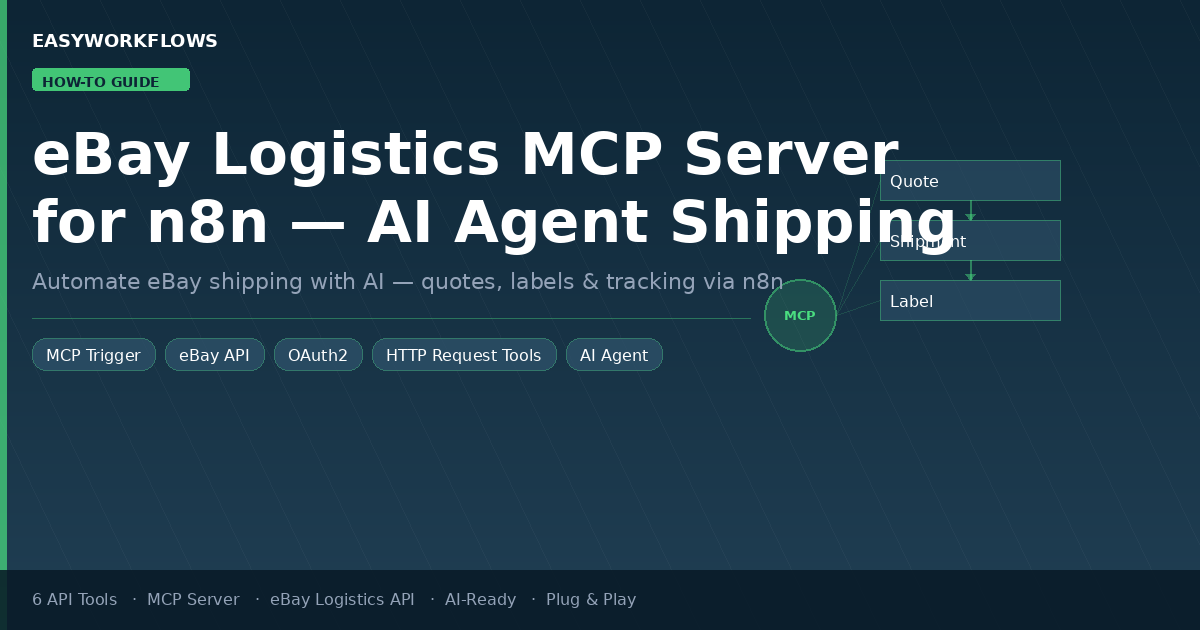
The workflow in this guide creates a single MCP server with 6 tools covering the full eBay Logistics API lifecycle:

Generate Shipping Quote
Retrieve Shipping Quote
Create Shipment
Retrieve Shipment
Cancel Shipment
Download Label

What Is the eBay Logistics API?

eBay’s Logistics API (part of the Sell APIs) lets eBay sellers programmatically manage the shipping side of their orders. It handles:

  • Shipping quotes — compare carrier rates (USPS, UPS, FedEx, etc.) based on package dimensions, weight, and addresses
  • Shipment creation — book a carrier and get a tracking number and label in one API call
  • Label management — download printable PDF labels directly from the API
  • Shipment tracking — retrieve real-time status updates for active shipments
  • Cancellation — void a label before carrier pickup

The API is available to all eBay sellers with a production developer account. It supports US, UK, Germany, France, and Australia marketplaces (set via the X-EBAY-C-MARKETPLACE-ID header in each request).

Workflow Architecture — The 10 Nodes

Here’s what the workflow looks like inside n8n once imported:

🔵 eBay Logistics MCP Server

The MCP Trigger node. Acts as the server entry point. When activated, exposes a webhook URL that AI agents connect to. All 6 tools register themselves here.

💰 Generate Shipping Quote

HTTP Request Tool calling POST /shipment_quote. The AI provides package dimensions, weight, and addresses. Returns carrier options and rates.

🔍 Retrieve Shipping Quote

HTTP Request Tool calling GET /shipment_quote/{id}. Looks up an existing quote by ID — useful to check rates before booking.

📦 Create Shipment from Quote

HTTP Request Tool calling POST /shipment. Books the shipment using a quote ID and rate selection. Returns tracking number and label URL.

📍 Retrieve Shipment Details

HTTP Request Tool calling GET /shipment/{id}. Retrieves full shipment status, carrier info, and tracking number.

❌ Cancel Shipment

HTTP Request Tool calling PUT /shipment/{id}/cancel. Voids a shipment and its label before carrier pickup.

🏷️ Download Shipping Label

HTTP Request Tool calling GET /shipment/{id}/download_label_file. Returns the shipping label as a PDF binary — ready to pipe to email, Google Drive, or a printer.

📋 3 Sticky Notes

Documentation nodes explaining setup instructions, quote tools, and shipment tools. Visible when you open the workflow in n8n — not part of execution.

All 6 HTTP Request Tool nodes connect to the MCP Trigger via ai_tool connections — a special connection type that registers them as tools rather than running them inline.

Step-by-Step Build Guide

Step 1 — Understanding the MCP Tool Pattern

Each HTTP Request Tool node in this workflow follows the same pattern. Let’s look at the Generate Shipping Quote tool as an example:

{
  "name": "generate_shipping_quote",
  "description": "Generate a shipping quote for a package. Provide package weight (in grams), dimensions (length/width/height in cm), origin address, and destination address...",
  "url": "https://api.ebay.com/sell/logistics/v1_beta/shipment_quote",
  "method": "POST",
  "jsonBody": "={{ $fromAI('quote_request', 'JSON body with package details...') }}"
}

The $fromAI() expression is the key here. When an AI agent calls this tool, it fills in the quote_request parameter with the actual JSON data. The description is what the AI reads to understand what to provide. Good descriptions = better AI behavior.

Step 2 — eBay API Endpoints Used

Tool Method Endpoint
Generate Shipping Quote POST /sell/logistics/v1_beta/shipment_quote
Retrieve Shipping Quote GET /sell/logistics/v1_beta/shipment_quote/{id}
Create Shipment POST /sell/logistics/v1_beta/shipment
Retrieve Shipment GET /sell/logistics/v1_beta/shipment/{id}
Cancel Shipment PUT /sell/logistics/v1_beta/shipment/{id}/cancel
Download Label GET /sell/logistics/v1_beta/shipment/{id}/download_label_file

All endpoints share the same base URL (https://api.ebay.com) and require two headers: Content-Type: application/json for POST/PUT requests and X-EBAY-C-MARKETPLACE-ID: EBAY_US (or your target marketplace).

Step 3 — Authentication Flow

The eBay Logistics API uses OAuth2 with the Authorization Code grant. Here’s what you need:

1

Create eBay Developer App

Go to developer.ebay.com → My Account → Get Application Keys → Create Application. Use Production (not Sandbox) for real shipping.

2

Set OAuth Redirect URI

Add your n8n callback URL: https://your-n8n-domain/rest/oauth2-credential/callback. This is where eBay sends the authorization code.

3

Enable sell.logistics Scope

In your app’s OAuth settings, add the scope: https://api.ebay.com/oauth/api_scope/sell.logistics. Without this, all API calls return 403.

4

Configure n8n OAuth2 Credential

Authorization URL: https://auth.ebay.com/oauth2/authorize | Token URL: https://api.ebay.com/identity/v1/oauth2/token. Paste App ID as Client ID and Cert ID as Client Secret.

5

Apply to All 6 Tool Nodes

Open each HTTP Request Tool node and select your eBay OAuth2 credential. Each node needs its own credential selection — this is by design for flexibility.

Token Refresh: eBay OAuth2 access tokens expire after 2 hours. n8n automatically refreshes them using the refresh token (which is valid for 18 months). You won’t need to re-authenticate manually.

Step 4 — Activating the MCP Server

Once credentials are configured, toggle the workflow to Active. The MCP Trigger node will display a webhook URL in this format:

https://your-n8n-domain/mcp/YOUR_WEBHOOK_ID/sse

This URL is your MCP server endpoint. Any MCP-compatible AI agent can connect to it. The agent will automatically discover the 6 available tools and their parameter descriptions.

Step 5 — Connecting Your AI Agent

Depending on which AI agent you’re using:

  • Claude (via claude.ai desktop): Add an MCP server under Settings → MCP Servers. Paste the endpoint URL. Claude will list the eBay tools in its available tools panel.
  • n8n AI Agent node: Add an “MCP Client” tool connection and paste the endpoint URL. Chain this with a Telegram Trigger or any other chat trigger for a conversational interface.
  • OpenAI Assistants: Use the MCP bridge endpoint — check n8n’s documentation for the OpenAI-compatible URL format.
  • LangChain/CrewAI: Use the MCPClient class with the SSE endpoint URL.

Real-World Use Cases

Automated eBay Order Fulfillment Assistant

Combine this MCP server with an n8n AI Agent node and a Telegram/Slack trigger. When an order comes in, your assistant can:

  1. Parse the buyer’s address from the eBay order notification
  2. Call Generate Shipping Quote with the package dimensions from your product catalog
  3. Present the cheapest carrier option to you via Telegram
  4. On your confirmation, call Create Shipment from Quote
  5. Forward the tracking number to the buyer automatically

Batch Shipping Label Generator

At end of day, trigger an n8n workflow that loops through all unshipped eBay orders, calls the Logistics API to generate labels for each, and saves them to a Google Drive folder — ready to print in one batch.

Voice-Controlled Shipping Manager

Connect a WhatsApp or Telegram voice message trigger to a Whisper transcription node, then to this MCP server. Ask “cancel my last shipment” or “what’s the cheapest way to ship this 2kg box to California” — and get answers immediately.

Customization Options

The workflow is designed as a foundation. Here are common extensions:

  • Add a Marketplace filter: Modify the X-EBAY-C-MARKETPLACE-ID header to support EBAY_GB, EBAY_DE, EBAY_FR, EBAY_AU based on your selling region
  • Add error handling: Insert an IF node after each HTTP Request Tool to check for API errors and notify via Telegram
  • Add a Google Sheets log: After Create Shipment, append the tracking number, carrier, and shipment ID to a sheet for record-keeping
  • Add Notion integration: Update a Notion order database with shipment status automatically
  • Multi-marketplace support: Duplicate the tool nodes and point each set to a different X-EBAY-C-MARKETPLACE-ID for sellers operating in multiple regions
⚠️ Production Warning: Shipments created via this API are real — your eBay seller account will be charged the carrier rates. Always test with eBay’s Sandbox environment (https://api.sandbox.ebay.com) before going live. Replace the base URL in each node when switching to sandbox.

Troubleshooting Common Issues

Error Cause Fix
401 Unauthorized Token expired or missing scope Re-authenticate in n8n Credentials. Ensure sell.logistics scope is enabled in eBay Developer app.
MCP tools not visible to AI Workflow not active Toggle the workflow to Active. MCP tools are only discoverable when the workflow is running.
Empty parameter error AI not passing required fields Improve your agent prompt to include package dimensions, addresses, and IDs when relevant.
403 Forbidden on logistics scope Wrong OAuth scope Add https://api.ebay.com/oauth/api_scope/sell.logistics to your eBay app and re-authenticate.
Redirect URI mismatch Wrong callback URL in eBay app Add the exact n8n callback URL to your eBay app’s OAuth Redirect URIs list.

Get the Ready-Made Template

Building this from scratch takes time — configuring each node, writing tool descriptions, testing the OAuth flow. The ready-made template includes the fully configured workflow JSON, Setup Guide PDF, and Credentials Guide PDF so you can be up and running in under 30 minutes.

eBay Logistics MCP Server for n8n

Includes: Cleaned workflow JSON · Setup Guide PDF · Credentials Guide PDF · All 6 tools pre-configured

Get the Template — $14.99

How to Build an AI Self-Healing Engine for n8n (Auto-Fix Failing Workflows with Azure OpenAI)

Every n8n user knows the feeling: you check your automations in the morning and find three workflows sitting in failed state — one timed out, one hit a bad API response, one has a broken parameter. Now you’re spending an hour debugging instead of building. What if your n8n instance could diagnose and fix those failures itself, while you slept?

That’s exactly what this workflow does. It’s a global AI-powered error handler that hooks into n8n’s built-in error trigger, fetches the failing workflow’s full JSON, hands it to Azure OpenAI GPT-4o, and either retries the execution automatically or patches the broken parameter — then posts the result to Slack. No manual debugging, no stale failures, no wasted morning.

💡 Prefer to skip the setup? Grab the ready-made template and have your self-healing engine running in under 15 minutes.

What You’ll Build

  1. A global error listener — n8n’s Error Trigger fires the moment any workflow in your instance fails, passing you the full execution context.
  2. A self-loop guard — A Filter node prevents the engine from accidentally triggering itself if it ever fails.
  3. An AI diagnostics layer — Azure OpenAI GPT-4o reads the error message, the failed node name, and the entire workflow JSON, then decides: is this a temporary network hiccup (RETRY) or a fixable logic error (FIX)?
  4. Automatic repair — For RETRY cases, the engine waits one minute and re-runs the failed execution. For FIX cases, it patches the broken parameter directly in the workflow JSON and pushes the update via the n8n API.
  5. Slack alerts for everything — You get a Slack message for every auto-fix applied, every auto-retry queued, and every error that needs a human to look at it.

How It Works — The Big Picture

+—————————————————————————+
| AI SELF-HEALING ENGINE |
| |
| [On Workflow Error] -> [Filter: Ignore Self] -> [Get Workflow JSON] |
| | |
| [Diagnose Error (GPT-4o)] |
| +- AI Model + + Output Schema -+ |
| | |
| [Determine Action] |
| / | \ |
| RETRY FIX MANUAL |
| | | | |
| [Cool Down] [Generate [Notify Manual |
| | Patch JSON] Fix (Slack)] |
| [Retry [Update |
| Execution] Workflow] |
| [Notify Success (Slack)] |
+—————————————————————————+

What You’ll Need

  • n8n (self-hosted or cloud) — access to Settings → API for an API key, and Settings → Variables to store it
  • Azure OpenAI account — with a GPT-4o deployment active (GPT-4 Turbo works too)
  • Slack workspace — with a channel designated for automation alerts
  • Build time from scratch: ~60 minutes | With template: ~15 minutes

Step-by-Step Build

Step 1 — On Workflow Error (Error Trigger)

This is n8n’s built-in errorTrigger node — nothing to configure. It fires whenever any workflow encounters an unhandled error and passes the full execution context:

{
  "workflow": {
    "id": "a7b3c9d1e2f4",
    "name": "Daily Shopify Order Sync"
  },
  "execution": {
    "id": "exec_88221",
    "lastNodeExecuted": "Send to Google Sheets",
    "error": {
      "message": "The caller does not have permission to execute the requested operation."
    }
  }
}
Tip: After this workflow is live, go into each of your other workflows’ Settings and set Error Workflow to this engine. That’s how n8n routes failures here.

Step 2 — Filter: Ignore Self

Compares $json.workflow.id against $workflow.id. Only passes items where the IDs differ — i.e., the failing workflow is not this engine itself. Without this, a failure in the engine would trigger an infinite loop.

Step 3 — Get Workflow JSON (HTTP Request)

Fetches the full workflow definition via the n8n API so GPT-4o can read its structure.

Field Value
Method GET
URL {{ $vars.N8N_BASE_URL }}/api/v1/workflows/{{ $json.workflow.id }}
Header: X-N8N-API-KEY {{ $vars.N8N_API_KEY }}
Tip: Store your n8n base URL and API key as n8n Variables (Settings → Variables). This keeps the workflow portable across environments.

Step 4 — Azure OpenAI GPT-4o + Decision Schema

The Azure OpenAI GPT-4o sub-node is the AI brain — configure it with your Azure endpoint and API key. The Decision Schema (Structured Output Parser) forces the AI to return a predictable structure:

{
  "state": "RETRY" | "FIX",
  "diagnosis": "Human-readable explanation",
  "patch": {
    "parameterName": "broken parameter name",
    "newValue": "corrected value"
  }
}

Step 5 — Diagnose Error (AI Agent)

The agent passes this prompt to GPT-4o with full context injected:

You are an n8n Senior Engineer.
Failed Workflow: {{ workflow.name }}
Error: {{ execution.error.message }}
Failed Node: {{ execution.lastNodeExecuted }}
Workflow JSON: {{ full workflow definition }}

Decide: RETRY (transient network error) or FIX (logic/parameter error).
If FIX, identify the broken parameter and provide the corrected value.

Example: if a Google Sheets node fails with “Invalid spreadsheet ID”, GPT-4o reads the workflow JSON, finds the node, and returns a FIX with the corrected documentId.

Step 6 — Determine Action (Switch) + Three Paths

Output Condition Path
0 — RETRY state === "RETRY" Cool Down (1 min) → Retry Execution
1 — FIX state === "FIX" Generate Patch JSON → Update Workflow → Slack success
2 — MANUAL Everything else Slack diagnostic alert for human review

For the FIX path, a Code node injects the AI’s corrected value into the workflow JSON, then an HTTP PUT call updates the live workflow via the n8n API. The patched node gets a visible annotation on the canvas so you can see exactly what changed.

Testing Your Workflow

  1. Create a test workflow: Schedule Trigger + HTTP Request to https://httpstat.us/500 (always returns an error).
  2. Set that test workflow’s Error Workflow to this engine.
  3. Execute the test workflow — it will fail immediately.
  4. Check your Slack channel for the diagnosis message within 30 seconds.
Issue Likely Cause Fix
Filter blocks all items Engine is its own Error Workflow Remove self-reference in Settings
401 Unauthorized on API calls API key missing or expired Regenerate key, update N8N_API_KEY variable
AI returns empty patch Error too ambiguous Normal — MANUAL path handles it
No Slack messages Wrong channel ID Right-click Slack channel → Copy Link, use last path segment

Frequently Asked Questions

Does this work on n8n Cloud or only self-hosted?

Both. You just need n8n API access, which is available on all plans. On Cloud, your base URL is something like https://yourname.app.n8n.cloud.

Can I use standard OpenAI instead of Azure OpenAI?

Yes. Swap the Azure OpenAI Chat Model sub-node for a standard OpenAI Chat Model node and connect your OpenAI API key. Everything else stays the same.

What kinds of errors can the AI actually fix automatically?

Common auto-fixable errors: malformed URL parameters, outdated document/spreadsheet IDs, wrong HTTP method, missing required headers, incorrect field names in node parameters. Network timeouts and rate limits go to the RETRY path instead.

Is it safe to let AI update my live workflows automatically?

The engine only patches the single broken parameter in the failed node — it doesn’t restructure anything. For high-stakes workflows, you can remove the auto-update step and have the AI post the suggested fix to Slack for human approval first.

What happens if the engine itself fails?

The Filter node prevents self-loops. If the engine has its own unhandled error, it stops gracefully without triggering itself. You’ll see the failure in n8n’s execution log like any other workflow.

Can I use Telegram instead of Slack for alerts?

Yes. Replace both Slack nodes with Telegram nodes, set your bot token, and use your Telegram chat ID. The message text is identical — just paste it in.

What’s Next

  • Approval gate: Route FIX suggestions to Slack with approve/reject buttons before auto-applying.
  • Audit log: Add a Google Sheets node at each branch end to log every auto-fix and retry.
  • Frequency escalation: If the same workflow fails more than 3 times in 24 hours, escalate to a high-priority channel or send an email.
  • PagerDuty/OpsGenie integration: For critical production failures that need immediate human response.

Get the AI Self-Healing Engine Template

Stop waking up to broken workflows. The ready-made template includes the complete n8n workflow JSON, a step-by-step Setup Guide PDF, and a Credentials Guide PDF — everything you need to go from zero to running in under 15 minutes.

Buy the template → $14.99

Instant download · Works on n8n Cloud and self-hosted · Lifetime access

How to Build an AI Email Support System with n8n, Gmail & Gemini

Your support inbox fills up with the same questions over and over — billing issues, login errors, feature questions — and your team spends hours writing responses that could have been templated. What if every new support email was automatically read, classified, answered with a personalized AI reply grounded in your actual documentation, and logged to a dashboard, all before your team even opens their laptop? That’s exactly what this n8n workflow does. It connects Gmail, GPT-4o-mini, Google Gemini, and Pinecone into a full AI support pipeline — no code required, no custom server needed.

Prefer to skip the setup? Grab the ready-made template → and be up and running in under 10 minutes.

What You’ll Build

  1. A Gmail trigger polls your support inbox every minute for new unread emails.
  2. GPT-4o-mini classifies each email into one of four categories: Technical Support, Billing, Urgent/Critical, or General Inquiry.
  3. A specialized AI agent (powered by Gemini 1.5 Flash + your company knowledge base in Pinecone) drafts a personalized, accurate reply for each category.
  4. The reply is automatically sent via Gmail, and every ticket is appended to a Google Sheets support dashboard.
  5. Urgent emails trigger an immediate Slack alert to your team with the full context.
  6. A companion sub-workflow watches a Google Drive folder and indexes new documents into Pinecone so your knowledge base stays up to date automatically.

How It Works — The Big Picture

The system is two workflows that share a Pinecone vector index. The main pipeline handles incoming emails in real time. The ingestion sub-workflow keeps the knowledge base current. Here’s the full architecture:

┌─────────────────────────────────────────────────────────────────────┐
│  MAIN WORKFLOW: AI EMAIL SUPPORT PIPELINE                           │
│                                                                      │
│  [Gmail Trigger] ──► [Text Classifier (GPT-4o-mini)]               │
│                              |                                       │
│          .─────────────────────────────.                  │
│          v                   v                   v                  v│
│  [Set TECH Metadata] [Set BILL Metadata] [Set URG Metadata] [Set GEN]│
│          v                   v                   v                  v│
│  [Technical Agent]  [Billing Agent]  [Urgent Agent]  [General Agent]│
│      (Gemini+RAG)     (Gemini+RAG)    (Gemini+RAG)    (Gemini+RAG)  │
│          |                   |            |    |           |         │
│          '─────────────────────────'            |           '         │
│                              v                 v                     │
│                [Send Gmail Reply]    [Slack Human Alert]             │
│                [Log to Google Sheets]                                │
└─────────────────────────────────────────────────────────────────────┘

  Shared: Pinecone Vector Store (RAG tool for all 4 agents)

┌─────────────────────────────────────────────────────────────────────┐
│  SUB-WORKFLOW: KNOWLEDGE BASE INGESTION                             │
│                                                                      │
│  [Google Drive Trigger] ──► [Download File]                         │
│                                     v                               │
│               [Recursive Text Splitter (1000/200)]                  │
│                                     v                               │
│              [Default Data Loader] ──► [Embeddings (OpenAI)]        │
│                                     v                               │
│                       [Pinecone Insert]                              │
└─────────────────────────────────────────────────────────────────────┘
  

What You’ll Need

  • n8n — cloud or self-hosted (v1.0+)
  • Gmail account — your support inbox, connected via Google OAuth2
  • OpenAI API key — for GPT-4o-mini (classifier) and text-embedding-3-small (vectors)
  • Google Gemini API key — free tier available at aistudio.google.com
  • Pinecone account — free starter tier works; create one index (1536 dimensions, cosine)
  • Slack workspace — for urgent escalation alerts
  • Google Sheets — your support ticket dashboard
  • Google Drive — a folder for your knowledge base documents (FAQs, guides, policies)

Estimated build time: 45–60 minutes from scratch, or under 10 minutes with the template.

Part 1 — The Email Classification & Response Pipeline

1 Gmail Trigger (gmailTrigger)

This is the entry point of the workflow. It polls your Gmail inbox every minute for new unread emails and passes each one downstream as an n8n item. Configure it to poll your support inbox — not your personal account.

In the node settings, set Poll Times to Every Minute and Read Status filter to Unread. Disable the Simple option so you get the full email body in the output.

After triggering, the data flowing forward looks like this:

{
  "id": "192ab3c4d5e6f700",
  "threadId": "192ab3c4d5e6f700",
  "from": "james.carter@gmail.com",
  "subject": "Getting a 404 error when trying to export my data",
  "text": "Hi, every time I click the Export button I get a 404 Not Found error...",
  "date": "2026-04-10T09:23:11.000Z",
  "labels": ["INBOX", "UNREAD"]
}
💡

Tip: Add a Gmail label filter like support or help to avoid your personal inbox getting processed. Forward all support emails to a dedicated support@ address and connect that account.

2 Text Classifier (textClassifier)

The classifier node uses GPT-4o-mini (via the OpenAI Classification Model sub-node) to read the email subject and body together and route it to one of four output ports. This is the decision node of the entire pipeline.

The four categories are configured with plain-English descriptions that guide the AI:

Output Port Category Description
0 technical_support Bugs, errors, login issues, integration failures
1 billing_payment Payments, invoices, subscriptions, refunds, pricing
2 urgent_critical Outages, data loss, security issues, needs immediate human
3 general_inquiry Feedback, feature requests, general questions
💡

Tip: The fallback category is set to general_inquiry — any ambiguous email that doesn’t clearly match the other three goes to the General Agent rather than causing an error.

3 Set Ticket Metadata (set)

Each of the four branches has its own Set Ticket Metadata node that enriches the data before passing it to the agent. These nodes stamp the ticket with a type prefix, a unique timestamp-based ID, and carry forward the sender and email body for the agent to use.

{
  "ticket_type": "technical_support",
  "ticket_id": "TECH-1712744591234",
  "received_at": "2026-04-10T09:23:11.234Z",
  "sender_email": "james.carter@gmail.com",
  "subject": "Getting a 404 error when trying to export my data",
  "email_body": "Hi, every time I click the Export button I get a 404 Not Found error..."
}

The four branches use ticket ID prefixes TECH-, BILL-, URG-, and GEN- so you can filter your Google Sheets dashboard by category at a glance.

4 Specialized AI Support Agents (agent)

This is where the real intelligence lives. Each branch has a dedicated AI agent with a tailored system prompt. All four agents share the same Google Gemini 1.5 Flash language model and the same Pinecone Vector Store as a RAG tool — so every agent searches your knowledge base before composing its reply.

Agent Tone Primary Behavior
Technical Support Professional, methodical Searches KB for solutions, provides step-by-step fixes
Billing Support Empathetic, policy-aware Looks up billing policies, handles refund questions carefully
Urgent Escalation Reassuring, brief Acknowledges urgency, promises 1-hour human follow-up, does NOT over-resolve
General Support Warm, conversational Handles feedback and feature requests, routes creatively

Each agent’s prompt includes the ticket ID, sender email, and subject so it can reference them in the reply. The output field $json.output contains the ready-to-send email reply body.

💡

Tip: The more documents you have in your Pinecone knowledge base, the better these agents perform. Even a simple FAQ document dramatically improves response accuracy. Start by uploading your most frequently asked questions as a plain text file.

5 Send Gmail Response (gmail)

After each agent finishes, the workflow automatically sends the reply. The node is configured with operation: reply — it threads the response back to the original email rather than creating a new one. The message body comes from {{ $json.output }} (the agent’s output) and the message ID comes from {{ $('Gmail Trigger').item.json.id }}.

📌

All four agents fan into the same Send Gmail Response node — n8n handles fan-in gracefully. The node runs once per item received regardless of which branch it came from.

6 Log to Support Dashboard (googleSheets)

Every resolved ticket is appended to your Google Sheets dashboard in parallel with sending the reply. The node writes seven columns per row: Ticket ID, Ticket Type, Sender Email, Subject, Received At, AI Response, and Status (set to “Responded”).

To configure: open the node, set Document ID to your spreadsheet’s ID (from its URL), and set Sheet Name to Support Tickets. Create the sheet with these exact column headers first.

7 Slack Human Escalation (slack)

Only the Urgent Escalation Agent branch connects to the Slack node. When an urgent email is detected, Slack receives a formatted alert with the ticket ID, sender, subject, and the full customer message. Your team can then follow up within the promised 1-hour window.

Configure the node: set Channel to your team’s support channel ID (right-click the channel in Slack → View channel details → copy the ID at the bottom). Make sure the n8n Slack app is invited to that channel with /invite @n8n.


Part 2 — Knowledge Base Ingestion

The second workflow runs in the background and keeps your Pinecone knowledge base populated. It fires automatically whenever you add a new document to your designated Google Drive folder.

8 Google Drive Trigger (googleDriveTrigger)

Watches a specific Google Drive folder for new files. When a document is added, it passes the file metadata to the next node. Set Trigger On to Specific Folder and paste your knowledge base folder’s Drive ID into the Folder to Watch field.

💡

Tip: Get a Google Drive folder ID by right-clicking the folder in Drive → Share → copy the URL. The ID is the string after /folders/ in the URL.

9 Google Drive Download (googleDrive)

Downloads the file content as binary data using {{ $json.id }} from the trigger. The downloaded file flows as binary to the data loader in the next step.

10 Chunk & Embed (textSplitter + embeddingsOpenAi)

The Recursive Character Text Splitter breaks the document into 1,000-token chunks with 200-token overlap — this overlap ensures sentences crossing chunk boundaries aren’t lost. The Default Data Loader wraps the binary input for the vector pipeline, and Embeddings OpenAI converts each chunk into a 1,536-dimensional vector using text-embedding-3-small.

11 Pinecone Insert (vectorStorePinecone)

The embedded chunks are stored in your Pinecone index. The agents in the main pipeline can search these immediately after insertion. Both workflows use the same index name — that’s the bridge between them.

📌

You only need to run the ingestion workflow once per document. It does not re-index on every execution — only when a new file appears in the Drive folder. To update a document, delete and re-add it.

The Data Structure

The Google Sheets support dashboard should have these exact column names (the workflow writes to them by name):

Column Type Example Description
Ticket ID Text TECH-1712744591234 Unique ticket identifier with category prefix
Ticket Type Text technical_support Category assigned by the classifier
Sender Email Text james.carter@gmail.com Customer’s email address
Subject Text Getting a 404 error on export Original email subject line
Received At Text 2026-04-10T09:23:11.234Z ISO 8601 timestamp when email was processed
AI Response Text Hi James, I understand you're... Full text of the AI reply sent
Status Text Responded Ticket status (auto-set to “Responded”)
📌

Column names are case-sensitive — they must match exactly as shown, including spaces. Create your Google Sheet with these headers in row 1 before activating the workflow.

Full System Flow

  Customer sends email
         |
         v
  [Gmail Trigger -- polls every 1 min]
         |
         v
  [Text Classifier -- GPT-4o-mini reads subject + body]
         |
  .------+-------------------.-------------------.
  v      v                   v                   v
TECH   BILLING             URGENT             GENERAL
  |      |                   |                   |
  v      v                   v                   v
[Set Metadata -- ticket_type, ticket_id, timestamps, email fields]
  |      |                   |                   |
  v      v                   v                   v
[AI Agent (Gemini 1.5 Flash + Pinecone RAG)]
  |      |                   |                   |
  '------+-------------------+-------------------'
         |                   |
         v                   v
  [Send Gmail Reply]   [Slack Alert] (urgent only)
  [Log to Sheets]

  -- -- -- -- -- BACKGROUND -- -- -- -- -- --

  New doc added to Drive folder
         |
         v
  [Drive Trigger] -> [Download] -> [Chunk+Embed] -> [Pinecone Insert]
  

Testing Your Workflow

  1. First, upload a test document to your Drive knowledge base folder — even a plain .txt file with a few sample FAQs. Wait about 30 seconds for the ingestion sub-workflow to index it.
  2. From a different email account, send an email to your Gmail support inbox with subject: “Getting a login error — can’t access my account”
  3. Wait up to 60 seconds for the Gmail trigger to poll (or use n8n’s manual trigger to run it immediately).
  4. Check the original sender’s inbox — an AI reply should arrive within 60–90 seconds.
  5. Open your Google Sheets dashboard and confirm a new row was added with all seven columns populated.
  6. For Slack testing: send an email with subject “CRITICAL: Complete platform outage, all users affected” — you should receive a Slack alert within 60 seconds.
Problem Likely Cause Fix
Trigger never fires Workflow not active Toggle the Active switch in n8n top-right
Credential error on Gmail OAuth token expired Go to Settings → Credentials → re-authorize Gmail OAuth2
No row in Sheets Wrong spreadsheet ID Open Log to Support Dashboard → verify Document ID matches sheet URL
No Slack notification Wrong channel ID or app not invited Check YOUR_SLACK_CHANNEL_ID; run /invite @n8n in the channel
Agents respond off-topic Empty Pinecone index Upload at least one document to Drive KB folder and wait for indexing
Classifier routes everything to General Input text too vague Refine category descriptions in the Text Classifier node

Frequently Asked Questions

Can I use this with a support@ email address instead of a personal Gmail?

Yes. Any Gmail or Google Workspace email account works — just connect that account’s OAuth2 credential. Google Workspace accounts (like support@yourcompany.com) are ideal since they separate support traffic from personal mail.

What happens if the AI doesn’t know the answer?

The agents are prompted to acknowledge what they don’t know rather than making things up. If the knowledge base returns no relevant results, the agent gives a polite, honest response and suggests a human specialist will follow up. You can customize this fallback behavior in each agent’s system prompt.

How much does this cost to run?

Very little for most support volumes. GPT-4o-mini costs roughly $0.15 per million input tokens — classifying 1,000 emails costs about $0.05. Gemini 1.5 Flash has a generous free tier (1,500 requests/day). text-embedding-3-small is similarly cheap. For a team handling 100–500 support emails per day, expect under $5/month in AI API costs.

Can I add a 5th category, like “Onboarding” or “Enterprise”?

Absolutely. Open the Text Classifier node, add a new category with a clear description, then add a corresponding branch: a new Set Ticket Metadata node, a new Agent node with a tailored system prompt, and connect them to the same Send Gmail Response and Log to Support Dashboard nodes. The workflow is fully modular by design.

What file types can I put in the Google Drive knowledge base folder?

The Default Data Loader supports most common text-based formats: PDF, DOCX, TXT, and Markdown. Google Docs should be exported as PDFs or DOCX first. Avoid purely image-based files — they require OCR preprocessing, which this workflow doesn’t include out of the box.

Will it re-process emails I’ve already replied to?

No. The Gmail Trigger is configured to only pick up unread emails. Once a reply is sent, Gmail automatically marks the thread as read, so the same email won’t be processed twice.

🚀 Get the AI Email Support System Template

Skip 45 minutes of setup — get the fully configured workflow JSON, Setup Guide PDF, and Credentials Guide PDF in one download. Import, fill in your API keys, and your AI support agent is live.

Get the Template →

Instant download · Works on n8n Cloud and self-hosted

What’s Next?

  • Add CSAT follow-up: 24 hours after the initial response, automatically send a one-question satisfaction survey and log responses back to Sheets.
  • Sentiment-based prioritization: Add a sentiment analysis node before the classifier — flag angry or frustrated emails for faster human review regardless of category.
  • Multi-channel support: Duplicate this pipeline for WhatsApp (via email or SMS) or Telegram to handle all support channels from a single n8n instance.
  • Weekly digest report: Add a scheduled workflow that queries your Sheets dashboard every Monday and sends a summary of ticket volumes by category to Slack.
  • Escalation SLA tracking: If an urgent ticket hasn’t been resolved within 1 hour, send a follow-up Slack ping to the on-call engineer.
n8n
Gmail
Google Gemini
OpenAI
Pinecone
Slack
Google Sheets
AI Automation
Customer Support
RAG

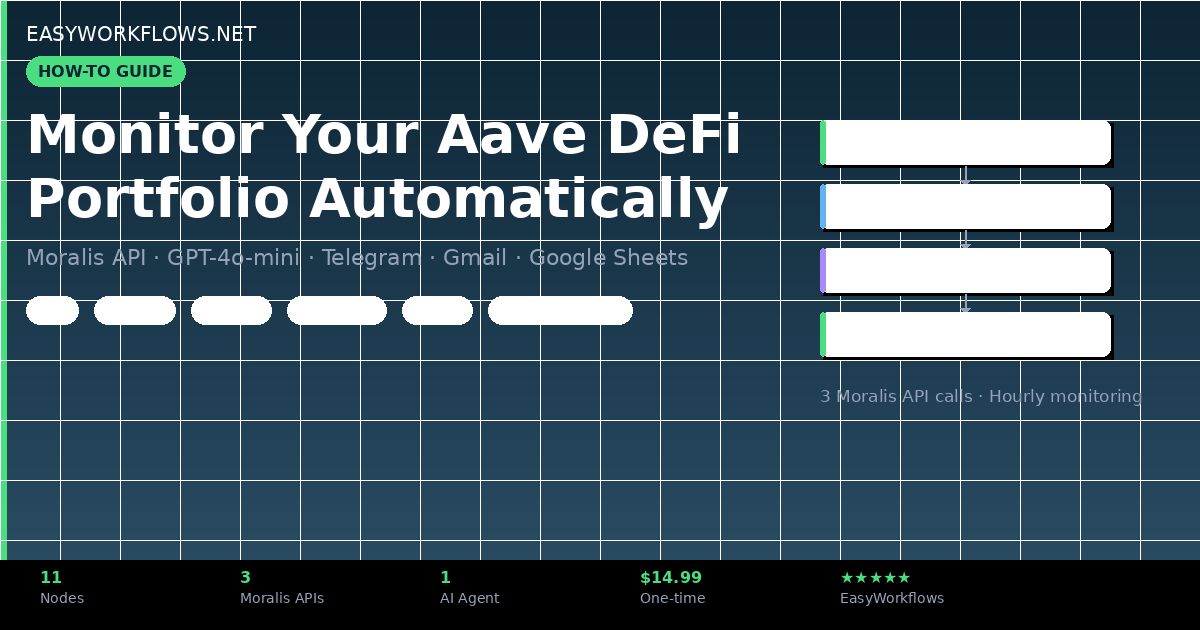
How to Monitor Your Aave DeFi Portfolio Automatically with n8n, Moralis & GPT-4o

If you’ve got funds in Aave V3, you’ve probably had the thought: “What if my health factor drops while I’m asleep and I get liquidated?” Checking manually every few hours isn’t realistic — and missing a warning can cost thousands of dollars. This guide shows you how to build a fully automated Aave portfolio monitor using n8n, the Moralis blockchain API, and GPT-4o-mini, delivering polished health reports straight to your Telegram and email on a fixed schedule. You’ll build it step by step, understand every node, and walk away with a system that protects your DeFi positions around the clock.

Prefer to skip the setup? Grab the ready-made template → and have it running in under 10 minutes.

What You’ll Build

  1. A scheduled n8n workflow that fires every hour (or any interval you choose).
  2. A Google Sheets wallet list — add or remove wallets without touching n8n at all.
  3. An AI Agent powered by GPT-4o-mini that calls three Moralis endpoints to fetch your Aave V3 positions, health factors, and liquidation risk.
  4. An automated Telegram message summarizing each wallet’s position in readable format.
  5. A formatted HTML email delivered to your inbox with the same data, beautifully styled.

How It Works — The Big Picture

┌────────────────────────────────────────────────────────────────────────┐
│  AAVE PORTFOLIO AI AGENT — n8n Workflow                                │
│                                                                        │
│  [Schedule Trigger]                                                    │
│       │ (every hour)                                                   │
│       ▼                                                                │
│  [Google Sheets] ──── reads wallet_address rows                        │
│       │                                                                │
│       ▼                                                                │
│  [Set Variables] ──── Wallet_Address, current_date                     │
│       │                                                                │
│       ▼                                                                │
│  [AAVE Portfolio AI Agent]  ◄── GPT-4o-mini (OpenAI Chat Model)        │
│       │         ◄── [Fetch DeFi Protocol Summary]  (Moralis)           │
│       │         ◄── [Fetch DeFi Positions Summary] (Moralis)           │
│       │         ◄── [Fetch Aave V3 Positions]      (Moralis)           │
│       │                                                                │
│       ├──────────────────────────────────────┐                         │
│       ▼                                      ▼                         │
│  [Send Telegram Report]            [Format Email Report]               │
│  (instant Telegram message)               │                            │
│                                           ▼                            │
│                                  [Send Email Report]                   │
│                                  (Gmail HTML email)                    │
└────────────────────────────────────────────────────────────────────────┘

The workflow loops through every row in your Google Sheet, running the full AI analysis for each wallet address. You can monitor as many wallets as you want — just add another row.

What You’ll Need

  • n8n — self-hosted (free) or n8n Cloud (~$20/mo). If you don’t have it, install n8n first.
  • Google account — for Google Sheets and Gmail (OAuth2).
  • Moralis account — free tier available at moralis.io. Generous free limits for personal use.
  • OpenAI account — pay-per-use, roughly $0.0002 per report generation.
  • Telegram bot — free, created via @BotFather in under 2 minutes.
  • Build time: ~45–60 minutes from scratch. Using the template: under 10 minutes.

Step 1 — Set Up Your Google Sheets Wallet List

Before touching n8n, create your wallet tracker spreadsheet. This is where the workflow reads wallet addresses each time it runs — no code changes needed to add or remove wallets.

Node: Wallet Addresses to Monitor (Google Sheets)

  1. Create a new Google Spreadsheet. Name the first sheet Aave Wallet Address.
  2. In cell A1, type exactly: wallet_address (lowercase, no spaces).
  3. Add wallet addresses in rows below — one per row:
| wallet_address                             |
|--------------------------------------------|
| 0xA221674eDB403A8F714F66Af74a2332c3CB5C0c3 |
| 0x742d35Cc6634C0532925a3b8D4C9E7A2B1234567 |

In n8n, configure the node to read from this sheet. The workflow iterates over each row, passing $json.wallet_address downstream.

💡 Tip: You can find active Aave V3 wallet addresses on Etherscan by looking at recent Aave V3 contract interactions. Use one for your initial test.

Step 2 — Set Variables: Wallet Address + Current Date

The Set Wallet Variables node extracts the wallet address from the sheet row and generates today’s date. These values are referenced by every downstream node.

Node: Set Wallet Variables (Set)

Configure two fields:

Field Name Value (n8n Expression) Purpose
Wallet_Address ={{ $json.wallet_address }} Passes wallet to AI Agent and API calls
current_date ={{ new Date().toISOString().split('T')[0] }} Adds today’s date to the report header

Data snapshot after this node:

{
  "Wallet_Address": "0xA221674eDB403A8F714F66Af74a2332c3CB5C0c3",
  "current_date": "2026-04-10"
}

Step 3 — The AI Agent + Three Moralis Tools

This is the engine of the workflow. An n8n AI Agent (powered by GPT-4o-mini) orchestrates three HTTP Request Tool nodes to pull live Aave data from Moralis, then writes a structured health report.

Step 3a — OpenAI Chat Model

The OpenAI Chat Model node connects to the AI Agent as its language model. Configure it with your OpenAI API key and set the model to gpt-4o-mini — fast, cheap, and more than capable for data formatting tasks.

Node: Fetch DeFi Protocol Summary (HTTP Request Tool)

Calls: GET https://deep-index.moralis.io/api/v2.2/wallets/{wallet}/defi/summary

Returns the list of all DeFi protocols the wallet is currently interacting with (Aave, Compound, Uniswap, etc.).

Authentication: Header Auth with header name X-API-Key and your Moralis API key as the value.

Example response structure:

{
  "protocols": [
    { "protocol_name": "aave-v3", "chain": "eth", "positions": 3 },
    { "protocol_name": "uniswap-v3", "chain": "eth", "positions": 1 }
  ]
}

Node: Fetch DeFi Positions Summary (HTTP Request Tool)

Calls: GET https://deep-index.moralis.io/api/v2.2/wallets/{wallet}/defi/positions

Returns protocol-level summary: total supply, borrow, and collateral values across all DeFi positions.

This gives the AI Agent a high-level picture before drilling into Aave V3 specifics.

{
  "active_protocols": 2,
  "total_usd_value": "22415.50",
  "protocol_breakdown": [
    {
      "protocol": "aave-v3",
      "supply_usd": "15000.00",
      "borrow_usd": "7500.00",
      "net_usd": "7500.00"
    }
  ]
}

Node: Fetch Aave V3 Positions (HTTP Request Tool)

Calls: GET https://deep-index.moralis.io/api/v2.2/wallets/{wallet}/defi/aave-v3/positions

This is the most detailed endpoint — returns pool-level Aave data including health factors, liquidation thresholds, and individual asset balances.

{
  "positions": [
    {
      "pool_address": "0x87870...",
      "pool_name": "Aave Lending Pool",
      "supply_balance_usd": "15000.00",
      "borrow_balance_usd": "7500.00",
      "collateral_value_usd": "15000.00",
      "health_factor": "1.87",
      "liquidation_threshold": "0.85",
      "liquidation_risk": false,
      "underlying_assets": [
        { "name": "Wrapped Ether", "symbol": "WETH", "balance": "4.2500" },
        { "name": "USD Coin", "symbol": "USDC", "balance": "5000.00" }
      ]
    }
  ]
}
💡 Health Factor is the most important number: above 1.0 = safe, below 1.0 = liquidation. The AI Agent is instructed to flag anything below 1.2 as a risk.

Step 3b — The AI Agent System Prompt

The AI Agent’s system prompt instructs GPT-4o-mini to call all three tools, collect the data, and format it into a structured Telegram-friendly report. Key formatting rules embedded in the prompt:

  • Format large numbers with commas: 15,000 not 15000
  • Display ETH values to 4 decimal places
  • Flag health factors below 1.2 with a ⚠️ liquidation risk warning
  • If no Aave V3 positions found, send: ❌ No Aave V3 positions found for this wallet.

Example Telegram output generated by the AI:

📊 Aave DeFi Health Report
Wallet: 0xA221674...CBf0c3
Date: 2026-04-10

▪️ Pool: Aave Lending Pool
• Supply: $15,000.00
• Borrowed: $7,500.00
• Collateral: $15,000.00
• Health Factor: 1.87
• Liquidation Threshold: 85%
• Liquidation Risk: No ✅

Underlying Assets:
- Wrapped Ether (WETH): 4.2500
- USD Coin (USDC): 5,000.00

Step 4 — Format the Email Report

The Format Email Report Code node takes the AI Agent’s plain text output and wraps it in an HTML email template — clean, readable, and professional.

Node: Format Email Report (Code — JavaScript)

The code extracts the wallet address from the AI output (via regex), converts markdown-style line breaks to HTML <br> tags, and wraps everything in a styled <div>:

const aiOutput = $json.output || "No data available.";
const date = new Date().toISOString().split('T')[0];

const walletMatch = aiOutput.match(/Wallet:\s*(0x[a-fA-F0-9]{40})/);
const wallet = walletMatch ? walletMatch[1] : "Unknown Wallet";

const htmlFormatted = aiOutput
  .replace(/---/g, '<hr>')
  .replace(/\n{2,}/g, '<br><br>')
  .replace(/\n/g, '<br>');

const htmlBody = `
  <div style="font-family: Arial, sans-serif; font-size: 14px; line-height: 1.6;">
    <h2 style="color: #1a56db;">Aave DeFi Health Report — ${date}</h2>
    ${htmlFormatted}
  </div>
`;

return [{ json: { wallet, subject: \`🛡️ Aave DeFi Health Report – ${date}\`, htmlBody } }];

Step 5 — Send Telegram + Email

The AI Agent’s output splits into two parallel branches — one for Telegram, one for email — so you get both notifications simultaneously.

Node: Send Telegram Report (Telegram)

Text: ={{ $json.output }} — the raw AI Agent output, which is already formatted for Telegram’s Markdown-like rendering.

Set your Chat ID to your personal Telegram chat ID (or a group chat for team-wide monitoring).

Node: Send Email Report (Gmail)

Subject: ={{ $json.subject }} (e.g., “🛡️ Aave DeFi Health Report – 2026-04-10”)
Message: ={{ $json.htmlBody }} — the styled HTML from the previous Code node.
Set Send To to your email address.

The Data Structure — Google Sheets Schema

The Google Sheet that drives this workflow is intentionally minimal. Here’s the full schema:

Column Type Example Description
wallet_address Text 0xA221674eDB403...C0c3 Ethereum wallet address to monitor. Must start with 0x.
📌 The column header must be exactly wallet_address — lowercase, no spaces. The n8n expression ={{ $json.wallet_address }} references this exact name. If you rename it, update the Set Variables node too.

Sample sheet layout:

wallet_address
0xA221674eDB403A8F714F66Af74a2332c3CB5C0c3
0x742d35Cc6634C0532925a3b8D4C9E7A2B1234567
0x1F98431c8aD98523631AE4a59f267346ea31F984

Full System Flow

  Google Sheet (wallet addresses)
          │
          ▼
  Row: { wallet_address: "0xA221..." }
          │
          ▼
  Set Variables → { Wallet_Address, current_date }
          │
          ▼
  AI Agent ────► Moralis /defi/summary          → protocol list
             ├──► Moralis /defi/positions        → supply/borrow totals
             └──► Moralis /defi/aave-v3/positions → health factor, assets
          │
          ▼
  GPT-4o-mini formats report
          │
    ┌─────┴─────────────────────┐
    ▼                           ▼
Telegram: text message    Code Node: HTML wrap
                               │
                               ▼
                         Gmail: HTML email

Testing Your Workflow

Run through this sequence to confirm everything is wired correctly:

  1. Add one known Aave V3 wallet to your Google Sheet (you can find examples on Etherscan by checking Aave V3 contract interactions).
  2. Click Test workflow in n8n.
  3. Watch the execution — each node should show a green checkmark.
  4. Check your Telegram — you should receive a formatted report within 15–30 seconds.
  5. Check your Gmail inbox — the HTML email should arrive within a minute.
Issue Likely Cause Fix
Moralis returns 401 Invalid API key Check the X-API-Key header value
AI returns “No Aave V3 positions” Wallet has no active Aave positions Use a different wallet known to have Aave V3 activity
Telegram not receiving Wrong Chat ID Message your bot first, then re-fetch via /getUpdates
Gmail auth error OAuth2 scope issue Re-authorize the Gmail credential in n8n
Google Sheets returns no rows Column header mismatch Ensure cell A1 is exactly: wallet_address

Frequently Asked Questions

How much does this cost to run?

The Moralis free tier gives you 40,000 compute units per month. Each wallet scan uses roughly 15–30 CU (three API calls). For 5 wallets scanned every hour: ~1,080 wallet scans/month = ~32,400 CU — comfortably within the free limit. OpenAI GPT-4o-mini costs approximately $0.0002 per report. For 5 wallets × 24 hourly runs = ~$0.024/day. Well under a dollar per day.

Can I monitor wallets on other chains, not just Ethereum?

Yes. Moralis supports multiple chains including Polygon, Arbitrum, Base, Optimism, and more. You’d need to modify the API endpoint URLs to include the chain parameter (e.g., ?chain=polygon). The rest of the workflow stays the same. For a multi-chain setup, consider adding a chain column to your Google Sheet alongside wallet_address.

What happens if a wallet’s health factor drops below 1.2?

The AI Agent is instructed to flag this with a ⚠️ warning in the Telegram message and email. However, this workflow is a monitoring system — it doesn’t automatically add collateral or repay debt. If you want automated liquidation protection, you’d need to extend the workflow with an Aave protocol interaction node (which requires additional DeFi-specific tooling).

Can I add more wallets without restarting the workflow?

Yes — that’s the whole point of the Google Sheets design. Just add a new row to your sheet with the wallet address. The next scheduled run will pick it up automatically. No changes to n8n required.

Can I run this more frequently than every hour?

Absolutely. Open the Schedule Trigger node and change the interval to 30 minutes, 15 minutes, or even every 5 minutes. Just be mindful of your Moralis API usage at higher frequencies.

Is gpt-4o-mini accurate enough for DeFi data analysis?

GPT-4o-mini is not doing the math — it’s formatting pre-calculated data from Moralis. The health factor, supply/borrow values, and liquidation thresholds come directly from Moralis’s API (which sources from on-chain data). GPT-4o-mini just turns that structured data into readable text. Accuracy of the underlying numbers is entirely dependent on Moralis data quality, which is production-grade.

Get the Ready-Made Template

🚀 AAVE Portfolio AI Agent — n8n Template

Skip the 45-minute build. Get the complete, importable workflow JSON plus a Setup Guide PDF and Credentials Guide PDF. Works on n8n Cloud and self-hosted.

Download the Template →

Instant download · One-time purchase · Lifetime access

What’s Next

  • Multi-chain support: Extend the Moralis calls to Polygon or Arbitrum by adding a ?chain=polygon parameter and a chain column in your Google Sheet.
  • Slack alerts: Replace or add a Slack node alongside the Telegram node to notify your team’s DeFi channel.
  • Notion dashboard: Store each report run in a Notion database for historical health factor tracking and trend analysis.
  • Threshold alerts only: Add an IF node before the Telegram/email nodes so you only get notified when the health factor falls below a custom threshold (e.g., 1.3), reducing notification noise.

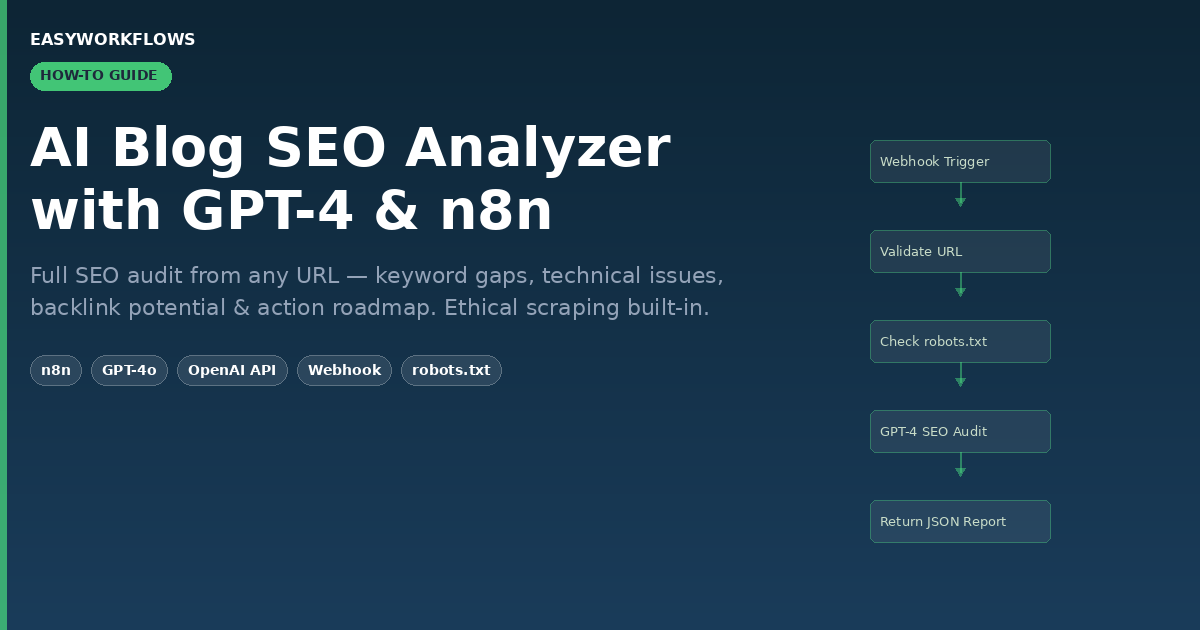
How to Build an AI Blog SEO Analyzer with n8n and GPT-4 (Full Audit in Seconds)

Every content team wants better SEO, but running a proper audit on a blog post takes 30–60 minutes of manual work: checking keyword density, analyzing meta elements, assessing readability, spotting technical issues, and identifying backlink opportunities. Multiply that by 10 posts a week and it becomes a full-time job. This n8n workflow fixes that — send a URL, get a complete GPT-4 SEO analysis in seconds, all with built-in ethical scraping compliance.

In this guide you’ll build the workflow from scratch, understand each node, and learn how to hook the output into Slack, Google Sheets, or any dashboard you already use.

💡 Prefer to skip the build? Grab the ready-made template → and be running in under 10 minutes.

What You’ll Build

  1. POST a blog URL to an n8n webhook from any app or script
  2. n8n validates the URL and checks the site’s robots.txt for scraping permission
  3. The blog’s HTML is fetched, converted to clean markdown, and fed to GPT-4o
  4. GPT-4 returns a structured JSON report with scores across four SEO dimensions
  5. The report comes back in the HTTP response — ready for dashboards, Sheets, or Slack

How It Works — The Big Picture

┌────────────────────────────────────────────────────────────────────┐
│ AI BLOG SEO ANALYZER │
│ │
│ [POST /webhook] → [Extract URL] → [Validate URL] │
│ ↓ │
│ [Check robots.txt] │
│ ↓ │
│ [Parse robots.txt Rules] │
│ ↓ │
│ [Scraping Allowed?] │
│ ↓ YES ↓ NO │
│ [Scrape Blog] [Return 403 Error] │
│ ↓ │
│ [Convert HTML → Markdown] │
│ ↓ │
│ [SEO Analysis (GPT-4o)] │
│ ↓ │
│ [Format Report] → [Return JSON Response] │
└────────────────────────────────────────────────────────────────────┘

What You’ll Need

  • n8n — self-hosted (free) or n8n Cloud
  • OpenAI API key — GPT-4o access required (~$0.01–$0.05 per audit depending on post length)
  • A webhook client — Postman, curl, or any HTTP tool
  • Build time: ~45 minutes from scratch
  • With the template: under 10 minutes (add API key + activate)

Step 1 — Webhook Trigger

Node: Webhook Trigger n8n-nodes-base.webhook

This is the entry point. It listens for POST requests and passes the payload to the rest of the workflow.

Configure it:

  1. Set HTTP Method to POST
  2. Set Response Mode to Using Respond to Webhook Node
  3. Copy the generated webhook URL — you’ll POST to this from your client
  4. Enable Allow all origins under Options if testing from a browser tool

Once activated, clients call it like this:

curl -X POST https://your-n8n.com/webhook/YOUR_WEBHOOK_ID \
  -H "Content-Type: application/json" \
  -d '{ "blogUrl": "https://techcrunch.com/2026/03/15/ai-startup-funding" }'
💡 Tip: The workflow accepts blogUrl, message, or url as the key — whichever you send, it’ll find the URL. Easy to connect from Telegram bots, Slack slash commands, or form submissions.

Step 2 — Extract Blog URL

Node: Extract Blog URL n8n-nodes-base.set

Normalizes the incoming payload so downstream nodes always find body.url regardless of which key the caller used.

Configure it (Manual mode):

  1. Add one assignment: Name = body, Type = Object
  2. Value = ={{ { url: $json.body.blogUrl || $json.body.message || $json.body.url } }}

Step 3 — Validate URL Input

Node: Validate URL Input n8n-nodes-base.code

Validates the URL format, ensures a value was provided, and sets default CSS selectors for content extraction. If the URL is invalid, the workflow throws an error here before wasting an API call.

// Output after validation:
{
  "url": "https://techcrunch.com/2026/03/15/ai-startup-funding",
  "userPrompt": "Provide a comprehensive SEO analysis with actionable recommendations.",
  "selectors": {
    "title": "title, h1",
    "content": "p, .content, article",
    "links": "a[href]",
    "images": "img[src]"
  },
  "timestamp": "2026-04-10T09:15:00.000Z"
}
💡 Tip: Extend the Code node to strip UTM parameters, normalize trailing slashes, or add a domain allowlist so only approved sites can be analyzed.

Step 4 — Check robots.txt (Ethical Scraping)

Node: Check robots.txt n8n-nodes-base.httpRequest

Fetches https://domain.com/robots.txt before touching any content. This is the ethical compliance gate.

Configure it:

  1. Method: GET
  2. URL: ={{ $json.url.split('/').slice(0, 3).join('/') }}/robots.txt
  3. Set timeout to 10,000 ms and max redirects to 3

Step 5 — Parse Robots.txt Rules

Node: Parse Robots.txt Rules n8n-nodes-base.code

Reads the robots.txt response and checks whether the target URL path is disallowed. If scraping is blocked, it sets scrapingAllowed: false.

// If scraping is permitted, output looks like:
{
  "url": "https://techcrunch.com/2026/03/15/ai-startup-funding",
  "robotsInfo": "robots.txt found and analyzed",
  "scrapingAllowed": true,
  "timestamp": "2026-04-10T09:15:00.123Z"
}
💡 Tip: Many sites block /wp-admin/ and /search/ but allow /blog/ and /articles/. Regular blog posts are almost always permitted.

Step 6 — Scraping Allowed? (IF Branch)

Node: Scraping Allowed? n8n-nodes-base.if

Routes the workflow: scrapingAllowed = true proceeds to scrape; false returns a 403 error immediately.

Configure it:

  1. Add condition: Left Value = ={{ $json.scrapingAllowed }}
  2. Operator: Boolean → Is True
  3. Connect Output 0 (TRUE) → Scrape Blog Content
  4. Connect Output 1 (FALSE) → Return Scraping Blocked Error

Step 7 — Scrape Blog Content

Node: Scrape Blog Content n8n-nodes-base.httpRequest

Fetches the full HTML of the blog post. n8n’s HTTP Request node handles redirects, compressed responses, and most edge cases automatically.

Configure it:

  1. Method: GET
  2. URL: ={{ $json.url }}
  3. Set timeout to 30,000 ms and max redirects to 5
{
  "data": "<!DOCTYPE html><html>...</html>",
  "headers": { "content-type": "text/html; charset=utf-8" },
  "statusCode": 200
}

Step 8 — Convert HTML to Markdown

Node: Convert HTML to Markdown n8n-nodes-base.markdown

Strips HTML tags and converts content to clean markdown — 40–60% fewer tokens than raw HTML, saving significant GPT-4 costs.

Configure it:

  1. HTML: ={{ $json.data }}
  2. Enable Code Block Style: Fence
  3. Enable Use Link Reference Definitions
💡 Tip: For very long articles (>8,000 words), add a Code node to truncate: return [{ json: { data: $json.data.substring(0, 24000) } }]

Step 9 — SEO Analysis with GPT-4o

Node: SEO Analysis (GPT-4) @n8n/n8n-nodes-langchain.openAi

The core of the workflow. Sends the markdown to GPT-4o with a structured prompt covering four SEO dimensions, returns a JSON report.

Configure it:

  1. Model: GPT-4o
  2. Temperature: 0.1 (precise, repeatable analysis)
  3. JSON Output: Enable
  4. Add your OpenAI credential
  5. User Message: ={{ $json.data }}
{
  "overallScore": 73,
  "executiveSummary": {
    "strengths": [
      "Strong primary keyword placement in H1 and first paragraph",
      "Good internal linking structure with 8 contextual links"
    ],
    "opportunities": [
      "Meta description missing — critical for CTR",
      "No FAQ schema markup for People Also Ask eligibility"
    ],
    "priorityActions": [
      "Write a 155-character meta description with primary keyword",
      "Add FAQ schema for top 5 questions in the article"
    ]
  },
  "keywordStrategy": {
    "primaryKeywords": ["AI startup funding", "venture capital 2026"],
    "longTailOpportunities": ["how much AI startup funding in 2026"]
  },
  "implementationRoadmap": {
    "quickWins": ["Add meta description", "Fix broken image alt tags"],
    "shortTerm": ["Create FAQ section", "Build 3 internal cluster posts"],
    "longTerm": ["Guest post campaign targeting DA 50+ sites"]
  }
}
💡 Tip: Customize the system prompt for your niche — e.g., “This is a SaaS marketing blog targeting CTOs” — for more targeted keyword and tone recommendations.

Step 10 — Format Analysis Report

Node: Format Analysis Report n8n-nodes-base.code

Parses the OpenAI response, extracts the JSON, and wraps it with metadata (URL, timestamp) before returning to the caller.

{
  "success": true,
  "url": "https://techcrunch.com/2026/03/15/ai-startup-funding",
  "analyzedAt": "2026-04-10T09:15:44.321Z",
  "overallScore": 73,
  "report": { ... }
}

Connecting the Output to Other Tools

Once running, chain the output of Format Analysis Report into:

  • Google Sheets: Append a row per URL with score, quick wins, and keyword gaps — build a running SEO audit log
  • Slack: Post scores and priority actions to #seo-reports channel every time a post is analyzed
  • Notion: Create a database record per analysis with scores as structured properties
  • Airtable: Track keyword opportunities across your entire content library in one view

The SEO Report Structure

Field Type Example Description
overallScore Integer 73 Aggregate SEO score 0–100
contentOptimization.score Integer 78 Content quality and keyword integration
keywordStrategy.primaryKeywords Array ["AI funding"] Top keywords GPT-4 detected in content
keywordStrategy.longTailOpportunities Array ["best AI startups 2026"] Missing keyword angles to target
technicalSEO.score Integer 65 Technical health score
technicalSEO.issues Array ["No canonical tag"] Technical problems found
backlinkPotential.score Integer 81 How link-worthy the content is
implementationRoadmap.quickWins Array ["Add meta description"] High-impact, low-effort fixes

Scaling This Workflow

The webhook trigger is perfect for on-demand audits. For batch use, replace it with a Schedule Trigger + Google Sheets source to run overnight audits across your entire blog library. Or wire it to an RSS feed node to auto-audit every new post you publish.

For high-volume use (100+ URLs/day), add a Wait node between the HTTP scrape and GPT-4 call. OpenAI’s Tier 1 rate limit on GPT-4o handles roughly 20–30 blog audits per minute — more than enough for most teams.

Skip the Build — Get the Ready-Made Template

Includes the complete workflow JSON, a step-by-step Setup Guide, and a Credentials Guide showing exactly where to find your OpenAI API key. Import, configure, and start auditing in under 10 minutes.

Download the Template — $14.99 →

How to Repurpose Instagram Reels into AI-Rewritten Scripts with n8n

You probably already follow a dozen Instagram accounts in your niche. Every day they post Reels about tools, tips, and trends your audience would love. But watching each video, taking notes, and rewriting the content in your own voice takes hours you don’t have. What if you could feed n8n a list of Instagram handles and wake up to a spreadsheet full of AI-rewritten scripts ready to record?

That’s exactly what this workflow does. It pulls the latest Reel from each account on your list, transcribes the audio, uses GPT-4O to analyze and filter the content, researches the tools mentioned via Perplexity AI, and writes a brand-new script tailored to your audience. The whole thing runs in minutes, not hours.

Prefer to skip the setup? Grab the ready-made template → and be up and running in under 10 minutes.

What You’ll Build

  1. Add Instagram handles to a Google Sheet (e.g., mkbhd, garyvee, levelsio).
  2. Click “Execute” in n8n. The workflow fetches each account’s latest Reel, downloads the video, and transcribes the audio with OpenAI Whisper.
  3. GPT-4O analyzes each transcript to decide if it covers a tool or technology worth repurposing, then generates step-by-step usage instructions and content improvement suggestions.
  4. Perplexity AI researches each tool for unique facts your competitors probably missed.
  5. GPT-4O writes a polished, original script (~100 words) in your chosen tone, complete with a call-to-action, and saves everything to your output sheet.

How It Works — The Big Picture

The workflow is a single linear pipeline that loops through each Instagram profile on your list. Here’s the full flow:

┌──────────────────────────────────────────────────────────────────────────────────┐
│  INSTAGRAM CONTENT REPURPOSING PIPELINE                                    │
│                                                                            │
│  [Manual Trigger] → [Google Sheets] → [Loop] → [Scrape Instagram]       │
│       → [Extract URLs] → [Download Video] → [Whisper Transcribe]         │
│       → [GPT-4O Analyze] → [Perplexity Research] → [GPT-4O Rewrite]     │
│       → [Save to Sheets] → [Loop Back]                                   │
└──────────────────────────────────────────────────────────────────────────────────┘
  

What You’ll Need

  • n8n (Cloud or self-hosted, version 1.0+)
  • OpenAI API key — for GPT-4O text generation and Whisper audio transcription
  • Perplexity AI API key — for web research on identified tools
  • Scrape Creators API key — for fetching Instagram post data (paid service)
  • Google account — for Google Sheets OAuth2 access
  • A Google Sheet with a “profiles” tab containing an “Instagram Handles” column

Estimated build time: 35–50 minutes from scratch, or under 10 minutes with the template.

Part 1 — Loading Instagram Profiles

1 Manual Trigger

The workflow starts with a manual trigger, meaning you click “Execute Workflow” in n8n to kick it off. This gives you full control over when the content research runs. If you’d prefer an automated schedule, you can swap this for a Schedule Trigger node set to run daily or weekly.

2 Read Instagram Profiles (Google Sheets)

This node connects to your Google Sheet and reads every row from the “profiles” tab. Each row should have one Instagram handle (without the @ symbol) in a column called Instagram Handles.

[
  { "Instagram Handles": "mkbhd" },
  { "Instagram Handles": "garyvee" },
  { "Instagram Handles": "levelsio" }
]
💡

Tip: Add as many handles as you want. The workflow processes them one at a time via the loop, so you won’t hit rate limits as easily.

3 Loop Over Items

The Split In Batches node processes one Instagram handle at a time. After each profile is fully processed (transcribed, analyzed, rewritten, and saved), the loop returns here to grab the next one. This prevents API overload and makes debugging easier.

Part 2 — Fetching and Processing Video

4 Fetch Latest Instagram Post (HTTP Request)

This node calls the Scrape Creators API to retrieve the most recent post from the current Instagram handle. It sends a GET request with the handle and a limit of 1, returning the post’s metadata including video URLs, caption, engagement counts, and timestamps.

{
  "items": [{
    "id": "3456789012345678901",
    "caption": { "text": "This AI tool is completely free..." },
    "video_versions": [
      { "url": "https://scontent.cdninstagram.com/v/..." }
    ],
    "like_count": 12453,
    "comment_count": 892,
    "play_count": 245000
  }]
}

5 Extract Video URLs (Set Node)

Pulls out the key fields we need from the Instagram API response: the high-resolution video URL, a low-res fallback, the caption text, and the post ID. This keeps the data clean for downstream nodes.

6 Download Video (HTTP Request)

Takes the video URL from the previous step and downloads the actual MP4 file from Instagram’s CDN. The binary data is passed directly to the next node for transcription. Error handling is set to continue even if the download fails (some posts may be images, not videos).

7 Transcribe Video (OpenAI Whisper)

Sends the downloaded video file to OpenAI’s Whisper model for speech-to-text transcription. Whisper handles multiple languages and accents well, so it works even with international content creators. The output is a plain text transcript of everything said in the Reel.

{
  "text": "Hey there. So I just wanted to let you know about an AI text-to-speech generator that has recently become available. It doesn't cost anything at all. It has a lot of voices and the best part is you don't need to sign up..."
}
💡

Tip: Whisper costs $0.006 per minute of audio. A typical 60-second Reel costs less than a penny to transcribe.

Part 3 — AI Content Analysis and Script Rewriting

8 Analyze Content with GPT-4O

This is where the intelligence happens. GPT-4O receives the transcript and performs three tasks in one call: it decides whether the content is about a tool, technology, or AI topic worth repurposing (verdict: true/false). If relevant, it identifies the specific tools mentioned, writes step-by-step usage instructions, and suggests how to make the content more appealing to your audience.

{
  "verdict": "true",
  "tools": ["Speechma"],
  "stepByStep": "1. Visit speechma.com\n2. Enter your text...",
  "suggestion": "Create a comparison test against ElevenLabs...",
  "searchPrompt": "Speechma, the AI text-to-speech tool"
}
📌

If the verdict is “false” (the Reel wasn’t about a relevant tool), the workflow still continues through the remaining nodes but produces empty results. You can add an IF node after this step to skip irrelevant content entirely.

9 Research Tools via Perplexity (HTTP Request)

Uses the searchPrompt from the previous step to query Perplexity AI’s Sonar Pro model. The prompt asks for three interesting, peculiar facts about the tool. This gives your rewritten script unique angles that the original creator didn’t cover, making your content genuinely original rather than a simple rehash.

10 Write Repurposed Script (GPT-4O)

The final AI step. GPT-4O receives everything gathered so far: the tool names, the original rough transcript, the Perplexity research, the step-by-step guide, and the content improvement suggestions. It produces a polished ~100-word script in a casual, direct tone with a call-to-action ending.

The prompt includes a one-shot example so GPT-4O understands the exact format and tone you want. You can customize this example in the node parameters to match your brand voice.

{
  "script": "Hey\u2014there's a completely new AI text to speech generator that's just as good as ElevenLabs, but FREE.\nIt allows you to choose from over 400 voices, it supports 60 languages, and it's all completely unlimited with no signup required.\nJust head over to this website\nPaste your text\nChoose one of the voices\nAnd click generate\nThat's it! Your AI speech is now ready to use.\nYou can use this voice for YouTube videos, TikToks, or whatever you like.\nSo go try it yourself.\nJust Comment \"speech\" and I'll share the link with you."
}

Part 4 — Saving Results

11 Save Results to Google Sheets

Writes all the collected data to your output sheet in one row per profile. The row includes the post ID, timestamp, caption, video URL, engagement metrics (likes, comments, views), video duration, the original transcript, and the rewritten script. The node uses “append or update” mode, matching on post ID so re-running the workflow won’t create duplicates.

After saving, execution loops back to Step 3 to process the next Instagram profile on your list.

The Data Structure

The workflow uses two tabs in the same Google Sheet. Here’s the schema for the output tab where results are saved:

Column Type Example Description
id String 3456789012345678901 Unique Instagram post ID (used as match key to prevent duplicates)
Username String mkbhd The Instagram handle this Reel came from
timeStamp ISO Date 2026-04-08T14:23:00.000Z When the original Reel was posted
caption String This AI tool is completely free… The original caption text from the Instagram post
videoUrl URL https://scontent.cdninstagram.com/… Direct link to the video file
likesCount Number 12453 Number of likes on the original post
commentcount Number 892 Number of comments on the original post
videoViewsCount Number 245000 Number of video views/plays
Duration Number 58.2 Video length in seconds
original Script String Hey there. So I just wanted to… Raw Whisper transcription of the audio
rewritten Script String Hey—there’s a completely new… AI-rewritten script ready to record
📌

Column names must match exactly as shown above. The workflow references these names in expressions. If you rename columns in Google Sheets, update the corresponding field mappings in the Save Results node.

Full System Flow

  Google Sheet ("profiles" tab)
       │
       ▼
  ┌──── LOOP (per profile) ───────────────────────────────────────────┐
  │  Scrape Creators API → Download MP4 → Whisper (transcript)    │
  │       │                                                         │
  │       ▼                                                         │
  │  GPT-4O Analyze → Perplexity Research → GPT-4O Rewrite         │
  │       │                                                         │
  │       ▼                                                         │
  │  Save to Google Sheet ("output" tab)                             │
  └─────────────────────────────────────────────────────────────┘
  

Testing Your Workflow

  1. Add 2–3 Instagram handles to your “profiles” sheet. Pick accounts that post Reels about tools or tech (e.g., mkbhd, mattvidpro).
  2. Click Execute Workflow in n8n and watch the execution log.
  3. After it finishes, open your output Google Sheet. You should see one row per profile with all fields populated.
  4. Read the “rewritten Script” column. It should contain an original, ~100-word script in a casual tone with a CTA at the end.
Problem Likely Cause Fix
Fetch node returns empty Account is private or handle is misspelled Double-check the handle exists and the account is public
Transcription is blank The latest post is an image, not a video The account’s most recent post must be a Reel with audio
GPT-4O says verdict: false The Reel wasn’t about a tool or technology This is expected. The workflow filters for relevant content only
Perplexity returns an error API key missing or wrong model name Verify the Authorization header includes “Bearer ” prefix. Check the model is “sonar-pro”
Sheets not updating Wrong spreadsheet ID or sheet name Open the Google Sheets nodes and reselect your spreadsheet from the dropdown

Frequently Asked Questions

Can I use this workflow for niches other than AI and automation?

Yes. The GPT-4O prompts in the Analyze and Write Script nodes are configured for an AI/automation audience by default, but you can edit them to target any niche. Change the system prompt and the filtering criteria to match fitness, finance, cooking, or whatever your channel covers.

How much does it cost to run per profile?

Roughly $0.02–0.05 per profile. Whisper transcription costs about $0.006/minute, GPT-4O runs two calls at ~$0.01 each, and Perplexity is $0.005 per query on the Sonar Pro plan. The Scrape Creators API cost depends on your plan.

What happens if an Instagram account posts an image instead of a Reel?

The Download Video and Transcribe Video nodes have error handling set to “continue on error.” If there’s no video to download, those steps produce empty output. GPT-4O will return a verdict of “false” and the row will still be saved with whatever metadata was available.

Can I run this automatically on a schedule instead of manually?

Absolutely. Replace the Manual Trigger node with a Schedule Trigger. Set it to run daily at a specific time (e.g., 8:00 AM) and you’ll have fresh scripts waiting for you every morning.

Is there a risk of Instagram blocking my requests?

The Scrape Creators API handles Instagram access through their infrastructure, so your IP isn’t exposed. However, hitting the API aggressively (hundreds of requests per minute) could trigger their rate limits. The loop-based design of this workflow naturally throttles requests to a safe pace.

🚀 Get the Instagram Content Repurposing Template

Skip the 45-minute build. Get the complete workflow JSON, a setup guide, and a credentials guide with step-by-step API key instructions for every service.

Get the Template →

Instant download · Works on n8n Cloud and self-hosted

What’s Next?

  • Add a Telegram or Slack notification after the script is written so you get an instant alert with the rewritten content.
  • Build a TikTok version using a TikTok scraping API instead of Scrape Creators to repurpose short-form video from multiple platforms.
  • Add an AI image generation step (DALL-E or Midjourney via API) to auto-create thumbnail images alongside each script.
  • Connect to a content calendar (Notion, Airtable, or Trello) to automatically schedule the rewritten scripts for production.
n8n
Instagram
OpenAI
GPT-4O
Perplexity
Google Sheets
Whisper
content repurposing
automation
social media

How to Automate Zendesk Support with AI Using n8n and RAG

Your support team is drowning in repetitive tickets while customers wait hours for answers that already exist in your knowledge base. Password resets, shipping questions, “how do I cancel” — the same 20 questions eating up 80% of your agents’ time. What if every new Zendesk ticket got an accurate, knowledge-base-backed AI reply within seconds, and only the genuinely tricky ones reached a human?

That’s exactly what you’ll build in this guide. Using n8n, OpenAI, Supabase, and a RAG (Retrieval-Augmented Generation) pipeline, you’ll create a workflow that reads every incoming Zendesk ticket, searches your knowledge base for relevant answers, generates a professional reply, and posts it directly to the ticket — automatically. When the AI doesn’t have a confident answer, it escalates to your human team with a clear tag so nothing falls through the cracks.

Prefer to skip the setup? Grab the ready-made template and be up and running in under 10 minutes.

What You’ll Build

  1. A new ticket arrives in Zendesk — the workflow fires instantly via webhook.
  2. The AI agent searches your Supabase-hosted knowledge base using vector similarity (RAG) and drafts a response grounded in your actual documentation.
  3. If the knowledge base has a solid answer, the AI posts the reply directly to the Zendesk ticket and tags it ai_reply.
  4. If the AI can’t find relevant information, it tags the ticket human_requested so your team picks it up — no guessing, no hallucinations.
  5. Every conversation is stored in Postgres memory, so follow-up tickets from the same customer retain context.

How It Works — The Big Picture

The entire workflow is a single n8n pipeline with a smart routing branch at the end. Here’s the flow from ticket to resolution:

┌──────────────────────────────────────────────────────────────────────────────┐
│  AI-POWERED ZENDESK SUPPORT WITH RAG                                        │
│                                                                              │
│  [Zendesk Webhook] → [Extract Ticket Data] → [RAG AI Agent]                │
│                                                     │                        │
│                                        ┌────────────┴────────────┐          │
│                                         │  Check If Escalation    │         │
│                                        │      Needed             │          │
│                                        └────┬──────────┬─────────┘          │
│                                     YES ↓              ↓ NO                  │
│                               [Tag: human_      [Post AI Reply]             │
│                                requested]              ↓                     │
│                                                  [Tag: ai_reply]            │
│                                                                              │
│  Sub-components of the RAG AI Agent:                                        │
│  ┌──────────────────────────────────────────────┐                            │
│  │ [OpenAI GPT-4o-mini]  [Postgres Memory]      │                           │
│  │ [Knowledge Base Tool → Supabase Vectors]     │                           │
│  │ [OpenAI Embeddings]                         │                           │
│  └──────────────────────────────────────────────┘                           │
└──────────────────────────────────────────────────────────────────────────────┘
  

What You’ll Need

  • n8n — self-hosted or n8n Cloud (any plan)
  • Zendesk — any plan with API access and trigger/webhook support
  • OpenAI API key — for GPT-4o-mini (chat) and text-embedding-3-small (embeddings)
  • Supabase account — free tier works; you’ll need a project with pgvector enabled for the vector store
  • PostgreSQL database — Supabase’s built-in Postgres works, or any external Postgres instance for conversation memory
  • Your knowledge base content — FAQ articles, product docs, troubleshooting guides already written and ready to embed

Estimated build time: 45–60 minutes from scratch, or under 10 minutes with the template.

Part 1 — Receiving and Parsing Zendesk Tickets

1 Receive New Ticket (Webhook)

This node listens for incoming HTTP POST requests from Zendesk. Every time a new ticket is created, Zendesk’s trigger sends the ticket data to this webhook URL.

  1. Add a Webhook node to your canvas.
  2. Set the HTTP Method to POST.
  3. Set the Path to zendesk-new-ticket (or any slug you prefer).
  4. Copy the generated webhook URL — you’ll paste this into Zendesk’s trigger configuration.

When a ticket arrives, the webhook receives a JSON payload like this:

{
  "body": {
    "ticket_id": "48291",
    "ticket_status": "new",
    "requester_name": "Sarah Thompson",
    "requester_email": "sarah.thompson@gmail.com",
    "subject": "Can't reset my password",
    "description": "Hi, I've been trying to reset my password for the last hour but the reset email never arrives. I've checked spam. Can you help?"
  }
}
💡

Tip: In Zendesk, go to Admin Center → Objects and rules → Triggers. Create a trigger that fires when “Ticket is Created” and set the action to “Notify active webhook” with your n8n webhook URL. Include ticket_id, subject, description, requester_name, requester_email, and ticket_status as JSON fields in the webhook body.

2 Extract Ticket Data (Set Node)

The raw webhook payload is nested inside body. This Set node extracts the fields you need into clean, top-level variables that the rest of the workflow can reference easily.

  1. Add a Set node after the Webhook.
  2. Create assignments for: ticket_id, ticket_status, requester_name, requester_email, subject, description, and timestamp.
  3. For description, use the expression {{ ($json.body.description || '').split('\n\n').slice(-1)[0].trim() }} — this strips quoted reply chains and keeps only the customer’s latest message.
  4. For timestamp, use {{ $now.format('yyyy-MM-dd HH:mm') }} so you have a record of when the workflow processed the ticket.

After this node, the data flowing forward looks like:

{
  "ticket_id": "48291",
  "ticket_status": "new",
  "requester_name": "Sarah Thompson",
  "requester_email": "sarah.thompson@gmail.com",
  "subject": "Can't reset my password",
  "description": "I've been trying to reset my password for the last hour but the reset email never arrives. I've checked spam. Can you help?",
  "timestamp": "2026-04-10 14:23"
}

Part 2 — The RAG AI Agent

This is the brain of the workflow. The AI Agent node connects to three sub-components: a language model (GPT-4o-mini), a conversation memory (Postgres), and a knowledge base retrieval tool (Supabase vector store). Together, they form a RAG pipeline that grounds every response in your actual documentation.

3 Generate AI Response (AI Agent)

The Agent node receives the customer’s ticket and orchestrates the entire reasoning process. It decides whether to search the knowledge base, reads the results, and composes a professional reply.

  1. Add an AI Agent node.
  2. Set the Prompt Type to Define.
  3. Set the input text to:
    Customer: {{ $json.requester_name }}
    Subject: {{ $json.subject }}
    Message: {{ $json.description }}
  4. In the System Message, paste the following instructions that tell the agent how to behave:
You are a professional, empathetic customer support agent. Your job is to help
customers by answering their questions accurately using ONLY the information
from the retrieved knowledge base documents.

Rules:
1. Always be polite, professional, and concise.
2. If the knowledge base contains a clear answer, provide it with step-by-step
   instructions when appropriate.
3. If the knowledge base does NOT contain relevant information, respond with
   EXACTLY: "I will escalate this to our support team who will get back to
   you shortly."
4. Never make up information. Never guess. Only use verified KB content.
5. Sign off with: "Best regards, Support Team"
📌

The exact escalation phrase — “will escalate this” / “get back to you shortly” — is critical. The routing node downstream checks for these phrases to decide whether to post the reply or tag for human review. Don’t change this wording unless you also update the IF condition.

4 OpenAI Chat Model (Sub-node)

This is the language model that powers the agent’s reasoning. It connects to the Agent node’s ai_languageModel input.

  1. Add an OpenAI Chat Model node below the Agent.
  2. Select gpt-4o-mini as the model — it’s fast, cheap, and accurate enough for support responses.
  3. Set temperature to 0.3 — low enough to keep answers factual, high enough to sound natural.
  4. Set max tokens to 1024 — more than enough for a support reply.
  5. Connect your OpenAI API credential.
💡

Tip: If you need higher-quality reasoning for complex product questions, swap to gpt-4o. The cost goes up roughly 10x per token, but accuracy improves noticeably for technical troubleshooting.

5 Ticket Conversation Memory (Postgres)

This memory node stores the conversation history for each ticket ID in a Postgres table called zendesk_ticket_histories. If a customer sends a follow-up message on the same ticket, the AI remembers what was discussed before.

  1. Add a Postgres Chat Memory node.
  2. Set the table name to zendesk_ticket_histories.
  3. Set the Session Key to {{ $('Extract Ticket Data').item.json.ticket_id }} — this groups messages by ticket.
  4. Connect your Postgres credential (Supabase’s built-in Postgres works perfectly here).

The table is created automatically on first run. It stores each message exchange so the agent has full context for multi-message tickets.

6 Knowledge Base Retrieval Tool (Vector Store)

This is the RAG component. The tool searches your Supabase vector store for the most relevant knowledge base articles and feeds them to the AI agent as context.

  1. Add a Vector Store Tool node and name it “Retrieve Knowledge Base”.
  2. Set the tool name to knowledge_base.
  3. Set Top K to 5 — the agent will receive the 5 most relevant document chunks.
  4. Write a clear description: “Contains all company knowledge base articles, FAQs, product documentation, and troubleshooting guides.”

7 Supabase Vector Store + OpenAI Embeddings

The Vector Store Tool needs two sub-components: a vector store (where your documents live) and an embedding model (to convert the search query into a vector).

  1. Add a Supabase Vector Store node. Set the table to documents and the query function to match_documents.
  2. Add an OpenAI Embeddings node. Set the model to text-embedding-3-small with 1536 dimensions.
  3. Wire the Embeddings node into the Vector Store’s ai_embedding input.
  4. Wire the Vector Store into the Retrieve Knowledge Base tool’s ai_vectorStore input.
💡

Tip: To populate your Supabase vector store, create a separate n8n workflow that reads your KB articles (from Google Docs, Notion, or markdown files), splits them into chunks of ~500 tokens, generates embeddings with the same model (text-embedding-3-small), and inserts them into the documents table. This only needs to run once (or whenever you update your docs).

Part 3 — Smart Routing and Zendesk Actions

After the AI generates a response, the workflow needs to decide: was the response a confident answer, or did the AI punt because it couldn’t find relevant information?

8 Check If Escalation Needed (IF Node)

This IF node inspects the AI’s output text. If it contains the escalation phrases (“will escalate this” or “get back to you shortly”), the ticket goes to the human escalation path. Otherwise, it proceeds to auto-reply.

  1. Add an IF node after the AI Agent.
  2. Set the condition combinator to OR.
  3. Condition 1: {{ $json.output }} contains will escalate this
  4. Condition 2: {{ $json.output }} contains get back to you shortly
  5. Set case sensitivity to false.

The True branch (escalation needed) goes to the human tagging node. The False branch (AI answered) goes to the reply-posting node.

9 Tag as Human Escalation (True Branch)

When the AI can’t find an answer, this HTTP Request node calls the Zendesk API to tag the ticket with human_requested and ai_escalated. Your support team can create a Zendesk view filtered by these tags to see exactly which tickets need human attention.

  1. Add an HTTP Request node on the True output.
  2. Set Method to PUT.
  3. Set URL to: https://YOUR_ZENDESK_DOMAIN.zendesk.com/api/v2/tickets/{{ $('Extract Ticket Data').first().json.ticket_id }}/tags.json
  4. Set the JSON body to: { "tags": ["human_requested", "ai_escalated"] }
  5. Set authentication to Predefined Credential Type → Zendesk API.

10 Post AI Reply to Ticket (False Branch)

When the AI has a confident answer, this node posts it as a public comment on the Zendesk ticket and sets the ticket status to “pending” (awaiting customer confirmation).

  1. Add an HTTP Request node on the False output.
  2. Set Method to PUT.
  3. Set URL to: https://YOUR_ZENDESK_DOMAIN.zendesk.com/api/v2/tickets/{{ $('Extract Ticket Data').first().json.ticket_id }}.json
  4. Set the JSON body to:
{
  "ticket": {
    "comment": {
      "body": "{{ AI agent's output text }}",
      "public": true
    },
    "status": "pending"
  }
}

The "public": true flag means the customer sees this reply in their email and in the Zendesk portal. Setting status to "pending" tells Zendesk to wait for the customer’s next response.

11 Tag as AI Reply

After posting the reply, this final node tags the ticket with ai_reply and auto_resolved. This lets you track how many tickets the AI handles versus humans, and gives you data for measuring automation ROI.

  1. Add one more HTTP Request node after the reply node.
  2. Same pattern: PUT to the /tags.json endpoint.
  3. Body: { "tags": ["ai_reply", "auto_resolved"] }

The Data Structure

The workflow relies on two persistent data stores: the Supabase vector store for knowledge base content, and the Postgres table for conversation memory.

Supabase documents Table

Column Type Example Description
id bigint 1 Auto-incrementing primary key
content text To reset your password, go to Settings → Security → Change Password… The raw text chunk from your KB article
metadata jsonb {“source”: “password-reset-guide”, “section”: “steps”} Source tracking — which article and section this chunk came from
embedding vector(1536) [0.0023, -0.0119, …] Vector embedding generated by text-embedding-3-small

Postgres zendesk_ticket_histories Table

Column Type Example Description
session_id text 48291 The Zendesk ticket ID — groups all messages for one ticket
message text {“type”:”human”,”content”:”I can’t reset my password…”} Individual message in the conversation
created_at timestamp 2026-04-10 14:23:00 When the message was stored
📌

The zendesk_ticket_histories table is created automatically by n8n’s Postgres Chat Memory node on first execution. You don’t need to create it manually. The documents table and its match_documents function must be set up in Supabase before the workflow will work — see the Credentials Guide for full setup steps.

Full System Flow

┌─────────────────────────────────────────────────────────────────────────────┐
│  END-TO-END: TICKET ARRIVES → RESOLUTION                                   │
│                                                                             │
│  Customer creates ticket in Zendesk                                        │
│       ↓                                                                     │
│  Zendesk Trigger fires webhook POST                                        │
│       ↓                                                                     │
│  [Receive New Ticket] — n8n webhook catches the request                    │
│       ↓                                                                     │
│  [Extract Ticket Data] — pull ticket_id, subject, description, etc.        │
│       ↓                                                                     │
│  [Generate AI Response] ← GPT-4o-mini + Postgres Memory                   │
│       │                  ← Knowledge Base Tool                              │
│       │                     ↑                                               │
│       │              [Supabase Vectors] ← [OpenAI Embeddings]              │
│       ↓                                                                     │
│  [Check If Escalation Needed]                                              │
│       │                                                                     │
│   YES ├──→ [Tag: human_requested] → Human agent picks up ticket            │
│       │                                                                     │
│    NO └──→ [Post AI Reply to Ticket] → Customer gets instant answer        │
│                    ↓                                                        │
│            [Tag: ai_reply] → Track AI resolution rate                      │
└─────────────────────────────────────────────────────────────────────────────┘
  

Testing Your Workflow

  1. Activate the workflow in n8n (toggle the Active switch).
  2. Create a test ticket in Zendesk with a question your knowledge base can answer — for example, “How do I reset my password?”
  3. Check the n8n execution log — you should see the webhook trigger, data extraction, AI agent processing, and the reply being posted.
  4. Open the Zendesk ticket — verify the AI’s reply appears as a public comment and the ticket has the ai_reply tag.
  5. Create a second test ticket with a question your KB does NOT cover — like “Can I get a refund for my order #12345?”
  6. Verify escalation — the ticket should have the human_requested tag and no AI reply posted.
Problem Likely Cause Fix
Webhook never fires Zendesk trigger not configured or wrong URL Double-check the webhook URL in Zendesk Admin → Triggers. Make sure the trigger condition is “Ticket is Created.”
AI returns generic/wrong answers Knowledge base not populated or embeddings mismatch Verify your documents table has content. Ensure you used text-embedding-3-small with 1536 dimensions when inserting docs.
AI always escalates Vector search returns no results Check that the match_documents Postgres function exists in Supabase and the table name matches exactly.
Reply not appearing on ticket Zendesk API auth error or wrong domain Verify your Zendesk API credential has write access and the domain in the URL matches your subdomain (e.g., mycompany.zendesk.com).
“401 Unauthorized” on tag update Zendesk credential lacks admin scope The API token needs to be created by an admin user. Go to Admin → Channels → API and generate a new token.

Frequently Asked Questions

How much does it cost to run this per ticket?

With GPT-4o-mini and text-embedding-3-small, the average cost is about $0.002–$0.005 per ticket (input + output tokens combined). If you process 1,000 tickets per month, that’s roughly $2–$5/month in OpenAI costs. Supabase’s free tier handles up to 500MB of vector data, which is plenty for most knowledge bases.

Can I use this with Zendesk’s free plan?

No — you need API access and the ability to create triggers/webhooks, which requires Zendesk Suite Team or higher. The trigger feature that sends webhook notifications on ticket creation is not available on the free/lite plans.

What happens if the AI gives a wrong answer?

Since the agent is configured with strict RAG-only instructions and a low temperature (0.3), hallucinations are rare. But they can happen. We recommend reviewing AI-tagged tickets weekly during the first month and adjusting your KB content where gaps appear. You can also lower the temperature to 0.1 for even more conservative responses.

Can I add more languages to the knowledge base?

Yes. OpenAI’s embedding model supports 100+ languages natively. If your KB articles are in Spanish or French, the vector search will still work — the embedding model handles cross-lingual similarity. Just make sure your system prompt tells the agent to reply in the customer’s language.

How do I update the knowledge base when we add new articles?

Create a second n8n workflow that watches your documentation source (Google Drive, Notion, or a webhook from your CMS). When a document changes, the workflow re-chunks it, generates new embeddings, and upserts them into the Supabase documents table. This keeps your AI current without manual intervention.

Does this work with Freshdesk, Intercom, or other helpdesks?

The core RAG pipeline (AI Agent + Supabase + Embeddings) works with any helpdesk that has a webhook or API. You’d swap the Zendesk-specific webhook trigger and HTTP Request nodes for the equivalent in your helpdesk. The logic is identical — only the API endpoints change.

Get the AI Zendesk Support Template

Skip the 60-minute build. Get the complete workflow JSON, Supabase setup instructions, and a step-by-step credentials guide — paste your API keys and go live in under 10 minutes.

Get the Template

Instant download · Works on n8n Cloud and self-hosted

What’s Next?

  • Add a satisfaction survey — after the AI replies, send a follow-up asking the customer to rate the response. Use the rating to fine-tune your KB.
  • Build a KB ingestion pipeline — automate the process of embedding new documentation into Supabase whenever you publish a new help article.
  • Add Slack notifications for escalations — when a ticket is tagged human_requested, send a Slack message to your support channel so agents can pick it up immediately.
  • Track AI resolution rate — build a simple dashboard (Google Sheets or Metabase) that counts ai_reply vs human_requested tags over time to measure your automation ROI.
n8n
Zendesk
OpenAI
Supabase
RAG
Customer Support
automation

How to Auto-Generate SWOT Analysis PDF Reports with n8n and AI

Writing a SWOT analysis takes hours — researching the market, consulting stakeholders, structuring the findings, and then wrestling with formatting in Word or Google Docs. If you’re a consultant, analyst, or business owner who produces these reports regularly, that time adds up fast. This n8n workflow replaces that process with four specialized AI agents that analyze Strengths, Weaknesses, Opportunities, and Threats in parallel, then stitch the results into a professionally formatted PDF and deliver it straight to your inbox.

Prefer to skip the setup? Grab the ready-made template → and be up and running in under 10 minutes.

What You’ll Build

  1. You add a company’s profile (name, industry, size, market region) to a Google Sheet — one row per company you want analyzed.
  2. You trigger the workflow with one click. Four AI agents instantly spin up in parallel and each writes a deep analysis of one SWOT quadrant.
  3. A fifth agent writes the introduction, a sixth writes the conclusion, and a seventh assembles the table of contents and title page.
  4. All sections are saved back to your Google Sheet as a structured record, then merged and sent to APITemplate.io to render a polished PDF.
  5. The finished PDF lands in your Gmail inbox, ready to share with a client or stakeholder — no manual formatting required.

How It Works — The Big Picture

The workflow reads a single row of company data from Google Sheets, fans out to four parallel analysis agents, formats each section, then reconverges to generate the PDF and send it by email. The entire flow runs sequentially where needed and in parallel where possible, keeping generation time to a minimum.

+-------------------------------------------------------------------------+
|  SWOT ANALYSIS PDF REPORT GENERATOR                                     |
|                                                                         |
|  [Manual Trigger]                                                       |
|       |                                                                 |
|  [Google Sheets -- Read Company Row]                                    |
|       |                                                                 |
|  [AI Agent -- SWOT Coordinator]  <-- OpenAI GPT-4                      |
|       |                                                                 |
|  +----+--------------------------------------+                          |
|  v          v           v           v                                   |
| [Strengths] [Weaknesses] [Opportunities] [Threats]  <- parallel agents |
|  v          v           v           v                                   |
| [Format S] [Format W]  [Format O]  [Format T]                          |
|  +----+--------------------------------------+                          |
|       v                                                                 |
|  [Merge All Sections]                                                   |
|       |                                                                 |
|  [Write Introduction]  [Write Conclusion]  [Title Page + ToC]          |
|       +----------------------------------+------------------+           |
|                             [Pull from Sheets]                          |
|                                  |                                      |
|                        [Combine All Content]                            |
|                                  |                                      |
|                    [Generate PDF via APITemplate.io]                    |
|                                  |                                      |
|                        [Download PDF File]                              |
|                                  |                                      |
|                      [Send Report via Gmail]                            |
+-------------------------------------------------------------------------+
  

What You’ll Need

  • n8n instance — self-hosted or n8n Cloud (v1.60+ recommended)
  • OpenAI API key — GPT-4 or GPT-4o access required
  • DeepSeek API key — used for the reasoning-heavy analysis phase (optional but improves depth)
  • Google Sheets — with OAuth2 connected to n8n; one sheet for input data, one for storing generated sections
  • APITemplate.io account — free plan works for testing; paid plan for production volume
  • Gmail account — connected to n8n via OAuth2 for report delivery

Estimated build time: 45-90 minutes from scratch, or under 10 minutes with the template.

Part 1 — Reading Company Data

1 Manual Trigger (Trigger)

This workflow starts manually — you click “Test workflow” (or call the workflow via another automation). The trigger passes no data; it simply kicks off the flow so the next node can read from your Google Sheet.

💡

Tip: You can easily swap this for a Schedule Trigger to run the analysis automatically every Monday morning, or a Webhook Trigger so an external system (like a CRM) can fire it on demand.

2 Google Sheets — Read Company Row

This node reads your input spreadsheet and pulls the company profile for analysis. Configure it to read a single row at a time — either the first row, or use a filter to target a specific company name.

{
  "Company Name": "Apex Logistics Inc.",
  "Industry": "Third-Party Logistics (3PL)",
  "Business Size": "Mid-market (250-500 employees)",
  "Market Region": "Southeast United States"
}
📌

Important: The column names in your sheet must exactly match what the AI agent nodes reference in their prompts. If you rename a column, update the corresponding agent prompt too.

Part 2 — Parallel SWOT Analysis

3 AI Agent — SWOT Coordinator

This central agent receives the full company profile and fans out to the four specialized analysis agents. It uses OpenAI GPT-4 and a Structured Output Parser to ensure the data passed downstream is consistently formatted.

{
  "companyName": "Apex Logistics Inc.",
  "industry": "Third-Party Logistics (3PL)",
  "businessSize": "Mid-market (250-500 employees)",
  "marketRegion": "Southeast United States",
  "analysisContext": "Focus on competitive landscape, operational efficiency, and regional market dynamics."
}

4 Strengths Analysis Agent

One of four parallel agents. This one is prompted to identify the company’s internal competitive advantages — things like proprietary technology, strong customer relationships, operational efficiencies, or brand recognition. It draws on the industry and business size context to make the analysis specific rather than generic.

{
  "section": "strengths",
  "points": [
    "Established network of 12 regional distribution centers across the Southeast",
    "Proprietary real-time shipment tracking system with 99.4% accuracy",
    "Long-term contracts with 3 of the top 10 US e-commerce retailers",
    "Low driver turnover rate (8%) compared to industry average (35%)"
  ],
  "summary": "Apex Logistics benefits from deep regional infrastructure and technology investments that create significant switching costs for key clients."
}
💡

Tip: All four analysis agents share the same OpenAI Chat Model node — n8n lets multiple agents reference one credential/model without duplicating the node. This keeps your workflow clean and makes it easy to swap models globally.

5 Weaknesses Analysis Agent

Prompts the model to think critically about internal limitations — gaps in technology, talent, financial resources, or operational coverage. The output mirrors the same JSON structure as the Strengths agent for easy merging downstream.

6 Opportunities Analysis Agent

Shifts focus externally: what market trends, regulatory changes, customer segments, or partnership opportunities could this company exploit? This agent benefits most from the “Market Region” field — it allows the AI to tailor its recommendations to specific geographic dynamics.

7 Threats Analysis Agent

Identifies external risks: new competitors, regulatory headwinds, supply chain vulnerabilities, macroeconomic factors. This agent uses the DeepSeek Reasoner model by default (you can configure it to use GPT-4) because threat analysis benefits from deeper causal reasoning.

Part 3 — Formatting and Assembly

8 Section Formatting Agents (x4)

After analysis, four formatting agents take each raw JSON section and convert it into polished prose — proper paragraphs, transitions, and a professional tone suitable for an executive report. Each formatting agent saves its output back to a dedicated Google Sheet tab, creating a persistent record of every analysis run.

{
  "section": "strengths",
  "formattedText": "Apex Logistics has built a formidable operational foundation across the Southeast United States. The company's network of 12 regional distribution centers ensures next-day delivery coverage for over 85% of the regional population -- a geographic footprint that would take years and significant capital for a new entrant to replicate.\n\nThe proprietary tracking system, developed in-house over six years, delivers 99.4% shipment accuracy and has become a key differentiator in contract renewals..."
}

9 Merge All SWOT Sections

The n8n Merge node waits for all four formatting branches to complete, then combines their outputs into a single item that flows forward. This is the synchronization point — nothing moves to the introduction or conclusion until all four SWOT sections are ready.

10 Write Introduction & Conclusion Agents

Two additional AI agents generate the bookends of the report. The introduction agent receives a summary of all four sections and writes a context-setting executive overview. The conclusion agent synthesizes the findings into strategic recommendations. Both use GPT-4o for speed.

11 Combine All Content (Code Node)

A JavaScript code node pulls all sections from Google Sheets (via several “Pull from Sheets” nodes), assembles them in the correct order — Title Page, ToC, Introduction, Strengths, Weaknesses, Opportunities, Threats, Conclusion — and formats the combined content into the JSON structure APITemplate.io expects.

// Combine all report sections in order
const sections = {
  titlePage: $('Extract Company Name').item.json.companyName,
  tableOfContents: $('Save Table of Contents to Sheets').item.json.tocContent,
  introduction: $('Upload Introduction').item.json.formattedText,
  strengths: $('Upload Strengths').item.json.formattedText,
  weaknesses: $('Upload Weaknesses').item.json.formattedText,
  opportunities: $('Upload Opportunities').item.json.formattedText,
  threats: $('Upload Threats').item.json.formattedText,
  conclusion: $('Upload Conclusion').item.json.formattedText
};

return [{ json: { reportData: sections, generatedAt: new Date().toISOString() } }];

Part 4 — PDF Generation and Delivery

12 Generate PDF via APITemplate.io

This HTTP Request node sends the assembled report data to APITemplate.io’s PDF generation API. APITemplate renders the content using a pre-built professional template (think letterhead, consistent typography, section dividers) and returns a download URL for the finished PDF.

💡

Tip: APITemplate.io lets you design your own PDF templates using a drag-and-drop editor. You can match the report to your brand colors, add a logo, and create custom section styles — all without touching CSS or LaTeX.

13 Download PDF & Send via Gmail

The Download PDF node fetches the binary file from APITemplate’s URL, and the Gmail node attaches it to an email addressed to the analyst or stakeholder. The subject line and body are dynamically populated with the company name and generation timestamp.

The Data Structure

Your Google Sheet needs two tabs: an Input tab (one row per company to analyze) and an Output tab (where generated sections are stored). The input schema is simple:

Column Type Example Description
Company Name Text Apex Logistics Inc. The full company name — used in the report title and throughout the analysis
Industry Text Third-Party Logistics (3PL) The industry sector — helps AI agents contextualize competitive dynamics
Business Size Text Mid-market (250-500 employees) Company size — affects which strengths/weaknesses are relevant
Market Region Text Southeast United States Geographic focus — used for market-specific opportunity and threat analysis
Status Text Pending / Completed Optional status field — useful if you process a queue of companies
📌

Column names must match exactly (including capitalization and spaces) — the AI agent prompts reference them by name using n8n expressions like {{ $json["Company Name"] }}.

Full System Flow

  Google Sheet (Input Tab)
         |
         v
  +------------------+
  |  Read Company    |  -> Company Name, Industry, Size, Region
  |  Profile         |
  +------------------+
         |
         v
  +----------------------------------------------------------+
  |              SWOT Coordinator Agent (GPT-4)              |
  +----------------------------------------------------------+
    |           |              |              |
    v           v              v              v
 [Strengths] [Weaknesses] [Opportunities] [Threats]
  (GPT-4)    (GPT-4)        (GPT-4)      (DeepSeek)
    |           |              |              |
    v           v              v              v
 [Format S] [Format W]   [Format O]    [Format T]
    |           |              |              |
    +-----------+-------+------+--------------+
                        v
                [Merge All Sections]
                        |
           +------------+------------+
           v            v            v
     [Introduction] [Conclusion] [Title + ToC]
           |            |            |
           +------------+----+-------+
                            v
              Google Sheets (Output Tab -- persist all sections)
                            |
                            v
                 [Combine All Content]
                            |
                            v
              [APITemplate.io -- Generate PDF]
                            |
                            v
                    [Download PDF]
                            |
                            v
              [Gmail -- Send Report to Inbox]
  

Testing Your Workflow

  1. Add one row to your Google Sheet with a real company you know well (e.g., a local business or well-known brand in your industry).
  2. Open the workflow in n8n and click Test workflow.
  3. Watch the execution — each agent node should light up green within 30-60 seconds as the AI generates content.
  4. Check your Google Sheets Output tab — you should see the formatted sections appear as the agents complete.
  5. After all nodes complete successfully, check your Gmail inbox for the PDF report.
Problem Likely Cause Fix
AI Agent node fails with 400 error OpenAI credential not configured or invalid API key Go to n8n Credentials → OpenAI → re-enter your API key and test connection
Google Sheets node returns empty data Spreadsheet ID or sheet name not updated after import Open the Google Sheets node, click the Spreadsheet URL field, and reselect your sheet
APITemplate.io returns 401 Unauthorized APITemplate API key missing or expired Log in to APITemplate.io → Account → API Keys → copy the key into n8n’s HTTP Request node header
Gmail node fails to send OAuth scope doesn’t include “Send email” Reconnect the Gmail credential in n8n and ensure “Compose and send” scope is granted
PDF is blank or missing sections One of the SWOT agents timed out or returned empty output Re-run the workflow; if it persists, add error handling (IF node) after each agent to catch empty responses

Frequently Asked Questions

Can I analyze multiple companies in one run?

The current template processes one company at a time to stay within OpenAI rate limits and keep execution predictable. To process a batch, add a Loop node before the Google Sheets read step and iterate through each row with a status of “Pending”. Update the status to “Completed” after the PDF is sent.

How much does this workflow cost to run per report?

Using GPT-4o for the four SWOT agents, introduction, conclusion, and table of contents, a single full report typically uses 8,000-14,000 tokens across all calls — roughly $0.08-$0.14 at current GPT-4o pricing. APITemplate.io’s free plan includes 50 PDF renders per month. So for moderate use, the ongoing cost is very low.

Can I use a different AI model instead of GPT-4?

Yes. Each AI Agent node lets you swap the connected language model independently. You can use GPT-4o mini for faster, cheaper runs, Claude via OpenRouter for a different analytical style, or Gemini if you prefer Google’s ecosystem. The Structured Output Parser will still enforce the expected JSON shape regardless of which model you use.

Does the workflow work on n8n Cloud, or only self-hosted?

It works on both n8n Cloud and self-hosted instances running n8n v1.60 or later. The only requirement is that your n8n instance can reach the OpenAI API, Google APIs, and APITemplate.io over HTTPS — which any standard deployment supports.

Can I customize the PDF template design?

Absolutely. Log in to APITemplate.io and open your template in the editor. You can change fonts, colors, add your company logo, modify section layouts, and add a cover page image. Once you save the template, the workflow will automatically use the updated design the next time it runs.

What if I don’t want to use APITemplate.io?

You have two alternatives: use the n8n HTML node to render the content as an HTML file and convert it with a headless Chrome service like Browserless, or export the sections to a Google Doc and use the Google Drive API to export it as PDF. The APITemplate.io approach is recommended because it requires no additional infrastructure and produces the most polished output.

🚀 Get the SWOT Analysis PDF Report Template

Skip the build — get the fully configured workflow JSON, a pre-built Google Sheets input template, and step-by-step setup and credentials guides so you’re generating professional SWOT reports in minutes.

Get the Template →

Instant download · Works on n8n Cloud and self-hosted · $14.99

What’s Next?

  • Competitor comparison mode: Analyze 3-5 competitors in one run and add a comparison table to the PDF showing how your company stacks up across each SWOT quadrant.
  • CRM integration: Trigger the workflow from HubSpot or Salesforce when a new prospect is added, and automatically attach the SWOT PDF to their contact record.
  • Slack/Teams delivery: Add a Slack or Teams node after the Gmail step to post a summary of the key findings to a team channel as soon as the report is ready.
  • Scheduled competitive intelligence: Run the workflow monthly on your key accounts to track how their SWOT profile evolves over time, building a longitudinal record in Google Sheets.
n8n
OpenAI
Google Sheets
APITemplate.io
SWOT Analysis
PDF Report
AI Agents
Business Automation

How to Build an AI Content Factory with n8n (Google Trends to Blog, Instagram & TikTok)

Chasing trends is exhausting. You’re scrolling Google Trends hoping something resonates, sketching outlines, writing blog posts, designing graphics, scripting videos—all for three different platforms. By the time you publish, the trend’s already fading. What if your entire content machine ran itself? Every 8 hours, a workflow discovers the hottest trending topic, generates a polished 3000-word blog outline, a 5-slide Instagram carousel concept, and a 60-second TikTok script—then sends them to you for a single-click approval. That’s the power of an AI Content Factory built with n8n, OpenAI, and Slack.

Ready to automate your content creation pipeline? Get the complete workflow template to start building.

What You’ll Build

This workflow transforms you from a content creator into a content director. Here’s the five-step experience:

  1. Trend discovery runs automatically — Every 8 hours, the system fetches the US Google Trends RSS feed and identifies the single most viral topic using AI analysis.
  2. Three AI agents work in parallel — A blog writer generates a 3000-word SEO outline with proper heading hierarchy, an Instagram designer dreams up a 5-slide carousel concept, and a TikTok writer scripts a punchy 60-second video hook.
  3. Content is reviewed via Slack — A beautifully formatted message arrives in your Slack channel with preview text and one-click Approve/Reject buttons.
  4. You approve or reject instantly — No need to touch n8n. Just click in Slack, and the workflow reacts in real time.
  5. Approved content lands in Google Sheets — All three content pieces (blog, Instagram, TikTok) save to a spreadsheet you can export, edit, or feed into your publishing tools.

How It Works — The Big Picture

Here’s the complete flow, from trend detection to Sheets:

┌─────────────────────────────────────────────────────────────┐
│  Schedule Trigger (Every 8 hours)                           │
└────────────────────┬────────────────────────────────────────┘
                     │
┌────────────────────v────────────────────────────────────────┐
│  Config Node (Google Trends URL, Slack channel)             │
└────────────────────┬────────────────────────────────────────┘
                     │
┌────────────────────v────────────────────────────────────────┐
│  HTTP Request → Google Trends Daily RSS Feed (US)           │
└────────────────────┬────────────────────────────────────────┘
                     │
┌────────────────────v────────────────────────────────────────┐
│  AI Agent: Trend Filter (GPT-4o-mini)                       │
│  → Selects 1 viral topic + reason + target audience         │
│  → Returns JSON with structured output                      │
└────────────┬──────────────────────────────────────┬─────────┘
             │                                      │
    ┌────────v────────┐         ┌─────────────────v────────┐
    │ AI Agent:       │         │ AI Agent:                 │
    │ Blog Writer     │         │ Instagram Designer        │
    │ (GPT-4o-mini)   │         │ (GPT-4o-mini)             │
    │ → 3K word SEO   │         │ → 5-slide carousel        │
    │   outline       │         │   concept                 │
    └────────┬────────┘         └────────────┬──────────────┘
             │                               │
             │      ┌──────────────────┐    │
             │      │ AI Agent:        │    │
             │      │ TikTok Script    │    │
             │      │ (GPT-4o-mini)    │    │
             │      │ → 60-sec script  │    │
             │      └────────┬─────────┘    │
             └──────────┬────────────────────┘
                        │
        ┌───────────────v────────────────┐
        │  Merge (3 inputs)              │
        │  Combine all 3 AI outputs      │
        └───────────────┬────────────────┘
                        │
        ┌───────────────v────────────────┐
        │  Code Node (JavaScript)        │
        │  Sanitize text + structure     │
        │  → blog_content                │
        │  → instagram_content           │
        │  → tiktok_script               │
        └───────────────┬────────────────┘
                        │
        ┌───────────────v────────────────┐
        │  Slack Message (Block Kit)     │
        │  Send Approve/Reject buttons   │
        └───────────────┬────────────────┘
                        │
        ┌───────────────v────────────────┐
        │  Wait for Webhook Callback     │
        │  Pause until user clicks       │
        └───────────────┬────────────────┘
                        │
        ┌───────────────v────────────────┐
        │  IF: query.action === approve? │
        └───┬──────────────────────────┬─┘
    YES │                              │ NO
        │                         (End)│
    ┌───v─────────────────────────────┘
    │
    │  Google Sheets Append
    │  → blog_content, instagram_content,
    │    tiktok_script (3 columns)
    │  ✓ Content saved
  

What You’ll Need

Before you start, gather these pieces:

  • n8n instance — Free cloud at n8n.cloud or self-hosted
  • OpenAI API key — GPT-4o-mini model access (budget ~$0.20–$0.50 per workflow run)
  • Slack workspace — With bot token (scopes: chat:write, incoming-webhook)
  • Google Sheets — One sheet with 3 columns: blog_content, instagram_content, tiktok_script
  • Google Trends RSS URL — US daily trends: https://trends.google.com/trends/trendingsearches/daily/rss?geo=US
  • Time — ~45 minutes to set up (most time spent configuring credentials)

Part 1 — Trend Discovery

1 Schedule Trigger

Start with a Schedule Trigger node set to repeat every 8 hours. This ensures your content factory runs throughout the day—morning, afternoon, evening. Choose a time that fits your workflow; 9 AM, 5 PM, and 1 AM is a solid split.

💡

Pro tip: If you want manual control too, add a Manual trigger in parallel so you can test anytime.

2 Config Node

Next, create a Set node called “Config” to store your constants. This keeps your workflow clean and reusable:

  • google_trends_url = https://trends.google.com/trends/trendingsearches/daily/rss?geo=US
  • slack_channel = #content-approvals
  • slack_bot_token = (your Slack bot token)

Store these as {{ $node["Config"].json.google_trends_url }} when you reference them later. This pattern keeps credentials safe if you share the workflow.

3 HTTP Request — Fetch Google Trends

Add an HTTP Request node with these settings:

  • Method: GET
  • URL: {{ $node["Config"].json.google_trends_url }}
  • Response Format: JSON

Google Trends serves an RSS feed. n8n automatically parses it into JSON. You’ll get back a list of trending topics with titles, descriptions, and images. The structure looks like this:

{
  "rss": {
    "channel": {
      "item": [
        {
          "title": "Climate Crisis 2026",
          "description": "Up 2,100% in the last 24 hours",
          "link": "https://..."
        },
        {
          "title": "AI Robotics Breakthrough",
          "description": "Up 1,850% in the last 24 hours"
        }
        // ... more items
      ]
    }
  }
}

The HTTP Request node extracts these automatically. You’ll reference {{ $node["HTTP Request"].json.rss.channel.item }} in the next step.

4 AI Agent — Trend Filter

Now the AI enters. Create an AI Agent node (OpenAI) that analyzes all trends and picks the single most viral topic. Configure it like this:

  • Model: GPT-4o-mini
  • Prompt:
You are a trend analyst. I've given you a list of today's Google Trends.
Analyze each trend's growth metrics and cultural relevance.
Pick THE SINGLE most viral topic that will appeal to a broad creator audience.
Return a JSON object with exactly these fields:
{
  "selected_topic": "exact trend title",
  "reason": "2-sentence explanation of why this trend is viral",
  "target_audience": "who should care about this (e.g., Gen Z, fitness enthusiasts)"
}

Set Structured Output Parser to JSON mode. Pass in {{ $node["HTTP Request"].json.rss.channel.item }} as the input data. The AI Agent will return structured JSON like:

{
  "selected_topic": "AI-Powered Fitness Wearables",
  "reason": "Up 2,340% in last 24h. Combines AI hype + health trend + consumer gadgets.",
  "target_audience": "Tech enthusiasts, fitness influencers, early adopters"
}

Part 2 — Parallel Content Generation

Now that you have the viral topic, three AI agents run simultaneously to create content for different platforms. This is where n8n’s parallel execution shines.

5 AI Agent — Blog Writer

Add an AI Agent node called “Blog Writer” with this prompt:

You are an expert SEO content strategist. I need a 3000-word blog post outline
on this topic: "{{ $node["Trend Filter"].json.selected_topic }}"

Create a comprehensive outline with:
- H1: Catchy main title
- H2 sections (5–7 main sections)
- H3 subsections under each H2
- 2–3 bullet points under each H3
- Include an intro section, an FAQ section, and a CTA section

Target audience: {{ $node["Trend Filter"].json.target_audience }}

Output as plain text outline (not HTML).

Model: GPT-4o-mini. This generates a roadmap for writers or AI-to-content pipelines. The output is ready to feed to a blog post writer or expanded into full prose.

6 AI Agent — Instagram Designer

Add another AI Agent called “Instagram Designer” with this prompt:

You are a social media content strategist specializing in Instagram.
Create a 5-slide carousel concept for this trending topic: "{{ $node["Trend Filter"].json.selected_topic }}"

Slide breakdown:
- Slide 1 (Cover): Eye-catching headline + hook
- Slides 2-4 (Info): Key insights, stats, or benefits (one concept per slide)
- Slide 5 (CTA): Call-to-action (link bio, DM for more, etc.)

For each slide, write:
1. Text copy (max 150 chars per slide)
2. Visual concept (describe the design, colors, layout)
3. Recommended hashtags

Target audience: {{ $node["Trend Filter"].json.target_audience }}

Output as plain text instructions for a designer or content creator.

The AI creates a blueprint that you or a designer can use to create the actual carousel graphics.

7 AI Agent — TikTok Script Writer

Create a third AI Agent called “TikTok Script Writer”:

You are a TikTok content strategist. Write a 60-second TikTok script on this topic:
"{{ $node["Trend Filter"].json.selected_topic }}"

Script structure:
- Hook (0–3 seconds): Stop-the-scroll opener
- Body (3–50 seconds): Main content, insights, or entertainment
- CTA (50–60 seconds): What viewers should do next

Include:
- [Action] or [Visual] cues in brackets
- Pacing notes (fast cuts, slow reveals, etc.)
- Suggested audio vibe (upbeat, educational, etc.)

Target audience: {{ $node["Trend Filter"].json.target_audience }}

Output as plain text script with brackets for visual cues.

Position all three AI agents in parallel—they don’t depend on each other, so n8n runs them simultaneously. This saves ~45 seconds per workflow run.

Part 3 — Review & Approval

8 Merge Node

After the three AI agents finish, add a Merge node to combine their outputs. Set it to merge “3 into 1 row” to bundle the data:

  • Input 1: Blog Writer AI output
  • Input 2: Instagram Designer AI output
  • Input 3: TikTok Script Writer AI output

The Merge node creates a single data object with all three content pieces.

9 Code Node — Sanitize & Structure

Add a Code node (JavaScript) to clean up the text and create a final data structure:

// Sanitize helper: remove extra whitespace, HTML entities
const sanitize = (str) => {
  return str.trim().replace(/"/g, '"').replace(/&/g, '&').slice(0, 5000);
};

// Extract content from merged inputs
const blogContent = sanitize($('Blog Writer').json.text || '');
const instagramContent = sanitize($('Instagram Designer').json.text || '');
const tiktokScript = sanitize($('TikTok Script Writer').json.text || '');

return {
  blog_content: blogContent,
  instagram_content: instagramContent,
  tiktok_script: tiktokScript,
  topic: $('Trend Filter').json.selected_topic,
  timestamp: new Date().toISOString()
};

This node outputs a clean, validated JSON object ready for Slack and Google Sheets.

10 Slack — Send Approval Message

Add a Slack node to post a beautifully formatted message with Approve/Reject buttons. Use Block Kit format:

{
  "channel": "#content-approvals",
  "blocks": [
    {
      "type": "header",
      "text": {
        "type": "plain_text",
        "text": "New Trending Content Ready for Review"
      }
    },
    {
      "type": "section",
      "text": {
        "type": "mrkdwn",
        "text": "*Topic:* {{ $node["Code"].json.topic }}\n*Generated:* {{ $node["Code"].json.timestamp }}"
      }
    },
    {
      "type": "divider"
    },
    {
      "type": "section",
      "text": {
        "type": "mrkdwn",
        "text": "*Blog Outline Preview:*\n```{{ $node["Code"].json.blog_content.slice(0, 300) }}...```"
      }
    },
    {
      "type": "section",
      "text": {
        "type": "mrkdwn",
        "text": "*Instagram Carousel:*\n```{{ $node["Code"].json.instagram_content.slice(0, 300) }}...```"
      }
    },
    {
      "type": "section",
      "text": {
        "type": "mrkdwn",
        "text": "*TikTok Script:*\n```{{ $node["Code"].json.tiktok_script.slice(0, 300) }}...```"
      }
    },
    {
      "type": "actions",
      "elements": [
        {
          "type": "button",
          "text": {
            "type": "plain_text",
            "text": "Approve"
          },
          "style": "primary",
          "action_id": "approve_btn"
        },
        {
          "type": "button",
          "text": {
            "type": "plain_text",
            "text": "Reject"
          },
          "style": "danger",
          "action_id": "reject_btn"
        }
      ]
    }
  ]
}

11 Wait for Webhook

Add a Wait node and set it to “Receive Webhook Data.” This pauses the workflow until someone clicks a button in Slack. Configure the webhook to listen for responses with a unique identifier so n8n knows which workflow instance to resume.

12 IF Node — Check Approval

Add an IF node to evaluate the button click:

  • Condition: {{ $json.action_id }} === "approve_btn"
  • True path: Proceed to Google Sheets (next step)
  • False path: End workflow (Reject path)

13 Google Sheets — Append Content

On the True path, add a Google Sheets node to append a row with your three content pieces:

  • Operation: Append Row
  • Range: Sheet1!A:C (columns A, B, C)
  • Values:
[
  "{{ $node['Code'].json.blog_content }}",
  "{{ $node['Code'].json.instagram_content }}",
  "{{ $node['Code'].json.tiktok_script }}"
]

Each approval adds a new row to your sheet. Your Sheets file becomes a living archive of all generated content.

The Data Structure

Here’s what your Google Sheets looks like after a few approvals:

blog_content instagram_content tiktok_script
H1: AI Fitness Wearables Explained
H2: Why Wearables Matter
H3: Real-time Health Monitoring…
Slide 1: “AI wearables are here 🤖”
Slide 2: “Track your heart rate live”
Slide 3: “Predict health trends”…
[Fast cut] “Your fitness watch just got smarter!”
[Slow reveal] Shows wearable features
[Hook] “Link in bio for the best AI tracker”
H1: The Viral Pet Trend of 2026
H2: Why Pets Rule Social Media
H3: TikTok’s Pet Algorithm…
Slide 1: “Your pet could be famous 🐾”
Slide 2: “Pet content gets 10x engagement”
Slide 3: “Three tips for viral pet videos”…
[Upbeat music] Show cute pet moment
[Voiceover] “This got 5M views…”
[CTA] “Film your pet today!”
H1: Micro-Learning Apps Changing Education
H2: The Attention Economy
H3: 5-minute Learning Sessions…
Slide 1: “Learn anything in 5 minutes”
Slide 2: “Education goes mobile”
Slide 3: “Apps making it happen”…
[Montage] Quick lesson clips
[Stats] “1M students downloaded this week”
[CTA] “Join the learning revolution”

Full System Flow Diagram

Here’s the complete end-to-end picture:

START
  │
  ├─→ [Schedule: Every 8h]
  │
  ├─→ [Config: Trends URL, Slack channel]
  │
  ├─→ [HTTP: Fetch Google Trends RSS]
  │
  ├─→ [AI: Trend Filter (Pick 1 topic)]
  │    └─→ { selected_topic, reason, audience }
  │
  ├─→ [PARALLEL BRANCH]
  │   ├─→ [AI: Blog Writer]
  │   │   └─→ 3000-word SEO outline
  │   │
  │   ├─→ [AI: Instagram Designer]
  │   │   └─→ 5-slide carousel concept
  │   │
  │   ├─→ [AI: TikTok Script Writer]
  │   │   └─→ 60-second script
  │
  ├─→ [Merge: Combine 3 outputs]
  │
  ├─→ [Code: Sanitize & structure]
  │
  ├─→ [Slack: Send Approve/Reject message]
  │
  ├─→ [Wait: Listen for webhook callback]
  │
  ├─→ [IF: query.action === "approve"?]
  │   ├─ YES: Google Sheets Append → DONE
  │   └─ NO: END (Rejected)
  │
END
  

Testing Your Workflow

Test Plan

  1. Test each node individually. Use the “Test” button in n8n to run HTTP Request in isolation. Verify you get valid RSS data.
  2. Test the Trend Filter AI Agent. Mock some sample trend data and confirm it picks one topic and returns valid JSON.
  3. Test the parallel AI agents. Run Blog Writer, Instagram Designer, and TikTok Script Writer on a sample topic. Check the quality of outputs.
  4. Test the Code node. Verify it sanitizes text and structures the final JSON correctly.
  5. Test Slack integration. Send a test Block Kit message to your #content-approvals channel. Verify the layout and buttons.
  6. Test the full workflow. Trigger manually, approve in Slack, and confirm the row appears in Google Sheets within 30 seconds.

Troubleshooting

Problem Cause Solution
HTTP Request returns empty data RSS feed URL changed or is blocked Test URL directly in browser. Check if Google Trends blocks n8n IPs. Use a proxy if needed.
AI Agent returns invalid JSON Prompt unclear or model tier too low Clarify prompt with JSON example. Use GPT-4o instead of -mini for complex tasks.
Slack message doesn’t appear Bot token missing scopes or channel misspelled Verify bot has chat:write and incoming-webhook scopes. Double-check channel name (#content-approvals).
Wait node times out after 24h Slack button click not sent to webhook Verify webhook URL is correct in Slack integration. Test with manual webhook trigger first.
Google Sheets append fails Columns A, B, C don’t exist or are protected Create three blank columns in Sheet1. Ensure service account has editor access. Check range is Sheet1!A:C.

Frequently Asked Questions

How much does this cost to run?

Each workflow run consumes ~$0.20–$0.50 in OpenAI API credits (for GPT-4o-mini’s 3 concurrent calls). Running every 8 hours = ~$1.50–$3.75 per day, or ~$45–$115 per month. n8n cloud is free up to 1,000 executions/month. Slack and Google Sheets are free for basic use.

Can I change the frequency? What if I want content every 4 hours?

Yes. Edit the Schedule Trigger to repeat every 4 hours. You’ll generate more content but consume 2x the OpenAI credits. For budget-conscious users, 8–12 hours is ideal. For agencies, 4 hours keeps content ultra-fresh.

What if I want to filter trends by category (e.g., only tech or health)?

Modify the Trend Filter AI Agent prompt to include a category constraint. Example: “Pick the most viral tech topic” or “Pick the most viral health/fitness trend.” You can also use multiple RSS feeds (Google Trends has different regional and category feeds) and use n8n’s Switch node to route to different workflows.

Can I store approvals and rejections in Google Sheets?

Absolutely. Add a second Google Sheets node in the Reject path (the False branch of the IF node) that appends to a different sheet (e.g., “Rejected Content”) with a reason field or rejection timestamp. This gives you a complete audit trail.

How do I handle multiple trends? Can the workflow pick the top 3?

Yes. Modify the Trend Filter AI Agent to return an array of 3 topics instead of 1. Then use a Loop node to iterate over the 3 topics and spawn 3 parallel content-generation sub-workflows. You’ll end up with more content but 3x the API cost. Great for high-volume content factories.

Ready to Launch Your AI Content Factory?

Stop manually hunting trends and scripting videos. Get the complete, production-ready n8n workflow template and start automating your content pipeline in minutes. Includes pre-configured nodes, all prompts, and Slack integration.

Get the Workflow Template

Includes setup guide, testing checklist, and 30-day support.

What’s Next?

You’ve built a lean, mean content machine. Here are four directions to expand:

  1. Add LinkedIn content generation. Duplicate the Blog Writer AI Agent, adjust the prompt to LinkedIn voice (professional, conversational), and add LinkedIn as a fourth platform in the Merge node. Your workflow now outputs blog, Instagram, TikTok, and LinkedIn posts simultaneously.
  2. Store full blog posts, not outlines. Replace the Blog Writer AI Agent with a more powerful model (GPT-4o) and ask it to generate the full 3000-word blog post with HTML tags. Append the HTML directly to a “Published Content” sheet or send to your WordPress site via REST API.
  3. Add image generation. After the Instagram Designer AI Agent, pipe the carousel concept to DALL-E 3 to auto-generate actual carousel images. The Slack message can preview real images instead of text concepts.
  4. Build a content calendar dashboard. Connect your Google Sheets to a tool like Airtable or a custom web dashboard. View all pending, approved, and published content in one place. Add filters by topic, platform, and date.

n8n
Google Trends
OpenAI
Slack
Google Sheets
automation
content marketing

How to Auto-Send Invoices on Stripe Payment with n8n and Gmail

Every successful Stripe payment should trigger a professional invoice — but wiring that up manually is tedious and error-prone. Maybe you’re copying payment details into a Google Doc, exporting Stripe receipts one by one, or worse, forgetting to send invoices entirely. Your customers deserve better, and your bookkeeping shouldn’t depend on you remembering to open a spreadsheet at 11 PM.

In this guide, you’ll build an n8n workflow that listens for Stripe payments in real time, generates a polished HTML invoice, emails it to the customer through Gmail, and logs every transaction to Google Sheets — all without writing a single line of code outside the workflow editor. The whole thing runs on autopilot once you flip the switch.

Prefer to skip the setup? Grab the ready-made template → and be up and running in under 10 minutes.

What You’ll Build

  1. A customer completes a payment on your Stripe-powered site or app.
  2. Stripe fires a webhook to your n8n instance within seconds.
  3. n8n validates the event, extracts the payment details, and generates a branded HTML invoice.
  4. The invoice is emailed to the customer via your Gmail account — professional layout, correct amounts, zero manual effort.
  5. Every payment is simultaneously logged to a Google Sheet so you have a running financial record.

How It Works — The Big Picture

The workflow is a single linear pipeline with one branch at the end. Stripe pushes the data in, n8n processes it, and two outputs happen in parallel: the customer gets their invoice, and your spreadsheet gets a new row.

┌───────────────────────────────────────────────────────────────────────────┐
│  AUTO-SEND INVOICES ON STRIPE PAYMENT                                     │
│                                                                           │
│  [Stripe Webhook] → [Validate Event] → [Extract Details] → [Build Email] │
│                                                              ↓         ↓  │
│                                                     [Send Gmail]  [Log to │
│                                                                   Sheets] │
└───────────────────────────────────────────────────────────────────────────┘
  

What You’ll Need

  • A Stripe account with at least one product or payment link configured. Free to set up — you only need access to the Developers → Webhooks section.
  • A Gmail account for sending invoices. Any Google Workspace or personal Gmail works.
  • A Google Sheets spreadsheet to serve as your payment log. Create a blank sheet named “Payments” with the column headers listed in the Data Structure section below.
  • An n8n instance — self-hosted or n8n Cloud. The webhook node needs to be publicly reachable so Stripe can POST to it.

Estimated build time: 25–35 minutes from scratch, or under 10 minutes with the template.

Building the Workflow Step by Step

1 Stripe Payment Webhook (Webhook)

This is your entry point. The Webhook node creates a unique URL that Stripe will POST to every time a payment event occurs. Once the workflow is active, n8n listens at this URL around the clock.

  1. Add a Webhook node to the canvas.
  2. Set HTTP Method to POST.
  3. Set Path to stripe-invoice-webhook (or any slug you prefer).
  4. Leave Response Mode as “When node receives data” — this immediately returns a 200 OK to Stripe so it doesn’t retry.
  5. Save the workflow and copy the Production URL shown at the top of the node panel.

After completing this step, the webhook data structure will look like this when Stripe sends a payment_intent.succeeded event:

{
  "id": "evt_3PqR7sLk2xYaB9c0",
  "type": "payment_intent.succeeded",
  "data": {
    "object": {
      "id": "pi_1NrQ8fLk2xYaB9c0RvK4mT3z",
      "amount": 4999,
      "currency": "usd",
      "receipt_email": "james.carter@gmail.com",
      "billing_details": {
        "name": "James Carter",
        "email": "james.carter@gmail.com"
      },
      "description": "Pro Plan — Annual Subscription",
      "payment_method_types": ["card"]
    }
  }
}
💡

Tip: In Stripe Dashboard → Developers → Webhooks, create a new endpoint with the production URL you copied. Select only the payment_intent.succeeded event — this keeps your webhook focused and avoids processing events you don’t need.

2 Validate Payment Event (IF)

Stripe might send test events, retries, or events you didn’t filter at the dashboard level. This IF node acts as a gatekeeper — it only lets payment_intent.succeeded events through.

  1. Add an IF node and connect it to the webhook output.
  2. Set the condition: {{ $json.type }} equals payment_intent.succeeded.
  3. The “true” branch continues to the next step. The “false” branch ends silently — no action needed for irrelevant events.
💡

Tip: If you also sell subscriptions and want to handle recurring invoice payments, you can add a second condition for invoice.payment_succeeded and adjust the data extraction accordingly.

3 Extract Payment Details (Code)

Stripe’s webhook payloads are deeply nested. This Code node reaches into the payload, pulls out the fields you actually need, generates a unique invoice number, and packages everything into a flat, clean object that downstream nodes can reference easily.

  1. Add a Code node and connect it to the “true” output of the IF node.
  2. Paste the extraction script (included in the template). It does the following:
    • Extracts amount (converts from cents to dollars), currency, customer_email, customer_name, and description.
    • Generates an invoice number in the format INV-YYYYMMDD-HHMMSS.
    • Throws an error if no customer email is found — you can’t send an invoice without a recipient.

After extraction, the data looks like this:

{
  "invoice_number": "INV-20260409-143022",
  "payment_id": "pi_1NrQ8fLk2xYaB9c0RvK4mT3z",
  "amount": "49.99",
  "currency": "USD",
  "customer_email": "james.carter@gmail.com",
  "customer_name": "James Carter",
  "description": "Pro Plan — Annual Subscription",
  "payment_method": "card",
  "payment_date": "April 9, 2026",
  "status": "Paid"
}
📌

Stripe stores amounts in the smallest currency unit (cents for USD). The code divides by 100 so your invoice shows $49.99 instead of 4999.

4 Build Invoice Email (Code)

This is where the magic happens. A second Code node takes the clean payment data and assembles a fully styled HTML invoice that renders beautifully in every major email client — Gmail, Outlook, Apple Mail, and mobile.

  1. Add another Code node after Extract Payment Details.
  2. Paste the invoice template script (included in the template). Customize the company details at the top of the script:
    • company.name — your business name
    • company.address and company.city — your business address
    • company.email — your billing email
    • company.color — your brand’s primary hex color (default is #2563EB)

The template produces a clean invoice with a colored header bar, from/to addresses, a line-item table, a total amount callout, and a thank-you footer. It also generates a plain-text fallback for email clients that don’t render HTML.

💡

Tip: The invoice uses inline CSS (not external stylesheets) because that’s what email clients require. If you want to tweak colors or fonts, edit the style attributes directly in the HTML string.

5 Send Invoice to Customer (Gmail)

The Gmail node sends the HTML invoice as a rich email. No PDF attachment needed — the invoice renders directly in the email body, which is how most modern billing systems (Stripe, Paddle, Gumroad) handle it.

  1. Add a Gmail node. Connect it to the Build Invoice Email output.
  2. Select your Gmail OAuth2 credential (or create one — see the Credentials Guide).
  3. Set To to the expression {{ $json.customer_email }}.
  4. Set Subject to {{ $json.email_subject }}.
  5. Set Message to {{ $json.invoice_html }}.
  6. Under Options, turn off “Append n8n attribution” if you want a clean footer.
📌

Gmail’s sending limits: personal Gmail allows ~500 emails/day; Google Workspace allows ~2,000/day. If you process more payments than that, consider using an SMTP node with a transactional email service like SendGrid or Mailgun instead.

6 Log Payment to Google Sheets (Google Sheets)

Every invoice should leave a paper trail. This Google Sheets node appends a row to your payment log spreadsheet, giving you a live financial record that’s easy to search, filter, and export for accounting.

  1. Add a Google Sheets node. Connect it to the same Build Invoice Email output (it runs in parallel with the Gmail node).
  2. Select your Google Sheets OAuth2 credential.
  3. Set Operation to “Append or Update Row”.
  4. Choose your spreadsheet and select the “Payments” sheet.
  5. Map each column to its corresponding expression — Invoice Number{{ $json.invoice_number }}, and so on for all 10 columns.

The Data Structure

Create a Google Sheets spreadsheet with a sheet named Payments. Add these column headers in row 1:

Column Type Example Description
Invoice Number Text INV-20260409-143022 Unique invoice identifier generated by the workflow
Payment ID Text pi_1NrQ8fLk2xYaB9c0RvK4mT3z Stripe PaymentIntent ID for cross-referencing
Customer Name Text James Carter Name from Stripe billing details
Customer Email Email james.carter@gmail.com Where the invoice was sent
Amount Number 49.99 Payment amount in currency units (not cents)
Currency Text USD Three-letter currency code
Description Text Pro Plan — Annual Subscription What the customer paid for
Payment Method Text card How the customer paid
Date Date April 9, 2026 Human-readable payment date
Status Text Paid Always “Paid” since we only process successful payments
📌

Column names must match exactly — the Google Sheets node maps data by header name. Copy-paste them from the table above to avoid typos.

Here’s what a few rows look like after the workflow runs:

Invoice Number Customer Name Amount Currency Date Status
INV-20260409-143022 James Carter 49.99 USD April 9, 2026 Paid
INV-20260409-151247 Emily Rodriguez 149.00 USD April 9, 2026 Paid
INV-20260410-091530 Michael Chen 29.99 USD April 10, 2026 Paid

Full System Flow

┌─────────────────────────────────────────────────────────────────────────────┐
│                                                                             │
│  STRIPE DASHBOARD                        n8n WORKFLOW                       │
│  ───────────────                         ────────────                       │
│                                                                             │
│  Customer pays $49.99                                                       │
│       │                                                                     │
│       ▼                                                                     │
│  payment_intent.succeeded ──POST──→ [Stripe Payment Webhook]               │
│                                           │                                 │
│                                           ▼                                 │
│                                    [Validate Payment Event]                 │
│                                      │ type == "payment_intent.succeeded"?  │
│                                      │                                      │
│                                  YES ▼           NO → (end)                 │
│                                    [Extract Payment Details]                │
│                                      │ invoice_number, amount, email...     │
│                                      │                                      │
│                                      ▼                                      │
│                                    [Build Invoice Email]                    │
│                                      │ HTML invoice + plain text            │
│                                      │                                      │
│                                 ┌────┴────┐                                │
│                                 ▼         ▼                                │
│                          [Send Gmail]  [Log to Sheets]                     │
│                              │              │                               │
│                              ▼              ▼                               │
│                     Customer receives   Row added to                        │
│                     invoice email       Payments sheet                      │
│                                                                             │
└─────────────────────────────────────────────────────────────────────────────┘
  

Testing Your Workflow

  1. Activate the workflow in n8n (toggle the Active switch).
  2. Send a test event from Stripe: Go to Stripe Dashboard → Developers → Webhooks → select your endpoint → click “Send test webhook” → choose payment_intent.succeeded.
  3. Check your Gmail — you should receive the invoice email within a few seconds. Open it and verify the layout renders correctly.
  4. Check your Google Sheet — a new row should appear in the Payments sheet with the test data.
  5. Make a real test payment using Stripe’s test mode (card number 4242 4242 4242 4242) to verify the full end-to-end flow with real data.
Problem Likely Cause Fix
Webhook not triggering Workflow is not active, or Stripe has the wrong URL Make sure the workflow is toggled ON. Copy the production URL (not the test URL) and verify it matches what’s in Stripe Webhooks.
Email not received Gmail credential expired or customer_email is empty Re-authorize your Gmail OAuth2 credential. Check the Stripe PaymentIntent — make sure receipt_email or billing_details.email is set.
Google Sheet not updating Column names don’t match or sheet name is wrong Verify the sheet is named exactly “Payments” and that column headers match the mapping in the node (case-sensitive).
Invoice shows $0.00 Test event doesn’t include real amount data Stripe’s “Send test webhook” uses placeholder data. Make a test payment in Stripe test mode instead.
Error: “No customer email found” PaymentIntent was created without an email When creating PaymentIntents via API, always set receipt_email. For Checkout Sessions, email is collected automatically.

Frequently Asked Questions

Does this work with Stripe Checkout Sessions or only direct PaymentIntents?

It works with both. Stripe Checkout Sessions create a PaymentIntent under the hood, so a payment_intent.succeeded event fires either way. The customer email is automatically captured during checkout.

Can I add my company logo to the invoice?

Yes — in the “Build Invoice Email” code node, replace the company name text in the header with an <img> tag pointing to a publicly hosted version of your logo. Most email clients render images up to 600px wide reliably.

What if I need to send a PDF attachment instead of an HTML email?

You can add an HTTP Request node between the Build Invoice Email and Gmail nodes that calls a PDF conversion API (like html2pdf.app or DocRaptor). The API returns a binary PDF that you attach to the email. The template’s HTML is already designed to render well in PDF format.

Will this handle international currencies and non-USD payments?

Yes. The workflow reads the currency field directly from Stripe and displays it on the invoice. It works with EUR, GBP, JPY, and every other currency Stripe supports. The cent-to-unit conversion (dividing by 100) works for all standard currencies — for zero-decimal currencies like JPY, you’d want to skip the division in the Code node.

What happens if my n8n instance is down when a payment comes in?

Stripe automatically retries failed webhook deliveries for up to 3 days with exponential backoff. When your n8n instance comes back online, it will receive the event and process it normally. No payments are lost.

Can I customize the invoice design to match my brand?

The Build Invoice Email node uses a single company.color variable that controls the header, accent, and total amount colors. Change it to your brand hex code and the entire invoice updates. You can also edit fonts, spacing, and layout by modifying the inline CSS in the HTML template.

Get the Stripe Auto-Invoice Template

Skip the setup — get the complete workflow JSON, a pre-built Google Sheets template, step-by-step setup guide, and credentials walkthrough. Import it into n8n and start sending invoices in under 10 minutes.

Get the Template →

Instant download · Works on n8n Cloud and self-hosted

What’s Next?

  • Add refund handling: Listen for charge.refunded events and send a credit note email using the same invoice template with a negative amount.
  • Multi-currency formatting: Add a Code node that formats amounts with the correct currency symbol ($, €, £) and decimal conventions based on the currency field.
  • Monthly revenue dashboard: Use a scheduled trigger to pull data from your Payments sheet weekly and send a summary report to your Slack or email.
  • Overdue payment reminders: For invoices tied to subscriptions, build a companion workflow that checks for failed payments and sends polite reminder emails.
n8n
Stripe
Gmail
Google Sheets
invoices
payment automation
webhooks