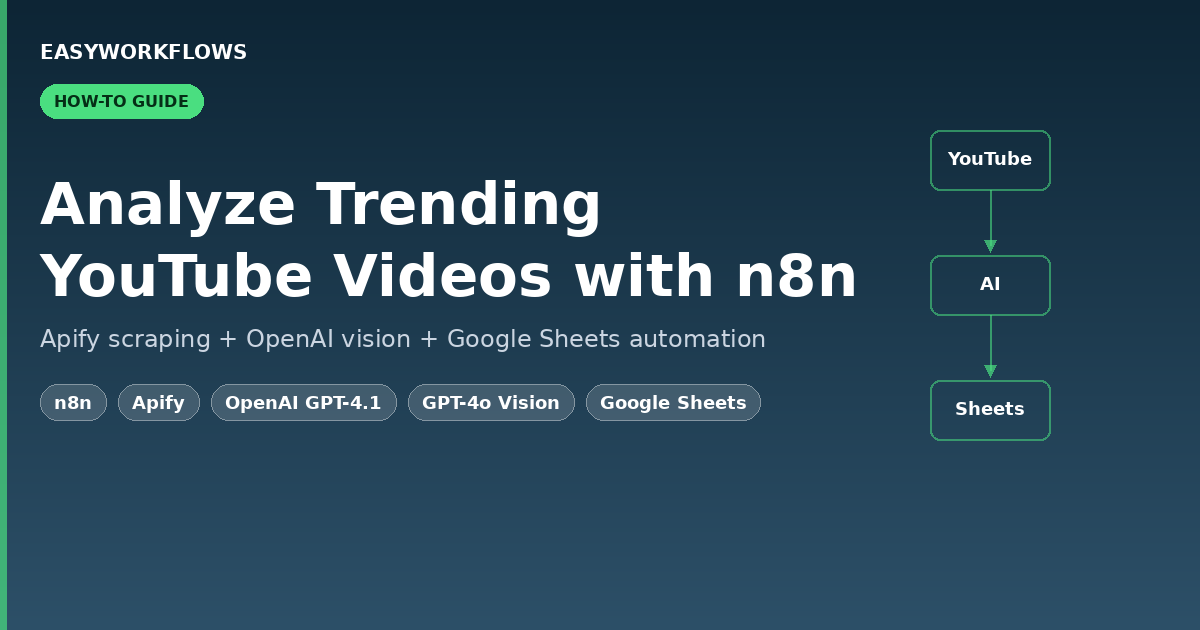
How to Analyze Trending YouTube Videos with n8n, Apify, OpenAI, and Google Sheets

Burning hours on YouTube topic research is a creator tax nobody should pay. This n8n template turns a keyword into a stream of high-performing video ideas, thumbnail notes, and AI-written outlines inside Google Sheets – without opening a single YouTube tab.

In this tutorial you’ll import a ready-made workflow that combines n8n Apify OpenAI GPT-4.1 GPT-4o-mini Vision Google Sheets to automate the exact research loop most YouTubers run by hand every week.

What the workflow does

The template exposes a simple n8n form that accepts a keyword or topic. From there, everything is automatic:

  1. Scrape trending videos with Apify’s YouTube search actor – last 60 days, mid-length, newest first, capped at 100 results per run.
  2. Filter outliers: keep only videos with more than 1,000 views and more views than the channel has subscribers. This surfaces videos the algorithm is actively amplifying.
  3. Deduplicate against your sheet so you never re-process the same video twice.
  4. Analyze the thumbnail with GPT-4o-mini Vision – layout, subjects, color palette, mood – in one natural-language paragraph.
  5. Fetch the transcript via a second Apify actor.
  6. Generate an SEO-tuned title plus a 3-5 word thumbnail overlay with GPT-4.1-mini (JSON mode).
  7. Write an original outline with GPT-4.1 that borrows the structure of the winning video but takes a fresh angle – no copy-paste.
  8. Update the Google Sheet with the enriched row: new title, thumbnail text, thumbnail description, transcript, and outline.
Tip: Every node is renamed for clarity and has a sticky note next to it. The workflow is a single-screen flow once you import it – no hunting for connections.

Why this beats manual YouTube research

A manual research session typically takes 60-90 minutes for ten candidate topics: searching, skimming, noting view counts, checking sub counts, screenshotting thumbnails, drafting titles. This workflow runs the same loop in roughly 3-5 minutes per keyword and stores everything in a sortable sheet you can revisit for months.

The outlier filter is the secret sauce. A video with 200k views on a channel that has 30k subscribers is statistically winning right now. Those are the ideas you want to study – not the evergreen giants sitting on top of the search results.

Prerequisites

  • An n8n instance – self-hosted (Docker, VPS, Render) or n8n Cloud. Version 1.70+.
  • Apify account with API token. Free tier is enough for testing.
  • OpenAI API key with access to gpt-4o-mini, gpt-4.1-mini, and gpt-4.1.
  • Google Workspace account and a spreadsheet you control.

You’ll find the exact step-by-step to obtain every credential in the Credentials Guide PDF included with the download, and a full import walkthrough in the Setup Guide PDF. Grab the template here.

Step 1 – Prepare the Google Sheet

Create a new Google Sheet, rename the first tab to Step 1, and paste this header row across the top:

id | title | url | fromYTUrl | thumbnailUrl | channelName | channelUrl | duration | likes | numberOfSubscribers | viewCount | videoTranscript | thumbnailDescription | thumbnailText | newTitle | newOutline

Order doesn’t matter – n8n maps columns by name – but every field above must exist or the workflow will error out on write.

Step 2 – Import the n8n workflow

  1. Open n8n and hit + New > Import from File.
  2. Select analyze-trending-youtube-videos-apify-openai-sheets-n8n.json from the ZIP.
  3. n8n will open the canvas. You’ll see 12 nodes: a form trigger, two Apify HTTP calls, an IF filter, a Google Sheets dedupe + append, three OpenAI nodes, a merge, an update row, and a sticky note with setup instructions.

Step 3 – Paste your Apify token

Click Scrape Trending Videos (Apify), then Fetch Transcript (Apify). Each has an Authorization header set to Bearer YOUR_APIFY_TOKEN. Replace the placeholder with your real token from console.apify.com/account/integrations.

Which Apify actors? The template uses streamers/youtube-scraper for search and pintostudio/youtube-transcript-scraper for captions. Both have public IDs baked in – you do not need to fork them.

Step 4 – Attach OpenAI credentials

Open Analyze Thumbnail, YouTube Title Generator, and Generate Original Outline. For each, pick or create an OpenAI credential with your API key. The models are pre-selected:

  • Analyze Thumbnail: gpt-4o-mini in image mode (~$0.00015 per thumbnail).
  • YouTube Title Generator: gpt-4.1-mini in JSON mode.
  • Generate Original Outline: gpt-4.1 for deeper structure – swap to gpt-4.1-mini if you want to save 60% on that node.

Budget roughly $0.01-$0.02 per video analyzed at default settings.

Step 5 – Connect Google Sheets

Click each of the three Google Sheets nodes (Find Duplicate Entries, Step 1 Results, Update Rows) and:

  1. Attach your Google Sheets OAuth2 credential.
  2. Open the Document dropdown and pick the sheet you prepared in Step 1.
  3. Open the Sheet dropdown and choose the Step 1 tab.

Step 6 – Activate and run

Toggle the workflow active in the top-right corner. n8n exposes a public form at the URL shown on the On form submission node. Open it, type a keyword like “ai automation” or “home workout for seniors”, and submit.

Within a couple of minutes your sheet fills up with filtered videos, AI-optimized titles, and fresh outlines ready for scripting. Sort by viewCount / numberOfSubscribers in a helper column to see the strongest outliers first.

How the filter works under the hood

The Filter High-Potential Videos node enforces two conditions with an AND combinator:

viewCount > 1000
viewCount > numberOfSubscribers

The first condition removes noise – brand-new uploads with a handful of views. The second is the outlier signal: a video whose views already beat the uploader’s subscriber count is almost certainly being pushed by YouTube’s recommendation engine. That’s the exact moment to study the thumbnail, hook, and structure.

Customization ideas

  • Daily cron: replace the form trigger with a Schedule node that runs a rotating list of keywords every morning.
  • Slack digest: add a Slack node after Update Rows to post the top five new outliers to #content channel.
  • Notion sync: mirror the sheet into a Notion database so writers can claim outlines from their side.
  • Shorts mode: swap lengthFilter to "under4" in the scrape node to hunt trending Shorts instead of long-form.
  • Voice cloning prep: pipe the generated outline into ElevenLabs for a rough voiceover of the hook.

Troubleshooting

“Unauthorized” from Apify: the Bearer token is missing or has a trailing space. Paste it again without the word Bearer duplicated.

Google Sheets node errors on missing column: double-check the header row spelling. Column names are case-sensitive.

OpenAI returns a non-JSON outline: the Generate Original Outline node is in text mode on purpose (outlines are prose). If you want structured JSON, toggle JSON Output on and update the system prompt.

Transcript is empty: the Apify transcript actor occasionally fails on age-restricted or auto-generated-caption-disabled videos. The workflow continues gracefully – the row simply has a blank videoTranscript and a weaker outline.

Skip the rebuild – get the finished template

Download the ready-to-import JSON plus the Setup and Credentials guides. Save an afternoon of wiring.

Get the YouTube Trends n8n Template

Final thoughts

YouTube research used to be a research skill. Now it’s a workflow you run on a coffee break. Hook this into your weekly content planning, let it pre-fill your sheet with validated topics, and spend your actual creative energy on the hook and delivery – the parts AI still can’t do for you.

How to Auto-Repost TikTok Videos to YouTube Shorts with n8n

You’ve spent hours filming, editing, and posting a killer TikTok video. Your creator account is gaining traction. But here’s the thing—you’re leaving money on the table if that video only lives on TikTok. YouTube Shorts has a completely different audience, different monetization rules, and different growth potential. The problem? Manually downloading from TikTok, re-uploading to YouTube, writing metadata, and repeating this process for every video is a soul-crushing grind that pulls you away from creating.

What if you could automate the entire repurposing pipeline? Post to TikTok once, and within minutes, your video automatically appears on YouTube Shorts with optimized metadata, proper formatting, and zero manual intervention. That’s exactly what we’re building today with n8n.

Save hours each week by automating your cross-platform distribution. Grab the ready-made template and skip the setup headaches.

What You’ll Build

By the end of this guide, you’ll have a fully automated workflow that handles every step of repurposing TikTok content to YouTube Shorts. Here’s what your system will do:

  1. Monitor your TikTok profile — Every 6 hours, the workflow automatically checks your TikTok account for new videos using the RapidAPI TikTok Scraper.
  2. Detect fresh uploads — A filtering system identifies videos you haven’t already repurposed, preventing duplicates and wasted resources.
  3. Download video files — Your videos are fetched directly from TikTok in YouTube-compatible formats.
  4. Generate YouTube metadata — The system automatically creates optimized titles, descriptions, and tags based on your TikTok content.
  5. Upload to YouTube Shorts — Videos are submitted via YouTube’s Data API v3 with proper resumable session handling for reliability.
  6. Log everything to Google Sheets — You get a growing inventory of what’s been repurposed, timestamps, and upload status.
  7. Trigger alerts via Telegram — You’re notified the moment a video hits YouTube, plus you can manually trigger reposts via a Telegram command.

How It Works—The Big Picture

This workflow operates on a dual-trigger model. It can run on a schedule (every 6 hours) or be triggered manually through Telegram. Let’s map out the flow:

┌─────────────────────────────────────────────────────────────┐
│                       TWO ENTRY POINTS                      │
├─────────────────────────────────────────────────────────────┤
│                                                               │
│  Trigger A: Schedule (Every 6 Hours)    Trigger B: Telegram │
│  │                                       │                   │
│  └──────────────────┬──────────────────┬─┘                   │
│                     │                  │                     │
│              Set TikTok Username    Parse Telegram           │
│                     │                  │ /repost @username   │
│                     └──────────────────┘                     │
│                            │                                  │
│                   Fetch TikTok Videos                        │
│                 (HTTP: RapidAPI Scraper)                    │
│                            │                                  │
│                  Filter New Videos Only                      │
│                  (Code: Parse Response)                      │
│                            │                                  │
│              ┌─────────────┴─────────────┐                   │
│              │                           │                   │
│        Log to Google Sheets      Prepare YouTube Metadata    │
│              │                           │                   │
│              └─────────────┬─────────────┘                   │
│                            │                                  │
│            Create YouTube Upload Session                     │
│           (YouTube API v3: Resumable)                       │
│                            │                                  │
│          Download TikTok Video (Temp)                        │
│                            │                                  │
│      Upload Video to YouTube Shorts                          │
│            (YouTube API v3)                                  │
│                            │                                  │
│       Send Telegram Notification                             │
│              (Success Alert)                                  │
│                                                               │
└─────────────────────────────────────────────────────────────┘

What You’ll Need

Before we build, make sure you have these pieces in place. The entire setup takes about 30–45 minutes.

  • n8n account (free tier works, but Pro is recommended for multiple simultaneous workflows)
  • RapidAPI account with an active TikTok Scraper subscription ($10–30/month depending on request volume)
  • YouTube Data API v3 enabled in Google Cloud Console with OAuth 2.0 credentials
  • Google Sheets API enabled in the same GCP project
  • Telegram Bot Token from BotFather (free, takes 2 minutes)
  • Google Account with OAuth access for YouTube and Sheets
  • Creator account on both TikTok and YouTube (with YouTube Studio access)
  • Minimum 2GB free storage on n8n for temporary video files

Step 1: Create the Schedule Trigger

1 Schedule Trigger Node

Start with n8n’s built-in Schedule node. This will kick off your workflow every 6 hours, allowing you to check for new TikTok videos automatically.

Node Configuration:

  • Set trigger to Every 6 hours
  • Leave timezone as default (your account timezone)
  • Check the box for “Activate node immediately on deployment”

The Schedule trigger feeds directly into a Set TikTok Username node, which we’ll cover next.

Step 2: Add Manual Trigger with Telegram

2 Telegram Bot Trigger

To give yourself on-demand control, add a Telegram trigger. This lets you manually request a repost without waiting for the 6-hour schedule.

Setup steps:

  1. Message @BotFather on Telegram and create a new bot (copy the token)
  2. In n8n, create a Telegram trigger node
  3. Add your Bot Token (paste from BotFather)
  4. Set trigger to New Message
  5. Configure message filter: Message starts with /repost

This trigger runs independently of the schedule, so you can trigger reposts manually anytime via Telegram.

Step 3: Set TikTok Username

3 Set Username Node (Code)

Both triggers converge here. This code node normalizes the TikTok username input—whether it came from the schedule default or a Telegram command.

Node configuration:

  • Node type: Code
  • Language: JavaScript

Code snippet:

// If triggered via Telegram, extract username from message
// Otherwise, use default username

if (items[0].json.message !== undefined) {
  // Telegram trigger: extract username from /repost @username
  const messageText = items[0].json.message;
  const parts = messageText.split(' ');
  const username = parts[1] ? parts[1].replace('@', '') : 'erinchen_creates';

  return [{
    json: {
      tikTokUsername: username,
      source: 'telegram'
    }
  }];
} else {
  // Schedule trigger: use default
  return [{
    json: {
      tikTokUsername: 'erinchen_creates',
      source: 'schedule'
    }
  }];
}

This node creates a standardized output that the next nodes can reliably consume, regardless of trigger source.

Step 4: Fetch TikTok Videos via HTTP Request

4 HTTP Request Node (RapidAPI)

Now we actually fetch the TikTok video data. We’re using RapidAPI’s TikTok Scraper—a reliable, legal way to pull public TikTok metadata.

Node configuration:

  • Method: GET
  • URL: https://tiktok-api.p.rapidapi.com/user/posts

Headers (add all three):

x-rapidapi-key: YOUR_RAPIDAPI_KEY
x-rapidapi-host: tiktok-api.p.rapidapi.com
Accept: application/json

Query parameters:

Parameter Value
username {{ $node["Set TikTok Username"].json.tikTokUsername }}
limit 10
sort newest

The response includes video ID, caption, duration, engagement metrics, and download URL. You’ll parse this in the next step.

💡

Pro tip: RapidAPI requests are rate-limited based on your subscription. Start with a 6-hour schedule and adjust frequency based on your usage tier to avoid overages.

Step 5: Filter New Videos with Code

5 Filter Code Node

The RapidAPI response might include videos you’ve already repurposed. This code node filters the response, comparing against your Google Sheets log of uploaded videos.

Node configuration:

  • Node type: Code
  • Language: JavaScript

Code snippet:

// Parse TikTok API response
const videos = items[0].json.data || [];

// Get list of already-uploaded video IDs from Sheets context
const uploadedIds = items[1]?.json?.uploadedVideoIds || [];

// Filter to only new videos
const newVideos = videos.filter(video => {
  return !uploadedIds.includes(video.id);
});

// Return filtered array (will create one item per video)
return newVideos.map(video => {
  return {
    json: {
      videoId: video.id,
      caption: video.desc,
      downloadUrl: video.downloadUrl,
      duration: video.duration,
      likes: video.stats?.likes || 0,
      shares: video.stats?.shares || 0,
      comments: video.stats?.comments || 0,
      createTime: video.createTime
    }
  };
});

The output is now one item per new video, ready to fan out across parallel processing.

Step 6: Log to Google Sheets

6 Google Sheets Append Node

Keep a permanent record of every repurposed video. This becomes your audit log and prevents duplicate uploads.

Setup:

  1. Create a new Google Sheet named “TikTok Reposts” (or similar)
  2. Create columns: TikTok Video ID, Caption, Duration, Likes, Date Posted, YouTube Link, Upload Status, Timestamp
  3. In n8n, add a Google Sheets node
  4. Authenticate with your Google account (OAuth 2.0)

Node configuration:

  • Operation: Append
  • Spreadsheet: Select “TikTok Reposts”
  • Sheet: Select your data sheet
  • Map columns to video data from the filter node

Column mappings:

Sheet Column Source Data
TikTok Video ID {{ $node["Filter Code"].json.videoId }}
Caption {{ $node["Filter Code"].json.caption }}
Duration {{ $node["Filter Code"].json.duration }}
Upload Status Pending
Timestamp {{ new Date().toISOString() }}

This node executes in parallel with the YouTube upload process—we’re logging first, then processing.

Step 7: Prepare YouTube Metadata

7 Prepare Metadata (Code Node)

YouTube has strict requirements for title, description, and tags. This node transforms your TikTok caption into YouTube-optimized metadata.

Code snippet:

// Transform TikTok caption to YouTube metadata
const tiktokCaption = items[0].json.caption || '';
const videoId = items[0].json.videoId;

// Generate YouTube title (max 100 chars)
let youtubeTitle = tiktokCaption.substring(0, 100);
if (tiktokCaption.length > 100) {
  youtubeTitle += '...';
}

// Generate YouTube description
const description = `Originally posted on TikTok. Subscribe for more shorts!\n\n${tiktokCaption}\n\n#Shorts #TikTok #YouTubeShorts`;

// Extract hashtags from caption for YouTube tags
const hashtags = tiktokCaption.match(/#\w+/g) || [];
const tags = [...hashtags, 'shorts', 'tiktok', 'video'].slice(0, 30); // YouTube max 30 tags

return [{
  json: {
    title: youtubeTitle,
    description: description,
    tags: tags,
    privacyStatus: 'public',
    categoryId: '24', // Entertainment category
    duration: items[0].json.duration,
    downloadUrl: items[0].json.downloadUrl,
    videoId: videoId
  }
}];

This ensures your YouTube content is discoverable and follows platform best practices.

Step 8: Create YouTube Upload Session

8 YouTube API: Create Resumable Session

YouTube requires a two-step upload process: first create a resumable session, then upload the file. This prevents re-uploads if the connection drops.

Node type: HTTP Request

Method: POST

URL:

https://www.googleapis.com/youtube/v3/videos?uploadType=resumable&part=snippet,status

Headers:

Header Value
Authorization Bearer {{ $env.YOUTUBE_TOKEN }}
Content-Type application/json
X-Goog-Upload-Protocol resumable

Body (JSON):

{
  "snippet": {
    "title": "{{ $node['Prepare Metadata'].json.title }}",
    "description": "{{ $node['Prepare Metadata'].json.description }}",
    "tags": {{ JSON.stringify($node['Prepare Metadata'].json.tags) }},
    "categoryId": "24"
  },
  "status": {
    "privacyStatus": "public",
    "selfDeclaredMadeForKids": false
  }
}

YouTube responds with a resumable session URL in the Location header. Store this for the next step.

Step 9: Download TikTok Video

9 HTTP Request: Download Video

Fetch the actual video file from TikTok. n8n will store this temporarily in memory.

Node type: HTTP Request

Method: GET

URL:

{{ $node["Filter Code"].json.downloadUrl }}

Options:

  • Set “Response Format” to File
  • Add header User-Agent: Mozilla/5.0 (Windows NT 10.0; Win64; x64)
  • Set timeout to 60 seconds

The downloaded file is automatically staged for upload in the next step.

⚠️

Important: n8n’s free tier has memory limits. Videos larger than 256MB may fail. For larger files, consider using n8n’s S3 integration to stage files in cloud storage first.

Step 10: Upload Video to YouTube

10 YouTube API: Upload Video Chunk

Now upload the downloaded video file to YouTube using the resumable session created in Step 8.

Node type: HTTP Request

Method: PUT

URL:

{{ $node["Create Upload Session"].headers.location }}

Headers:

Header Value
Content-Type video/mp4
Content-Length {{ $node["Download Video"].data.fileSize }}

Body: Set to Binary and map the file from the Download Video node.

Upon success, YouTube returns a 200 response with video metadata including the id field (your new YouTube video ID).

Step 11: Send Telegram Notification

11 Telegram Bot Send Message

Celebrate the successful upload. Send yourself a Telegram notification with the YouTube link.

Node type: Telegram

Configuration:

  • Operation: Send Message
  • Bot Token: (same as Step 2)
  • Chat ID: Your personal Telegram user ID

Message text:

✅ Video Uploaded to YouTube!

Title: {{ $node['Prepare Metadata'].json.title }}
YouTube URL: https://youtube.com/shorts/{{ $node['Upload Video'].json.id }}
Duration: {{ $node['Filter Code'].json.duration }}s
Likes: {{ $node['Filter Code'].json.likes }}

Check it out and update the sheet when ready.

This becomes your real-time alert system—you’ll know instantly when each video goes live.

The Data Structure

Your Google Sheets log is the backbone of the system. Here’s what your tracking sheet should look like:

TikTok Video ID Caption Duration Likes Date Posted YouTube Video ID Upload Status Timestamp
7261849372941234567 Morning coffee thoughts #coffee #viral 59 12,340 2026-04-13 dQw4w9WgXcQ Success 2026-04-13 09:42:17
7261847295837265100 New fitness routine! #gym #fitnessmotivation 45 8,920 2026-04-12 jNQXAC9IVRw Success 2026-04-12 18:15:03

Each row represents one repurposed video. Over time, this sheet becomes your content inventory—searchable, sortable, and exportable for analytics.

Full System Flow

Here’s the complete, end-to-end picture of your automated workflow:

┌──────────────────────────────────────────────────────────────┐
│                    START: DUAL TRIGGERS                      │
├──────────────────────────────────────────────────────────────┤
│                                                                │
│   Schedule: Every 6 hours          Telegram: /repost cmd      │
│   (Morning, Noon, Evening, Night)  (Manual on-demand)         │
│                                                                │
│   └──────────────────────┬──────────────────────┘            │
│                          │                                    │
│                   [Set TikTok Username]                       │
│              Extract or use default username                 │
│                          │                                    │
│          [HTTP: Fetch TikTok Videos via RapidAPI]            │
│               Get latest 10 videos, newest first              │
│                          │                                    │
│              [Code: Filter New Videos Only]                  │
│        Compare against Sheets log, skip already-uploaded    │
│                          │                                    │
│              ┌───────────┴───────────┐                        │
│              │ (Loop: Per New Video) │                        │
│              └───────────┬───────────┘                        │
│                          │                                    │
│         ┌────────────────┴────────────────┐                   │
│         │                                 │                   │
│    [Google Sheets]              [Code: Prepare YouTube     │
│    Append Row                    Metadata & Tags]            │
│    - Video ID                    - Title (max 100 chars)     │
│    - Caption                     - Description + Hashtags    │
│    - Duration                    - Category: Entertainment   │
│    - Likes/Shares                - Privacy: Public           │
│    - Status: Pending             - Tags: 30 max             │
│         │                                 │                  │
│         └────────────────┬────────────────┘                   │
│                          │                                    │
│      [YouTube API: Create Resumable Session]                 │
│           POST to /videos?uploadType=resumable               │
│           Receive: X-Goog-Upload-Protocol Location           │
│                          │                                    │
│         [HTTP: Download TikTok Video File]                    │
│           Temporary storage in n8n memory/disk                │
│                          │                                    │
│      [YouTube API: Upload Video File (PUT)]                  │
│      Send binary file to resumable session URL               │
│                          │                                    │
│         [Code: Extract YouTube Video ID]                     │
│           Parse response, get youtu.be ID                    │
│                          │                                    │
│    [Google Sheets: Update Row]                               │
│    - YouTube Video ID column                                 │
│    - Status: Success                                         │
│    - Timestamp: Upload completion time                       │
│                          │                                    │
│    [Telegram: Send Notification]                             │
│    "✅ Video uploaded: [title] [youtube.com/shorts/ID]"      │
│                          │                                    │
│             [Workflow End for This Video]                    │
│      (Loop continues for next new video if exists)           │
│                          │                                    │
│         ┌────────────────┴────────────────┐                   │
│    [All videos processed?]                                   │
│         Yes ↓              No ↓                               │
│    [Workflow Done]    [Continue loop]                        │
│                                                                │
└──────────────────────────────────────────────────────────────┘

Testing Your Workflow

Before activating on the real 6-hour schedule, test everything in isolation. Here’s a systematic approach:

Test Plan

  1. Test TikTok Fetch (Step 4)
    • Run just the HTTP RapidAPI node with a username you know has videos
    • Check that the response contains video objects with id, desc, downloadUrl
    • Verify API rate limit isn’t exceeded (check RapidAPI dashboard)
  2. Test Filter Logic (Step 5)
    • Mock the RapidAPI response with sample video data
    • Verify the filter code correctly identifies new vs. already-uploaded videos
    • Use a small test Sheets with 1-2 pre-existing IDs to confirm filtering works
  3. Test YouTube OAuth (Step 8)
    • Create a test n8n YouTube node and authenticate
    • Verify your token is valid and has youtube.upload scope
    • Try creating a resumable session (you can discard it—don’t upload yet)
  4. Test End-to-End with a Real Video
    • Use the workflow’s “Test” button to run from the Schedule trigger
    • Upload one real video to YouTube to verify the full pipeline
    • Check the YouTube Studio to confirm the video appears with correct metadata
    • Verify Telegram notification was sent
    • Verify Google Sheets row was created and updated

Troubleshooting Guide

Error Likely Cause Solution
“Invalid API key” from RapidAPI Wrong or expired RapidAPI key Check x-rapidapi-key header, regenerate key if needed
“403 Forbidden” from YouTube API YouTube OAuth token expired or missing scopes Disconnect and re-authenticate YouTube in n8n; verify youtube.upload scope
Video file too large, upload fails TikTok video exceeds n8n memory limit Use n8n S3 integration to stage files; OR upgrade n8n plan
“Telegram message not sent” Bot token invalid or wrong chat ID Verify Bot Token from BotFather; get chat ID via telegram.me/IDBot
Duplicate videos uploaded (filter not working) Sheets lookup returning empty list Check Google Sheets read node before filter; ensure column names match
YouTube metadata missing/incomplete Prepare Metadata code node failed silently Check TikTok caption contains valid data; add error handling to code node

Frequently Asked Questions

Can I upload to multiple YouTube channels?

Yes, but you’ll need separate YouTube OAuth credentials for each channel. Add a “Select Channel” node before the upload, and loop through each channel’s upload session. Alternatively, use YouTube’s channel switching feature if all channels are on one Google account.

What happens if a video upload fails halfway through?

YouTube’s resumable upload protocol is designed for this. If the connection drops, the next upload attempt resumes from where it stopped (within 24 hours). n8n will retry failed HTTP requests if you enable “Retry on Fail” in the upload node. Always check your YouTube Studio for duplicate uploads after failures.

Can I customize the YouTube description and tags automatically?

Absolutely. The “Prepare Metadata” code node (Step 7) extracts hashtags from your TikTok caption. You can extend it to pull from a lookup table, add timestamps, or include affiliate links. Just be careful to follow YouTube’s community guidelines on self-promotion.

How do I handle videos that are too short or too long for YouTube Shorts?

YouTube Shorts accepts videos 15 seconds to 10 minutes. Add a duration check in the Filter node (Step 5): skip videos under 15 seconds, and split videos over 60 seconds into multiple Shorts. For splitting, you’d need to integrate a video processing tool like FFmpeg via n8n’s SSH or webhook triggers.

Can I monetize the YouTube videos once they’re uploaded?

YouTube’s Partner Program requires 1,000 subscribers and 4,000 watch hours. The workflow doesn’t affect eligibility, but note that repurposed content may have different monetization rules. Check YouTube’s policies on content reuse. Once you’re monetized, ensure the original TikTok and YouTube videos aren’t flagged as duplicates—different timestamps and metadata help.

Ready to automate your content pipeline?

Stop spending hours on manual uploads. The ready-made n8n template handles every step—from TikTok fetching to YouTube scheduling to Telegram alerts. All the nodes are pre-configured; you just add your API keys.

Get the Template Now

Includes full documentation, test data, and 30-day email support

What’s Next?

Once your core workflow is humming, consider these extensions:

  • Instagram Reels Integration — Add Instagram Data API to cross-post to Reels with the same metadata pipeline. Instagram and YouTube have slightly different format requirements, so you’d branch the metadata preparation.
  • Analytics Tracking — Pull daily YouTube Analytics API data for each uploaded video and log performance metrics (views, watch time, CTR) back to your Sheets. Identify which TikToks perform best on YouTube.
  • Smart Scheduling — Use n8n’s AI nodes to analyze your audience timezone and schedule uploads when your audience is most active. YouTube Shorts have different peak times than TikTok.
  • Content Moderation — Add a screening step using OpenAI’s moderation API to flag videos with potentially problematic content before they go live on YouTube.
  • Thumbnail Generation — Automatically extract a frame from each TikTok and use an image-to-text API to generate optimized YouTube thumbnail text overlays.
  • Multi-Platform Dashboard — Build a custom UI with Webflow or Bubble that displays your reposts, engagement metrics, and upload history—no more spreadsheet hunting.

The modular nature of n8n means each extension is just a few new nodes. Start simple, and scale as your workflow matures.

n8n
TikTok
YouTube Shorts
Automation
Content Marketing
RapidAPI
YouTube API
Google Sheets
Telegram Bot
Workflow

How to Build an AI Content Factory with n8n (Google Trends to Blog, Instagram & TikTok)

Chasing trends is exhausting. You’re scrolling Google Trends hoping something resonates, sketching outlines, writing blog posts, designing graphics, scripting videos—all for three different platforms. By the time you publish, the trend’s already fading. What if your entire content machine ran itself? Every 8 hours, a workflow discovers the hottest trending topic, generates a polished 3000-word blog outline, a 5-slide Instagram carousel concept, and a 60-second TikTok script—then sends them to you for a single-click approval. That’s the power of an AI Content Factory built with n8n, OpenAI, and Slack.

Ready to automate your content creation pipeline? Get the complete workflow template to start building.

What You’ll Build

This workflow transforms you from a content creator into a content director. Here’s the five-step experience:

  1. Trend discovery runs automatically — Every 8 hours, the system fetches the US Google Trends RSS feed and identifies the single most viral topic using AI analysis.
  2. Three AI agents work in parallel — A blog writer generates a 3000-word SEO outline with proper heading hierarchy, an Instagram designer dreams up a 5-slide carousel concept, and a TikTok writer scripts a punchy 60-second video hook.
  3. Content is reviewed via Slack — A beautifully formatted message arrives in your Slack channel with preview text and one-click Approve/Reject buttons.
  4. You approve or reject instantly — No need to touch n8n. Just click in Slack, and the workflow reacts in real time.
  5. Approved content lands in Google Sheets — All three content pieces (blog, Instagram, TikTok) save to a spreadsheet you can export, edit, or feed into your publishing tools.

How It Works — The Big Picture

Here’s the complete flow, from trend detection to Sheets:

┌─────────────────────────────────────────────────────────────┐
│  Schedule Trigger (Every 8 hours)                           │
└────────────────────┬────────────────────────────────────────┘
                     │
┌────────────────────v────────────────────────────────────────┐
│  Config Node (Google Trends URL, Slack channel)             │
└────────────────────┬────────────────────────────────────────┘
                     │
┌────────────────────v────────────────────────────────────────┐
│  HTTP Request → Google Trends Daily RSS Feed (US)           │
└────────────────────┬────────────────────────────────────────┘
                     │
┌────────────────────v────────────────────────────────────────┐
│  AI Agent: Trend Filter (GPT-4o-mini)                       │
│  → Selects 1 viral topic + reason + target audience         │
│  → Returns JSON with structured output                      │
└────────────┬──────────────────────────────────────┬─────────┘
             │                                      │
    ┌────────v────────┐         ┌─────────────────v────────┐
    │ AI Agent:       │         │ AI Agent:                 │
    │ Blog Writer     │         │ Instagram Designer        │
    │ (GPT-4o-mini)   │         │ (GPT-4o-mini)             │
    │ → 3K word SEO   │         │ → 5-slide carousel        │
    │   outline       │         │   concept                 │
    └────────┬────────┘         └────────────┬──────────────┘
             │                               │
             │      ┌──────────────────┐    │
             │      │ AI Agent:        │    │
             │      │ TikTok Script    │    │
             │      │ (GPT-4o-mini)    │    │
             │      │ → 60-sec script  │    │
             │      └────────┬─────────┘    │
             └──────────┬────────────────────┘
                        │
        ┌───────────────v────────────────┐
        │  Merge (3 inputs)              │
        │  Combine all 3 AI outputs      │
        └───────────────┬────────────────┘
                        │
        ┌───────────────v────────────────┐
        │  Code Node (JavaScript)        │
        │  Sanitize text + structure     │
        │  → blog_content                │
        │  → instagram_content           │
        │  → tiktok_script               │
        └───────────────┬────────────────┘
                        │
        ┌───────────────v────────────────┐
        │  Slack Message (Block Kit)     │
        │  Send Approve/Reject buttons   │
        └───────────────┬────────────────┘
                        │
        ┌───────────────v────────────────┐
        │  Wait for Webhook Callback     │
        │  Pause until user clicks       │
        └───────────────┬────────────────┘
                        │
        ┌───────────────v────────────────┐
        │  IF: query.action === approve? │
        └───┬──────────────────────────┬─┘
    YES │                              │ NO
        │                         (End)│
    ┌───v─────────────────────────────┘
    │
    │  Google Sheets Append
    │  → blog_content, instagram_content,
    │    tiktok_script (3 columns)
    │  ✓ Content saved
  

What You’ll Need

Before you start, gather these pieces:

  • n8n instance — Free cloud at n8n.cloud or self-hosted
  • OpenAI API key — GPT-4o-mini model access (budget ~$0.20–$0.50 per workflow run)
  • Slack workspace — With bot token (scopes: chat:write, incoming-webhook)
  • Google Sheets — One sheet with 3 columns: blog_content, instagram_content, tiktok_script
  • Google Trends RSS URL — US daily trends: https://trends.google.com/trends/trendingsearches/daily/rss?geo=US
  • Time — ~45 minutes to set up (most time spent configuring credentials)

Part 1 — Trend Discovery

1 Schedule Trigger

Start with a Schedule Trigger node set to repeat every 8 hours. This ensures your content factory runs throughout the day—morning, afternoon, evening. Choose a time that fits your workflow; 9 AM, 5 PM, and 1 AM is a solid split.

💡

Pro tip: If you want manual control too, add a Manual trigger in parallel so you can test anytime.

2 Config Node

Next, create a Set node called “Config” to store your constants. This keeps your workflow clean and reusable:

  • google_trends_url = https://trends.google.com/trends/trendingsearches/daily/rss?geo=US
  • slack_channel = #content-approvals
  • slack_bot_token = (your Slack bot token)

Store these as {{ $node["Config"].json.google_trends_url }} when you reference them later. This pattern keeps credentials safe if you share the workflow.

3 HTTP Request — Fetch Google Trends

Add an HTTP Request node with these settings:

  • Method: GET
  • URL: {{ $node["Config"].json.google_trends_url }}
  • Response Format: JSON

Google Trends serves an RSS feed. n8n automatically parses it into JSON. You’ll get back a list of trending topics with titles, descriptions, and images. The structure looks like this:

{
  "rss": {
    "channel": {
      "item": [
        {
          "title": "Climate Crisis 2026",
          "description": "Up 2,100% in the last 24 hours",
          "link": "https://..."
        },
        {
          "title": "AI Robotics Breakthrough",
          "description": "Up 1,850% in the last 24 hours"
        }
        // ... more items
      ]
    }
  }
}

The HTTP Request node extracts these automatically. You’ll reference {{ $node["HTTP Request"].json.rss.channel.item }} in the next step.

4 AI Agent — Trend Filter

Now the AI enters. Create an AI Agent node (OpenAI) that analyzes all trends and picks the single most viral topic. Configure it like this:

  • Model: GPT-4o-mini
  • Prompt:
You are a trend analyst. I've given you a list of today's Google Trends.
Analyze each trend's growth metrics and cultural relevance.
Pick THE SINGLE most viral topic that will appeal to a broad creator audience.
Return a JSON object with exactly these fields:
{
  "selected_topic": "exact trend title",
  "reason": "2-sentence explanation of why this trend is viral",
  "target_audience": "who should care about this (e.g., Gen Z, fitness enthusiasts)"
}

Set Structured Output Parser to JSON mode. Pass in {{ $node["HTTP Request"].json.rss.channel.item }} as the input data. The AI Agent will return structured JSON like:

{
  "selected_topic": "AI-Powered Fitness Wearables",
  "reason": "Up 2,340% in last 24h. Combines AI hype + health trend + consumer gadgets.",
  "target_audience": "Tech enthusiasts, fitness influencers, early adopters"
}

Part 2 — Parallel Content Generation

Now that you have the viral topic, three AI agents run simultaneously to create content for different platforms. This is where n8n’s parallel execution shines.

5 AI Agent — Blog Writer

Add an AI Agent node called “Blog Writer” with this prompt:

You are an expert SEO content strategist. I need a 3000-word blog post outline
on this topic: "{{ $node["Trend Filter"].json.selected_topic }}"

Create a comprehensive outline with:
- H1: Catchy main title
- H2 sections (5–7 main sections)
- H3 subsections under each H2
- 2–3 bullet points under each H3
- Include an intro section, an FAQ section, and a CTA section

Target audience: {{ $node["Trend Filter"].json.target_audience }}

Output as plain text outline (not HTML).

Model: GPT-4o-mini. This generates a roadmap for writers or AI-to-content pipelines. The output is ready to feed to a blog post writer or expanded into full prose.

6 AI Agent — Instagram Designer

Add another AI Agent called “Instagram Designer” with this prompt:

You are a social media content strategist specializing in Instagram.
Create a 5-slide carousel concept for this trending topic: "{{ $node["Trend Filter"].json.selected_topic }}"

Slide breakdown:
- Slide 1 (Cover): Eye-catching headline + hook
- Slides 2-4 (Info): Key insights, stats, or benefits (one concept per slide)
- Slide 5 (CTA): Call-to-action (link bio, DM for more, etc.)

For each slide, write:
1. Text copy (max 150 chars per slide)
2. Visual concept (describe the design, colors, layout)
3. Recommended hashtags

Target audience: {{ $node["Trend Filter"].json.target_audience }}

Output as plain text instructions for a designer or content creator.

The AI creates a blueprint that you or a designer can use to create the actual carousel graphics.

7 AI Agent — TikTok Script Writer

Create a third AI Agent called “TikTok Script Writer”:

You are a TikTok content strategist. Write a 60-second TikTok script on this topic:
"{{ $node["Trend Filter"].json.selected_topic }}"

Script structure:
- Hook (0–3 seconds): Stop-the-scroll opener
- Body (3–50 seconds): Main content, insights, or entertainment
- CTA (50–60 seconds): What viewers should do next

Include:
- [Action] or [Visual] cues in brackets
- Pacing notes (fast cuts, slow reveals, etc.)
- Suggested audio vibe (upbeat, educational, etc.)

Target audience: {{ $node["Trend Filter"].json.target_audience }}

Output as plain text script with brackets for visual cues.

Position all three AI agents in parallel—they don’t depend on each other, so n8n runs them simultaneously. This saves ~45 seconds per workflow run.

Part 3 — Review & Approval

8 Merge Node

After the three AI agents finish, add a Merge node to combine their outputs. Set it to merge “3 into 1 row” to bundle the data:

  • Input 1: Blog Writer AI output
  • Input 2: Instagram Designer AI output
  • Input 3: TikTok Script Writer AI output

The Merge node creates a single data object with all three content pieces.

9 Code Node — Sanitize & Structure

Add a Code node (JavaScript) to clean up the text and create a final data structure:

// Sanitize helper: remove extra whitespace, HTML entities
const sanitize = (str) => {
  return str.trim().replace(/"/g, '"').replace(/&/g, '&').slice(0, 5000);
};

// Extract content from merged inputs
const blogContent = sanitize($('Blog Writer').json.text || '');
const instagramContent = sanitize($('Instagram Designer').json.text || '');
const tiktokScript = sanitize($('TikTok Script Writer').json.text || '');

return {
  blog_content: blogContent,
  instagram_content: instagramContent,
  tiktok_script: tiktokScript,
  topic: $('Trend Filter').json.selected_topic,
  timestamp: new Date().toISOString()
};

This node outputs a clean, validated JSON object ready for Slack and Google Sheets.

10 Slack — Send Approval Message

Add a Slack node to post a beautifully formatted message with Approve/Reject buttons. Use Block Kit format:

{
  "channel": "#content-approvals",
  "blocks": [
    {
      "type": "header",
      "text": {
        "type": "plain_text",
        "text": "New Trending Content Ready for Review"
      }
    },
    {
      "type": "section",
      "text": {
        "type": "mrkdwn",
        "text": "*Topic:* {{ $node["Code"].json.topic }}\n*Generated:* {{ $node["Code"].json.timestamp }}"
      }
    },
    {
      "type": "divider"
    },
    {
      "type": "section",
      "text": {
        "type": "mrkdwn",
        "text": "*Blog Outline Preview:*\n```{{ $node["Code"].json.blog_content.slice(0, 300) }}...```"
      }
    },
    {
      "type": "section",
      "text": {
        "type": "mrkdwn",
        "text": "*Instagram Carousel:*\n```{{ $node["Code"].json.instagram_content.slice(0, 300) }}...```"
      }
    },
    {
      "type": "section",
      "text": {
        "type": "mrkdwn",
        "text": "*TikTok Script:*\n```{{ $node["Code"].json.tiktok_script.slice(0, 300) }}...```"
      }
    },
    {
      "type": "actions",
      "elements": [
        {
          "type": "button",
          "text": {
            "type": "plain_text",
            "text": "Approve"
          },
          "style": "primary",
          "action_id": "approve_btn"
        },
        {
          "type": "button",
          "text": {
            "type": "plain_text",
            "text": "Reject"
          },
          "style": "danger",
          "action_id": "reject_btn"
        }
      ]
    }
  ]
}

11 Wait for Webhook

Add a Wait node and set it to “Receive Webhook Data.” This pauses the workflow until someone clicks a button in Slack. Configure the webhook to listen for responses with a unique identifier so n8n knows which workflow instance to resume.

12 IF Node — Check Approval

Add an IF node to evaluate the button click:

  • Condition: {{ $json.action_id }} === "approve_btn"
  • True path: Proceed to Google Sheets (next step)
  • False path: End workflow (Reject path)

13 Google Sheets — Append Content

On the True path, add a Google Sheets node to append a row with your three content pieces:

  • Operation: Append Row
  • Range: Sheet1!A:C (columns A, B, C)
  • Values:
[
  "{{ $node['Code'].json.blog_content }}",
  "{{ $node['Code'].json.instagram_content }}",
  "{{ $node['Code'].json.tiktok_script }}"
]

Each approval adds a new row to your sheet. Your Sheets file becomes a living archive of all generated content.

The Data Structure

Here’s what your Google Sheets looks like after a few approvals:

blog_content instagram_content tiktok_script
H1: AI Fitness Wearables Explained
H2: Why Wearables Matter
H3: Real-time Health Monitoring…
Slide 1: “AI wearables are here 🤖”
Slide 2: “Track your heart rate live”
Slide 3: “Predict health trends”…
[Fast cut] “Your fitness watch just got smarter!”
[Slow reveal] Shows wearable features
[Hook] “Link in bio for the best AI tracker”
H1: The Viral Pet Trend of 2026
H2: Why Pets Rule Social Media
H3: TikTok’s Pet Algorithm…
Slide 1: “Your pet could be famous 🐾”
Slide 2: “Pet content gets 10x engagement”
Slide 3: “Three tips for viral pet videos”…
[Upbeat music] Show cute pet moment
[Voiceover] “This got 5M views…”
[CTA] “Film your pet today!”
H1: Micro-Learning Apps Changing Education
H2: The Attention Economy
H3: 5-minute Learning Sessions…
Slide 1: “Learn anything in 5 minutes”
Slide 2: “Education goes mobile”
Slide 3: “Apps making it happen”…
[Montage] Quick lesson clips
[Stats] “1M students downloaded this week”
[CTA] “Join the learning revolution”

Full System Flow Diagram

Here’s the complete end-to-end picture:

START
  │
  ├─→ [Schedule: Every 8h]
  │
  ├─→ [Config: Trends URL, Slack channel]
  │
  ├─→ [HTTP: Fetch Google Trends RSS]
  │
  ├─→ [AI: Trend Filter (Pick 1 topic)]
  │    └─→ { selected_topic, reason, audience }
  │
  ├─→ [PARALLEL BRANCH]
  │   ├─→ [AI: Blog Writer]
  │   │   └─→ 3000-word SEO outline
  │   │
  │   ├─→ [AI: Instagram Designer]
  │   │   └─→ 5-slide carousel concept
  │   │
  │   ├─→ [AI: TikTok Script Writer]
  │   │   └─→ 60-second script
  │
  ├─→ [Merge: Combine 3 outputs]
  │
  ├─→ [Code: Sanitize & structure]
  │
  ├─→ [Slack: Send Approve/Reject message]
  │
  ├─→ [Wait: Listen for webhook callback]
  │
  ├─→ [IF: query.action === "approve"?]
  │   ├─ YES: Google Sheets Append → DONE
  │   └─ NO: END (Rejected)
  │
END
  

Testing Your Workflow

Test Plan

  1. Test each node individually. Use the “Test” button in n8n to run HTTP Request in isolation. Verify you get valid RSS data.
  2. Test the Trend Filter AI Agent. Mock some sample trend data and confirm it picks one topic and returns valid JSON.
  3. Test the parallel AI agents. Run Blog Writer, Instagram Designer, and TikTok Script Writer on a sample topic. Check the quality of outputs.
  4. Test the Code node. Verify it sanitizes text and structures the final JSON correctly.
  5. Test Slack integration. Send a test Block Kit message to your #content-approvals channel. Verify the layout and buttons.
  6. Test the full workflow. Trigger manually, approve in Slack, and confirm the row appears in Google Sheets within 30 seconds.

Troubleshooting

Problem Cause Solution
HTTP Request returns empty data RSS feed URL changed or is blocked Test URL directly in browser. Check if Google Trends blocks n8n IPs. Use a proxy if needed.
AI Agent returns invalid JSON Prompt unclear or model tier too low Clarify prompt with JSON example. Use GPT-4o instead of -mini for complex tasks.
Slack message doesn’t appear Bot token missing scopes or channel misspelled Verify bot has chat:write and incoming-webhook scopes. Double-check channel name (#content-approvals).
Wait node times out after 24h Slack button click not sent to webhook Verify webhook URL is correct in Slack integration. Test with manual webhook trigger first.
Google Sheets append fails Columns A, B, C don’t exist or are protected Create three blank columns in Sheet1. Ensure service account has editor access. Check range is Sheet1!A:C.

Frequently Asked Questions

How much does this cost to run?

Each workflow run consumes ~$0.20–$0.50 in OpenAI API credits (for GPT-4o-mini’s 3 concurrent calls). Running every 8 hours = ~$1.50–$3.75 per day, or ~$45–$115 per month. n8n cloud is free up to 1,000 executions/month. Slack and Google Sheets are free for basic use.

Can I change the frequency? What if I want content every 4 hours?

Yes. Edit the Schedule Trigger to repeat every 4 hours. You’ll generate more content but consume 2x the OpenAI credits. For budget-conscious users, 8–12 hours is ideal. For agencies, 4 hours keeps content ultra-fresh.

What if I want to filter trends by category (e.g., only tech or health)?

Modify the Trend Filter AI Agent prompt to include a category constraint. Example: “Pick the most viral tech topic” or “Pick the most viral health/fitness trend.” You can also use multiple RSS feeds (Google Trends has different regional and category feeds) and use n8n’s Switch node to route to different workflows.

Can I store approvals and rejections in Google Sheets?

Absolutely. Add a second Google Sheets node in the Reject path (the False branch of the IF node) that appends to a different sheet (e.g., “Rejected Content”) with a reason field or rejection timestamp. This gives you a complete audit trail.

How do I handle multiple trends? Can the workflow pick the top 3?

Yes. Modify the Trend Filter AI Agent to return an array of 3 topics instead of 1. Then use a Loop node to iterate over the 3 topics and spawn 3 parallel content-generation sub-workflows. You’ll end up with more content but 3x the API cost. Great for high-volume content factories.

Ready to Launch Your AI Content Factory?

Stop manually hunting trends and scripting videos. Get the complete, production-ready n8n workflow template and start automating your content pipeline in minutes. Includes pre-configured nodes, all prompts, and Slack integration.

Get the Workflow Template

Includes setup guide, testing checklist, and 30-day support.

What’s Next?

You’ve built a lean, mean content machine. Here are four directions to expand:

  1. Add LinkedIn content generation. Duplicate the Blog Writer AI Agent, adjust the prompt to LinkedIn voice (professional, conversational), and add LinkedIn as a fourth platform in the Merge node. Your workflow now outputs blog, Instagram, TikTok, and LinkedIn posts simultaneously.
  2. Store full blog posts, not outlines. Replace the Blog Writer AI Agent with a more powerful model (GPT-4o) and ask it to generate the full 3000-word blog post with HTML tags. Append the HTML directly to a “Published Content” sheet or send to your WordPress site via REST API.
  3. Add image generation. After the Instagram Designer AI Agent, pipe the carousel concept to DALL-E 3 to auto-generate actual carousel images. The Slack message can preview real images instead of text concepts.
  4. Build a content calendar dashboard. Connect your Google Sheets to a tool like Airtable or a custom web dashboard. View all pending, approved, and published content in one place. Add filters by topic, platform, and date.

n8n
Google Trends
OpenAI
Slack
Google Sheets
automation
content marketing