New to n8n? Start with our step-by-step setup guide, then come back to build this workflow.
Your sales team is drowning in raw lead data. You’ve scraped thousands of contacts from LinkedIn, Apollo, or custom sources, but half have missing emails, the phone formats are inconsistent, and nobody wants to manually clean 2,000 rows in a spreadsheet before Monday’s call list is ready. There has to be a better way.
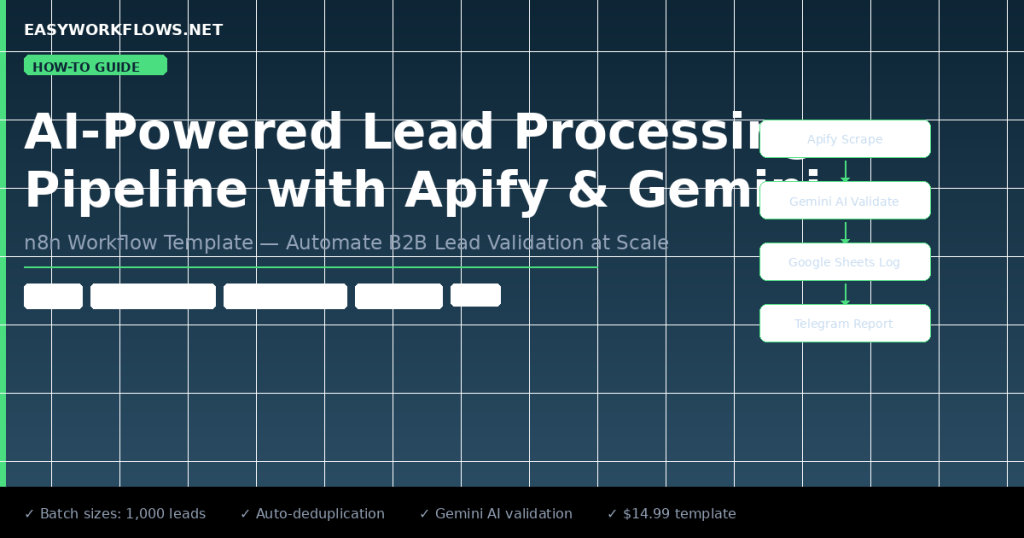
There is. This guide walks you through building a fully automated AI lead processing pipeline in n8n that scrapes leads with Apify, validates and deduplicates them using Google Gemini, writes clean records to Google Sheets, and sends your team a Telegram summary, all without touching a single CSV file.
Prefer to skip the build? Grab the ready-made template → and have it running in under 10 minutes.
What You’ll Build
- A parent workflow (or manual trigger) fires this sub-workflow, passing along scraping parameters.
- n8n sends a POST request to kick off your Apify actor (e.g., Apollo scraper, LinkedIn scraper, or any custom actor).
- After a 30-second wait, the workflow polls Apify for results and feeds them into a batching loop.
- Google Gemini AI processes up to 1,000 leads per batch, validating required fields, deduplicating by email, generating unique Lead IDs, and formatting phone/location data.
- Validated leads are appended to a Google Sheet. Your team receives a Telegram message per batch showing exactly how many leads were added, flagged, or rejected.
How It Works: The Big Picture
| AI LEAD PROCESSING PIPELINE |
| |
| [Execute Trigger] -> [POST Apify] -> [Loop/Batch] |
| | |
| +——+——+ |
| v (batch out) | (done) |
| [AI Agent] [Wait 30s] -> [GET Apify] |
| | ^ |
| | +– (feeds back to Loop) |
| v |
| [Telegram Batch Report] |
| |
| AI Agent Tools: [Append to Sheets] [Check for Duplicates] |
+————————————————————————-+
The workflow uses n8n’s SplitInBatches node as a loop controller. Output 0 sends the current batch to the AI agent; output 1 routes through a 30-second wait to poll Apify for fresh data, which feeds back into the loop.
What You’ll Need
- n8n instance (self-hosted or cloud). n8n.io
- Apify account: apify.com (free tier: 5 compute units/month; paid from $49/mo)
- Google account with Gemini API access: aistudio.google.com
- Google Sheets spreadsheet (lead database)
- Telegram Bot (via @BotFather, free)
- Build time: ~45 minutes from scratch | Template time: ~8 minutes
Step-by-Step Build
Step 1: When Executed by Another Workflow (Trigger)
This workflow runs as a sub-workflow called by a parent orchestrator. Using executeWorkflowTrigger with passthrough mode means any data the parent sends flows directly into this pipeline.
- Add an Execute Workflow Trigger node.
- Set Input Source to
passthrough. - In your parent workflow, use an Execute Workflow node pointing to this workflow’s ID.
Step 2: Trigger Apify Scrape (HTTP POST)
This HTTP Request node fires your Apify actor to start scraping.
- Set Method to
POST. - Set URL:
https://api.apify.com/v2/acts/YOUR_ACTOR_ID/runs - Add Authorization header:
Bearer YOUR_APIFY_API_TOKEN - Set Body to JSON with your actor’s input schema.
// Example: Apollo.io scraper input
{
  "searchUrl": "https://app.apollo.io/#/people?sortByField=...",
  "maxResults": 1000
}Step 3: Loop Over Items (SplitInBatches)
The SplitInBatches node processes data in chunks of 1,000 and routes through two paths.
- Set Batch Size to
1000. - Set Options → Reset to
false.
- Output 0 (current batch): routes to the AI Agent.
- Output 1 (done): routes to Wait → Apify GET → back to loop.
Step 4: Wait 30s for Apify
Pauses 30 seconds for the Apify actor to complete before polling results.
- Set Amount to
30, Unit toSeconds.
Step 5: Fetch Apify Results (HTTP GET)
Retrieves all scraped leads from the last Apify actor run.
- Set Method to
GET. - Set URL:
https://api.apify.com/v2/acts/YOUR_ACTOR_ID/runs/last/dataset/items - Same Authorization header as Step 2.
// Example Apify lead record
{
  "name": "Sarah Thompson",
  "email": "sarah.thompson@acmecorp.com",
  "phone": "+1 512 867 5309",
  "company": "Acme Corp",
  "title": "VP of Marketing",
  "location": "Austin, TX"
}
Step 6: AI Lead Processing Agent (Google Gemini)
A Langchain AI Agent powered by Google Gemini validates and deduplicates leads using two Google Sheets tool calls.
Per batch, the agent:
- Validates required fields: Name, Email, Company Name.
- Deduplicates by checking existing emails in the sheet.
- Generates Lead IDs:
AP-DDMMYY-xxxx(e.g.AP-110426-0001). - Formats phones (prefers mobile, wraps in quotes) and location (City, Country).
- Writes valid leads to Google Sheets one row at a time.
- Returns one consolidated Telegram summary for the entire batch.
gemini-1.5-flash for high-volume batches, faster and cheaper than Pro with no quality loss for data validation tasks.Step 7: Append Lead to Google Sheets (AI Tool)
AI-callable tool that appends a validated lead row. The agent calls this once per valid lead.
- Set Operation to
Append, connect your Google Sheets OAuth2 credential. - Set Document ID (from sheet URL) and Sheet Name.
- Map columns via
$fromAI('FieldName')expressions.
Step 8: Check for Duplicate Leads (AI Tool)
AI-callable tool that reads existing emails to detect duplicates before writing.
- Set Operation to
Read Rows, same document and sheet as Append tool. - Connect as an AI Tool to the agent.
Step 9: Send Batch Report via Telegram
Sends the AI agent’s structured summary to your Telegram chat.
- Set Chat ID to your chat ID (from @userinfobot).
- Set Text to
={{ $json.output }}.
Sample Telegram output:
✅ Batch Complete
Total Processed: 47 | Added: 41 | Flagged: 4 | Skipped: 2

Contacts Added:
- James Carter -- Acme Corp -- james.carter@acmecorp.com
- Emily Rodriguez -- TechVentures -- emily.r@techventures.io
- Michael Chen -- GrowthLabs -- m.chen@growthlabs.com
(+38 more)

⚠️ Flagged: Lead 12 missing LinkedIn; Lead 28 missing Job Title
❌ Skipped: Lead 5 missing Email; Lead 33 missing Company Name
Google Sheets Schema
| Column | Type | Example | Notes |
|---|---|---|---|
Lead ID |
Text | AP-110426-0001 | Auto-generated, required |
Name |
Text | James Carter | Required field |
Email |
Text | james.carter@acmecorp.com | Required, deduplication key |
Phone Number |
Text | “(512) 867-5309” | Quoted to preserve format |
Company Name |
Text | Acme Corp | Required field |
Job Title |
Text | VP of Marketing | Optional, flagged if missing |
Website / LinkedIn |
URL | linkedin.com/in/jamescarter | Optional |
Address |
Text | Austin, TX | City + State/Country only |
Company Summary |
Text | B2B SaaS, marketing automation | Optional, AI-generated |
Relevant Partner |
Text | HubSpot | Optional |
Customization Ideas
- Multiple Apify actors: Chain this workflow for Apollo, LinkedIn, or Instagram scrapers all feeding one clean sheet.
- Apify webhook: Replace the Wait node with an Apify webhook that POSTs results to n8n instantly, more reliable at scale.
- CRM push: Add a HubSpot or Salesforce node after Google Sheets to sync validated leads directly to your CRM.
- Lead scoring: Extend the Gemini agent prompt to assign a 1 to 10 score based on title, industry, and company size.
- Slack alerts: Replace Telegram with a Slack node to post batch reports to your #leads channel.
Skip the Build: Get the Template
Full workflow JSON, Setup Guide PDF, and Credentials Guide PDF, ready to import and activate.
Troubleshooting
- Agent returns empty output: Check Gemini API key validity and confirm model name (
gemini-1.5-flashorgemini-1.5-pro). - Apify GET returns empty array: Actor still running, increase Wait to 60 to 120s or switch to Apify webhooks.
- Google Sheets “Not found”: Verify Document ID and Sheet GID in both tool nodes match the actual URL.
- Telegram not sending: Confirm bot token is valid and Chat ID is numeric (check with @userinfobot).
- Memory key error: Static session key is intentional for sub-workflow isolation, change to dynamic if needed.