New to n8n? Start with our step-by-step setup guide, then come back to build this workflow.
Your AI agent can write the perfect cold email sequence, but then it hits a wall trying to actually push that sequence into Lemlist. Copy-paste, tab-switching, manual API calls: the friction kills the whole point of having an agent. What if your AI agent could just ask n8n to create the lead, enrich the contact, check campaign stats, and manage unsubscribes, all in one conversation?
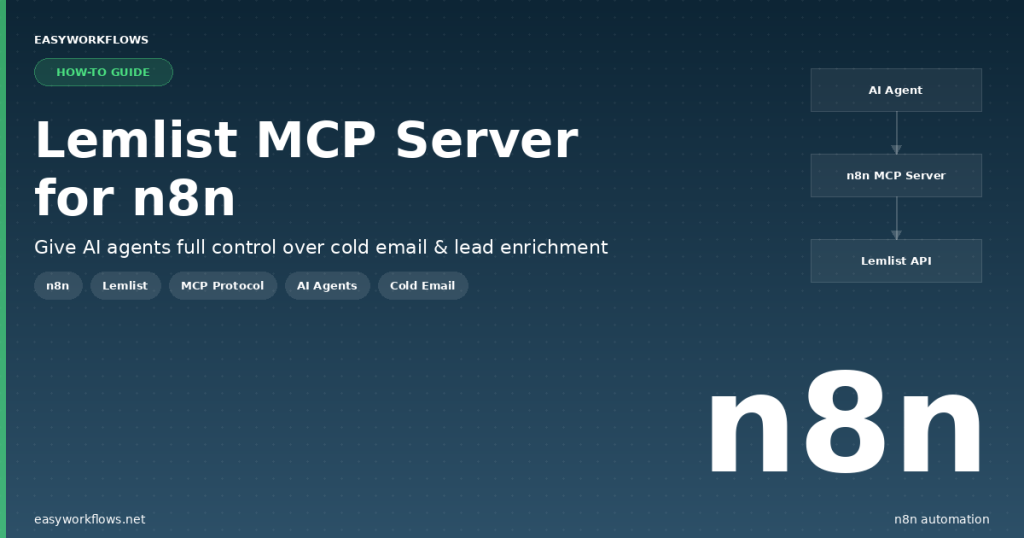
That’s exactly what this workflow does. It turns your n8n instance into a Lemlist MCP Server: a live endpoint that exposes 15 Lemlist operations as tools any AI agent (Claude, ChatGPT, a custom LangChain agent) can call directly using the Model Context Protocol.
Prefer to skip the setup? Grab the ready-made template → and be up and running in under 10 minutes.
What You’ll Build
- An n8n workflow that runs as a persistent MCP server, exposing 15 Lemlist tools via a single webhook endpoint
- AI agents connect to the endpoint and can call any tool: create a lead, enrich a contact by LinkedIn URL, pull campaign stats, add emails to the unsubscribe list, and more
- Each tool call routes to the correct Lemlist API operation and returns structured data back to the agent in real time
- The server handles all five functional areas: Activities, Campaigns, Lead Enrichment, Lead CRUD, Team info, and Unsubscribe list management
How It Works: The Big Picture
The workflow has one entry point, the MCP Trigger node, which acts as an HTTP endpoint your agent connects to. Every tool in the workflow is wired to this trigger via an ai_tool connection. When the agent calls a tool by name, n8n routes the request to the matching Lemlist node, executes it, and streams the result back to the agent.
┌─────────────────────────────────────────────────────────────────────┐
│  LEMLIST MCP SERVER                                                  │
│                                                                      │
│  AI Agent (Claude / ChatGPT / LangChain)                             │
│       │                                                              │
│       ▼  MCP Protocol (HTTP SSE)                                     │
│  [Lemlist Tool MCP Server Trigger]  ◄──── All tools connect here    │
│       │                                                              │
│       ├──(ai_tool)── [Get many activities]                           │
│       ├──(ai_tool)── [Get many campaigns]                            │
│       ├──(ai_tool)── [Get campaign stats]                            │
│       ├──(ai_tool)── [Fetches a previously completed enrichment]     │
│       ├──(ai_tool)── [Enrich a lead using email or LinkedIn URL]     │
│       ├──(ai_tool)── [Enrich a person using email or LinkedIn URL]   │
│       ├──(ai_tool)── [Create a lead]                                 │
│       ├──(ai_tool)── [Delete a lead]                                 │
│       ├──(ai_tool)── [Get a lead]                                    │
│       ├──(ai_tool)── [Unsubscribe a lead]                            │
│       ├──(ai_tool)── [Get a team]                                    │
│       ├──(ai_tool)── [Get team credits]                              │
│       ├──(ai_tool)── [Add an email to an unsubscribe list]           │
│       ├──(ai_tool)── [Delete an email from an unsubscribe list]      │
│       └──(ai_tool)── [Get many unsubscribed emails]                  │
│                                                                      │
│  Result → streamed back to AI agent via MCP protocol                 │
└─────────────────────────────────────────────────────────────────────┘
What You’ll Need
- n8n: self-hosted (v1.0+) or n8n Cloud. The
@n8n/n8n-nodes-langchain.mcpTriggernode is required; it ships with n8n 1.40+. - Lemlist account: any paid plan gives you API access. A free trial works for testing.
- Lemlist API key: found in your Lemlist account settings under Integrations → API
- An AI agent that supports MCP: Claude Desktop, a LangChain agent, or any framework implementing the Model Context Protocol client
Estimated build time: 20 to 30 minutes from scratch, or under 10 minutes with the template.
Understanding MCP: What It Means for Your Workflow
If you haven’t built an MCP server before, here’s the quick version: MCP (Model Context Protocol) is an open standard that lets AI agents discover and call external tools over HTTP. Think of it as a structured API layer specifically designed for AI agents: the agent asks “what tools do you have?”, the server responds with a list of tool names and descriptions, and the agent calls whichever tools it needs.
In n8n, the mcpTrigger node acts as the server. Every Lemlist Tool node you connect to it becomes a named tool the agent can call. The beauty of this approach is that you don’t need to write any glue code. n8n handles the protocol, the routing, and the response formatting automatically.
Tip: MCP is different from a standard webhook. The trigger keeps a persistent Server-Sent Events (SSE) connection open, which means agents get responses in real time rather than polling. Make sure your n8n instance is accessible from wherever your agent runs.
Building the Workflow, Step by Step
1 Add the MCP Trigger (Lemlist Tool MCP Server)
This is the entry point for every agent request. Search for “MCP Trigger” (listed as @n8n/n8n-nodes-langchain.mcpTrigger) and add it to the canvas. No parameters to configure. The node generates its own endpoint URL automatically when you activate the workflow.
Once active, the node will display an endpoint URL that looks like:
https://your-n8n-instance.com/mcp/YOUR_WEBHOOK_ID/sseCopy this URL, you’ll paste it into your AI agent’s MCP server configuration.
Tip: On self-hosted n8n, make sure your instance’s webhook URL is set correctly in the N8N_WEBHOOK_URL environment variable. Otherwise the endpoint URL shown in the node won’t be externally reachable by your agent.
2 Configure Your Lemlist Credential
Before adding any Lemlist Tool nodes, create the credential once, every node in the workflow reuses the same credential. Go to Settings → Credentials → New and select Lemlist API. Paste your Lemlist API key (from Lemlist → Settings → Integrations → API) into the field and save.
Note: Lemlist uses a simple API key (not OAuth). Your key looks like lem_api_xxxxxxxxxxxxxxxx. Keep it private, it has full account access.
3 Activities: Get many activities
Add a Lemlist Tool node. Under Resource, select Activity and the operation Get Many. Attach your Lemlist credential. Connect this node to the MCP Trigger via the ai_tool output port (drag from the trigger’s bottom connector to this node).
When an agent calls this tool, it gets a list of recent outreach activities across all campaigns:
{
  "type": "emailSent",
  "leadEmail": "james.carter@outlook.com",
  "campaignId": "cam_abc123",
  "campaignName": "Q2 SaaS Outreach",
  "date": "2026-04-10T14:32:00Z",
  "sequenceStep": 1
}
4 Campaigns: Get many campaigns & Get campaign stats
Add two more Lemlist Tool nodes. The first uses Resource: Campaign, Operation: Get Many, which lists all campaigns with their status and settings. The second uses Resource: Campaign, Operation: Get Stats, which returns performance metrics for a specific campaign ID.
A typical campaign stats response looks like:
{
  "campaignId": "cam_abc123",
  "campaignName": "Q2 SaaS Outreach",
  "emailsSent": 142,
  "opened": 89,
  "openRate": 0.627,
  "clicked": 31,
  "clickRate": 0.218,
  "replied": 18,
  "replyRate": 0.127,
  "bounced": 3
}
Connect both nodes to the MCP Trigger via ai_tool connections.
Tip: An AI agent with access to campaign stats can do things like “find my worst-performing campaign this month and draft a subject line improvement”: the kind of analysis that previously required manual dashboard diving.
5 Enrichment: Three enrichment tools
Add three Lemlist Tool nodes for the enrichment operations:
- Enrich a lead using an email or LinkedIn URL: takes an email or LinkedIn profile URL and returns company, job title, and social data for an existing Lemlist lead
- Enrich a person using an email or LinkedIn URL: same enrichment but for a person not yet in Lemlist (no lead record needed)
- Fetches a previously completed enrichment: retrieves a cached enrichment result by ID without consuming a new credit
A typical enrichment response contains:
{
  "email": "emily.rodriguez@techcorp.com",
  "firstName": "Emily",
  "lastName": "Rodriguez",
  "linkedinUrl": "https://linkedin.com/in/emilyrodriguez",
  "companyName": "TechCorp Solutions",
  "jobTitle": "VP of Engineering",
  "city": "Austin",
  "state": "TX",
  "country": "US",
  "companySize": "51-200",
  "industry": "Software"
}
Connect all three to the MCP Trigger.
6 Lead Management: Four lead operations
Add four Lemlist Tool nodes for full CRUD on leads:
- Create a lead: adds a new lead to a specified campaign
- Get a lead: fetches full lead data including custom variables and campaign membership
- Delete a lead: permanently removes a lead from a campaign
- Unsubscribe a lead: marks a lead as unsubscribed across all campaigns
When an agent creates a lead, the minimum required fields are the lead’s email address and a campaign ID. Optional fields include first name, last name, company, phone, and any Lemlist custom variables you’ve defined.
{
  "email": "michael.chen@startupco.io",
  "firstName": "Michael",
  "lastName": "Chen",
  "companyName": "StartupCo",
  "phone": "+1 512 555 0193",
  "customVariable": "CEO"
}
7 Team Info: Get team & Get team credits
Add two Lemlist Tool nodes for team-level information. Get a team returns your Lemlist workspace details. Get team credits is the more useful one: it tells the agent how many enrichment credits remain on your plan. An agent can call this before running a bulk enrichment to check whether you have enough credits, preventing unexpected quota errors mid-run.
{
  "teamId": "team_xxxxxxx",
  "teamName": "Carter & Associates Sales",
  "enrichmentCreditsUsed": 847,
  "enrichmentCreditsTotal": 2000,
  "enrichmentCreditsRemaining": 1153
}
8 Unsubscribe List: Three blocklist operations
Add the final three Lemlist Tool nodes:
- Add an email to an unsubscribe list: permanently blocks an email from future Lemlist outreach
- Delete an email from an unsubscribe list: removes a mistakenly blocked address
- Get many unsubscribed emails: retrieves the full blocklist for auditing
This is especially useful in agentic workflows where the agent monitors replies and automatically adds opt-out responses to the unsubscribe list in real time, no manual cleanup required.
Connecting to Your AI Agent
Once you’ve activated the workflow, you need to point your AI agent at the MCP endpoint. The exact steps depend on your agent framework:
Claude Desktop
Open ~/.claude/claude_desktop_config.json (macOS/Linux) or %APPDATA%\Claude\claude_desktop_config.json (Windows) and add a server entry:
{
  "mcpServers": {
    "lemlist": {
      "url": "https://your-n8n-instance.com/mcp/YOUR_WEBHOOK_ID/sse"
    }
  }
}
Restart Claude Desktop. The Lemlist tools will now appear in Claude’s tool panel and it can call them during any conversation.
LangChain / Custom Agent
Use the langchain-mcp-adapters package (Python) or any MCP-compatible client library. Point it at the same SSE URL:
from langchain_mcp_adapters.client import MultiServerMCPClient

client = MultiServerMCPClient({
    "lemlist": {
        "url": "https://your-n8n-instance.com/mcp/YOUR_WEBHOOK_ID/sse",
        "transport": "sse"
    }
})

tools = await client.get_tools()
# tools now includes all 15 Lemlist operations
The 15 Exposed Tools: Reference Table
| Tool Name | Category | What It Does |
|---|---|---|
Get many activities |
Activities | List recent outreach activity events |
Get many campaigns |
Campaigns | List all Lemlist campaigns |
Get campaign stats |
Campaigns | Open/click/reply rates for a campaign |
Fetches a previously completed enrichment |
Enrichment | Retrieve cached enrichment by ID |
Enrich a lead using an email or LinkedIn URL |
Enrichment | Enrich an existing Lemlist lead |
Enrich a person using an email or LinkedIn URL |
Enrichment | Enrich any email/LinkedIn URL (no lead record needed) |
Create a lead |
Leads | Add a new lead to a campaign |
Get a lead |
Leads | Fetch full lead record including custom fields |
Delete a lead |
Leads | Remove a lead from a campaign |
Unsubscribe a lead |
Leads | Mark lead as unsubscribed globally |
Get a team |
Team | Fetch workspace/team details |
Get team credits |
Team | Check remaining enrichment credits |
Add an email to an unsubscribe list |
Blocklist | Block an email from all outreach |
Delete an email from an unsubscribe list |
Blocklist | Remove a blocked email |
Get many unsubscribed emails |
Blocklist | Audit the full blocklist |
Full System Flow
┌──────────────────────────────────────────────────────────────────────────────┐
│  FULL SYSTEM: AI AGENT ↔ LEMLIST MCP SERVER ↔ LEMLIST API                   │
│                                                                              │
│  User ──► AI Agent (Claude / GPT / LangChain)                                │
│               │                                                              │
│               │  "Enrich emily.rodriguez@techcorp.com and create her         │
│               │   as a lead in the Q2 SaaS Outreach campaign"               │
│               │                                                              │
│               ▼                                                              │
│  [MCP Client] ──SSE──► [n8n MCP Trigger]                                     │
│                               │                                              │
│               ┌───────────────┤                                              │
│               │               │                                              │
│               ▼               ▼                                              │
│  Tool call 1:           Tool call 2:                                         │
│  Enrich a person        Create a lead                                        │
│  (LinkedIn URL)         (email + campaign)                                   │
│       │                       │                                              │
│       ▼                       ▼                                              │
│  Lemlist Enrichment API  Lemlist Leads API                                   │
│       │                       │                                              │
│       └───────────┬───────────┘                                              │
│                   ▼                                                          │
│           Results streamed back to agent via MCP                             │
│                   │                                                          │
│                   ▼                                                          │
│  Agent responds to user: "Emily has been enriched (VP of Engineering,        │
│  TechCorp Solutions, Austin TX) and added to Q2 SaaS Outreach."              │
└──────────────────────────────────────────────────────────────────────────────┘
Testing Your Workflow
- Activate the workflow in n8n, and the MCP trigger node will display the SSE endpoint URL
- Copy the endpoint URL and add it to your AI agent’s MCP server config
- In your agent, ask: “List all my Lemlist campaigns”, which calls
Get many campaignsand should return your campaign list - Test enrichment: “Enrich the person at emily.rodriguez@outlook.com”, which should return job title, company, and social data
- Test lead creation: “Create a lead for michael.chen@startupco.io in campaign [your campaign ID]”
| Problem | Likely Cause | Fix |
|---|---|---|
| Agent can’t reach the MCP endpoint | n8n webhook URL not set / firewall blocking port | Set N8N_WEBHOOK_URL env var; ensure port 443/5678 is open |
| “401 Unauthorized” from Lemlist tools | API key not attached to nodes | Open each Lemlist Tool node and select your Lemlist credential |
| Enrichment returns no data | Email not found in Lemlist’s enrichment database | Try a LinkedIn URL instead; not all emails have enrichment coverage |
| Agent only sees some tools, not all 15 | Not all nodes connected to MCP Trigger | Check each Lemlist Tool node has an ai_tool wire going to the trigger |
| MCP Trigger node missing from n8n | n8n version older than 1.40 | Upgrade n8n to 1.40+, since the mcpTrigger node ships with that release |
Frequently Asked Questions
Do all 15 tools need separate Lemlist credentials?
No, one Lemlist API key covers all nodes. Create the credential once in n8n’s credential manager, then select it in each Lemlist Tool node. All nodes in this workflow use the same single credential.
Can I use this with n8n Cloud or only self-hosted?
Both work. On n8n Cloud your instance is already public, so the MCP endpoint is immediately reachable by external agents. On self-hosted n8n, you need to make sure your instance’s webhook URL is publicly accessible and that N8N_WEBHOOK_URL is correctly configured.
How many enrichment credits does calling the enrichment tools use?
Each call to Enrich a lead or Enrich a person uses one Lemlist enrichment credit. Fetches a previously completed enrichment retrieves a cached result and does not use a credit. Use Get team credits to monitor your remaining balance before bulk enrichment runs.
Can I add more Lemlist operations to this server later?
Yes. Just add another Lemlist Tool node to the canvas, configure it with the operation you need, and connect it to the MCP Trigger via an ai_tool wire. The server automatically advertises all connected tools to agents, no additional configuration needed.
Is the MCP connection secure? Should I worry about unauthorized access?
The MCP endpoint URL acts as a secret: anyone with the URL can call the tools. Keep it private and don’t share it publicly. For additional security, you can add an API key header check using n8n’s webhook authentication settings on the trigger node, or restrict access to specific IP ranges at the network level.
What happens if the n8n workflow is inactive when the agent tries to call a tool?
The agent will receive a connection error: the MCP SSE endpoint only works when the workflow is active. Make sure the workflow is toggled on in n8n. If you’re on self-hosted n8n, also ensure the n8n process itself is running (consider setting it up as a system service so it restarts automatically).
🚀 Get the Lemlist MCP Server Template
Skip the manual setup and get the ready-to-import n8n workflow JSON, a step-by-step Setup Guide PDF, and a Credentials Guide PDF that walks you through getting your Lemlist API key and connecting your agent.
Instant download · Works on n8n Cloud and self-hosted · All 15 Lemlist tools included
What’s Next?
- Build a full sales agent: Combine this MCP server with a web scraping tool and an AI agent that finds prospects on LinkedIn, enriches them, and adds them to Lemlist campaigns, completely autonomously
- Auto-manage unsubscribes: Connect a Gmail or Outlook trigger that monitors for “unsubscribe” or “opt out” keywords in replies, then calls this server to add the sender to your global blocklist
- Campaign reporting bot: Build a Telegram or Slack bot that lets your team query campaign stats in plain English, and the agent calls
Get campaign statsand formats a readable report - Credit monitoring alert: Set up a daily n8n schedule that calls
Get team creditsand sends a Slack notification when enrichment credits drop below a threshold - Extend with other MCP servers: Combine this server with a HubSpot MCP server or a Slack MCP server so your agent can enrich a lead in Lemlist AND create a CRM contact AND notify your sales team, all in one conversation