New to n8n? Start with our step-by-step setup guide, then come back to build this workflow.
You’ve got dozens of PDFs, reports, and spreadsheets scattered across Google Drive. Finding that one specific number or policy buried on page 47? That’s where your afternoon goes.
What if your documents could talk? Imagine asking your chatbot “What was our Q3 revenue projection?” and getting an instant, accurate answer pulled from your actual files, not a hallucination. That’s the power of RAG (Retrieval Augmented Generation).
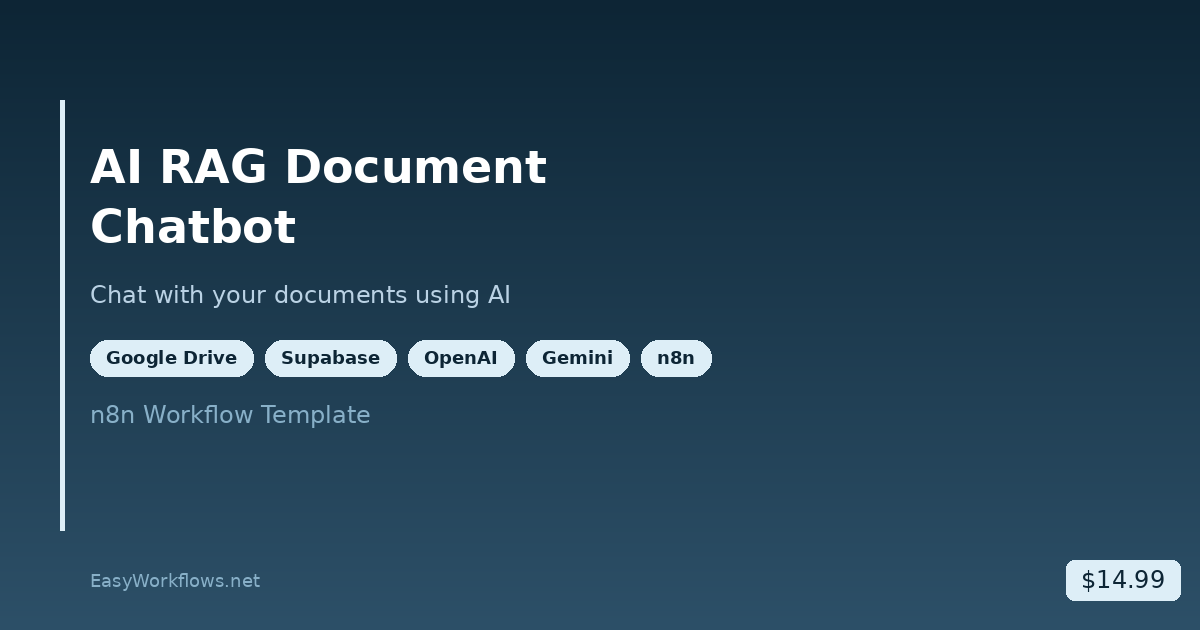
In this guide, we’re building exactly that: an AI document chatbot that automatically processes everything you upload to Google Drive, makes it searchable, and lets you chat with it using natural language. We’ll use n8n to orchestrate the whole pipeline, Google Drive for storage, Google Gemini to enhance your content, OpenAI for embeddings and chat, and Supabase as our vector database.
By the end, you’ll have a workflow that doesn’t just read documents, it understands them contextually and retrieves the most relevant information on demand.
What You’ll Build
This workflow has two halves that work together seamlessly:
The Document Processing Pipeline watches your Google Drive folder, automatically grabs new files (PDFs, CSVs, Google Docs), extracts the text, enhances it with AI smarts, splits it into searchable chunks, generates vector embeddings, and stores everything in a Supabase database.
The Chat Interface is where users interact. When someone sends a message, an AI agent searches your vector database for the most relevant chunks, reads them in context, and generates an intelligent answer grounded in your actual documents.
The magic here is that the chatbot doesn’t just guess. It retrieves and reasons over your real data. No more “I don’t have that information.” Your documents become your knowledge base.
How It Works: High-Level Architecture
┌─────────────────────────────────────────────────────────────────┐
│                    Document Processing Pipeline                 │
├─────────────────────────────────────────────────────────────────┤
│                                                                   │
│  Google Drive      Extract      AI Enhancement    Vector Store   │
│   Folder          Text               │              (Supabase)   │
│      │               │         Generate:               │         │
│      │               │         • Metadata       • Embeddings     │
│      │               │         • Context        • Chunks         │
│      └──────────────┬┴────────────┬────────────────┤             │
│                     │             │                │             │
│            (Monitor every minute)                  │             │
│                                                    └─────────┐   │
│                                                              │   │
├──────────────────────────────────────────────────────────────┼──┤
│                   Chat Interface                             │  │
├──────────────────────────────────────────────────────────────┼──┤
│                                                              │  │
│  User Message     Search      Retrieve      Generate        │  │
│      │            Vector DB   Context       Answer           │  │
│      │               │            │            │             │  │
│      └───────────────┼────────────┼────────────┤             │  │
│                      │            │            │             │  │
│            (Powered by OpenAI GPT-4o-mini) ←──┘             │  │
│                                               │             │  │
│                            Sourced from Supabase────────────┘  │
│                                                                   │
└─────────────────────────────────────────────────────────────────┘
What You’ll Need
Before we start building, gather these:
- n8n account: cloud or self-hosted, either works
- Google account: for Google Drive and Google Gemini API access
- OpenAI API key: for embeddings and the GPT-4o-mini chat model
- Supabase account: free tier is fine; you’ll create a PostgreSQL database with the pgvector extension
- A Google Drive folder: dedicated to documents you want indexed
- Sample documents: PDFs, CSVs, or Google Docs to test with
Estimated setup time: 15 to 20 minutes. The workflow itself is provided as a template you can import directly.
Part 1: Document Processing Pipeline
This is the intake system. Every minute, it checks for new files and prepares them for retrieval.
1 Google Drive Trigger
The entry point. Configure this node to:
- Connect your Google account via OAuth2
- Select the Google Drive folder where you’ll upload documents
- Set the poll frequency to every 1 minute (or adjust to your needs)
This trigger fires whenever n8n detects new or modified files in that folder. You can filter by file type if you want (e.g., only PDFs and CSVs).
2 Loop Over Items
Since Google Drive might return multiple files, we process them one by one. This node iterates through the list so each file gets its own execution path through the pipeline.
3 Set File ID
A simple expression node that extracts and stores the Google Drive file ID. We’ll use this later to track which document a chunk came from. Use an expression like: $json.fileId
4 Download File
Downloads the actual file from Google Drive. Important: Google Docs are automatically converted to PDF during download, so you get consistent text extraction across all document types.
5 Switch Node (MIME Type Router)
Routes the file to the right text extraction method based on its type:
- If MIME type is
application/pdf→ send to PDF extractor - If MIME type is
text/csv→ send to CSV extractor
This branching logic ensures each file type is handled with the right tool.
6 Extract from PDF / Extract from CSV
Two parallel nodes (one for each file type) that pull raw text:
- PDF extraction: Use n8n’s built-in PDF node or a code snippet to extract text, preserving paragraph structure where possible
- CSV extraction: Parse the CSV, convert rows to readable text (e.g., “Row 1: Name=Jennifer Chen, Department=Marketing, Salary=92000”)
Both outputs feed into the next stage as plain text.
Rough PDFs or image-heavy documents? Consider adding an OCR step here using services like Google Vision API. It adds latency but ensures no text is missed. Check our template marketplace for OCR-enhanced variants.
7 Document Data (JSON Wrapper)
Wraps the extracted text in a structured JSON object:
{
  "text": "[extracted text here]",
  "file_id": "[Google Drive ID]",
  "file_name": "[original filename]",
  "mime_type": "[pdf or csv]"
}
This structure carries metadata through the pipeline, so we always know where each chunk originated.
8 Create Metadata (Google Gemini)
Before we split text into chunks, we generate high-level metadata using Google Gemini. Send the full document text to Gemini with a prompt like:
“Read this document and provide: (1) A concise title (5 to 10 words), (2) A brief description (1 to 2 sentences) explaining what this document contains and who should read it. Output as JSON: {title, description}”
Gemini returns structured metadata that will be attached to every chunk from this document. This is crucial: when the chatbot retrieves chunks, it shows the user which document they came from and why it’s relevant.
9 Split Into Chunks (Code Node)
Raw documents are too large to process as embeddings. This node intelligently splits text into 1000-character chunks with 200-character overlap, respecting sentence and paragraph boundaries:
// Simplified chunking logic (pseudocode)
const chunkSize = 1000;
const overlapSize = 200;
let chunks = [];
let currentChunk = '';

// Split on sentences/paragraphs first
const sentences = text.split(/(?<=[.!?])\s+/);

for (let sentence of sentences) {
  if ((currentChunk + sentence).length > chunkSize) {
    chunks.push(currentChunk.trim());
    currentChunk = currentChunk.slice(-overlapSize) + sentence;
  } else {
    currentChunk += ' ' + sentence;
  }
}
if (currentChunk) chunks.push(currentChunk.trim());

return chunks;
This ensures that no information is lost at chunk boundaries, and related concepts stay together.
10 Split Out
Converts the chunks array into separate items so each chunk flows through its own execution. If a document produces 50 chunks, this creates 50 parallel execution paths.
11 Limit (Optional)
A safety valve: limits processing to the first 20 chunks per document. Set this based on your OpenAI quota and cost tolerance. You can remove it for unlimited processing.
12 Process Context (Google Gemini)
Each chunk is sent to Gemini for contextual enhancement. Prompt:
“Here is an excerpt from a larger document. Enhance this excerpt with additional context that would help someone retrieve and understand it later. Add brief background, define jargon, and clarify pronouns. Keep it to 1 to 2 sentences. Return the enhanced excerpt.”
Example: If a chunk says “Q3 revenue up 15%”, Gemini might enhance it to “Q3 2025 revenue increased 15% compared to Q2 2025, reaching $4.2M.” Now when the chatbot retrieves this chunk for a question like “What was our revenue trend?”, it has full context.
13 Summarize (Concatenate)
Combines the enhanced chunks back into a single string, separated by a delimiter (e.g., \n---\n). This serves as the final text to embed. The structure is:
[Enhanced Chunk 1]
---
[Enhanced Chunk 2]
---
[Enhanced Chunk 3]
14 Add Data to Supabase Vector Store
The final step: store everything in Supabase. This node does three things:
- Generates OpenAI embeddings for each chunk (using
text-embedding-3-smallmodel) - Prepares metadata (file_id, title, description, chunk index)
- Stores in Supabase with the embedding vector, content, and metadata
The node uses Supabase’s built-in vector support. Each row in your documents table looks like:
content: The enhanced chunk textembedding: The 1536-dimensional vector from OpenAImetadata: JSON with file_id, title, description, chunk_index
Once this completes, your document is fully indexed and searchable.
Part 2: Chat Interface
Now users can ask questions and get answers grounded in their documents.
1 When Chat Message Received
This is n8n’s chat trigger. Users send messages through the n8n UI (or via webhook if you embed it elsewhere), and each message fires this trigger. The input includes the user’s question and conversation history.
2 AI Agent (OpenAI)
The brain of the system. Configure an n8n AI Agent node with:
Model: GPT-4o-mini (fast, cost-effective, smart enough for RAG retrieval)
System Prompt:
“You are an internal company knowledge assistant. Your job is to answer questions about company documents. Always search the Vector Database first using the provided tool. Retrieve the most relevant document excerpts. Ground your answer in what you found. Never guess or make up information. If you cannot find relevant information, say so honestly.”
Memory: Enable Simple Memory with a 10-message limit so the chatbot remembers recent context within a conversation.
Tools: Attach the Supabase Vector Store as a tool. This gives the agent the ability to search for relevant chunks when answering a question.
When the user asks “What’s our return policy?”, the agent:
- Takes the question
- Calls the Vector Store tool with an embedding of the question
- Retrieves the top 20 most similar chunks
- Reads those chunks
- Generates a coherent answer citing the relevant sections
This is RAG in action: retrieval + augmented generation.
The Data Structure: Supabase Setup
Your vector database needs the right schema. In Supabase, run this SQL:
-- Enable pgvector extension
CREATE EXTENSION IF NOT EXISTS vector;

-- Create documents table
CREATE TABLE public.documents (
  id bigserial PRIMARY KEY,
  content text NOT NULL,
  metadata jsonb,
  embedding vector(1536),
  created_at timestamp with time zone DEFAULT now()
);

-- Create an index for faster vector searches
CREATE INDEX documents_embedding_idx
  ON documents
  USING ivfflat (embedding vector_cosine_ops)
  WITH (lists = 100);

-- Create an index on metadata for filtering
CREATE INDEX documents_metadata_idx
  ON documents
  USING GIN (metadata);
Explanation:
content: The chunk text itselfmetadata: JSONB storing file_id, title, description, chunk_indexembedding: The 1536-dimensional vector from OpenAI’s embedding model- The ivfflat index speeds up similarity searches across millions of chunks
Full System Flow Diagram
START
  │
  ├─► Google Drive Trigger (every 1 min)
  │     │
  │     ├─► Loop Over Items
  │     │     │
  │     │     ├─► Extract File ID
  │     │     │
  │     │     ├─► Download File
  │     │     │
  │     │     ├─► Switch by MIME Type
  │     │     │     │
  │     │     │     ├─► PDF Branch
  │     │     │     │     ├─► Extract PDF Text
  │     │     │     │     └─► Wrap in JSON
  │     │     │     │
  │     │     │     └─► CSV Branch
  │     │     │           ├─► Parse CSV
  │     │     │           └─► Wrap in JSON
  │     │     │
  │     │     ├─► Create Metadata (Gemini)
  │     │     │     └─► Store title + description
  │     │     │
  │     │     ├─► Split into 1000-char Chunks
  │     │     │
  │     │     ├─► Split Out (iterate chunks)
  │     │     │
  │     │     ├─► Limit to 20 chunks
  │     │     │
  │     │     ├─► Process Context (Gemini)
  │     │     │     └─► Enhance each chunk
  │     │     │
  │     │     ├─► Summarize (concatenate)
  │     │     │
  │     │     └─► Add to Supabase
  │     │           ├─► Generate Embedding (OpenAI)
  │     │           └─► Store in Vector DB
  │     │
  │     └─► [Document Indexed & Searchable]
  │
  └─► Chat Interface
        │
        ├─► When Chat Message Received
        │     │
        │     └─► AI Agent (GPT-4o-mini)
        │           │
        │           ├─► Embed Question (OpenAI)
        │           │
        │           ├─► Search Supabase Vector Store
        │           │     └─► Retrieve top 20 chunks
        │           │
        │           └─► Generate Answer
        │                 └─► Return to User
        │
        └─► [Chat Interface Ready]
Testing Your Workflow
Once deployed, test it end-to-end:
- Upload a test document to your Google Drive folder. A PDF with company policies works great. You should see the Google Drive trigger fire within 1 minute.
- Monitor the workflow execution in n8n. Watch the logs as your document flows through extraction, chunking, enhancement, and embedding.
- Verify in Supabase. Query your documents table:
SELECT COUNT(*) FROM documents;You should see rows for each chunk. - Test the chat interface. Click the chat icon in n8n and ask a question about your document. For example: “What is the vacation policy?” The chatbot should retrieve relevant chunks and answer from your actual document.
- Refine as needed. If answers aren’t specific enough, adjust the context enhancement prompt in Step 12. If too many irrelevant chunks appear, experiment with the chunk size or overlap in Step 9.
A successful test: You ask a specific question (like “Who is responsible for budget approvals?”) and the chatbot cites the exact section of the document it found the answer in.
Frequently Asked Questions
How long does it take to index a new document?
Depends on document size. A typical 20-page PDF takes 30 to 90 seconds: extraction (5s), enhancement (20 to 60s), embedding (5 to 30s), and Supabase storage (5s). Large datasets benefit from batching and optimizing your chunk size.
What happens if I ask the chatbot about something not in my documents?
The AI agent is configured to search the Vector Database first. If no relevant chunks are retrieved, it will respond honestly: “I couldn’t find information about that in the available documents.” No hallucinations. That’s the RAG advantage.
Can I use a different LLM instead of OpenAI?
Yes. n8n supports Anthropic Claude, Google Gemini, and others. For embeddings, you’d need a provider with embedding endpoints (OpenAI, Cohere, or HuggingFace). Swap the model and API keys in the configuration. The workflow structure stays the same.
What’s the cost to run this workflow?
Rough estimates per 100 documents: Google Drive API (~$0, free tier is generous), Google Gemini API (metadata + context: ~$2 to $5), OpenAI embeddings (~$0.02 per document), GPT-4o-mini chat (~$0.015 per conversation, highly variable), Supabase hosting ($0 on free tier, $25/mo for production). Your biggest variable is chat usage and document volume.
Can I delete or update documents in the vector store?
Absolutely. Add a separate n8n workflow with a Supabase trigger that listens for deleted files in Google Drive. When a file is deleted, remove all chunks with matching file_id from the vector store. Same for updates: re-process the document and insert fresh chunks, optionally deleting old ones.
How many documents can the system handle?
Supabase’s free tier supports millions of vectors. The bottleneck is API rate limits: Google’s quota (varies), OpenAI embeddings (up to 3,500 requests/min on paid accounts), and Gemini rate limits. For enterprise scale, contact your API providers for higher quotas.
What’s Next?
You now have a functioning RAG chatbot. Here are natural next steps:
- Deploy the chat interface publicly: Embed the n8n chat widget on a website or expose it via a webhook so external users can query your documents.
- Add document filtering: Modify the Vector Store search to filter by department, date range, or document type. Useful if different teams have different documents.
- Implement multi-language support: Use translation APIs to process documents in French, Spanish, German, etc. The embeddings and chat adapt automatically.
- Create document analytics: Track which documents get queried most, what questions come up repeatedly, and use that to improve your knowledge base organization.
- Integrate with Slack or Teams: Instead of a web chat, let employees query documents directly from Slack. n8n webhooks make this straightforward.
- Add feedback loops: Let users rate chatbot answers (“Was this helpful?”). Log feedback to a table and use it to retrain or improve your prompts.
Ready to Deploy Your RAG Chatbot?
The complete, production-ready n8n workflow template is available right now. Import it directly into your n8n instance, configure your API keys, and start indexing documents in minutes.
One-click import. Full documentation included. Free to modify and extend.
Summary
You now understand the architecture of an enterprise-grade document chatbot. The two-part workflow, document processing and chat interface, works together to create a system that knows your documents intimately and answers questions with precision.
The key innovations:
- Intelligent chunking preserves context
- Gemini enhancement adds semantic richness
- Vector embeddings enable semantic search (not keyword search)
- RAG prevents hallucinations by grounding answers in actual content
- Metadata tracking ensures users know where answers come from
Build this workflow, test it with your own documents, and watch it transform how your team accesses information. Stop searching pages manually. Start asking.