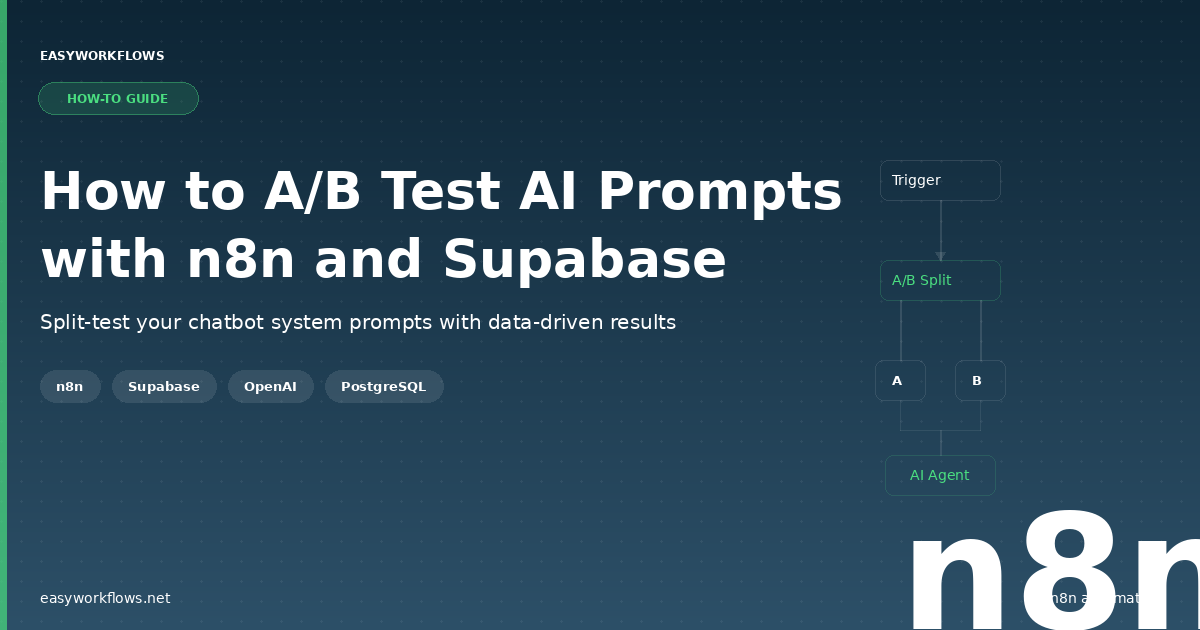
Most AI builders pick their chatbot’s system prompt based on gut feeling. They write something that sounds good, deploy it, and hope for the best. But what if you could actually test two prompt variants on real users and measure which one performs better? This n8n workflow does exactly that: it randomly assigns users to either a baseline or alternative system prompt, remembers their assignment, and lets you collect data on which version gets better results. No guessing. Just data-driven prompt optimization.
Prefer to skip the setup? Grab the ready-made template and import it into your n8n instance in minutes — get the A/B testing template here.
What You’ll Build
By the end of this guide, you’ll have a fully functional A/B testing system that:
- Accepts incoming chat messages with user session IDs
- Stores two distinct system prompt variants (baseline and alternative)
- Checks whether the session has been assigned to a test group before
- Automatically assigns new users to one of the two variants using a 50/50 random split
- Ensures returning users always see the same prompt variant they were originally assigned
- Passes the correct prompt to your AI agent (OpenAI GPT-4o-mini)
- Maintains full conversation history in PostgreSQL so the AI remembers previous messages
- Records session and test assignment data for later analysis
How It Works — The Big Picture
Here’s the flow from incoming message to AI response:
┌────────────────────────────────────────────────────────────────┐
│  A/B TEST AI PROMPTS                                           │
│                                                                │
│  [Chat Trigger] → [Define Test Prompts] → [Check Session]     │
│                                              ↓                 │
│                                    [Session Assigned?]         │
│                                     ↙ Yes        ↘ No         │
│                              [Select Prompt]  [Assign Random]  │
│                                     ↘             ↙            │
│                                  [Select Prompt]               │
│                                       ↓                        │
│                                  [AI Agent]                    │
│                              (OpenAI + Memory)                 │
└────────────────────────────────────────────────────────────────┘
The workflow listens for incoming chat messages, queries Supabase to see if the user’s session already exists, and branches based on the result. New users get randomly assigned to one of two prompt variants; returning users get their original variant. Both paths converge at a single AI Agent node that uses the correct system prompt and maintains conversation memory through PostgreSQL.
What You’ll Need
- Supabase account (free tier is fine) — you’ll need a PostgreSQL database and the ability to run SQL queries
- OpenAI API key with access to GPT-4o-mini (cost: typically less than $1 per 1M tokens)
- n8n instance — either n8n Cloud (free or paid plans) or self-hosted
- Basic familiarity with n8n — understanding nodes, inputs, and outputs will help
Build time: 25-35 minutes from scratch, under 10 minutes if you import the ready-made template.
Step-by-Step Setup
1 Set Up Your Chat Trigger
Start with a Chat Trigger node (or HTTP Request if you’re building a custom endpoint). This node receives incoming user messages along with a session ID. The session ID is crucial — it’s how you identify repeat users.
Your incoming payload should look like this:
{
  "sessionId": "sess_7f3a2b91",
  "userId": "user_4c2e9k10",
  "message": "Hello, what's your recommendation for a CRM?"
}Session ID strategy: If you’re embedding this in a web app, generate a unique session ID and store it in localStorage or a cookie. For API-driven usage, your backend can generate UUIDs or slugs.
2 Define Your Test Prompts
Add a Set node after the Chat Trigger. This node stores both system prompt variants. Here’s an example with a customer support chatbot:
Baseline prompt (friendly):
"You are a helpful customer support agent for an e-commerce platform. Be warm, approachable, and conversational. Always put the customer's needs first. If you don't know something, admit it and offer to escalate."Alternative prompt (professional):
"You are a professional customer support specialist. Provide concise, accurate answers. Use technical terminology where appropriate. Focus on efficiency and quick resolution. Maintain professional boundaries while remaining courteous."Store these as variables in your Set node. For example:
{
  "baseline_prompt": "You are a helpful customer support agent...",
  "alternative_prompt": "You are a professional customer support specialist..."
}
You can customize these prompts however you want — adjust tone, instructions, constraints, anything. The point is to test meaningful variations.
3 Query Supabase for Existing Sessions
Add a Supabase node (Query Rows) to check if this session has been assigned before. Set up the query like this:
Table: split_test_sessions
Filter: session_id = (incoming session_id)
This will return an empty array if the session is new, or one row if the session already exists. Save the result to a variable like session_lookup.
4 Add a Conditional: Is the Session Already Assigned?
Use an IF node to check whether the session exists:
session_lookup.length > 0If true (session exists), branch to “Select Active Prompt”. If false (new session), branch to “Assign Random Variant”.
5 Assign a Random Variant to New Users
In the “false” branch, add a Function node that generates a random coin flip and inserts a new row into Supabase:
// Generate 50/50 random boolean
const show_alternative = Math.random() < 0.5;

// Return the assignment for the next node
return {
  show_alternative: show_alternative,
  session_id: $input.all()[0].json.sessionId,
  timestamp: new Date().toISOString()
};
Follow this with a Supabase Insert Rows node that saves the assignment to the database:
Table: split_test_sessions
Columns:
{
  "session_id": $input.all()[0].json.sessionId,
  "show_alternative": show_alternative,
  "created_at": new Date().toISOString()
}Tip: Use Supabase's connection pooler for faster queries, especially if you're running high volume. It's in your project settings under "Database" → "Connection Pooling".
6 Select the Active Prompt
Both paths (existing and new sessions) converge at a Set node that picks the correct system prompt. This node needs to check whether show_alternative is true or false and return the matching prompt:
{
  "system_prompt": $input.all()[0].json.show_alternative
    ? $input.all()[0].json.alternative_prompt
    : $input.all()[0].json.baseline_prompt
}
Make sure this node receives the show_alternative boolean from either the database query (existing session) or the assignment function (new session).
7 Configure the AI Agent with Memory
Add an OpenAI node configured as an AI Agent. Set it up like this:
Model: gpt-4o-mini
System prompt: Use the system_prompt variable from the previous Set node
Chat memory: Enable PostgreSQL memory using your Supabase connection. Configure it with:
- Connection: Your Supabase PostgreSQL connection
- Session ID: The incoming
sessionId - Memory type: Buffer memory or summarization (your choice based on conversation length)
This ensures the AI remembers all previous messages in the session, maintaining context across turns.
The Data Structure
You need a PostgreSQL table in Supabase to track session assignments. Here's the schema:
| Column Name | Type | Description |
|---|---|---|
id |
BIGINT (auto-increment) | Primary key, auto-generated |
session_id |
TEXT (unique) | Unique identifier for the user session, e.g. "sess_7f3a2b91" |
show_alternative |
BOOLEAN | true = user sees alternative prompt, false = user sees baseline prompt |
created_at |
TIMESTAMP | When the assignment was created, useful for sorting and analysis |
To create this table in Supabase, go to the SQL Editor and run:
CREATE TABLE split_test_sessions (
  id BIGSERIAL PRIMARY KEY,
  session_id TEXT NOT NULL UNIQUE,
  show_alternative BOOLEAN NOT NULL,
  created_at TIMESTAMP DEFAULT CURRENT_TIMESTAMP
);

CREATE INDEX idx_session_id ON split_test_sessions(session_id);
The index on session_id speeds up lookups when users return.
Full System Flow with Data
Let's trace a complete example with realistic data:
1. User message arrives:
{
  "sessionId": "sess_7f3a2b91",
  "userId": "user_4c2e9k10",
  "message": "Hello, what CRM do you recommend for a 50-person startup?"
}
2. Query Supabase:
SELECT * FROM split_test_sessions WHERE session_id = 'sess_7f3a2b91';
// Result: [] (empty, this is a new user)
3. Assign random variant:
Math.random() < 0.5  // Returns true, assign alternative
// Insert into Supabase:
{
  "session_id": "sess_7f3a2b91",
  "show_alternative": true,
  "created_at": "2026-04-08T14:32:05.000Z"
}
4. Select the correct prompt:
// show_alternative is true, so use:
system_prompt = "You are a professional customer support specialist..."
5. AI Agent responds:
The OpenAI node receives the alternative system prompt and the user's message. With PostgreSQL memory enabled, it also pulls any previous messages from this session (none on first message). It generates a response:
"For a 50-person startup, I'd recommend HubSpot or Pipedrive. Both scale efficiently and offer the customization you'll need. What's your primary use case — sales pipeline or customer support?"6. On the next turn (same session):
{
  "sessionId": "sess_7f3a2b91",
  "userId": "user_4c2e9k10",
  "message": "Mainly sales pipeline. What about pricing?"
}
Query returns the existing row with show_alternative: true. The same professional prompt is used. Memory context includes the entire conversation.
Testing Your Workflow
Before running it live, test each step:
- Test the Chat Trigger: Send a sample message with a session ID through the webhook or chat interface. Check that the payload arrives correctly.
- Test Supabase connectivity: Run a simple query (e.g.,
SELECT * FROM split_test_sessions LIMIT 1;) to verify the connection works. - Test the random assignment: Run the workflow 10 times with different session IDs and verify that Supabase records are created with roughly 50% true/false split.
- Test the conditional logic: Create a session, run the workflow, then re-run with the same session ID. Verify that the second run retrieves the existing assignment instead of creating a new one.
- Test the AI Agent: Verify the AI receives the correct system prompt by checking the API logs or n8n execution history.
- Test memory persistence: Send multiple messages in the same session and confirm the AI remembers previous context.
Common Issues and Troubleshooting
| Issue | Likely Cause | Solution |
|---|---|---|
| Supabase query returns empty even for existing sessions | Session ID mismatch (case sensitivity, extra whitespace) | Normalize session IDs: trim whitespace, convert to lowercase |
| AI Agent fails with authentication error | Invalid OpenAI API key or quota exceeded | Check your API key in n8n credentials; verify you have billing enabled in OpenAI account |
| Duplicate session assignments (multiple true/false values) | Missing UNIQUE constraint on session_id | Add UNIQUE constraint to split_test_sessions.session_id |
| Conversation memory not working | PostgreSQL connection not configured or memory table missing | Verify Supabase PostgreSQL credentials in n8n; ensure memory table exists |
| Workflow executes but AI returns generic responses | System prompt not being passed correctly | Debug: log the system_prompt variable before the AI Agent node, verify it's not empty |
Debugging tip: Use n8n's Execute Workflow button and inspect the input/output of each node. The execution history shows exactly what data is flowing through your workflow.
Measuring Results
Now that your A/B test is running, how do you measure which prompt is better? A few approaches:
- User feedback: Add a thumbs-up/thumbs-down button after each AI response and record votes in a feedback table, tagged with session_id and show_alternative.
- Conversation length: Query Supabase to see average message count per session for each variant. Longer conversations might indicate more engaging prompts.
- Resolution time: If this is customer support, track how many turns it takes to resolve issues per variant.
- Manual review: Export a sample of responses from each variant and have a human evaluate quality, tone, and accuracy.
- Custom metrics: Log additional data (response time, token usage, user satisfaction score) to your Supabase table for analysis.
Run each variant for at least 100-200 sessions before drawing conclusions. Statistical significance matters.
Frequently Asked Questions
Can I test more than two prompts?
Yes, absolutely. Instead of a boolean show_alternative column, use an integer or enum to represent three or more variants. Adjust the random assignment logic to distribute evenly (e.g., if 3 variants: Math.floor(Math.random() * 3)). Update the "Select Active Prompt" node to use a switch statement or nested ternary.
How do I measure which prompt performs better?
Add a feedback mechanism (thumbs-up/down buttons or a satisfaction rating) tied to each session. Store results in Supabase with the variant ID. Then query Supabase to calculate average scores per variant. You can also measure conversation length, resolution time, or cost per variant.
Does this work with models other than GPT-4o-mini?
Yes. The workflow is model-agnostic. You can use GPT-4, GPT-3.5 Turbo, Claude (via Anthropic API), or any LLM with an n8n integration. Just swap the model in the AI Agent node and ensure you have valid API credentials.
What happens if Supabase goes down?
If Supabase is unavailable, the workflow will fail at the session lookup step. To add resilience, wrap Supabase queries in try-catch blocks or add error handling nodes that fall back to a default prompt (e.g., always use baseline if the database is unreachable).
Can I use this for testing different temperatures or models?
Absolutely. Extend the workflow to test different model parameters. For example, add a temperature and model_name column to split_test_sessions. In the AI Agent node, dynamically set the temperature and model based on the session's assigned variant. This lets you A/B test creativity (high temperature) vs. consistency (low temperature).
Can I run multiple A/B tests simultaneously?
Yes. Use separate columns in split_test_sessions for each test (e.g., prompt_test, temperature_test, model_test). Each column holds the variant assignment for that specific test. The workflow then reads all relevant columns and applies them simultaneously to the AI Agent. This is called multivariate testing.
Get the A/B Prompt Testing Template
Stop guessing which prompt works best. Import this ready-made n8n workflow, connect your Supabase and OpenAI accounts, and start testing in minutes.
What's Next: Extending the Workflow
Once you have the basic A/B test working, consider these enhancements:
- Automatic winner selection: Set up a scheduled workflow that analyzes results every week and automatically switches all new users to the winning variant.
- Progressive rollout: Instead of 50/50, shift traffic gradually (90/10, 80/20, etc.) as one variant proves better.
- Segmented testing: Run different tests for different user segments (new vs. returning, by industry, by region).
- Prompt versioning: Store all prompt versions in Supabase with timestamps so you can track which exact variant each user saw.
- Multivariate testing: Test system prompt, temperature, and model all at once to find the optimal combination.
- Cost tracking: Log token usage per variant to see if one prompt is more efficient.