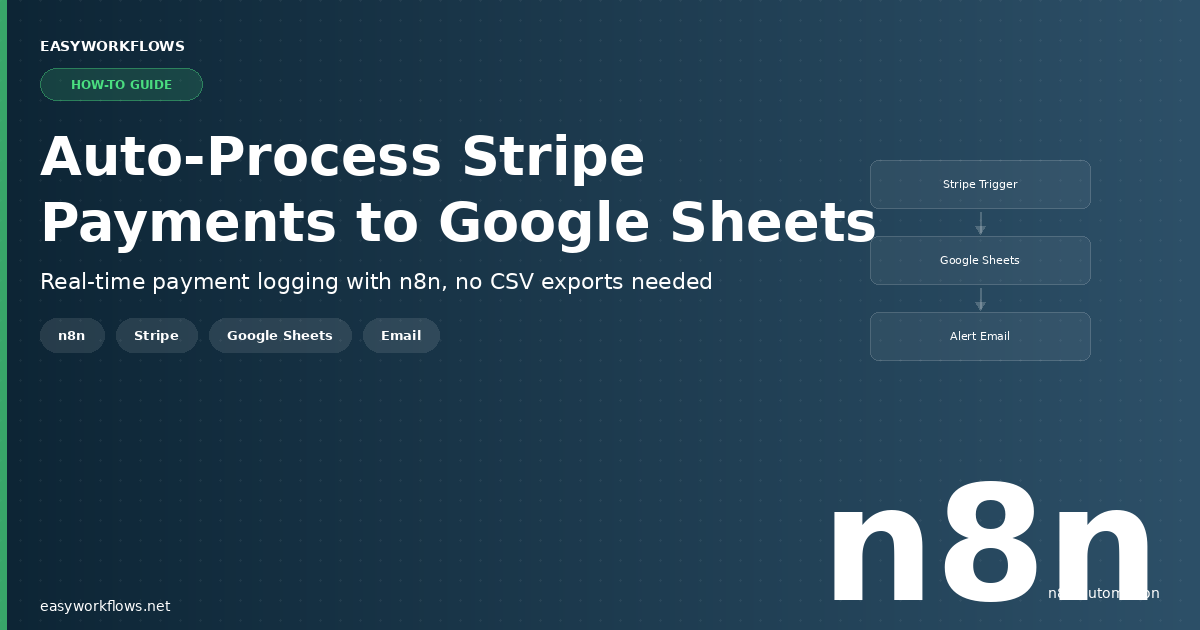
Every Stripe payment you receive can be automatically logged to Google Sheets in real time — no manual exports, no missed transactions, no more downloading CSVs at the end of the month. With this n8n workflow, the moment a payment succeeds in Stripe, a new row appears in your spreadsheet with the customer name, email, amount, description, and payment method already filled in. If the payment is above a threshold you set, you’ll get an email alert too.
Prefer to skip the setup? Grab the ready-made template → and be up and running in under 10 minutes.
What You’ll Build
- A Stripe webhook listener that fires the moment a payment succeeds — no polling, no delays.
- A data formatting step that converts Stripe’s raw event data (amounts in cents, Unix timestamps) into clean, human-readable fields.
- An automatic Google Sheets append that logs every payment as a new row in a structured ledger.
- A conditional check that sends you an email notification for any payment over $500 so you never miss a big order.
How It Works — The Big Picture
n8n listens for Stripe’s payment_intent.succeeded webhook event. Each time a payment completes, the workflow wakes up, reformats the data into tidy fields, writes a row to your Google Sheet, then checks whether the amount qualifies as high-value — sending an alert email if so.
+----------------------------------------------------------------+
|  AUTO-PROCESS STRIPE PAYMENTS to GOOGLE SHEETS                 |
|                                                                |
|  [Stripe Trigger]                                              |
|        |  payment_intent.succeeded fires                       |
|        v                                                       |
|  [Format Payment Data]                                         |
|        |  cents-to-dollars, Unix-to-date, map fields           |
|        v                                                       |
|  [Log to Google Sheets]                                        |
|        |  append row: ID, date, name, email, amount            |
|        v                                                       |
|  [Check High Value Payment]                                    |
|        | amount >= $500?                                       |
|       YES -------------------------------------------+         |
|        |                                             v         |
|       NO (end)                        [Send High Value Alert]  |
|                                          email notification    |
+----------------------------------------------------------------+
What You’ll Need
- An n8n instance — cloud or self-hosted (n8n.io; free tier works)
- A Stripe account with at least one product or payment link set up
- A Google account with Google Sheets access (free)
- An SMTP account for alert emails — Gmail App Password, SendGrid, or any SMTP provider (optional but recommended)
- A Google Sheet with the correct column headers (details in the Data Structure section below)
Estimated build time: 35–50 minutes from scratch, or under 10 minutes with the template.
Building the Workflow — Step by Step
1 Stripe Trigger (stripeTrigger)
This node creates a webhook endpoint in n8n that Stripe calls whenever a payment event fires. It’s the entry point for the entire workflow — everything else is downstream of this single trigger.
To configure it:
- In n8n, add a new node and search for Stripe Trigger.
- Connect your Stripe credential. If you don’t have one yet, click Create new, paste your Stripe Restricted API key (with webhook read permissions), and save.
- Under Events, select
payment_intent.succeeded. This fires every time a payment is fully authorized and captured. - Save the workflow. n8n will display a webhook URL — copy it.
- In your Stripe dashboard, go to Developers → Webhooks → Add endpoint, paste the n8n URL, and select the
payment_intent.succeededevent.
Tip: Use Stripe’s Send test webhook button right after adding the endpoint to confirm n8n receives it. You’ll see the raw payload in n8n’s execution log — this is what the next node will process.
A typical Stripe payment_intent.succeeded payload looks like this:
{
  "id": "pi_3QxT4kABCDEFGHIJ12345678",
  "object": "payment_intent",
  "amount": 4999,
  "currency": "usd",
  "status": "succeeded",
  "description": "Order #1042 — Premium Plan",
  "receipt_email": "emily.rodriguez@gmail.com",
  "billing_details": {
    "name": "Emily Rodriguez",
    "email": "emily.rodriguez@gmail.com"
  },
  "created": 1743865200,
  "payment_method_types": ["card"]
}
Notice that amount is in cents (4999 = $49.99) and created is a Unix timestamp. The next node handles the conversion.
2 Format Payment Data (Set)
The raw Stripe payload is useful, but messy. This Set node maps the data into clean, consistently named fields that Google Sheets can receive directly — no JavaScript required inside the sheet.
Add a Set node connected to the Stripe Trigger, then add these fields in Manual mapping mode:
| Field Name | n8n Expression | Result Example |
|---|---|---|
payment_id |
={{ $json.id }} |
pi_3QxT4kABC… |
customer_name |
={{ $json.billing_details?.name || 'Unknown' }} |
Emily Rodriguez |
customer_email |
={{ $json.receipt_email || 'N/A' }} |
emily.rodriguez@gmail.com |
amount_usd |
={{ ($json.amount / 100).toFixed(2) }} |
49.99 |
currency |
={{ $json.currency.toUpperCase() }} |
USD |
description |
={{ $json.description || 'Payment' }} |
Order #1042 — Premium Plan |
status |
={{ $json.status }} |
succeeded |
payment_date |
={{ new Date($json.created * 1000).toLocaleDateString('en-US') }} |
4/5/2026 |
payment_method |
={{ $json.payment_method_types?.[0] || 'card' }} |
card |
Tip: The ?.name optional chaining prevents the workflow from erroring when billing_details is null — which happens with some payment types like bank transfers. The || 'Unknown' fallback ensures your sheet always gets a value.
After this node, data looks like this:
{
  "payment_id": "pi_3QxT4kABCDEFGHIJ12345678",
  "customer_name": "Emily Rodriguez",
  "customer_email": "emily.rodriguez@gmail.com",
  "amount_usd": "49.99",
  "currency": "USD",
  "description": "Order #1042 — Premium Plan",
  "status": "succeeded",
  "payment_date": "4/5/2026",
  "payment_method": "card"
}
3 Log to Google Sheets (googleSheets)
This node appends a new row to your Payments sheet every time a payment is processed. It uses the Append or Update operation — if a payment ID already exists (e.g., a duplicate webhook retry), it updates the existing row instead of creating a duplicate.
- Add a Google Sheets node and connect your Google OAuth2 credential.
- Set Operation to Append or Update.
- Paste your Spreadsheet ID (the long string in your Google Sheet’s URL).
- Set Sheet Name to
Payments. - Under Columns, switch to Define below and map each column header to its expression from the previous Set node (e.g.,
Payment ID→={{ $json.payment_id }}). - Set Matching Columns to
Payment IDso duplicate events update instead of duplicate.
Note: The column headers in your Google Sheet must match exactly — including capitalization and spacing. If you name the column “payment id” (lowercase) but the node sends “Payment ID”, the data will land in the wrong column or create a new one.
4 Check High Value Payment (IF)
After logging, the workflow checks whether the payment amount is $500 or more. Payments that clear this threshold go down the true branch to trigger an email alert; all others exit quietly.
- Add an IF node connected to the Google Sheets node.
- Set the Value 1 expression to
={{ parseFloat($('Format Payment Data').item.json.amount_usd) }}. - Set Operation to Greater than or equal to.
- Set Value 2 to
500.
Tip: You can change the threshold to any amount that makes sense for your business. A SaaS charging $29/month might alert at $200; an agency billing clients might only care about payments above $2,000.
5 Send High Value Alert (emailSend)
When a payment exceeds the threshold, this node fires off an email with all the relevant details so you can follow up personally, flag the account, or just celebrate a big win.
- Add a Send Email node to the true output of the IF node.
- Connect your SMTP credential (Gmail App Password works great; see the Credentials Guide).
- Set From to your sender address and To to your notification email.
- Set Subject to:
=High-Value Payment: ${{ $('Format Payment Data').item.json.amount_usd }} from {{ $('Format Payment Data').item.json.customer_name }} - Add a plain-text or HTML body with all the payment fields from the Format node.
A sample alert email body:
High-Value Payment Received

Customer: James Carter
Email: james.carter@gmail.com
Amount: $1,250.00
Description: Order #2089 — Enterprise Annual License
Date: 4/5/2026
Payment ID: pi_3QxT4kABCDEFGHIJ12345678
The Data Structure
Your Google Sheet needs a tab named Payments with these column headers in row 1 (exact capitalization matters):
| Column Header | Type | Example | Description |
|---|---|---|---|
Payment ID |
Text | pi_3QxT4kABC… | Stripe’s unique payment intent ID — used to deduplicate retried webhooks |
Date |
Text | 4/5/2026 | US-formatted payment date derived from Stripe’s Unix timestamp |
Customer Name |
Text | Emily Rodriguez | Billing name from Stripe; falls back to “Unknown” if not provided |
Customer Email |
Text | emily.rodriguez@gmail.com | Receipt email address; falls back to “N/A” if absent |
Amount (USD) |
Number | 49.99 | Payment amount in dollars (converted from cents) |
Currency |
Text | USD | ISO currency code, uppercased |
Description |
Text | Order #1042 — Premium Plan | Stripe payment description or product name |
Status |
Text | succeeded | Payment status from Stripe (always “succeeded” for this trigger) |
Payment Method |
Text | card | Payment method type (card, bank_transfer, etc.) |
Here’s what a few rows look like once data starts flowing:
| Payment ID | Date | Customer Name | Amount (USD) | Status |
|---|---|---|---|---|
| pi_3QxT4k… | 4/5/2026 | Emily Rodriguez | 49.99 | succeeded |
| pi_3QxT7m… | 4/5/2026 | James Carter | 1250.00 | succeeded |
| pi_3QxV2n… | 4/5/2026 | Sarah Thompson | 29.00 | succeeded |
Create the sheet and add the column headers before activating the workflow. n8n’s Google Sheets node expects the headers to already exist in row 1 — it doesn’t create them automatically.
Full System Flow
  Customer Pays via Stripe
          |
          v
  Stripe fires payment_intent.succeeded
          |
          v
  +----------------------------+
  |   n8n Stripe Trigger       |  <-- webhook endpoint registered in Stripe dashboard
  +------------+---------------+
               | raw Stripe payload (cents, Unix timestamps)
               v
  +----------------------------+
  |  Format Payment Data       |  <-- Set node: converts & maps fields
  +------------+---------------+
               | clean fields: name, email, $amount, date
               v
  +----------------------------+
  |  Log to Google Sheets      |  <-- appends or updates row by Payment ID
  +------------+---------------+
               | row written OK
               v
  +----------------------------+
  | Check High Value Payment   |  <-- IF: amount_usd >= 500?
  +------+-------------+-------+
        YES            NO
         |              |
         v             end
  +-----------------+
  | Send Alert Email|  <-- SMTP: notify you of big payment
  +-----------------+
Testing Your Workflow
Before going live, test with Stripe’s built-in test mode:
- In Stripe dashboard, switch to Test mode (toggle in the top-left).
- Go to Developers → Webhooks → select your endpoint → click Send test webhook → choose
payment_intent.succeeded. - Open n8n’s execution log — you should see the workflow trigger and all 5 nodes complete successfully.
- Check your Google Sheet — a new row should appear with the test payment data.
- To test the high-value alert, temporarily lower the threshold to $1 in the IF node, trigger another test, and check your inbox.
| Problem | Likely Cause | Fix |
|---|---|---|
| Workflow doesn’t trigger at all | Webhook URL not registered in Stripe, or n8n not publicly reachable | Check Stripe → Webhooks; for self-hosted n8n, ensure your instance has a public URL (not localhost) |
| Google Sheets shows data in wrong columns | Column header mismatch | Check that headers in row 1 of your sheet exactly match the field names in the Set node (case-sensitive) |
| Amount appears as “NaN” or empty | $json.amount is undefined for some event types |
Confirm the trigger is set to payment_intent.succeeded not charge.succeeded |
| Duplicate rows in Google Sheets | Stripe retries the webhook if n8n doesn’t return 200 fast enough | Ensure your Matching Columns is set to “Payment ID” in the Google Sheets node |
| High-value alert email not arriving | SMTP credential invalid, or spam filter | Test SMTP connection in n8n; check spam folder; use an App Password for Gmail |
Frequently Asked Questions
Does this work with Stripe Checkout, Payment Links, and direct API charges?
Yes — the payment_intent.succeeded event fires for all of them. Whether the payment comes from a Stripe Checkout session, a Payment Link, a subscription renewal, or a manual API charge, a PaymentIntent is always created under the hood and this workflow will catch it.
What happens if Stripe sends the same webhook twice (retry)?
Stripe retries failed webhooks up to 3 days. Because the Google Sheets node is configured with Append or Update and Payment ID as the matching column, a duplicate event will update the existing row instead of creating a second one. Your ledger stays clean.
Can I log refunds or failed payments too?
Absolutely. In the Stripe Trigger node, add additional events: charge.refunded for refunds and payment_intent.payment_failed for failures. You can add an IF or Switch node after the trigger to route each event type to a different sheet tab.
Can I use this with n8n Cloud, or does it need to be self-hosted?
Either works. n8n Cloud instances have a public URL by default, so webhook registration in Stripe is straightforward. Self-hosted instances need a public URL too — if yours is behind a router, use a service like Cloudflare Tunnel or ngrok to expose it. Once the URL is registered, behavior is identical.
Can I send the alert to Slack instead of email?
Yes — just swap the Send Email node for a Slack node set to Post Message. Connect your Slack OAuth credential, pick your alert channel, and use the same expressions to build the message text. You can even have both: add both a Send Email and a Slack node to the true branch of the IF node.
What if a customer’s name or email is missing from the Stripe event?
The Set node uses JavaScript optional chaining (?.name) and fallback values (|| 'Unknown' and || 'N/A'). This means even if Stripe sends an event with no billing details, the workflow will still complete and log the row — just with placeholder values instead of blank cells.
🚀 Get the Stripe to Google Sheets Template
Skip the setup and get the complete n8n workflow JSON, a pre-configured Google Sheet template, a step-by-step Setup Guide PDF, and a Credentials Guide PDF — everything you need to go live in minutes.
Instant download · Works on n8n Cloud and self-hosted
What’s Next?
- Add a Slack notification for every payment (not just high-value) — great for small teams who want a #payments channel in real time.
- Create a monthly revenue summary by adding a scheduled workflow that queries your Google Sheet, calculates MRR, and emails you a report on the 1st of each month.
- Sync to a CRM — add a HubSpot or Airtable node after the Google Sheets step to create or update a deal every time a payment lands.
- Handle subscriptions separately — listen for
invoice.payment_succeededto capture recurring Stripe subscription payments on their own sheet tab with subscriber lifetime value tracking.