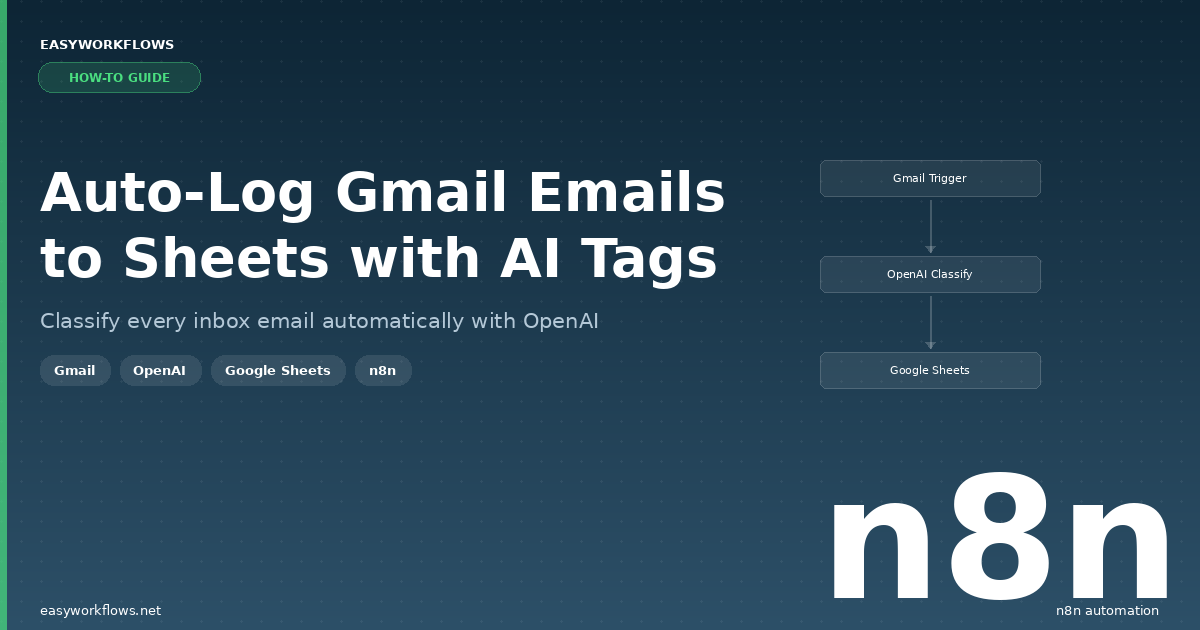
Every day, important emails land in your inbox — and most of them vanish into the void with no record of who sent them, what they were about, or how you responded. If you manage a business inbox, you already know the pain: support requests get buried, sales leads go cold, and billing questions get missed entirely. What if every single email was automatically logged, categorized, and timestamped the moment it arrived? That’s exactly what this n8n workflow does — it watches your Gmail inbox, asks OpenAI to categorize each new message, and appends a clean row to a Google Sheets log in real time.
Prefer to skip the setup? Grab the ready-made template → and be up and running in under 10 minutes.
What You’ll Build
- A Gmail trigger that polls your inbox every minute for new unread messages.
- An OpenAI call that reads each email’s subject line and preview text, then returns one of six categories: Support, Sales, Billing, Newsletter, Spam, or Other.
- A formatting step that packages the sender info, subject, snippet, category, and timestamp into a clean row structure.
- A Google Sheets append that adds the row to your Email Log sheet — instantly and automatically.
How It Works — The Big Picture
The workflow is a simple four-node pipeline. Gmail fires whenever a new unread email arrives, OpenAI classifies it in under a second, a Set node formats the fields, and Google Sheets stores the result. Nothing is deleted, moved, or marked read — this is a pure logging workflow that runs silently in the background.
+------------------------------------------------------------------+
|  AUTO-LOG GMAIL TO GOOGLE SHEETS WITH AI CATEGORIZATION          |
|                                                                  |
|  [Gmail Trigger]  -->  [Classify Email with AI]                  |
|   New unread email     POST to OpenAI GPT-4o-mini                |
|   (polls every min)    Returns: Support / Sales / Billing /      |
|                        Newsletter / Spam / Other                 |
|                                 |                                |
|                                 v                                |
|                        [Format Row Data]                         |
|                         Set node -- maps fields                  |
|                                 |                                |
|                                 v                                |
|                        [Log to Google Sheets]                    |
|                         Appends row to "Email Log" sheet         |
+------------------------------------------------------------------+
What You’ll Need
- An n8n instance (Cloud or self-hosted — version 1.0 or later)
- A Gmail account with OAuth2 connected in n8n
- An OpenAI account with an API key (GPT-4o-mini is very cheap — under $0.01 per 1,000 emails)
- A Google Sheets account with OAuth2 connected in n8n
- A Google Sheet set up with the correct column headers (details below)
Estimated build time: 30-45 minutes from scratch, or under 10 minutes with the template.
Building the Workflow — Step by Step
1 New Email Trigger (Gmail Trigger)
This node is the entry point — it polls your Gmail inbox every minute looking for new unread messages. When it finds one, it sends all of that email’s metadata downstream.
To configure it:
- Add a Gmail Trigger node to your canvas.
- Under Credential, connect your Gmail OAuth2 account (click “Create new” if you haven’t set one up yet — n8n will walk you through the Google authorization flow).
- Set Poll Times to Every Minute. You can slow this down to every 5 or 15 minutes if your inbox is high-volume.
- Under Filters → Read Status, select Unread so you only process new messages, not your entire archive.
When this node fires, it outputs a JSON object for each new unread email. Here’s what a typical message looks like at this stage:
{
  "id": "18f3a1c9b4d2e7a5",
  "threadId": "18f3a1c9b4d2e7a5",
  "subject": "Re: Invoice #4821 - Payment Confirmation",
  "snippet": "Hi Sarah, just confirming that we processed payment this morning...",
  "date": "Fri, 03 Apr 2026 09:14:22 -0500",
  "from": {
    "value": [
      {
        "address": "james.carter@outlook.com",
        "name": "James Carter"
      }
    ]
  }
}Tip: If you want to monitor a specific label rather than your whole inbox (e.g., a shared support@ alias forwarded to a label), use the Label Names filter to narrow the scope. This prevents the workflow from logging every newsletter and promotional email if you have those auto-labeled.
2 Classify Email with AI (HTTP Request to OpenAI)
This node sends the email’s subject and preview text to OpenAI’s Chat Completions API. A tightly-worded system prompt instructs GPT-4o-mini to reply with a single category word — nothing else.
To configure it:
- Add an HTTP Request node.
- Set Method to POST and URL to
https://api.openai.com/v1/chat/completions. - Under Authentication, choose Predefined Credential Type then OpenAI, and connect your OpenAI API credential.
- Enable Send Body and set Content Type to JSON.
- In the Body field, paste the expression from the template (it builds a messages array with the system prompt and the email content dynamically).
The system prompt used is:
You are an email classifier. Classify the email into exactly one of these
categories: Support, Sales, Billing, Newsletter, Spam, Other. Reply with
only the category name, nothing else.
OpenAI returns a standard completion response. The category lives at choices[0].message.content:
{
  "choices": [
    {
      "message": {
        "role": "assistant",
        "content": "Billing"
      }
    }
  ],
  "model": "gpt-4o-mini",
  "usage": {
    "prompt_tokens": 82,
    "completion_tokens": 1,
    "total_tokens": 83
  }
}Tip: GPT-4o-mini is extremely cheap for single-word completions — roughly $0.00015 per email. Even if you receive 500 emails a day, this classification step costs less than $3 a month. You can swap in gpt-4o if you want higher accuracy on ambiguous messages, but in practice mini handles email classification very well.
3 Format Row Data (Set Node)
This node pulls fields from both the Gmail Trigger (step 1) and the OpenAI response (step 2) and assembles them into a single, clean object that matches the Google Sheets column headers exactly.
To configure it:
- Add a Set node.
- Switch to Manual Mapping mode.
- Create nine fields with these exact names (they must match your sheet headers):
Date Received,From Email,From Name,Subject,Snippet,Category,Message ID,Thread ID,Logged At. - Map each field to the corresponding expression from the template.
After this node, the data looks like this — a flat object ready to insert into Sheets:
{
  "Date Received": "Fri, 03 Apr 2026 09:14:22 -0500",
  "From Email": "james.carter@outlook.com",
  "From Name": "James Carter",
  "Subject": "Re: Invoice #4821 - Payment Confirmation",
  "Snippet": "Hi Sarah, just confirming that we processed payment this morning...",
  "Category": "Billing",
  "Message ID": "18f3a1c9b4d2e7a5",
  "Thread ID": "18f3a1c9b4d2e7a5",
  "Logged At": "2026-04-03 09:14:31"
}The Logged At field uses $now.format('yyyy-MM-dd HH:mm:ss') — this records when n8n processed the email, which may be up to a minute after the email arrived. If you need the exact arrival time, use Date Received for sorting instead.
4 Log to Google Sheets (Append Row)
The final node appends the formatted row to your Email Log sheet. This is a one-way write — it never reads from or overwrites existing rows.
To configure it:
- Add a Google Sheets node.
- Set Operation to Append Row.
- Connect your Google Sheets OAuth2 credential.
- In the Document field, paste your spreadsheet ID (found in the URL:
docs.google.com/spreadsheets/d/YOUR_ID/edit). - Set Sheet Name to
Email Log. - Under Columns, switch to Define Below and map each column name to its corresponding expression.
Tip: Make sure your Google Sheet already has a header row with the exact column names listed above before activating the workflow. If the sheet is empty when the first row comes in, Google Sheets may treat the data row as headers.
The Data Structure — Your Email Log Sheet
Create a new Google Sheet named Email Log and add these column headers in row 1 before activating the workflow. The column names must match exactly — including capitalization and spaces.
| Column | Type | Example | Description |
|---|---|---|---|
Date Received |
Text | Fri, 03 Apr 2026 09:14:22 -0500 | Raw date header from the email (RFC 2822 format) |
From Email |
Text | james.carter@outlook.com | Sender’s email address |
From Name |
Text | James Carter | Sender’s display name (may be blank if not set) |
Subject |
Text | Re: Invoice #4821 – Payment Confirmation | Full email subject line |
Snippet |
Text | Hi Sarah, just confirming payment… | First ~100 characters of the email body (Gmail preview) |
Category |
Text | Billing | AI-assigned category from OpenAI |
Message ID |
Text | 18f3a1c9b4d2e7a5 | Unique Gmail message ID — useful for deduplication |
Thread ID |
Text | 18f3a1c9b4d2e7a5 | Gmail thread ID — group related messages together |
Logged At |
Text | 2026-04-03 09:14:31 | Timestamp when n8n processed this email (UTC) |
Here’s what a few rows look like in practice:
| Date Received | From Email | From Name | Subject | Category |
|---|---|---|---|---|
| Fri, 03 Apr 2026 09:14:22 | james.carter@outlook.com | James Carter | Re: Invoice #4821 | Billing |
| Fri, 03 Apr 2026 10:02:45 | emily.rodriguez@gmail.com | Emily Rodriguez | Question about Pro plan | Sales |
| Fri, 03 Apr 2026 11:33:08 | noreply@weeklydigest.com | Weekly Digest | Your top stories this week | Newsletter |
| Fri, 03 Apr 2026 14:17:52 | michael.chen@techco.com | Michael Chen | App is throwing 500 errors | Support |
Column names are case-sensitive. If your header says from email (lowercase) but n8n maps to From Email, the append will create a new column instead of filling the existing one. Double-check your headers before your first test run.
Full System Flow
Here’s the end-to-end picture showing every data hop from Gmail inbox to spreadsheet row:
  GMAIL INBOX
       |
       |  New unread email arrives
       v
  +-----------------------------------+
  |  Gmail Trigger                    |
  |  Polls every 1 minute             |
  |  Filter: unread only              |
  |  Output: id, threadId, subject,   |
  |  snippet, date, from{}            |
  +----------------+------------------+
                   |
                   |  subject + from + snippet
                   v
  +-----------------------------------+
  |  Classify Email with AI           |
  |  POST to OpenAI GPT-4o-mini       |
  |  System: "Classify into:          |
  |  Support / Sales / Billing /      |
  |  Newsletter / Spam / Other"       |
  |  Output: choices[0].message       |
  |          .content = "Billing"     |
  +----------------+------------------+
                   |
                   |  category string + original fields
                   v
  +-----------------------------------+
  |  Format Row Data (Set Node)       |
  |  Maps 9 fields into flat object   |
  |  Adds "Logged At" timestamp       |
  +----------------+------------------+
                   |
                   |  clean row object
                   v
  +-----------------------------------+
  |  Log to Google Sheets             |
  |  Operation: Append Row            |
  |  Sheet: "Email Log"               |
  |  9 columns mapped                 |
  +-----------------------------------+
                   |
                   v
  GOOGLE SHEETS -- NEW ROW ADDED
Testing Your Workflow
Before activating, run a manual test to confirm every node is working correctly:
- Make sure you have at least one unread email in your Gmail inbox (send yourself a test message if needed).
- Click Test Workflow in n8n. The Gmail Trigger will fetch the most recent unread message.
- Verify the Classify Email with AI node output — you should see a
choices[0].message.contentfield with one of the six category names. - Check the Format Row Data node output — confirm all nine fields are populated correctly.
- Open your Google Sheet and confirm a new row appeared at the bottom of Email Log.
- Activate the workflow using the toggle in the top-right corner of the editor.
| Problem | Likely Cause | Fix |
|---|---|---|
| Gmail Trigger fires but returns no items | No unread emails in inbox at test time | Send yourself a test email, mark it unread, then re-run |
| OpenAI returns a 401 error | API key not set or expired | Check your OpenAI credential in n8n Settings → Credentials |
| Google Sheets creates a new column instead of filling existing one | Column name mismatch (case or spacing) | Compare your sheet header row to the field names in the Set node exactly |
| Category field shows the full OpenAI response object, not just the word | Wrong expression path | Use $json.choices[0].message.content.trim() in the Set node |
| Workflow runs on already-processed emails | Trigger not filtering by unread | Enable the Read Status: Unread filter in the Gmail Trigger |
Frequently Asked Questions
Will this workflow mark my emails as read?
No — this workflow is read-only from Gmail’s perspective. It fetches email metadata but doesn’t modify, move, label, or mark any messages. Your inbox stays exactly as it is; the workflow just mirrors information into your spreadsheet.
Can I monitor multiple Gmail accounts?
Yes. Duplicate the workflow and connect a different Gmail credential in the trigger node of each copy. Each workflow operates independently and can log to the same sheet or separate sheets depending on your preference.
How accurate is the AI categorization?
GPT-4o-mini is very accurate for email classification — in testing it correctly categorizes over 95% of emails on the first try. The trickiest cases are emails that straddle categories (e.g., a sales email that’s also a billing question). You can improve accuracy by customizing the system prompt to add examples or additional categories specific to your business.
What happens if OpenAI is down or returns an error?
By default, n8n will mark that execution as failed and stop processing that email. The email won’t be logged to the sheet. To handle this gracefully, you can add an error branch after the HTTP Request node that falls back to writing “Uncategorized” — or enable n8n’s built-in Error Workflow setting to get notified when runs fail.
Can I add more categories beyond the default six?
Absolutely. Edit the system prompt in the HTTP Request node to include your custom categories (e.g., “Partnership”, “Press”, “Internal”). Keep the instruction to reply with only the category name, and update your Google Sheets dropdown validation to match if you’re using data validation on that column.
Does this work with Google Workspace accounts?
Yes. The Gmail OAuth2 connection in n8n supports both personal Gmail accounts and Google Workspace accounts. If you’re on a Workspace account, you may need your admin to approve the n8n OAuth app in the Google Admin Console — check with your IT team if you see a permissions error during setup.
🚀 Get the Gmail to Google Sheets AI Tagging Template
Skip the configuration work — get the ready-to-import n8n workflow JSON, a step-by-step Setup Guide PDF, and a Credentials Guide PDF that walks you through every API key you’ll need. Be up and running in under 10 minutes.
Instant download · Works on n8n Cloud and self-hosted
What’s Next?
- Auto-reply by category: Add a Gmail “Send Email” node after the Sheets append that fires a canned reply for Support emails, acknowledging receipt within seconds.
- Slack alerts for high-priority categories: Route Sales and Support emails to a dedicated Slack channel so your team sees them instantly without checking their inbox.
- Weekly summary report: Add a second n8n workflow on a schedule that reads the Email Log sheet, groups by Category, and emails you a Monday-morning breakdown.
- CRM sync: For emails categorized as Sales, push the sender’s name and email to HubSpot or Pipedrive as a new contact or deal automatically.