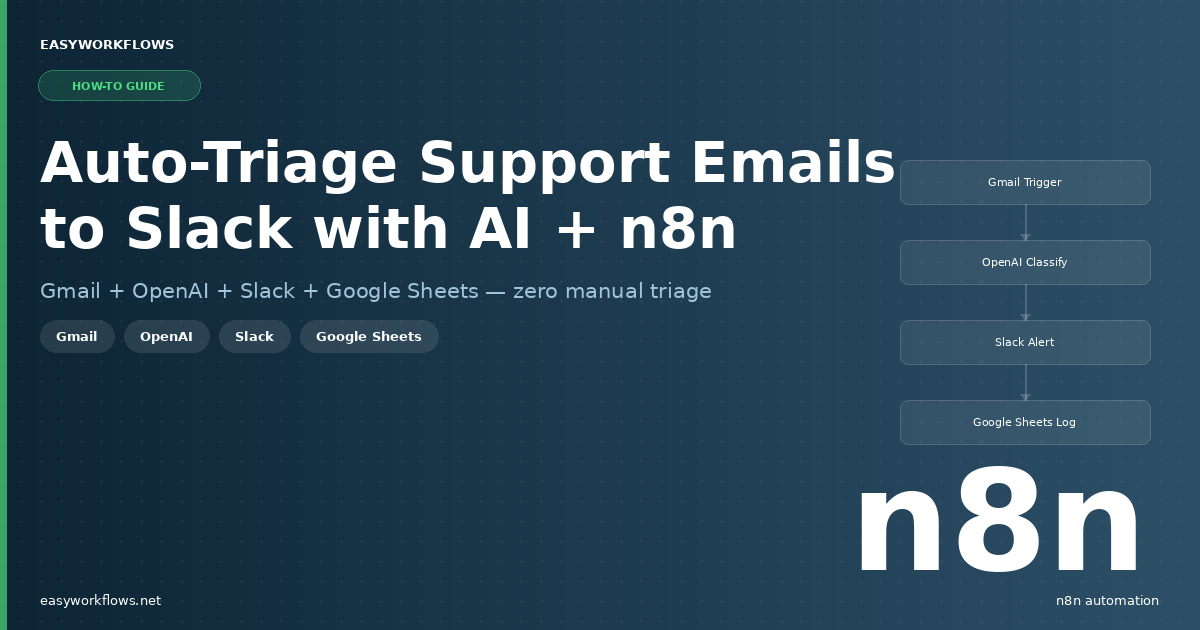
How to Auto-Triage Support Emails to Slack with AI Using n8n

Every support inbox gets noisy fast. A billing question sits next to a frantic “our entire account is locked” message, and both look the same in a Gmail preview. By the time someone reads the urgent one, an hour has slipped by. This tutorial walks you through building an n8n workflow that reads every inbound support email, asks GPT-4o mini to classify it by priority and category, routes the result to the right Slack channel — and logs everything to a Google Sheet so nothing ever disappears.

Prefer to skip the setup? Grab the ready-made template → and be up and running in under 10 minutes.

What You’ll Build

  1. A Gmail trigger polls your inbox every minute for new unread emails.
  2. An OpenAI call analyzes the email and returns a priority level (High / Medium / Low), a category (Bug Report, Billing, Feature Request, etc.), a one-sentence summary, and the sender’s detected sentiment.
  3. A conditional branch routes High-priority tickets to a #support-urgent Slack channel with a bold alert, and everything else to #support as a standard notification.
  4. Every ticket — regardless of priority — is appended to a Google Sheet so you have a permanent, searchable log of all incoming requests.

How It Works — The Big Picture

The workflow runs as a polling loop. Think of it as a tireless assistant who checks email every sixty seconds, reads it with an AI brain, and instantly posts into the right Slack channel — then files the paperwork in a spreadsheet.

┌─────────────────────────────────────────────────────────────────────┐
│  GMAIL → SLACK AI SUPPORT TRIAGE                                    │
│                                                                     │
│  [Gmail Trigger]                                                    │
│       │  (new unread email)                                         │
│       ▼                                                             │
│  [Extract Email Fields]                                             │
│       │  (sender, subject, body snippet, timestamp)                 │
│       ▼                                                             │
│  [AI Classify & Summarize]  ←── OpenAI gpt-4o-mini                 │
│       │  (priority, category, summary, sentiment)                   │
│       ▼                                                             │
│  [Parse AI Response]                                                │
│       │                                                             │
│       ▼                                                             │
│  [Check Priority]                                                   │
│       │                        │                                    │
│    priority=High           priority≠High                            │
│       │                        │                                    │
│       ▼                        ▼                                    │
│  [Slack Urgent]          [Slack Standard]                           │
│  #support-urgent          #support                                  │
│       │                        │                                    │
│       └──────────┬─────────────┘                                    │
│                  ▼                                                  │
│         [Log to Google Sheets]                                      │
└─────────────────────────────────────────────────────────────────────┘

What You’ll Need

  • n8n — self-hosted or n8n Cloud (any version 1.0+)
  • Gmail account — connected via Google OAuth2 in n8n
  • OpenAI account — API key with access to gpt-4o-mini
  • Slack workspace — with two channels: #support-urgent and #support
  • Google Sheets — a spreadsheet with the columns described below

Estimated build time: 40–60 minutes from scratch, or under 10 minutes with the template.


Building the Workflow — Step by Step

1 Gmail Trigger — Watch for New Emails

The Gmail Trigger node polls your inbox every minute and fires once for each new unread email it finds. Connect your Gmail credential via Google OAuth2, set Poll Times to Every Minute, and set Read Status to Unread under Filters.

After a test run, the raw payload looks like this:

{
  "id": "18f4a3b2c1d0e9f8",
  "from": { "value": [{ "name": "Sarah Thompson", "address": "sarah.thompson@outlook.com" }] },
  "subject": "Can't log into my account — urgent!",
  "text": "Hi, I've been trying to log in for the past hour and keep getting an 'Invalid credentials' error...",
  "date": "2026-04-03T14:22:00.000Z"
}
💡

Tip: If you only want to monitor a specific support address, route emails to a Gmail label first, then filter by that label in the trigger node.

2 Extract Email Fields — Set Node

The Set node flattens the nested Gmail payload into a clean, flat object for the AI prompt. Configure these assignments:

Field Name Expression Purpose
sender ={{ $json.from?.value?.[0]?.address ?? $json.from }} Sender’s email address
senderName ={{ $json.from?.value?.[0]?.name ?? 'Unknown' }} Sender’s display name
subject ={{ $json.subject ?? '(No Subject)' }} Email subject line
bodySnippet ={{ ($json.text ?? $json.snippet ?? '').substring(0, 1200) }} First 1,200 chars of body
receivedAt ={{ $now.format('yyyy-MM-dd HH:mm') }} Human-readable timestamp
messageId ={{ $json.id }} Gmail message ID
📌

We cap the body at 1,200 characters to keep OpenAI token costs low. Increase this limit if your customers tend to write detailed reports.

3 AI Classify & Summarize — HTTP Request to OpenAI

An HTTP Request node sends the email to OpenAI’s Chat Completions API. Set Method to POST, URL to https://api.openai.com/v1/chat/completions, and Authentication to HTTP Header Auth with Authorization: Bearer YOUR_KEY. Use this JSON body:

{
  "model": "gpt-4o-mini",
  "temperature": 0,
  "response_format": { "type": "json_object" },
  "messages": [
    { "role": "system", "content": "You are a support triage assistant. Return JSON with: priority (High/Medium/Low), category (Bug Report/Billing/Feature Request/General Question/Account Issue), summary (max 120 chars), sentiment (Frustrated/Neutral/Positive). High priority = outage, data loss, billing error, account locked, urgent/ASAP." },
    { "role": "user", "content": "From: {{ $json.senderName }} <{{ $json.sender }}>\nSubject: {{ $json.subject }}\n\n{{ $json.bodySnippet }}" }
  ]
}
💡

Tip: Setting temperature: 0 makes classification deterministic. The response_format: json_object parameter guarantees the response is always valid JSON, preventing parse errors downstream.

4 Parse AI Response — Code Node

This Code node extracts the nested JSON, parses it, and merges AI classifications with the original email fields:

const aiRaw = items[0].json.choices?.[0]?.message?.content ?? '{}';
let ai;
try { ai = JSON.parse(aiRaw); }
catch (e) { ai = { priority: 'Low', category: 'General Question', summary: 'Parse error', sentiment: 'Neutral' }; }

const emailData = $('Extract Email Fields').item.json;
return [{ json: {
  sender: emailData.sender, senderName: emailData.senderName,
  subject: emailData.subject, bodySnippet: emailData.bodySnippet,
  receivedAt: emailData.receivedAt, messageId: emailData.messageId,
  priority: ai.priority ?? 'Low', category: ai.category ?? 'General Question',
  summary: ai.summary ?? emailData.subject, sentiment: ai.sentiment ?? 'Neutral'
}}];

The merged output object looks like this:

{
  "sender": "sarah.thompson@outlook.com",
  "senderName": "Sarah Thompson",
  "subject": "Can't log into my account — urgent!",
  "priority": "High",
  "category": "Account Issue",
  "summary": "User cannot log in due to 'Invalid credentials' error persisting for over an hour.",
  "sentiment": "Frustrated",
  "receivedAt": "2026-04-03 14:22",
  "messageId": "18f4a3b2c1d0e9f8"
}
💡

Tip: The try/catch block ensures the workflow never crashes if OpenAI is rate-limited or returns an unexpected response — it falls back to Low priority instead.

5 Check Priority — IF Node

The IF node checks whether priority equals "High" (case-insensitive). True branch → urgent Slack alert. False branch → standard notification. Left value: ={{ $json.priority }}, Operation: String equals, Right value: High.

📌

To add a Medium-priority route, swap the IF node for a Switch node with three outputs: High, Medium, and Low.

6 Slack Urgent Alert

Posts to #support-urgent with Block Kit formatting. Set Resource to Message, Operation to Post, Message Type to Blocks. The card shows sender name, category, received timestamp, sentiment, subject, and AI summary — everything your on-call team needs at a glance.

💡

Tip: Add an Action block with a button linking directly to the email: https://mail.google.com/mail/u/0/#inbox/{{ $json.messageId }}

7 Slack Standard Alert

Identical configuration to Step 6, but posts to #support with a gentler 📬 New Support Ticket header and includes the priority level in the fields.

8 Log to Google Sheets

Both Slack branches converge here. The Google Sheets node appends one row per email. Set Operation to Append Row and map all nine columns. This creates a permanent, searchable history of every inbound request.


The Data Structure

Create a Google Sheet named Support Ticket Log with these columns in row 1. Names are case-sensitive and must match exactly.

Column Type Example Description
Received At Text 2026-04-03 14:22 Timestamp when the email arrived
Sender Text sarah.thompson@outlook.com Sender’s email address
Sender Name Text Sarah Thompson Sender’s display name from Gmail
Subject Text Can’t log into my account — urgent! Original email subject line
Priority Text High AI-assigned priority: High / Medium / Low
Category Text Account Issue AI-assigned ticket category
Sentiment Text Frustrated Detected sender emotion
AI Summary Text User cannot log in due to… One-sentence AI summary
Message ID Text 18f4a3b2c1d0e9f8 Gmail message ID for deduplication
📌

Column names are case-sensitive. Leaving out columns won’t break the workflow — n8n simply won’t write to unmapped columns.


Full System Flow

  INCOMING EMAIL
       │
       ▼
  ┌────────────────┐
  │  Gmail Trigger │  (polls every minute)
  └────────┬───────┘
           │ raw email payload
           ▼
  ┌──────────────────────┐
  │  Extract Email Fields │  (Set node)
  └──────────┬───────────┘
             │ {sender, subject, bodySnippet, receivedAt, messageId}
             ▼
  ┌──────────────────────────────┐
  │  AI Classify & Summarize     │  (HTTP → OpenAI gpt-4o-mini)
  └──────────┬───────────────────┘
             │ OpenAI JSON response
             ▼
  ┌──────────────────────┐
  │  Parse AI Response   │  (Code node)
  └──────────┬───────────┘
             │ {priority, category, summary, sentiment, + email fields}
             ▼
  ┌──────────────────────┐
  │    Check Priority    │  (IF node)
  └────┬─────────────────┘
       │                     │
  priority=High         priority≠High
       │                     │
       ▼                     ▼
  ┌────────────┐     ┌────────────────┐
  │ Slack      │     │ Slack          │
  │ #support-  │     │ #support       │
  │  urgent    │     │ (standard)     │
  └─────┬──────┘     └──────┬─────────┘
        │                   │
        └──────────┬────────┘
                   ▼
       ┌────────────────────┐
       │  Log to Google     │
       │  Sheets (append)   │
       └────────────────────┘

Testing Your Workflow

  1. Activate the workflow (toggle the Active switch in the top-right).
  2. Send a test email with subject “URGENT: payment failed — please help!” to the monitored inbox.
  3. Wait up to 60 seconds, then check #support-urgent in Slack — you should see a card with a bold header.
  4. Check your Google Sheet — a new row should appear with all nine columns filled.
  5. Send a second email with subject “Feature request: dark mode”. It should appear in #support as Low priority.
Problem Likely Cause Fix
No Slack message received Slack credential scope missing Re-authorize Slack and ensure chat:write scope is granted
Google Sheets row not appended Column name mismatch Check that sheet column headers match exactly (case-sensitive)
OpenAI node returns 401 API key format wrong Verify the Authorization header value is Bearer sk-…
All emails classified as Low AI parse error falling back Inspect Code node output — check choices[0].message.content
Gmail trigger fires duplicates Emails re-marked as unread Enable the Mark as Read option on the Gmail Trigger node

Frequently Asked Questions

Does this workflow automatically reply to the sender?

No — this workflow focuses purely on triage and notification. You can add a Gmail send node at the end to fire an auto-acknowledgment, wired in parallel with the Slack nodes so both happen simultaneously.

How much does the OpenAI API cost to run this?

GPT-4o mini is very inexpensive — roughly $0.15 per million input tokens. For a typical support email (~200 tokens), you’re looking at fractions of a cent per email. Processing 1,000 emails per month costs less than $0.50 in API fees.

Can I add more priority levels or categories?

Absolutely. Edit the system prompt in the HTTP Request node to include any levels or categories you need. Just make sure your IF or Switch node branches match whatever the AI returns.

What happens if OpenAI is down or rate-limited?

The Code node has a try/catch block that falls back to Low priority if parsing fails. The email still gets logged to Google Sheets and posted to Slack — just without an AI classification.

Can I monitor multiple Gmail inboxes?

Yes. Add a second Gmail Trigger node connected to a different Gmail credential and wire it into the same Extract Email Fields node. Both triggers independently poll their inboxes and feed into the same triage pipeline.

Is my email content sent to OpenAI’s servers?

Yes — the subject and first 1,200 characters of the body are sent to OpenAI’s API. OpenAI’s standard API does not use submitted data to train models. If your emails contain sensitive data, consider a self-hosted local model like Ollama with Llama 3 via the HTTP Request node.


🚀 Get the Gmail → Slack AI Support Triage Template

Skip the build and get a ready-to-import n8n workflow JSON, a step-by-step Setup Guide PDF, and a Credentials Guide PDF — everything you need to be running in under 10 minutes.

Get the Template →

Instant download · Works on n8n Cloud and self-hosted

What’s Next?

  • Auto-reply on High priority: Add a Gmail send node that fires an immediate acknowledgment to the customer when their ticket lands as High priority.
  • Create tickets in a helpdesk: Replace or augment the Google Sheets node with a Zendesk, Freshdesk, or Linear node to create a real ticket with the AI-assigned priority already set.
  • Daily digest report: Add a second workflow that runs at 8 AM every morning, reads yesterday’s rows from the Google Sheet, and posts a summary to Slack.
  • Sentiment escalation: DM the support manager directly when sentiment is Frustrated AND priority is High.
n8n
Gmail
Slack
OpenAI
Google Sheets
Support Automation
AI Triage
automation

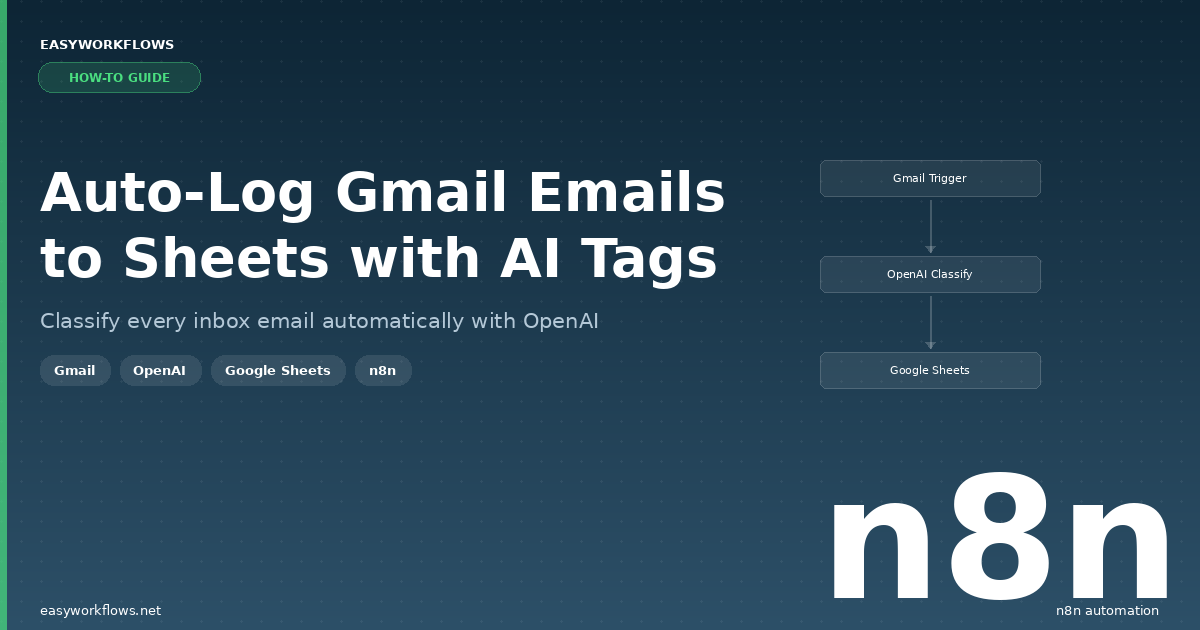
How to Auto-Log Gmail Emails to Google Sheets with n8n (AI Categorization)

Every day, important emails land in your inbox — and most of them vanish into the void with no record of who sent them, what they were about, or how you responded. If you manage a business inbox, you already know the pain: support requests get buried, sales leads go cold, and billing questions get missed entirely. What if every single email was automatically logged, categorized, and timestamped the moment it arrived? That’s exactly what this n8n workflow does — it watches your Gmail inbox, asks OpenAI to categorize each new message, and appends a clean row to a Google Sheets log in real time.

Prefer to skip the setup? Grab the ready-made template → and be up and running in under 10 minutes.

What You’ll Build

  1. A Gmail trigger that polls your inbox every minute for new unread messages.
  2. An OpenAI call that reads each email’s subject line and preview text, then returns one of six categories: Support, Sales, Billing, Newsletter, Spam, or Other.
  3. A formatting step that packages the sender info, subject, snippet, category, and timestamp into a clean row structure.
  4. A Google Sheets append that adds the row to your Email Log sheet — instantly and automatically.

How It Works — The Big Picture

The workflow is a simple four-node pipeline. Gmail fires whenever a new unread email arrives, OpenAI classifies it in under a second, a Set node formats the fields, and Google Sheets stores the result. Nothing is deleted, moved, or marked read — this is a pure logging workflow that runs silently in the background.

+------------------------------------------------------------------+
|  AUTO-LOG GMAIL TO GOOGLE SHEETS WITH AI CATEGORIZATION          |
|                                                                  |
|  [Gmail Trigger]  -->  [Classify Email with AI]                  |
|   New unread email     POST to OpenAI GPT-4o-mini                |
|   (polls every min)    Returns: Support / Sales / Billing /      |
|                        Newsletter / Spam / Other                 |
|                                 |                                |
|                                 v                                |
|                        [Format Row Data]                         |
|                         Set node -- maps fields                  |
|                                 |                                |
|                                 v                                |
|                        [Log to Google Sheets]                    |
|                         Appends row to "Email Log" sheet         |
+------------------------------------------------------------------+

What You’ll Need

  • An n8n instance (Cloud or self-hosted — version 1.0 or later)
  • A Gmail account with OAuth2 connected in n8n
  • An OpenAI account with an API key (GPT-4o-mini is very cheap — under $0.01 per 1,000 emails)
  • A Google Sheets account with OAuth2 connected in n8n
  • A Google Sheet set up with the correct column headers (details below)

Estimated build time: 30-45 minutes from scratch, or under 10 minutes with the template.

Building the Workflow — Step by Step

1 New Email Trigger (Gmail Trigger)

This node is the entry point — it polls your Gmail inbox every minute looking for new unread messages. When it finds one, it sends all of that email’s metadata downstream.

To configure it:

  1. Add a Gmail Trigger node to your canvas.
  2. Under Credential, connect your Gmail OAuth2 account (click “Create new” if you haven’t set one up yet — n8n will walk you through the Google authorization flow).
  3. Set Poll Times to Every Minute. You can slow this down to every 5 or 15 minutes if your inbox is high-volume.
  4. Under Filters → Read Status, select Unread so you only process new messages, not your entire archive.

When this node fires, it outputs a JSON object for each new unread email. Here’s what a typical message looks like at this stage:

{
  "id": "18f3a1c9b4d2e7a5",
  "threadId": "18f3a1c9b4d2e7a5",
  "subject": "Re: Invoice #4821 - Payment Confirmation",
  "snippet": "Hi Sarah, just confirming that we processed payment this morning...",
  "date": "Fri, 03 Apr 2026 09:14:22 -0500",
  "from": {
    "value": [
      {
        "address": "james.carter@outlook.com",
        "name": "James Carter"
      }
    ]
  }
}
💡

Tip: If you want to monitor a specific label rather than your whole inbox (e.g., a shared support@ alias forwarded to a label), use the Label Names filter to narrow the scope. This prevents the workflow from logging every newsletter and promotional email if you have those auto-labeled.

2 Classify Email with AI (HTTP Request to OpenAI)

This node sends the email’s subject and preview text to OpenAI’s Chat Completions API. A tightly-worded system prompt instructs GPT-4o-mini to reply with a single category word — nothing else.

To configure it:

  1. Add an HTTP Request node.
  2. Set Method to POST and URL to https://api.openai.com/v1/chat/completions.
  3. Under Authentication, choose Predefined Credential Type then OpenAI, and connect your OpenAI API credential.
  4. Enable Send Body and set Content Type to JSON.
  5. In the Body field, paste the expression from the template (it builds a messages array with the system prompt and the email content dynamically).

The system prompt used is:

You are an email classifier. Classify the email into exactly one of these
categories: Support, Sales, Billing, Newsletter, Spam, Other. Reply with
only the category name, nothing else.

OpenAI returns a standard completion response. The category lives at choices[0].message.content:

{
  "choices": [
    {
      "message": {
        "role": "assistant",
        "content": "Billing"
      }
    }
  ],
  "model": "gpt-4o-mini",
  "usage": {
    "prompt_tokens": 82,
    "completion_tokens": 1,
    "total_tokens": 83
  }
}
💡

Tip: GPT-4o-mini is extremely cheap for single-word completions — roughly $0.00015 per email. Even if you receive 500 emails a day, this classification step costs less than $3 a month. You can swap in gpt-4o if you want higher accuracy on ambiguous messages, but in practice mini handles email classification very well.

3 Format Row Data (Set Node)

This node pulls fields from both the Gmail Trigger (step 1) and the OpenAI response (step 2) and assembles them into a single, clean object that matches the Google Sheets column headers exactly.

To configure it:

  1. Add a Set node.
  2. Switch to Manual Mapping mode.
  3. Create nine fields with these exact names (they must match your sheet headers): Date Received, From Email, From Name, Subject, Snippet, Category, Message ID, Thread ID, Logged At.
  4. Map each field to the corresponding expression from the template.

After this node, the data looks like this — a flat object ready to insert into Sheets:

{
  "Date Received": "Fri, 03 Apr 2026 09:14:22 -0500",
  "From Email": "james.carter@outlook.com",
  "From Name": "James Carter",
  "Subject": "Re: Invoice #4821 - Payment Confirmation",
  "Snippet": "Hi Sarah, just confirming that we processed payment this morning...",
  "Category": "Billing",
  "Message ID": "18f3a1c9b4d2e7a5",
  "Thread ID": "18f3a1c9b4d2e7a5",
  "Logged At": "2026-04-03 09:14:31"
}
📌

The Logged At field uses $now.format('yyyy-MM-dd HH:mm:ss') — this records when n8n processed the email, which may be up to a minute after the email arrived. If you need the exact arrival time, use Date Received for sorting instead.

4 Log to Google Sheets (Append Row)

The final node appends the formatted row to your Email Log sheet. This is a one-way write — it never reads from or overwrites existing rows.

To configure it:

  1. Add a Google Sheets node.
  2. Set Operation to Append Row.
  3. Connect your Google Sheets OAuth2 credential.
  4. In the Document field, paste your spreadsheet ID (found in the URL: docs.google.com/spreadsheets/d/YOUR_ID/edit).
  5. Set Sheet Name to Email Log.
  6. Under Columns, switch to Define Below and map each column name to its corresponding expression.
💡

Tip: Make sure your Google Sheet already has a header row with the exact column names listed above before activating the workflow. If the sheet is empty when the first row comes in, Google Sheets may treat the data row as headers.

The Data Structure — Your Email Log Sheet

Create a new Google Sheet named Email Log and add these column headers in row 1 before activating the workflow. The column names must match exactly — including capitalization and spaces.

Column Type Example Description
Date Received Text Fri, 03 Apr 2026 09:14:22 -0500 Raw date header from the email (RFC 2822 format)
From Email Text james.carter@outlook.com Sender’s email address
From Name Text James Carter Sender’s display name (may be blank if not set)
Subject Text Re: Invoice #4821 – Payment Confirmation Full email subject line
Snippet Text Hi Sarah, just confirming payment… First ~100 characters of the email body (Gmail preview)
Category Text Billing AI-assigned category from OpenAI
Message ID Text 18f3a1c9b4d2e7a5 Unique Gmail message ID — useful for deduplication
Thread ID Text 18f3a1c9b4d2e7a5 Gmail thread ID — group related messages together
Logged At Text 2026-04-03 09:14:31 Timestamp when n8n processed this email (UTC)

Here’s what a few rows look like in practice:

Date Received From Email From Name Subject Category
Fri, 03 Apr 2026 09:14:22 james.carter@outlook.com James Carter Re: Invoice #4821 Billing
Fri, 03 Apr 2026 10:02:45 emily.rodriguez@gmail.com Emily Rodriguez Question about Pro plan Sales
Fri, 03 Apr 2026 11:33:08 noreply@weeklydigest.com Weekly Digest Your top stories this week Newsletter
Fri, 03 Apr 2026 14:17:52 michael.chen@techco.com Michael Chen App is throwing 500 errors Support
📌

Column names are case-sensitive. If your header says from email (lowercase) but n8n maps to From Email, the append will create a new column instead of filling the existing one. Double-check your headers before your first test run.

Full System Flow

Here’s the end-to-end picture showing every data hop from Gmail inbox to spreadsheet row:

  GMAIL INBOX
       |
       |  New unread email arrives
       v
  +-----------------------------------+
  |  Gmail Trigger                    |
  |  Polls every 1 minute             |
  |  Filter: unread only              |
  |  Output: id, threadId, subject,   |
  |  snippet, date, from{}            |
  +----------------+------------------+
                   |
                   |  subject + from + snippet
                   v
  +-----------------------------------+
  |  Classify Email with AI           |
  |  POST to OpenAI GPT-4o-mini       |
  |  System: "Classify into:          |
  |  Support / Sales / Billing /      |
  |  Newsletter / Spam / Other"       |
  |  Output: choices[0].message       |
  |          .content = "Billing"     |
  +----------------+------------------+
                   |
                   |  category string + original fields
                   v
  +-----------------------------------+
  |  Format Row Data (Set Node)       |
  |  Maps 9 fields into flat object   |
  |  Adds "Logged At" timestamp       |
  +----------------+------------------+
                   |
                   |  clean row object
                   v
  +-----------------------------------+
  |  Log to Google Sheets             |
  |  Operation: Append Row            |
  |  Sheet: "Email Log"               |
  |  9 columns mapped                 |
  +-----------------------------------+
                   |
                   v
  GOOGLE SHEETS -- NEW ROW ADDED

Testing Your Workflow

Before activating, run a manual test to confirm every node is working correctly:

  1. Make sure you have at least one unread email in your Gmail inbox (send yourself a test message if needed).
  2. Click Test Workflow in n8n. The Gmail Trigger will fetch the most recent unread message.
  3. Verify the Classify Email with AI node output — you should see a choices[0].message.content field with one of the six category names.
  4. Check the Format Row Data node output — confirm all nine fields are populated correctly.
  5. Open your Google Sheet and confirm a new row appeared at the bottom of Email Log.
  6. Activate the workflow using the toggle in the top-right corner of the editor.
Problem Likely Cause Fix
Gmail Trigger fires but returns no items No unread emails in inbox at test time Send yourself a test email, mark it unread, then re-run
OpenAI returns a 401 error API key not set or expired Check your OpenAI credential in n8n Settings → Credentials
Google Sheets creates a new column instead of filling existing one Column name mismatch (case or spacing) Compare your sheet header row to the field names in the Set node exactly
Category field shows the full OpenAI response object, not just the word Wrong expression path Use $json.choices[0].message.content.trim() in the Set node
Workflow runs on already-processed emails Trigger not filtering by unread Enable the Read Status: Unread filter in the Gmail Trigger

Frequently Asked Questions

Will this workflow mark my emails as read?

No — this workflow is read-only from Gmail’s perspective. It fetches email metadata but doesn’t modify, move, label, or mark any messages. Your inbox stays exactly as it is; the workflow just mirrors information into your spreadsheet.

Can I monitor multiple Gmail accounts?

Yes. Duplicate the workflow and connect a different Gmail credential in the trigger node of each copy. Each workflow operates independently and can log to the same sheet or separate sheets depending on your preference.

How accurate is the AI categorization?

GPT-4o-mini is very accurate for email classification — in testing it correctly categorizes over 95% of emails on the first try. The trickiest cases are emails that straddle categories (e.g., a sales email that’s also a billing question). You can improve accuracy by customizing the system prompt to add examples or additional categories specific to your business.

What happens if OpenAI is down or returns an error?

By default, n8n will mark that execution as failed and stop processing that email. The email won’t be logged to the sheet. To handle this gracefully, you can add an error branch after the HTTP Request node that falls back to writing “Uncategorized” — or enable n8n’s built-in Error Workflow setting to get notified when runs fail.

Can I add more categories beyond the default six?

Absolutely. Edit the system prompt in the HTTP Request node to include your custom categories (e.g., “Partnership”, “Press”, “Internal”). Keep the instruction to reply with only the category name, and update your Google Sheets dropdown validation to match if you’re using data validation on that column.

Does this work with Google Workspace accounts?

Yes. The Gmail OAuth2 connection in n8n supports both personal Gmail accounts and Google Workspace accounts. If you’re on a Workspace account, you may need your admin to approve the n8n OAuth app in the Google Admin Console — check with your IT team if you see a permissions error during setup.


🚀 Get the Gmail to Google Sheets AI Tagging Template

Skip the configuration work — get the ready-to-import n8n workflow JSON, a step-by-step Setup Guide PDF, and a Credentials Guide PDF that walks you through every API key you’ll need. Be up and running in under 10 minutes.

Get the Template →

Instant download · Works on n8n Cloud and self-hosted

What’s Next?

  • Auto-reply by category: Add a Gmail “Send Email” node after the Sheets append that fires a canned reply for Support emails, acknowledging receipt within seconds.
  • Slack alerts for high-priority categories: Route Sales and Support emails to a dedicated Slack channel so your team sees them instantly without checking their inbox.
  • Weekly summary report: Add a second n8n workflow on a schedule that reads the Email Log sheet, groups by Category, and emails you a Monday-morning breakdown.
  • CRM sync: For emails categorized as Sales, push the sender’s name and email to HubSpot or Pipedrive as a new contact or deal automatically.
n8n
Gmail
Google Sheets
OpenAI
email automation
AI categorization
workflow automation

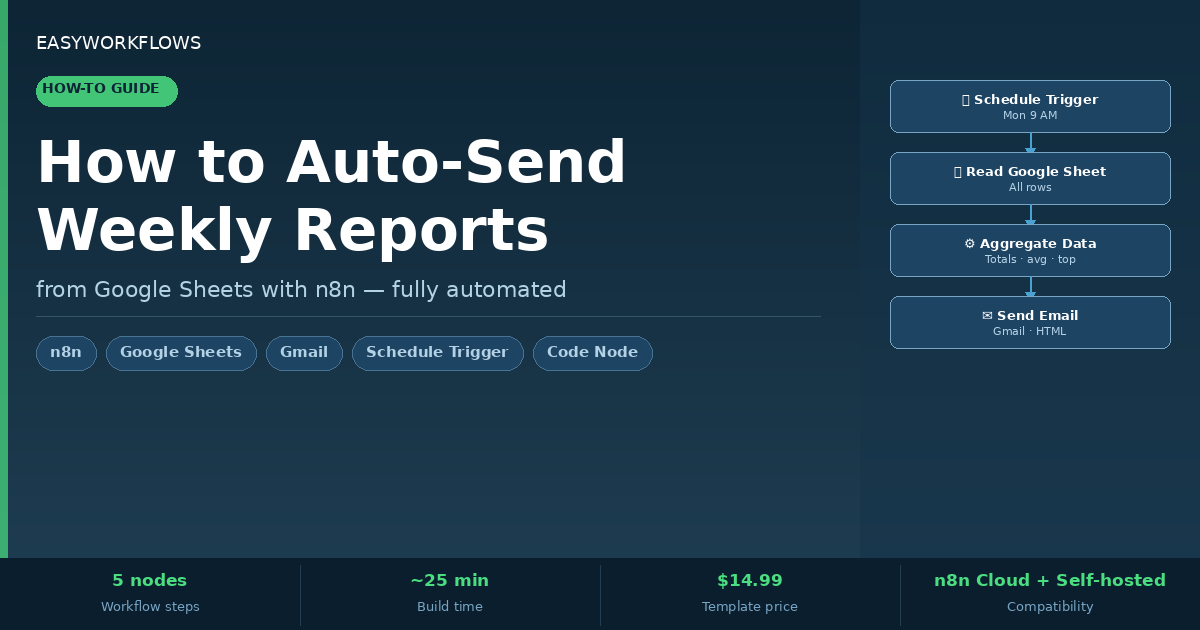
How to Auto-Send Weekly Google Sheets Reports via Email with n8n

Every Monday morning, someone on your team is opening a spreadsheet, copying numbers into an email, formatting a table by hand, and hitting send — only to do it all over again next week. It’s tedious, error-prone, and completely unnecessary. With n8n, you can build a workflow that reads your Google Sheet, aggregates the data, builds a polished HTML email, and sends it automatically — without touching a single cell yourself.

In this guide you’ll build a five-node n8n workflow that fires every Monday at 9 AM, pulls rows from a Google Sheets sales tracker, calculates totals and averages, identifies the top performer, and emails a beautiful formatted report to your team. No code experience required — just follow the steps.

Prefer to skip the setup? Grab the ready-made template and be up and running in under 10 minutes.

What You’ll Build

  1. A Google Sheet acts as your data source — your team logs deals, tasks, or KPIs there throughout the week as usual.
  2. Every Monday at 9 AM, n8n automatically reads every row in the sheet.
  3. A Code node crunches the numbers: total sales, deal count, average deal size, and top performer.
  4. A Set node assembles a clean, branded HTML email with a summary card and a full data table.
  5. Gmail delivers the finished report to every recipient on your list — no human involved.

How It Works — The Big Picture

The workflow is a straight linear pipeline: trigger → read → process → format → send. There are no branches or conditionals, which makes it easy to understand and extend later.

+----------------------------------------------------------------------+
|  WEEKLY GOOGLE SHEETS REPORT -- n8n WORKFLOW                        |
|                                                                      |
|  [Schedule Trigger]  ->  [Read Google Sheet]  ->  [Aggregate Data]  |
|   Every Mon 9 AM          All rows read           Totals, avg,      |
|                            from "Weekly Sales"     top performer    |
|                                                         |           |
|                                              [Build Email Content]  |
|                                               HTML email assembled  |
|                                                         |           |
|                                              [Send Email Report]    |
|                                               Delivered via Gmail   |
+----------------------------------------------------------------------+

What You’ll Need

  • n8n — self-hosted or n8n Cloud (free trial available at n8n.io)
  • Google account — for Google Sheets and Gmail (both use OAuth2)
  • A Google Sheet — with columns: Date, Sales Rep, Client, Amount, Status

Estimated build time: 25–40 minutes from scratch, or under 10 minutes with the ready-made template.

Building the Workflow — Step by Step

1 Schedule Trigger

This is the starting gun. The Schedule Trigger fires the workflow on a cron schedule — no manual intervention needed. You’ll configure it to run every Monday at 9 AM.

  1. In your n8n canvas, click Add first step and search for Schedule Trigger.
  2. Under Trigger Rules, click Add Rule and set mode to Custom (Cron Expression).
  3. Enter the expression: 0 9 * * 1 — this means “9:00 AM every Monday”.
  4. Set the Timezone to your local timezone (e.g., America/New_York).
💡

Tip: Want a daily report instead of weekly? Change the cron to 0 9 * * *. For weekdays only, use 0 9 * * 1-5.

2 Read Google Sheet

This node connects to your Google account and reads every data row from the specified sheet. It outputs one n8n item per row.

  1. Add a Google Sheets node after the trigger.
  2. Under Credential, click Create new and complete the Google OAuth2 sign-in flow.
  3. Set Operation to Read Rows.
  4. Paste your Spreadsheet ID (found in the Google Sheets URL between /d/ and /edit).
  5. Set Sheet Name to Weekly Sales (or your actual tab name).
  6. Under Options, ensure First Row Contains Column Names is enabled.
{
  "Date": "03/31/2026",
  "Sales Rep": "James Carter",
  "Client": "Apex Digital LLC",
  "Amount": "4250.00",
  "Status": "Closed Won"
}
💡

Tip: Column names must match exactly — including capitalization — because the Code node references them by name.

3 Aggregate Data (Code node)

This Code node runs once across all items from the sheet. It calculates totals, finds the top performer, and builds the HTML table rows for the email body.

  1. Add a Code node and set Mode to Run Once for All Items.
  2. Paste the following JavaScript:
const rows = $input.all();
const data = rows.map(r => r.json);

if (data.length === 0) {
  return [{ json: { error: 'No data found', dealCount: 0 } }];
}

const totalSales = data.reduce((sum, r) => sum + parseFloat(r['Amount'] || 0), 0);
const count = data.length;
const avg = count > 0 ? (totalSales / count).toFixed(2) : '0.00';

const topRep = data.reduce((best, r) => {
  return parseFloat(r['Amount'] || 0) > parseFloat(best['Amount'] || 0) ? r : best;
}, data[0]);

const tableRows = data.map(r => `
  <tr>
    <td style="padding:8px 12px;border-bottom:1px solid #e2e8f0;">${r['Date'] || ''}</td>
    <td style="padding:8px 12px;border-bottom:1px solid #e2e8f0;">${r['Sales Rep'] || ''}</td>
    <td style="padding:8px 12px;border-bottom:1px solid #e2e8f0;">${r['Client'] || ''}</td>
    <td style="padding:8px 12px;border-bottom:1px solid #e2e8f0;font-weight:600;">$${parseFloat(r['Amount'] || 0).toFixed(2)}</td>
    <td style="padding:8px 12px;border-bottom:1px solid #e2e8f0;">${r['Status'] || ''}</td>
  </tr>
`).join('');

const reportDate = new Date().toLocaleDateString('en-US', {
  weekday: 'long', year: 'numeric', month: 'long', day: 'numeric'
});

return [{
  json: { totalSales: totalSales.toFixed(2), dealCount: count, avgDeal: avg,
    topRep: topRep['Sales Rep'] || 'N/A',
    topRepAmount: parseFloat(topRep['Amount'] || 0).toFixed(2),
    tableRows, reportDate }
}];
💡

Tip: To filter only “Closed Won” deals, add const closedWon = data.filter(r => r['Status'] === 'Closed Won'); and use closedWon instead of data in the reduce calls.

4 Build Email Content (Set node)

The Set node assembles two fields: the email subject line and the full HTML email body, using n8n expressions to inject the aggregated values.

  1. Add a Set node and switch mode to Manual Mapping.
  2. Add a field named emailSubject: Weekly Sales Report – {{ $now.format('MMMM d, yyyy') }}
  3. Add a field named emailBody and paste in your HTML email template using {{ $json.totalSales }} expressions.

5 Send Email Report (Gmail node)

The final node picks up the subject and body and delivers the email via your connected Gmail account.

  1. Add a Gmail node and connect your Gmail account via OAuth2.
  2. Set Operation to Send.
  3. In To, enter your recipient email(s), comma-separated.
  4. Set Subject to ={{ $json.emailSubject }} and Email Type to HTML.
  5. Set Message to ={{ $json.emailBody }}.

The Data Structure

Your Google Sheet needs a tab named Weekly Sales with these exact column headers:

Column Type Example Description
Date Text / Date 03/31/2026 When the deal was logged
Sales Rep Text James Carter Team member who owns this deal
Client Text Apex Digital LLC Company or contact name
Amount Number (no $ symbol) 4250.00 Dollar value of the deal
Status Text Closed Won Current deal status
📌

Important: Store the Amount column as plain numbers without currency symbols or commas. parseFloat() will return NaN for values like $4,250.00, breaking your totals.

Testing Your Workflow

  1. Make sure your Google Sheet has at least 2–3 rows of test data with all five columns filled in.
  2. Open the workflow in n8n and click Test workflow. This manually triggers the workflow regardless of the schedule.
  3. Watch each node light up green as it executes. Click nodes to inspect their output.
  4. Check your Gmail inbox — a formatted report email should arrive within a few seconds.
  5. Once confirmed working, click Save and toggle the workflow Active.
Problem Likely Cause Fix
Google Sheets node returns no rows Wrong sheet name or spreadsheet ID Copy the ID from the URL; ensure the tab name matches exactly (case-sensitive)
Totals show as 0 or NaN Amount column contains $ symbols or commas Remove formatting from the Amount column
Email not received Gmail OAuth token expired or wrong recipient Re-authorize the Gmail credential; double-check the To field
Workflow doesn’t fire on Monday Timezone mismatch Set timezone in the Schedule Trigger to match your local time
HTML renders as plain text Gmail node Email Type set to Plain Text Change Email Type to HTML in the Gmail node settings

Frequently Asked Questions

Can I send the report to multiple people?

Yes. In the Gmail node’s To field, enter comma-separated email addresses. You can also use the CC and BCC fields under Options.

What if my sheet has hundreds of rows?

The Google Sheets node reads all rows in a single API call, and the Code node processes them all at once. For very large sheets (5,000+ rows), add a date filter node after the Google Sheets node to limit processing to the current week’s data.

Can I use this for something other than sales data?

Absolutely. The workflow is a general-purpose “read sheet → aggregate → email” pipeline. Just rename the columns in your sheet and update the field references in the Code node. A project hours report might use Employee, Project, Hours, and Week columns instead.

Does the workflow clear the sheet data after sending?

No — by default it’s read-only and keeps all rows. If you want the report to cover only the previous week’s entries, add a date filter in the Code node: const thisWeek = data.filter(r => new Date(r['Date']) >= sevenDaysAgo);

Is it safe to connect my Gmail account to n8n?

Yes — n8n uses Google’s official OAuth2 flow. Your credentials are stored encrypted in n8n’s database and never exposed to third parties. If you’re self-hosting n8n, they stay entirely on your own server. You can revoke access at any time from your Google Account security settings.


Get the Weekly Report Template

Skip the build — get the complete n8n workflow JSON, a Setup Guide PDF, and a Credentials Guide PDF. Everything you need to go from zero to automated reports in under 10 minutes.

Get the Template

Instant download · Works on n8n Cloud and self-hosted

What’s Next?

  • Add a Slack notification: Drop a Slack node after the Gmail node to post a summary card to your #sales channel at the same time the email goes out.
  • Store historical summaries: After the Aggregate Data node, add a Google Sheets node to write weekly totals to a separate “History” tab.
  • Conditional alerts: Add an IF node that sends a different email when total sales miss the week’s target.
  • Multi-team reports: Use a Switch node to route rows by region and send tailored reports to each team lead.
n8n
Google Sheets
Gmail
automation
weekly report
email automation
scheduled workflow

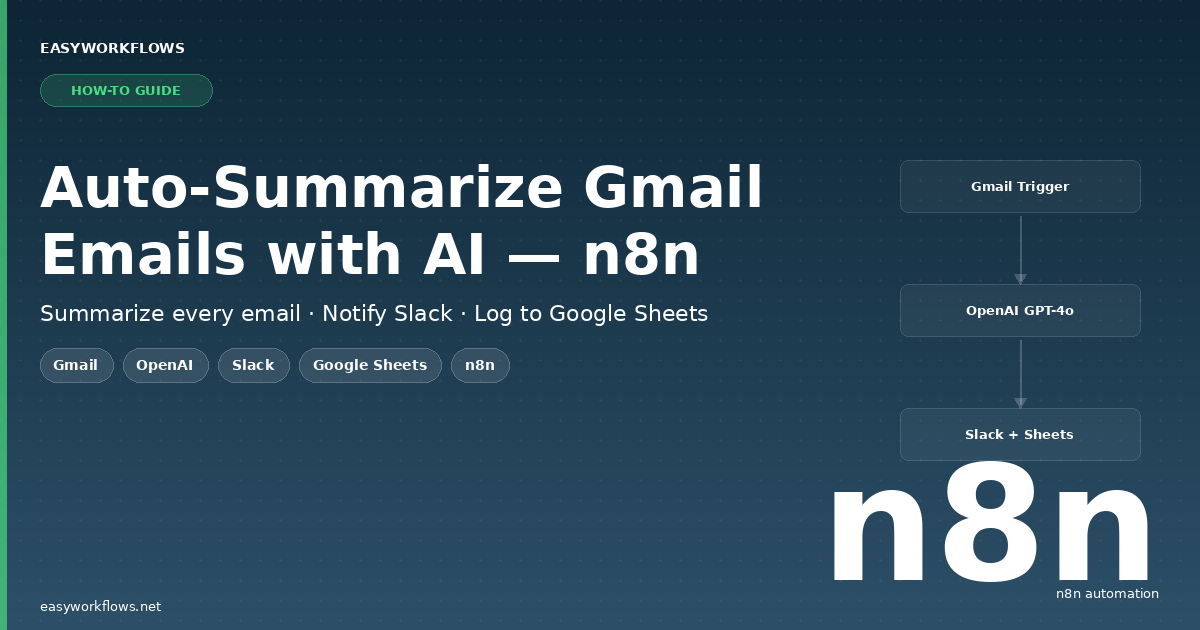
How to Auto-Summarize Gmail Emails with AI Using n8n

Your inbox is full — important emails are buried, and you’re spending hours skimming threads just to find the ones that actually need your attention. What if every new email was automatically summarized by AI, pinged to your Slack, and logged to a spreadsheet — without you lifting a finger? In this tutorial, you’ll build exactly that using n8n, OpenAI, Slack, and Google Sheets. No code required, and it runs 24/7 in the background while you focus on work that matters.

Prefer to skip the setup? Grab the ready-made template → and be up and running in under 10 minutes.

What You’ll Build

  1. A Gmail trigger polls your inbox every minute for new unread emails.
  2. The email content is sent to OpenAI’s GPT-4o-mini model, which generates a crisp 2–3 sentence summary.
  3. The summary is posted to a Slack channel (e.g., #email-digest) so you see it the moment it lands.
  4. The email metadata and AI summary are simultaneously appended to a Google Sheets log — your permanent, searchable email archive.
  5. You stay on top of every important email without ever opening your inbox to triage.

How It Works — The Big Picture

The workflow is a linear pipeline with one fan-out at the end. Gmail fires the trigger, two Set nodes shape the data, one HTTP Request calls OpenAI, and then both Slack and Google Sheets receive the result in parallel.

┌──────────────────────────────────────────────────────────────────────────┐
│  AUTO-SUMMARIZE GMAIL EMAILS WITH AI                                     │
│                                                                          │
│  [Gmail Trigger]                                                         │
│       │  new unread email detected                                       │
│       ▼                                                                  │
│  [Extract Email Fields]  ← pulls sender, subject, body text             │
│       │                                                                  │
│       ▼                                                                  │
│  [Summarize with OpenAI]  ← POST to GPT-4o-mini API                     │
│       │                                                                  │
│       ▼                                                                  │
│  [Prepare Notification Data]  ← merges summary + email metadata          │
│       │                                                                  │
│       ├──────────────────────────┐                                       │
│       ▼                          ▼                                       │
│  [Send Slack Notification]  [Log to Google Sheets]                       │
│   posts to #email-digest     appends row to "Email Log" sheet            │
└──────────────────────────────────────────────────────────────────────────┘

What You’ll Need

  • n8n — self-hosted or n8n Cloud (free tier works)
  • Gmail account — connected via Google OAuth2 in n8n
  • OpenAI account — API key from platform.openai.com (GPT-4o-mini costs fractions of a cent per email)
  • Slack workspace — with a channel like #email-digest and a Slack app connected in n8n
  • Google Sheets — a new spreadsheet with a tab named Email Log

Estimated build time: 35–50 minutes from scratch, or under 10 minutes with the ready-made template.

Building the Workflow — Step by Step

1 Gmail Trigger (gmailTrigger)

This is the entry point. The Gmail Trigger node polls your inbox on a schedule and fires whenever it finds a new unread email. Think of it as a quiet watchdog that checks your mailbox every 60 seconds.

How to configure it:

  1. In your n8n canvas, click + Add node and search for Gmail Trigger.
  2. Connect your Google account when prompted (you’ll be redirected to Google’s OAuth screen).
  3. Under Poll Times, set the interval to Every Minute — or adjust to every 5 minutes if you prefer less frequent checks.
  4. Under Filters → Read Status, choose Unread so already-read emails don’t get processed again.
  5. Leave Include Spam & Trash unchecked.

When this node fires, the output is a rich object containing the full email. Here’s what a sample output looks like:

{
  "id": "18e5a3b2c7d4e901",
  "subject": "Q2 Budget Review — Action Needed",
  "from": {
    "value": [{ "address": "sarah.thompson@acmecorp.com", "name": "Sarah Thompson" }]
  },
  "date": "2026-04-02T14:23:11.000Z",
  "text": "Hi James,\n\nI've attached the updated Q2 budget spreadsheet for your review..."
}
💡

Tip: If you only want to process emails from specific senders or with certain subjects, add a Label filter. Create a Gmail filter that auto-labels those emails, then reference that label ID here. This keeps your workflow laser-focused and avoids processing newsletters or automated notifications.

2 Extract Email Fields (Set)

The raw Gmail output has a lot of nested data. This Set node flattens it into clean, named fields that the rest of the workflow can reference easily.

How to configure it:

  1. Add a Set node after Gmail Trigger and set mode to Manual Mapping.
  2. Add the following fields using the expression editor:
Field Name Expression What It Captures
sender ={{ $json.from.value[0].address }} Sender’s email address
senderName ={{ $json.from.value[0].name || $json.from.value[0].address }} Display name (falls back to email)
subject ={{ $json.subject }} Email subject line
bodyText ={{ ($json.text || '').substring(0, 4000) }} Plain text body, capped at 4,000 chars
receivedAt ={{ $json.date }} Timestamp the email was received
messageId ={{ $json.id }} Gmail’s unique message ID
💡

Tip: The substring(0, 4000) cap on bodyText is intentional. Capping at 4,000 characters keeps your API costs minimal while still capturing the meaningful content of any real email.

3 Summarize with OpenAI (HTTP Request)

This is where the magic happens. You’ll make a direct API call to OpenAI’s Chat Completions endpoint using an HTTP Request node — transparent, flexible, and easy to customize.

How to configure it:

  1. Add an HTTP Request node. Set Method to POST and URL to https://api.openai.com/v1/chat/completions.
  2. Under Authentication, choose Generic Credential Type → HTTP Header Auth. Create a credential with Name: Authorization and Value: Bearer sk-YOUR_OPENAI_API_KEY.
  3. Set Body Content Type to JSON and use this body:
{
  "model": "gpt-4o-mini",
  "messages": [
    {
      "role": "system",
      "content": "You are a concise email assistant. Summarize the following email in exactly 2-3 sentences."
    },
    {
      "role": "user",
      "content": "From: {{ $json.senderName }} <{{ $json.sender }}>\nSubject: {{ $json.subject }}\n\n{{ $json.bodyText }}"
    }
  ],
  "max_tokens": 200,
  "temperature": 0.2
}
📌

Cost note: GPT-4o-mini costs roughly $0.15 per million input tokens. A typical email summary costs about $0.00009 — less than a tenth of a cent. Processing 1,000 emails a month costs under $0.10 total.

4 Prepare Notification Data (Set)

After the OpenAI call, the email fields from Step 2 are no longer in scope. This second Set node reassembles everything — it grabs the AI summary and re-references the email metadata using n8n’s node-reference syntax.

Field Expression
summary ={{ $json.choices[0].message.content }}
sender ={{ $('Extract Email Fields').item.json.sender }}
senderName ={{ $('Extract Email Fields').item.json.senderName }}
subject ={{ $('Extract Email Fields').item.json.subject }}
receivedAt ={{ $('Extract Email Fields').item.json.receivedAt }}
messageId ={{ $('Extract Email Fields').item.json.messageId }}

5 Send Slack Notification (Slack)

This node posts the email summary to a Slack channel so your team sees it in real time. Connect your Slack workspace via OAuth, set the channel to #email-digest, and use this message text:

📧 *New Email Summary*
*From:* {{ $json.senderName }} <{{ $json.sender }}>
*Subject:* {{ $json.subject }}
*Received:* {{ $json.receivedAt }}

*AI Summary:*
{{ $json.summary }}

6 Log to Google Sheets (Google Sheets)

The final node appends a new row to your Email Log spreadsheet every time an email is processed — your permanent, searchable archive.

Set Operation to Append or Update Row, select your spreadsheet, set the sheet name to Email Log, and map these columns:

Sheet Column n8n Expression
Received At ={{ $json.receivedAt }}
Sender Name ={{ $json.senderName }}
Sender Email ={{ $json.sender }}
Subject ={{ $json.subject }}
AI Summary ={{ $json.summary }}
Message ID ={{ $json.messageId }}

The Data Structure (Google Sheets)

Your Email Log sheet must have these exact column headers in row 1. Column names are case-sensitive.

Column Type Example Value Description
Received At DateTime 2026-04-02T14:23:11.000Z ISO timestamp when email arrived
Sender Name Text Sarah Thompson Display name from the From header
Sender Email Text sarah.thompson@acmecorp.com Sender’s email address
Subject Text Q2 Budget Review — Action Needed Email subject line
AI Summary Long Text Sarah Thompson from Acme Corp sent… 2–3 sentence AI-generated summary
Message ID Text 18e5a3b2c7d4e901 Gmail’s unique internal message ID
📌

Column header names in Google Sheets are case-sensitive. If there’s a mismatch, data will go into a new column instead of the right one. Double-check spelling before your first test run.

Full System Flow

┌─────────────────────────────────────────────────────────────────────────────────┐
│  FULL SYSTEM FLOW — Gmail AI Summarizer                                         │
│                                                                                 │
│  Gmail Inbox                                                                    │
│     │  (new unread email arrives)                                               │
│     ▼                                                                           │
│  [Gmail Trigger]  ──polls every 60s──►  raw email object (id, from, subject,   │
│                                          date, text)                            │
│     │                                                                           │
│     ▼                                                                           │
│  [Extract Email Fields]  ─────────────► { sender, senderName, subject,         │
│                                           bodyText (≤4000 chars), receivedAt,  │
│                                           messageId }                           │
│     │                                                                           │
│     ▼                                                                           │
│  [Summarize with OpenAI]                                                        │
│     POST https://api.openai.com/v1/chat/completions                             │
│     model: gpt-4o-mini  ──────────────► { choices[0].message.content: "..." }  │
│     │                                                                           │
│     ▼                                                                           │
│  [Prepare Notification Data]  ────────► { summary, sender, senderName,         │
│                                           subject, receivedAt, messageId }      │
│     │                                                                           │
│     ├───────────────────────────────────────────────┐                          │
│     ▼                                               ▼                           │
│  [Send Slack Notification]               [Log to Google Sheets]                 │
│   POST to #email-digest                   APPEND row to "Email Log" tab         │
│                                                                                 │
│  ✅ Done — email summarized, team notified, and permanently archived            │
└─────────────────────────────────────────────────────────────────────────────────┘

Testing Your Workflow

  1. Send a test email to yourself from another account. Use a realistic subject and write 3–4 sentences of body text.
  2. In the n8n canvas, click the Gmail Trigger node and press Fetch Test Event. Your test email should appear as the sample data.
  3. Click Execute from here to run the rest of the workflow with that email.
  4. Check your #email-digest Slack channel — the summary should appear within seconds.
  5. Open your Google Sheets Email Log — a new row should be appended with all six columns filled.
  6. Once confirmed, click Save then toggle the Active switch to start the live workflow.
Problem Likely Cause Fix
Gmail Trigger finds no emails No unread emails, or wrong label filter Send a fresh test email, then click “Fetch Test Event” again
OpenAI returns 401 error API key incorrect or missing “Bearer ” prefix Regenerate the key and ensure the value starts with “Bearer sk-…”
Slack message not appearing Bot not added to the channel Type /invite @YourBotName in the #email-digest channel
Google Sheets row goes to wrong column Column header name mismatch Compare sheet headers letter-for-letter with n8n field names
Same email processed multiple times Email stays unread after processing Add a Gmail node at the end to mark the email as read

Frequently Asked Questions

Will this workflow read emails I’ve already seen?

Only if they’re still marked as unread. The Gmail Trigger is filtered to unread emails, so anything you’ve already opened and read won’t be reprocessed. If you want to back-process a batch of old emails, temporarily change the filter to “All Mail” for a one-time run, then switch back.

What if an email has no plain text body — only HTML?

The workflow uses $json.text (plain text) by default. If your email client sends HTML-only, update the bodyText expression to ={{ $json.text || $json.textHtml?.replace(/<[^>]+>/g, '') || '' }} — this strips HTML tags as a fallback.

Can I filter which emails get summarized — for example, only from my boss?

Yes. Create a Gmail filter that auto-labels emails from specific senders, then restrict the Gmail Trigger to only watch that label. Alternatively, add an IF node after “Extract Email Fields” and check if $json.sender matches a list of allowed addresses.

Is my email content sent to OpenAI? Is that safe?

Yes — the email body text is sent to OpenAI’s API. OpenAI’s API does not use your data to train models by default, per their API data usage policy. If your emails contain highly sensitive content, consider running an open-source LLM locally via n8n’s Ollama integration instead.

Can I use a different AI model instead of GPT-4o-mini?

Absolutely. To use GPT-4o, just change "model": "gpt-4o-mini" to "model": "gpt-4o" in the HTTP Request body — expect roughly 10× the cost. For a free option, replace the HTTP Request node with an Ollama node pointed at a local Llama 3 instance.

What happens if the workflow runs while n8n is offline?

n8n stores the last-polled email timestamp internally. When it comes back online, it will catch up on any emails that arrived while it was down. For production use on self-hosted n8n, consider setting up PM2 to auto-restart n8n if it crashes.

🚀 Get the Gmail AI Summarizer Template

Skip the setup and get the pre-built workflow JSON, a step-by-step Setup Guide PDF, and a Credentials Guide that walks you through connecting Gmail, OpenAI, Slack, and Google Sheets — all for less than the cost of a cup of coffee.

Get the Template →

Instant download · Works on n8n Cloud and self-hosted · $14.99

What’s Next?

  • Auto-reply to routine emails: Add a second AI call that drafts a reply, then use Gmail’s “Create Draft” action so you can review and send with one click.
  • Priority scoring: Add a second OpenAI call that rates each email 1–5 for urgency. Route high-priority emails to a dedicated #urgent-emails Slack channel.
  • Weekly digest email: Pair this workflow with a scheduled trigger that reads your Google Sheets log every Friday and emails a formatted weekly summary to your team.
  • Notion integration: Replace or supplement the Google Sheets node with a Notion node to create a card in your “Inbox” database for each processed email.
n8n
Gmail
OpenAI
Slack
Google Sheets
AI automation
email automation