New to n8n? Start with our step-by-step setup guide, then come back to build this workflow.
Your support team can’t be online 24/7, but your customers expect answers at midnight just as much as noon. The problem with most WhatsApp bots is the binary choice: either the AI handles everything (and frustrates customers when it fails), or a human handles everything (and burns out your team). This n8n workflow solves it differently. The AI answers routine questions instantly, and the moment a human agent jumps in, the bot steps aside. After two hours of silence from the human side, the AI quietly resumes. You get the best of both worlds.
In this guide you’ll build a production-ready WhatsApp support system in n8n using Twilio, Google Gemini, and Supabase vector search. The bot answers questions by searching your own knowledge base documents, can look up customer records in Airtable, maintains per-conversation memory, and handles the AI/human handoff completely automatically.
Prefer to skip the build? Grab the ready-made template → and be live on WhatsApp in under an hour.
What You’ll Build
- A Twilio webhook listens for incoming WhatsApp messages from customers.
- Before the AI responds, the workflow checks a human-handoff API. If a human agent is active, the bot stays silent.
- After 2 hours with no human response, the AI automatically resumes handling the conversation.
- The AI agent (powered by Google Gemini) searches your Supabase knowledge base for accurate answers, can look up customer CRM records, and maintains full conversation context via a memory buffer.
- Replies go back to the customer via WhatsApp through Twilio.
- A separate RAG pipeline keeps the knowledge base fresh: whenever you add or update a document in a Google Drive folder, n8n re-embeds it and syncs to Supabase automatically.
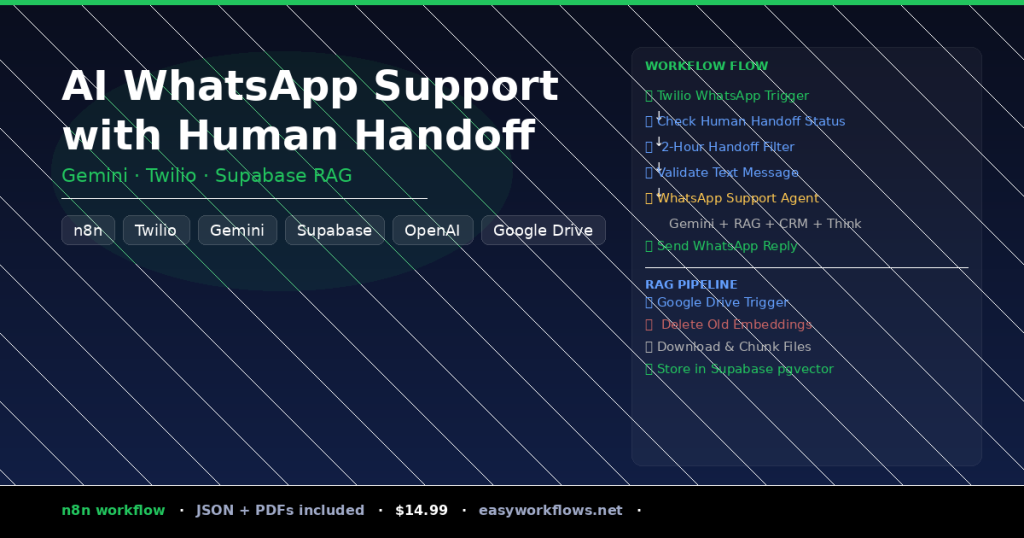
How It Works: The Big Picture
┌──────────────────────────────────────────────────────────────────────────────┐
│  WORKFLOW 1: WhatsApp Chat Handler                                           │
│                                                                              │
│  [Twilio Trigger]                                                            │
│       ↓                                                                      │
│  [Check Human Handoff API]                                                   │
│       ↓                                                                      │
│  [2-Hour Filter] ──(human active + <2h)──→ STOP (human is handling it)      │
│       ↓ (no human, or 2h+ since last response)                              │
│  [Validate Text Input] ──(empty message)──→ STOP                            │
│       ↓                                                                      │
│  [WhatsApp Support Agent (Gemini)]                                           │
│       ├── tool: Knowledgebase RAG (Supabase)                                │
│       ├── tool: CRM Lookup (Airtable)                                       │
│       ├── tool: Think + Calculator                                           │
│       └── memory: Conversation Buffer (per phone number)                    │
│       ↓                                                                      │
│  [Send WhatsApp Reply via email or SMS]                                            │
└──────────────────────────────────────────────────────────────────────────────┘

┌──────────────────────────────────────────────────────────────────────────────┐
│  WORKFLOW 2: Knowledge Base Sync (RAG Pipeline)                              │
│                                                                              │
│  [Google Drive Trigger: file created/updated]                                │
│       ↓                                                                      │
│  [Map File Fields] → [Delete Old Embeddings from Supabase]                  │
│       ↓                                                                      │
│  [Loop Over Files] → [Download from Google Drive]                           │
│       ↓                                                                      │
│  [Load + Chunk Document] → [Embed with OpenAI] → [Store in Supabase]        │
└──────────────────────────────────────────────────────────────────────────────┘
What You’ll Need
- n8n: cloud or self-hosted (v1.30+)
- Twilio account: with a WhatsApp-enabled number (~$20/month); Meta business verification required
- Google Gemini API key: free tier available at aistudio.google.com
- Supabase account: free tier works; needs the
pgvectorextension and adocumentstable - OpenAI API key: for generating embeddings (text-embedding-3-small; very cheap)
- Google Drive folder: where you’ll store your .docx knowledge base files
- Airtable base: optional, for CRM lookups; remove that tool node if not needed
- Human handoff dashboard: a simple API that tracks which conversations are currently handled by a human agent (open-source starter available)
Build time from scratch: 3 to 5 hours. With this template: under 60 minutes.
Part 1: The WhatsApp Chat Handler
1 Twilio WhatsApp Trigger: Receive incoming messages
This webhook node fires every time a customer sends a WhatsApp message to your Twilio number. Twilio formats the payload with a data.body field containing the message text and data.from / data.to containing the WhatsApp phone numbers (prefixed with whatsapp:).
To set it up: in Twilio, go to your WhatsApp Sandbox (or verified number) → Messaging → Configure → set the webhook URL to your n8n webhook URL. In n8n, create the credential using your Twilio Account SID and Auth Token.
{
  "data": {
    "body": "Hi, I need help tracking my order #1847",
    "from": "whatsapp:+15559876543",
    "to": "whatsapp:+15551234567"
  }
}Twilio’s WhatsApp messaging has a 24-hour session window: you can only reply to customers who’ve messaged you first within the last 24 hours. For proactive messages, you’ll need pre-approved Twilio message templates.
2 Check Human Handoff Status: Query the handoff API
This HTTP Request node calls a simple API with the customer’s phone number and gets back a JSON object indicating whether a human agent has taken over, and when they last responded. The API is a lightweight dashboard you deploy separately. A Node.js/Netlify starter is included in the template package.
{
  "humanActive": true,
  "lastHumanResponseTime": "2026-04-10T14:32:00Z"
}
Set the URL parameter to https://YOUR_DASHBOARD_URL/api/check-human?phone={{ $json.data.from.trim() }}.
If you don’t have a handoff dashboard yet, you can stub this out: create a Google Sheet with phone numbers and a “humanActive” column, and replace this node with a Google Sheets lookup. The filter node in Step 3 will then use that value.
3 2-Hour Handoff Filter: Let humans take over
This Filter node uses an OR condition to decide whether the AI should respond: pass the message to the AI if no human is active, OR if the last human response was more than 2 hours ago. If a human agent is actively handling the conversation and responded recently, the filter blocks the item and the AI stays silent.
The two conditions are:
| Condition | Value | Means |
|---|---|---|
humanActive |
false |
No human agent is active, AI should respond |
lastHumanResponseTime |
after $now - 2 hours |
Human hasn’t responded in 2h, AI resumes |
4 Validate Text Message: Screen out non-text events
Twilio also fires the webhook for image, audio, and status events. This IF node checks that $('Twilio WhatsApp Trigger').item.json.data.body is not empty, routing only text messages to the AI agent. Non-text events fall through the false branch (which ends here with no action).
5 WhatsApp Support Agent: The AI brain
This is the LangChain Agent node that orchestrates the response. It uses Google Gemini as its language model and has four tools at its disposal: the knowledge base RAG search, a CRM lookup in Airtable, a Think tool for multi-step reasoning, and a Calculator. The Conversation Memory buffer maintains the last 20 messages per phone number, giving the agent full context of the ongoing support conversation.
Customize the system message with your company name, website, support email, and the topics the bot should and shouldn’t discuss. The key constraints to keep:
- Keep responses under 1,600 characters (WhatsApp best practice)
- Instruct the agent to say “Let me connect you with a human agent” when it can’t resolve something, your dashboard UI lets agents pick up those flagged conversations
The memory key is set to $json.phoneNumber, which means each phone number gets its own isolated conversation history. If a customer texts from two different numbers, those will be treated as separate conversations.
6 Send WhatsApp Reply: Close the loop
The Twilio node sends the AI’s output back to the customer’s WhatsApp. The from and to fields strip the whatsapp: prefix that Twilio adds to phone numbers, and toWhatsapp: true tells Twilio to route it over WhatsApp instead of SMS.
Part 2: The Knowledge Base RAG Pipeline
The RAG (Retrieval-Augmented Generation) pipeline is what makes the AI actually useful: instead of hallucinating answers, it searches your real company documents. You maintain the knowledge base by uploading .docx files to a Google Drive folder; n8n handles embedding and indexing automatically.
7 Google Drive Triggers: Detect new and updated documents
Two Google Drive Trigger nodes poll a specific folder every minute: one fires on fileCreated, the other on fileUpdated. Both feed into the same processing chain. Set the folder ID by pointing the node to the Drive folder where you’ll store your knowledge base documents (.docx format).
8 Map File Fields + Delete Old Embeddings
The Set node extracts file_id and file_name from the Drive event. Then the Supabase Delete node removes any existing embeddings for that file from the documents table. This is critical for the updated trigger path so you don’t end up with stale duplicate chunks. The delete uses a metadata filter: metadata->>file_id=eq.{{ $json.file_id }}.
9 Loop → Download → Chunk → Embed → Store
The SplitInBatches node processes files one at a time. For each file, n8n downloads the binary from Google Drive, loads it through the Document Loader (configured for .docx files), splits it into chunks using the Recursive Character Text Splitter, generates OpenAI embeddings (1536-dimension, matching the Supabase table setup), and stores the resulting vectors in Supabase.
The Document Loader node embeds the file_id as metadata on each chunk. That’s how the delete step in Step 8 knows which vectors to remove when a file is updated. Don’t remove that metadata configuration.
The Data Structure
Your Supabase documents table needs to be set up with pgvector support. Here’s the required schema:
| Column | Type | Description |
|---|---|---|
id |
bigserial (primary key) | Auto-incrementing row ID |
content |
text | The text chunk from your document |
metadata |
jsonb | Stores file_id and other chunk metadata |
embedding |
vector(1536) | The OpenAI embedding for semantic search |
You also need to create a Supabase RPC function called match_documents that performs the vector similarity search. Supabase’s official n8n integration guide provides the exact SQL for this function.
The embedding dimension must match exactly. This workflow uses OpenAI text-embedding-3-small with 1536 dimensions. If you switch to a different embedding model, update both the dimensions parameter in the Embeddings node AND recreate the Supabase column with the matching size.
Full System Flow
Customer sends WhatsApp message
         ↓
  Twilio Webhook (n8n)
         ↓
  Check human handoff API ─────────────── Human dashboard tracks
         ↓                                agent activity per phone
  2-hour filter
         │
         ├─── Human active & recent → SKIP (human handles it)
         │
         └─── No human / expired → continue
                   ↓
          Validate text input
                   ↓
          Gemini Agent
                   ├── Search Supabase ← (vector embeddings from your docs)
                   ├── Lookup Airtable CRM
                   └── Per-phone memory buffer
                   ↓
          Twilio: Send WhatsApp reply
                   ↓
         Customer receives answer

─── Separately (knowledge base sync) ──────────────────────────────
Upload .docx to Google Drive folder
         ↓
  n8n detects new/updated file
         ↓
  Delete old embeddings → Re-embed → Store in Supabase
Testing Your Workflow
Test the chat handler by texting your Twilio WhatsApp sandbox number from your personal phone. Ask a question that’s covered in one of your knowledge base documents and verify the answer is accurate and sourced from your content. Then test the handoff: set humanActive: true in your dashboard for your phone number and send another message, confirm the AI doesn’t respond.
| Problem | Likely Cause | Fix |
|---|---|---|
| No reply received | Webhook URL not set in Twilio | Copy the Twilio Trigger webhook URL into Twilio console → WhatsApp → Configure |
| AI gives wrong answers | Knowledge base not indexed | Upload a .docx to the Drive folder and wait for the RAG pipeline to run |
| Supabase insert fails | Dimension mismatch or missing pgvector | Enable pgvector in Supabase dashboard; verify column is vector(1536) |
| Human filter not working | Dashboard API returns wrong format | Confirm API returns {"humanActive": true/false, "lastHumanResponseTime": "ISO date"} |
| Memory not persisting | Session key wrong | The memory node session key must be ={{ $json.phoneNumber }}, check the incoming phone field name |
Frequently Asked Questions
Can I use a different AI model instead of Gemini?
Yes. The Google Gemini (AI Brain) node is just the language model sub-node connected to the agent. You can swap it for OpenAI GPT-4o, Anthropic Claude, or any LangChain-compatible model by deleting that node and connecting a different LLM sub-node. The rest of the workflow stays the same.
Do I need the Airtable CRM tool if I don’t use Airtable?
No, it’s optional. If you don’t need CRM lookups, simply delete the CRM Lookup Tool node. The agent will continue working with the remaining tools: Knowledgebase RAG, Think, and Calculator. You could replace it with a Google Sheets lookup, HubSpot, or any other CRM that has an n8n node.
What’s the human handoff dashboard and do I have to build it?
The human handoff dashboard is a small web app (or API endpoint) that lets your support agents see incoming conversations, flag themselves as “active” on a thread, and send manual replies. The original creator of this workflow has an open-source starter on GitHub. Alternatively, if you just want to test the logic first, you can hardcode humanActive: false in the HTTP Request node response and bypass the handoff check entirely.
What document formats does the knowledge base support?
The Document Loader is set to docxLoader by default, which handles .docx files. To support PDFs, switch the loader to pdfLoader. To support plain text or markdown, use textLoader. You can also run multiple RAG pipelines in parallel, each monitoring a different folder and using a different loader.
How does the 2-hour window work exactly?
When a human agent sends a message through the handoff dashboard, the dashboard records the timestamp as lastHumanResponseTime. The n8n Filter node checks if this timestamp is more than 2 hours ago. If yes, the AI is allowed to respond again. You can adjust this window by changing the hours: 2 value in the filter condition. For example, use hours: 4 for a longer human-priority window.
Can this handle images and voice messages?
Not by default. The Validate Text Message node currently passes only non-empty text bodies. To handle images, you’d add an IF branch that checks for data.mediaContentType and routes to an additional OpenAI vision node. Voice messages would require a speech-to-text step (e.g., OpenAI Whisper) before passing to the agent.
🚀 Get the AI WhatsApp Handoff Template
The template includes the complete n8n workflow JSON (clean, importable), a step-by-step Setup Guide PDF, a Credentials Guide PDF walking you through every API key, and the Supabase SQL to set up your vector store.
Instant download, works on n8n Cloud and self-hosted
What’s Next
- Add voice support: Route audio messages through OpenAI Whisper for transcription before passing to the agent.
- Multilingual detection: Add a language detection step and switch system prompt language to match the customer’s language automatically.
- Analytics: Log every conversation turn to a Google Sheet or Supabase table to track AI vs. human resolution rates, response times, and common questions.
- Proactive alerts: Use n8n’s Schedule Trigger to send Twilio template messages (appointment reminders, order updates) proactively to opted-in customers.