New to n8n? Start with our step-by-step setup guide, then come back to build this workflow.
Manual market research is a time sink most founders and marketers can’t afford. You open Reddit, Twitter, Product Hunt, and Google, spend two hours reading threads, and come away with a vague sense that “people seem frustrated with X.” That’s not intelligence. That’s noise. This workflow changes that by running a fully automated market demand analysis every week, scanning public discussions across Google Search, Twitter/X, and Instagram, extracting real buying signals with GPT-4o, and delivering a polished report straight to your Notion workspace and email inbox, with no human effort required.
⚡ Don’t want to build it from scratch? Grab the ready-made template → and be live in under 15 minutes.
What You’ll Build
- A weekly schedule trigger that fires the workflow automatically, no manual runs needed.
- A research context node where you define your niche, keywords, and analyst focus in plain text.
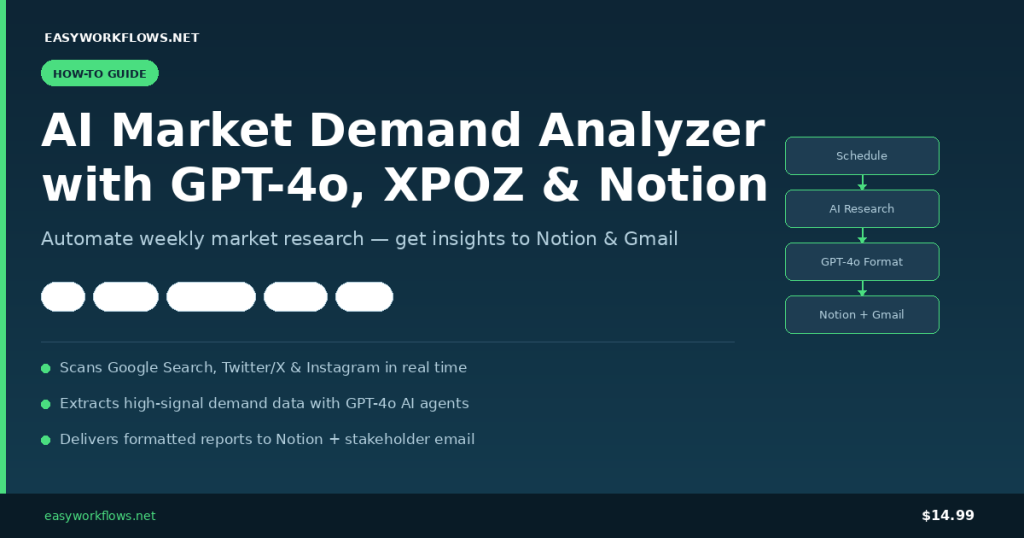
- An AI research agent (GPT-4o + XPOZ MCP) that scans Google Search, Twitter/X, and Instagram for real demand signals and pain points.
- A second AI formatter agent that converts raw insights into a clean Notion summary and a professional stakeholder email.
- Parallel delivery to Notion (for long-term research tracking) and Gmail (for immediate stakeholder awareness), plus an error-alert branch that emails you if anything breaks.
How It Works: The Big Picture
┌────────────────────────────────────────────────────────────────────────────┐
│  AI MARKET DEMAND ANALYZER                                                 │
│                                                                            │
│  [Schedule Trigger]                                                        │
│       │                                                                    │
│       ▼                                                                    │
│  [Inject Research Context]   ← niche / query / analyst notes              │
│       │                                                                    │
│       ▼                                                                    │
│  [AI Research Agent] ← GPT-4o + XPOZ MCP (Google/Twitter/Instagram)       │
│       │                                                                    │
│       ▼                                                                    │
│  [Format Insights Agent] ← GPT-4o (Notion summary + email body)           │
│       │                                                                    │
│       ▼                                                                    │
│  [Parse & Validate JSON Output]                                            │
│       │                  │                                                 │
│       ▼                  ▼                                                 │
│  [Save to Notion]   [Send Gmail]                                           │
│                                                                            │
│  ── Error Branch ──                                                        │
│  [Error Trigger] → [Send Error Alert Email]                                │
└────────────────────────────────────────────────────────────────────────────┘
What You’ll Need
- n8n: self-hosted or n8n Cloud (any recent version)
- OpenAI API key: GPT-4o access required (GPT-4o mini also works with slightly lower depth)
- XPOZ API token: get yours at xpoz.ai; powers social intelligence search across Google, Twitter/X, and Instagram
- Notion integration token + database: your research database with at least a Title property
- Gmail OAuth2 connection in n8n, for sending insight emails and error alerts
Time to build from scratch: ~45 minutes. Time with the template: ~15 minutes (credential setup only).
Building the Workflow: Step by Step
1 Scheduled Market Research Trigger (Schedule Trigger)
This is the heartbeat of the workflow. Every time it fires, the full research pipeline runs end to end. By default the template is configured to run every Monday at 8:00 AM, but you can change this to daily, bi-weekly, or any custom cron schedule.
In n8n, open the node and set:
- Trigger interval: Weeks
- Weeks between triggers: 1
- Trigger on weekday: Monday
- At hour: 8 (8:00 AM)
Tip: If you’re tracking fast-moving niches (crypto, AI tools, trending SaaS), switch to a daily trigger. For stable B2B markets, weekly is usually sufficient and keeps your API costs low.
2 Inject Research Context (Set)
This is your configuration panel. Instead of hardcoding research parameters inside the AI prompt, they live here, which means you can change your niche or focus topic without touching any agent prompt logic.
Three fields to configure:
| Field | What it does | Example value |
|---|---|---|
body.niche |
The market or industry you’re researching | SaaS project management tools |
body.query |
Specific keywords or research question | Asana alternatives for remote teams |
body.notes |
Analyst guidance for the AI | Focus on pricing complaints and feature gaps. Ignore generic how-to content. |
After this node runs, the output looks like:
{
  "body": {
    "niche": "SaaS project management tools",
    "query": "Asana alternatives for remote teams",
    "notes": "Focus on pricing complaints and feature gaps."
  }
}
3 AI Research Agent: GPT-4o + XPOZ MCP
This is where the heavy lifting happens. An n8n AI Agent node powered by GPT-4o receives your research context and uses the XPOZ MCP connector as a tool to search across Google Search, Twitter/X, and Instagram in real time.
The agent’s system prompt instructs it to act as a growth intelligence analyst, extracting only high-signal findings: real frustrations, competitor weaknesses, switching intent, unmet feature requests, and pricing dissatisfaction. Generic content (tutorials, press releases, promotional posts) is explicitly filtered out.
XPOZ MCP node configuration:
- Endpoint URL:
https://mcp.xpoz.ai/mcp - Authentication: Bearer Auth, paste your XPOZ API token
Tip: The agent is set to maxIterations: 30, giving it enough room to make multiple search calls and cross-reference findings. Don’t reduce this below 10 or you’ll get shallow results.
4 Format Insights into Notion Summary and Email (AI Agent)
A second GPT-4o agent takes the raw insight text and transforms it into two clean deliverables as a single JSON object.
{
  "notion_summary": "Remote teams cite per-seat pricing as barrier. Common complaints: no built-in time tracking, clunky Slack integration. Competitors gaining ground: Linear, ClickUp. Buying intent detected in 12 threads asking for free Asana alternatives.",
  "email": {
    "subject": "Weekly Market Intelligence: Asana Alternatives (April 2026)",
    "body": "Hi James,\n\nThis week's scan surfaced strong demand signals for lightweight project management tools targeting remote-first teams..."
  }
}Note: The system prompt explicitly bans markdown, emojis, and hallucinated data. The AI only uses content from the research agent’s output. This matters, you don’t want fabricated market insights landing in your Notion database.
5 Parse and Validate AI Output (Code)
This JavaScript node handles both clean JSON and JSON wrapped in markdown code fences. It also validates that both required fields (notion_summary and email) are present before allowing data to continue downstream, throwing meaningful errors if anything is missing.
6 Save to Notion + Send Gmail (Parallel)
After validation, the workflow splits into two parallel branches. The Notion node saves the summary as a new database page for long-term research archiving. The Gmail node sends the formatted email to your configured stakeholder address. Both run simultaneously, no sequential bottleneck.
Tip: Want to send to multiple stakeholders? Add multiple recipients in the Gmail node’s To field separated by commas, or use the CC/BCC options in the node’s Options panel.
The Notion Database Schema
Create a Notion database for your market research archive. At minimum you need one property:
| Property name | Type | Example value | Notes |
|---|---|---|---|
summery |
Title | Remote teams cite Asana’s pricing as a barrier… | Must match the key in the Notion node’s propertiesUi config. Rename in Notion if preferred, just update the node’s key field to match. |
Date (optional) |
Date | April 14, 2026 | Use a Created time property in Notion for automatic timestamping. |
Niche (optional) |
Text | SaaS project management | Extend the workflow to add this field automatically if needed. |
Important: The template’s Notion node references property key summery|title. If you create a fresh database, name your title property summery, or update the key in the node to match your own property name.
Error Handling Branch
The workflow includes a dedicated error handling branch. Any node that fails mid-execution triggers the Error Trigger node, which immediately sends an alert email including the failed node name, error message, and timestamp. You’ll know within seconds if the XPOZ API returns an error, GPT-4o rate-limits your request, or the Notion API rejects the page, with no manual log monitoring needed.
Testing Your Workflow
- Click Test Workflow in n8n (runs the Schedule Trigger manually).
- Watch the AI Research Agent execute, it makes several XPOZ tool calls. Typically takes 30 to 90 seconds.
- Inspect the Parse and Validate AI Output node, confirm a valid JSON object with both keys.
- Check your Notion database for a new entry and your Gmail inbox for the insight email.
- If all looks good, activate the workflow via the Active toggle.
| Problem | Likely cause | Fix |
|---|---|---|
| XPOZ node returns 401 | Invalid or expired Bearer token | Regenerate XPOZ API key and update the n8n credential |
| Parse node throws JSON error | GPT-4o returned non-JSON text | Check the formatter agent’s output and adjust the system prompt slightly |
| Notion page created with empty title | Property key mismatch | Match the key in the Notion node to your database’s title property name exactly |
| Gmail not sending | OAuth scope issue | Re-authorize the Gmail credential in n8n |
| Agent times out | Too many XPOZ search iterations | Provide a more specific body.query to reduce search surface |
Frequently Asked Questions
Does this workflow search the web in real time or use cached data?
It uses real-time data via the XPOZ MCP connector, which queries Google Search, Twitter/X, and Instagram live at execution time. Every run reflects the current state of public discussions, not cached snapshots. Results will vary between runs, which is exactly what you want for tracking how market sentiment shifts over time.
Can I research multiple niches in a single run?
The default template handles one niche per run to keep analysis focused and costs predictable. To research multiple niches, either run the workflow multiple times with different Set node configurations, or extend it by adding a loop before the AI agent that iterates over an array of niche/query pairs stored in a Google Sheet or Airtable.
How much does this cost to run per week?
A typical analysis run consumes roughly 8,000 to 15,000 GPT-4o tokens across both agents, putting the OpenAI cost at around $0.10 to $0.25 per run. Add XPOZ API costs based on your plan tier. For a weekly run, total API cost is generally under $1/month.
Can I use a different AI model instead of GPT-4o?
Yes. Swap the two OpenAI LLM nodes for any model supported by n8n’s LangChain nodes: Claude, Gemini, Mistral, or a locally hosted Ollama model. If you switch models, you may need to adjust the formatting prompt to ensure clean JSON output.
Can I save results somewhere other than Notion?
Absolutely. Replace the Notion node with a Google Sheets, Airtable, or Slack node. The parsed JSON output is clean and structured, so it plugs into any destination node with minimal reconfiguration.
What happens if XPOZ finds no relevant discussions?
The AI research agent is instructed to state clearly when demand signals are weak or non-existent rather than fabricating insights. The Notion summary will reflect “low demand signal detected”, which is itself a useful data point. Refine your query in the Set node to search with different keywords.
🚀 Get the AI Market Demand Analyzer Template
You now know exactly how this workflow is built. The ready-made template includes the complete n8n workflow JSON (import in one click), a step-by-step Setup Guide PDF, and a Credentials Guide showing exactly where to get each API key.
Download the Template, $14.99 →
Instant download · Works on n8n Cloud and self-hosted · One-time purchase
What’s Next
- Competitor monitoring: Replace the niche query with specific competitor product names to track sentiment around their offerings over time.
- Keyword trend scoring: Add a Code node after parsing to count signal frequency across runs and flag niches with accelerating demand.
- Slack digest: Add a Slack node alongside the Gmail output to post a weekly #market-intel summary to your team channel.
- Multi-niche portfolio: Pair with a Google Sheets trigger to iterate over a list of niches, running a full analysis sweep across your entire product portfolio in one go.