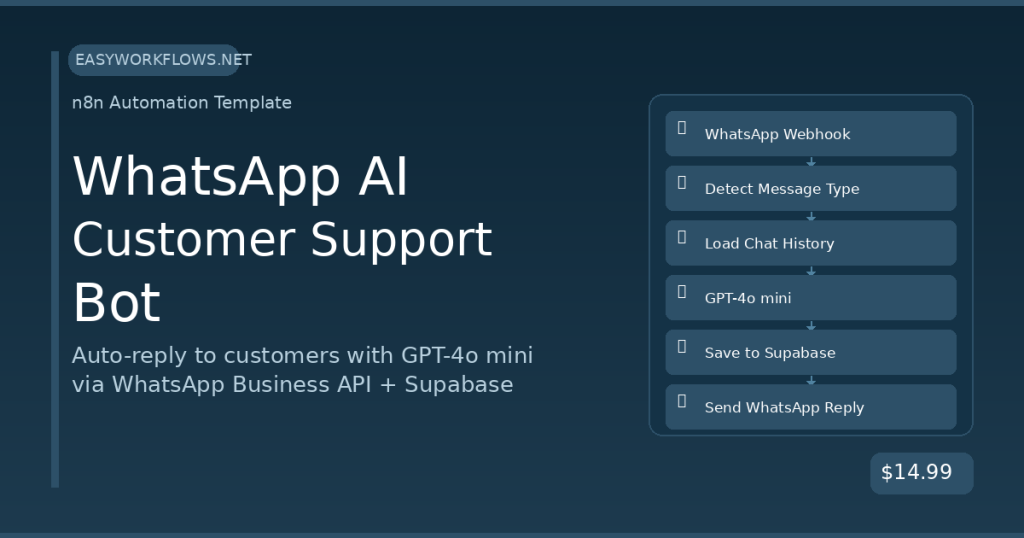
Running customer support 24/7 without burning out your team is one of the hardest operational problems a growing business faces. Customers expect instant replies on WhatsApp — but hiring a support agent for every timezone is expensive and unsustainable. This n8n workflow connects WhatsApp Business API, OpenAI’s GPT-4o mini, and Supabase to build a support bot that reads conversation history, generates intelligent replies, and responds in under 3 seconds — around the clock, automatically.
Prefer to skip the setup? Grab the ready-made template → and be up and running in under 10 minutes.
What You’ll Build
- A customer sends a WhatsApp message to your business number at any hour.
- n8n receives the message via webhook and filters out non-text events like delivery receipts.
- The workflow fetches the customer’s last 10 messages from Supabase so the AI has full context.
- OpenAI GPT-4o mini reads the conversation history and generates a helpful, on-brand reply.
- The exchange is saved to Supabase and the reply is sent back to the customer — typically within 2–3 seconds.
How It Works — The Big Picture
The workflow is a single pipeline triggered by Meta’s WhatsApp Business webhook. Every incoming message flows through a filter, a context-retrieval step, an AI generation step, and two write operations — one to store the conversation and one to deliver the reply.
┌──────────────────────────────────────────────────────────┐
│  WHATSAPP AI CUSTOMER SUPPORT BOT                        │
│                                                          │
│  [WhatsApp Webhook]                                      │
│         |                                                │
│         v                                                │
│  [Is Text Message?] --(No)--> [Return 200 OK]            │
│         | (Yes)                                          │
│         v                                                │
│  [Extract Message Data]                                  │
│         |                                                │
│         v                                                │
│  [Get History · Supabase]                                │
│         |                                                │
│         v                                                │
│  [Build AI Messages]                                     │
│         |                                                │
│         v                                                │
│  [OpenAI Chat Completion]                                │
│         |                                                │
│         v                                                │
│  [Store Conversation · Supabase]                         │
│         |                                                │
│         v                                                │
│  [Send WhatsApp Reply]                                   │
│         |                                                │
│         v                                                │
│  [Return 200 OK]                                         │
└──────────────────────────────────────────────────────────┘
What You’ll Need
- n8n instance — Cloud or self-hosted (v1.0 or higher)
- Meta Developer Account — with a WhatsApp Business App and a phone number configured (test numbers are free)
- OpenAI API key — GPT-4o mini costs roughly $0.0002 per typical support message
- Supabase account — the free tier handles thousands of daily conversations
- One
conversationstable in Supabase (SQL provided below)
Estimated build time: 45–60 minutes from scratch, or under 10 minutes with the template.
Part 1 — Building the Workflow Step by Step
1 WhatsApp Webhook (Webhook node)
Meta’s WhatsApp Business API delivers every incoming message to a URL you specify — this node is that URL. When a customer texts your business, Meta makes a POST request here with the full message payload.
Configure the node:
- Set HTTP Method to
POST - Set Path to
whatsapp-support - Set Response Mode to “Using ‘Respond to Webhook’ Node” — this lets the pipeline finish before sending the 200 OK
- Copy the production webhook URL (e.g.,
https://your-n8n.com/webhook/whatsapp-support) and paste it into your Meta App’s WhatsApp → Configuration → Webhook URL field
Here’s what a typical incoming payload looks like:
{
  "entry": [{
    "changes": [{
      "value": {
        "metadata": { "phone_number_id": "123456789012345" },
        "messages": [{
          "id": "wamid.HBgNMTU1NTEyMzQ1Njc4",
          "from": "15551234567",
          "type": "text",
          "text": { "body": "Hi, where is my order #1042?" }
        }]
      }
    }]
  }]
}Tip: Meta also sends webhook events for status updates (delivered, read). These won’t have a messages array — which is exactly why the next step filters them out.
2 Is Text Message? (IF node)
Not every webhook event is a customer message. Delivery confirmations and read receipts arrive through the same endpoint without a messages[0] object. This IF node gates those out to avoid errors downstream.
Configure the condition:
- Left Value:
{{ $json.entry[0].changes[0].value.messages[0].type }} - Operation: equals
- Right Value:
text
The True branch continues to message processing. The False branch connects to a simple Respond to Webhook node that returns 200 OK immediately — keeping Meta happy without doing unnecessary work.
Tip: Want to handle voice notes or images too? Add additional OR conditions for audio or image message types and route them to separate processing branches.
3 Extract Message Data (Set node)
Meta’s webhook payload is deeply nested. This Set node flattens the fields we need into a clean, easy-to-reference object so every downstream node can access data without long expression chains.
Configure these field assignments:
| Field Name | n8n Expression |
|---|---|
phone |
={{ $json.entry[0].changes[0].value.messages[0].from }} |
message |
={{ $json.entry[0].changes[0].value.messages[0].text.body }} |
messageId |
={{ $json.entry[0].changes[0].value.messages[0].id }} |
timestamp |
={{ $now.toISO() }} |
businessPhoneId |
={{ $json.entry[0].changes[0].value.metadata.phone_number_id }} |
After this node, the data looks like:
{
  "phone": "15551234567",
  "message": "Hi, where is my order #1042?",
  "messageId": "wamid.HBgNMTU1NTEyMzQ1Njc4",
  "timestamp": "2026-04-05T14:32:17.000Z",
  "businessPhoneId": "123456789012345"
}
4 Get Conversation History (HTTP Request → Supabase)
Before calling OpenAI, we need the customer’s conversation history so the AI can understand context — was this their first message? Did they already explain their issue? This node queries Supabase’s REST API for the last 10 messages from this phone number.
Configure the HTTP Request node:
- Method:
GET - URL:
https://YOUR_SUPABASE_PROJECT_REF.supabase.co/rest/v1/conversations - Add header
apikey: your Supabase anon/public key - Add header
Authorization:Bearer YOUR_SUPABASE_ANON_KEY - Add query param
phone:eq.{{ $('Extract Message Data').item.json.phone }} - Add query param
order:created_at.desc - Add query param
limit:10
Returns an array of up to 10 rows — or an empty array for a brand-new customer, which is handled gracefully in the next step.
Tip: The limit=10 means the AI sees the last 5 exchanges (10 messages: 5 user, 5 assistant). Increase this for more context — but be aware that a larger history window increases your OpenAI token cost slightly.
5 Build AI Messages (Code node)
This is the brain of the operation. The Code node takes the Supabase history array, reverses it to chronological order, prepends a system prompt, and appends the current customer message — producing the exact messages array the OpenAI Chat Completions API expects.
const history = $input.all();
const currentMessage = $('Extract Message Data').item.json.message;
const phone = $('Extract Message Data').item.json.phone;
const businessPhoneId = $('Extract Message Data').item.json.businessPhoneId;

// System prompt defines the bot's personality and knowledge
const messages = [
  {
    role: 'system',
    content: `You are a friendly and professional customer support assistant
for our online store. Be concise, empathetic, and helpful.
Answer questions about orders, shipping, returns, and products.
If you cannot resolve an issue, ask the customer to email
support@yourstore.com with their order number.
Keep replies under 150 words.`
  }
];

// Add history in chronological order (we fetched desc, so reverse)
const sorted = history.map(i => i.json)
  .filter(m => m.role && m.content)
  .reverse();
for (const msg of sorted) {
  messages.push({ role: msg.role, content: msg.content });
}

// Add the current incoming message
messages.push({ role: 'user', content: currentMessage });

return [{ json: { messages, currentMessage, phone, businessPhoneId } }];Tip: The system prompt is where you make this bot yours. Add specific product return policies, shipping timeframes, or even a list of FAQ answers. The more specific the prompt, the more accurate the responses — and the fewer handoffs to human agents.
6 OpenAI Chat Completion (HTTP Request → OpenAI)
Sends the complete conversation context to GPT-4o mini and receives a natural, contextual reply. Using an HTTP Request node (rather than the OpenAI node) gives you full control over the messages array format.
Configure the node:
- Method:
POST - URL:
https://api.openai.com/v1/chat/completions - Header
Authorization:Bearer YOUR_OPENAI_API_KEY - Header
Content-Type:application/json - Body (JSON expression):
={{ { "model": "gpt-4o-mini", "messages": $json.messages, "max_tokens": 500, "temperature": 0.7 } }}
The response object looks like this:
{
  "choices": [{
    "message": {
      "role": "assistant",
      "content": "Hi! I'd be happy to look into order #1042 for you. Could you confirm the email address on the order so I can pull it up?"
    },
    "finish_reason": "stop"
  }],
  "usage": { "total_tokens": 312 }
}
Access the reply downstream with $json.choices[0].message.content.
Tip: GPT-4o mini costs roughly $0.15 per million input tokens. A typical 10-message support conversation uses around 800 tokens total — under $0.0002. Even at 10,000 conversations per month, your OpenAI bill stays under $2.
7 Store Conversation (HTTP Request → Supabase)
Saves both the customer’s message and the AI’s reply to Supabase in a single bulk insert. This is what makes the bot remember past conversations — every message is persisted for future context retrieval.
Configure the node:
- Method:
POST - URL:
https://YOUR_SUPABASE_PROJECT_REF.supabase.co/rest/v1/conversations - Headers: same
apikeyandAuthorizationas Step 4, plusContent-Type: application/jsonandPrefer: return=minimal - Body: a JSON array with two objects — the user message and the assistant reply
=[
  {
    "phone": "={{ $('Build AI Messages').item.json.phone }}",
    "role": "user",
    "content": "={{ $('Build AI Messages').item.json.currentMessage }}"
  },
  {
    "phone": "={{ $('Build AI Messages').item.json.phone }}",
    "role": "assistant",
    "content": "={{ $json.choices[0].message.content }}"
  }
]Tip: Supabase supports array inserts in a single POST — both rows land in one API call, keeping your workflow fast.
8 Send WhatsApp Reply (HTTP Request → Meta Graph API)
Delivers the AI-generated response to the customer’s WhatsApp number using Meta’s Cloud API. The businessPhoneId you extracted in Step 3 identifies which business phone number to send from.
Configure the node:
- Method:
POST - URL:
=https://graph.facebook.com/v19.0/{{ $('Build AI Messages').item.json.businessPhoneId }}/messages - Header
Authorization:Bearer YOUR_WHATSAPP_ACCESS_TOKEN - Body (JSON expression):
={
  "messaging_product": "whatsapp",
  "to": "={{ $('Build AI Messages').item.json.phone }}",
  "type": "text",
  "text": {
    "body": "={{ $('OpenAI Chat Completion').item.json.choices[0].message.content }}"
  }
}Tip: Phone numbers must be in international format without the + prefix — e.g., 15551234567 not +1-555-123-4567. The value you extracted from the webhook payload is already in the correct format.
9 Return 200 OK (Respond to Webhook node)
Meta requires your webhook endpoint to respond with HTTP 200 within 20 seconds. This final node sends that acknowledgment after the full pipeline completes successfully.
Configure: Respond With = JSON, Response Body = {"status": "ok"}. Also wire the False branch from Step 2 (“Ignore Non-Text”) to a separate instance of this node so non-text webhook events also get their 200 OK immediately.
The Data Structure
The entire conversation memory lives in a single Supabase table. Create it by running this SQL in the Supabase dashboard under SQL Editor:
CREATE TABLE conversations (
  id          bigint primary key generated always as identity,
  phone       text        not null,
  role        text        not null check (role in ('user', 'assistant')),
  content     text        not null,
  created_at  timestamptz not null default now()
);

CREATE INDEX idx_conversations_phone      ON conversations(phone);
CREATE INDEX idx_conversations_created_at ON conversations(created_at);| Column | Type | Example | Description |
|---|---|---|---|
id |
bigint | 42 | Auto-incrementing primary key |
phone |
text | 15551234567 | Customer WhatsApp number (no + prefix) |
role |
text | user | Either user or assistant |
content |
text | Hi, where is my order #1042? | Full message text |
created_at |
timestamptz | 2026-04-05T14:32:17Z | Auto-set on insert |
Sample rows showing a two-turn conversation:
| id | phone | role | content | created_at |
|---|---|---|---|---|
| 1 | 15551234567 | user | Hi, where is my order #1042? | 2026-04-05T14:32:17Z |
| 2 | 15551234567 | assistant | Hi! I’d be happy to help. Could you confirm the email on the order? | 2026-04-05T14:32:19Z |
| 3 | 15551234567 | user | Sure, it’s james.carter@gmail.com | 2026-04-05T14:35:01Z |
Important: The table name must be exactly conversations and column names must match the workflow expressions exactly. Column names are case-sensitive in Supabase’s REST API.
Full System Flow
Customer's WhatsApp
       | sends "Hi, where is order #1042?"
       v
[Meta WhatsApp Business API]
       | POST /webhook/whatsapp-support
       v
[n8n: WhatsApp Webhook]
       |
       v
[Is Text Message?] --(No: status update)--> [Return 200 OK]
       | (Yes)
       v
[Extract Message Data]
  phone=15551234567 | message="Hi, where is order #1042?" | businessPhoneId=12345
       |
       v
[Supabase: GET /conversations?phone=eq.15551234567&order=created_at.desc&limit=10]
  Returns: [] (first-time customer)
       |
       v
[Build AI Messages]
  [ {role:system, content:"You are a helpful support agent..."} ,
    {role:user, content:"Hi, where is order #1042?"} ]
       |
       v
[OpenAI GPT-4o mini: /v1/chat/completions]
  Returns: "Hi! I'd be happy to look into order #1042 for you..."
       |
       v
[Supabase: POST /conversations (bulk insert 2 rows)]
  Stores user msg + assistant reply
       |
       v
[Meta Graph API: POST /messages]
  Sends reply to +15551234567 via WhatsApp
       |
       v
Customer receives reply in <3 seconds
       |
       v
[Return 200 OK to Meta]
Testing Your Workflow
- In your Meta Developer portal, go to WhatsApp → API Setup and use the test “From” number to send a message to your personal WhatsApp number (which you’ve added as a test recipient).
- Open n8n and watch the Executions panel — a new execution should appear within a second.
- Verify the IF node routed to the True branch and all nodes show green checkmarks.
- Check your Supabase
conversationstable — two new rows should appear (role=user and role=assistant). - Check your WhatsApp — the AI reply should have arrived.
| Problem | Likely Cause | Fix |
|---|---|---|
| Webhook never triggers | URL not saved in Meta portal | Go to Meta App → WhatsApp → Configuration → paste the n8n production webhook URL and click Verify & Save |
| 403 from Supabase | Wrong API key or missing RLS policy | Use the anon/public key (not service role), and in Supabase enable Row Level Security but add a policy allowing insert/select |
| 400 from WhatsApp API | Phone number format wrong | Numbers must be international digits only, no + or dashes — e.g., 15551234567 |
| OpenAI 401 Unauthorized | Expired or mistyped API key | Regenerate your key at platform.openai.com and update the Authorization header value |
| Bot has no memory between sessions | Supabase table name or column name mismatch | Check that the table is named conversations and columns are phone, role, content, created_at — exact case |
Frequently Asked Questions
Do I need a paid WhatsApp Business account to use this?
You need a Meta Business Account, but not a paid subscription. WhatsApp’s Cloud API (the free tier) includes 1,000 free service conversations per month. After that, pricing is per-conversation — typically $0.01–$0.05 depending on your country. You can start testing for free using Meta’s developer test credentials before connecting a real business number.
How many messages back does the bot remember?
By default, the workflow fetches the last 10 messages (5 exchanges). Change the limit=10 query parameter in Step 4 to any number you prefer. Higher limits give the AI more context but slightly increase your OpenAI token usage — still very inexpensive at GPT-4o mini rates.
Can I customize the AI’s tone and knowledge?
Absolutely — that’s the whole point of the system prompt in Step 5. Edit the system message content in the Build AI Messages Code node to reflect your brand voice, product catalog details, return policies, or even specific FAQ answers. The more specific the prompt, the fewer cases the bot will escalate to a human.
What happens if OpenAI is temporarily unavailable?
n8n will mark the execution as an error and the customer won’t receive a reply. To handle this gracefully, add an n8n Error Trigger workflow that catches failures and sends a fallback WhatsApp message: “We’re experiencing a brief technical issue — a team member will respond within 1 hour.” You can also enable n8n’s built-in retry logic on the OpenAI HTTP Request node.
Can I hand off to a human agent when needed?
Yes. In the Build AI Messages Code node, add logic to check whether the incoming message contains phrases like “speak to a human” or “escalate.” If detected, replace the OpenAI step with a Slack message or email notification to your support team, who then reply manually. The conversation history in Supabase gives them full context immediately.
Does this work with multiple WhatsApp phone numbers?
Yes — because the businessPhoneId is pulled from the incoming webhook payload, the workflow dynamically uses the correct sending number for each incoming message. Link multiple WhatsApp numbers to your Meta app and a single n8n workflow handles all of them without any changes.
🚀 Get the WhatsApp AI Customer Support Bot Template
You now have everything you need to deploy a 24/7 WhatsApp AI support bot with full conversation memory. The template includes the ready-to-import workflow JSON, a step-by-step Setup Guide, and a Credentials Guide for WhatsApp Business API, OpenAI, and Supabase — so you skip the hours of API docs and go straight to testing.
Instant download · Works on n8n Cloud and self-hosted
What’s Next?
- Add order lookup: Connect to your Shopify or WooCommerce store so the bot can query real-time order statuses by order number.
- Detect frustrated customers: Add a sentiment analysis step — if the AI detects frustration or repeated complaints, automatically route to a Slack alert for a human to jump in.
- Go multilingual: Add a language detection step before the OpenAI call and include the detected language in the system prompt so the bot replies in the customer’s language automatically.
- Build a weekly digest: Use an n8n Schedule trigger to query Supabase for weekly conversation summaries and email them to your team every Monday morning.