Every Monday morning, someone on your team is opening a spreadsheet, copying numbers into an email, formatting a table by hand, and hitting send — only to do it all over again next week. It’s tedious, error-prone, and completely unnecessary. With n8n, you can build a workflow that reads your Google Sheet, aggregates the data, builds a polished HTML email, and sends it automatically — without touching a single cell yourself.
In this guide you’ll build a five-node n8n workflow that fires every Monday at 9 AM, pulls rows from a Google Sheets sales tracker, calculates totals and averages, identifies the top performer, and emails a beautiful formatted report to your team. No code experience required — just follow the steps.
Prefer to skip the setup? Grab the ready-made template and be up and running in under 10 minutes.
What You’ll Build
- A Google Sheet acts as your data source — your team logs deals, tasks, or KPIs there throughout the week as usual.
- Every Monday at 9 AM, n8n automatically reads every row in the sheet.
- A Code node crunches the numbers: total sales, deal count, average deal size, and top performer.
- A Set node assembles a clean, branded HTML email with a summary card and a full data table.
- Gmail delivers the finished report to every recipient on your list — no human involved.
How It Works — The Big Picture
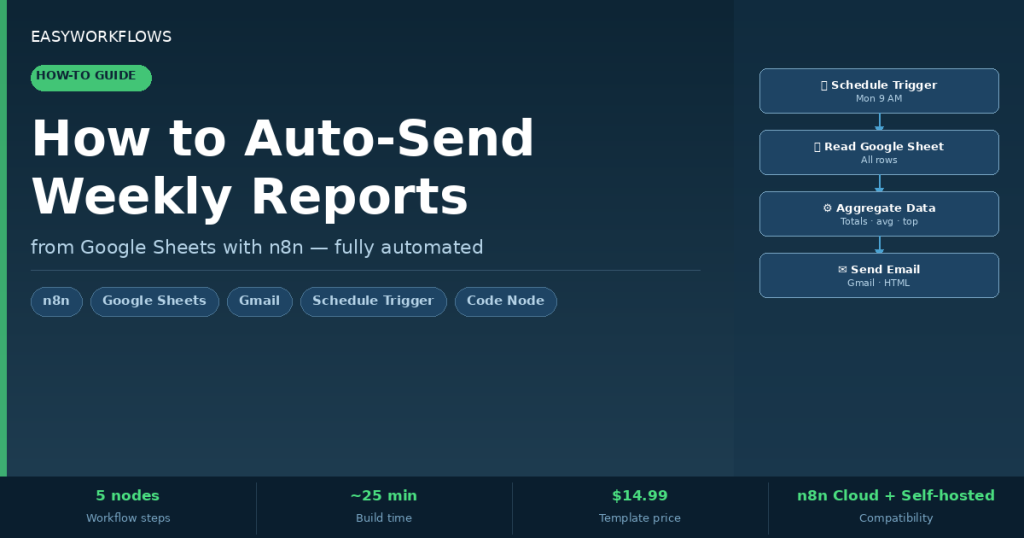
The workflow is a straight linear pipeline: trigger → read → process → format → send. There are no branches or conditionals, which makes it easy to understand and extend later.
+----------------------------------------------------------------------+
|  WEEKLY GOOGLE SHEETS REPORT -- n8n WORKFLOW                        |
|                                                                      |
|  [Schedule Trigger]  ->  [Read Google Sheet]  ->  [Aggregate Data]  |
|   Every Mon 9 AM          All rows read           Totals, avg,      |
|                            from "Weekly Sales"     top performer    |
|                                                         |           |
|                                              [Build Email Content]  |
|                                               HTML email assembled  |
|                                                         |           |
|                                              [Send Email Report]    |
|                                               Delivered via Gmail   |
+----------------------------------------------------------------------+
What You’ll Need
- n8n — self-hosted or n8n Cloud (free trial available at n8n.io)
- Google account — for Google Sheets and Gmail (both use OAuth2)
- A Google Sheet — with columns:
Date,Sales Rep,Client,Amount,Status
Estimated build time: 25–40 minutes from scratch, or under 10 minutes with the ready-made template.
Building the Workflow — Step by Step
1 Schedule Trigger
This is the starting gun. The Schedule Trigger fires the workflow on a cron schedule — no manual intervention needed. You’ll configure it to run every Monday at 9 AM.
- In your n8n canvas, click Add first step and search for Schedule Trigger.
- Under Trigger Rules, click Add Rule and set mode to Custom (Cron Expression).
- Enter the expression:
0 9 * * 1— this means “9:00 AM every Monday”. - Set the Timezone to your local timezone (e.g.,
America/New_York).
Tip: Want a daily report instead of weekly? Change the cron to 0 9 * * *. For weekdays only, use 0 9 * * 1-5.
2 Read Google Sheet
This node connects to your Google account and reads every data row from the specified sheet. It outputs one n8n item per row.
- Add a Google Sheets node after the trigger.
- Under Credential, click Create new and complete the Google OAuth2 sign-in flow.
- Set Operation to Read Rows.
- Paste your Spreadsheet ID (found in the Google Sheets URL between
/d/and/edit). - Set Sheet Name to
Weekly Sales(or your actual tab name). - Under Options, ensure First Row Contains Column Names is enabled.
{
  "Date": "03/31/2026",
  "Sales Rep": "James Carter",
  "Client": "Apex Digital LLC",
  "Amount": "4250.00",
  "Status": "Closed Won"
}Tip: Column names must match exactly — including capitalization — because the Code node references them by name.
3 Aggregate Data (Code node)
This Code node runs once across all items from the sheet. It calculates totals, finds the top performer, and builds the HTML table rows for the email body.
- Add a Code node and set Mode to Run Once for All Items.
- Paste the following JavaScript:
const rows = $input.all();
const data = rows.map(r => r.json);

if (data.length === 0) {
  return [{ json: { error: 'No data found', dealCount: 0 } }];
}

const totalSales = data.reduce((sum, r) => sum + parseFloat(r['Amount'] || 0), 0);
const count = data.length;
const avg = count > 0 ? (totalSales / count).toFixed(2) : '0.00';

const topRep = data.reduce((best, r) => {
  return parseFloat(r['Amount'] || 0) > parseFloat(best['Amount'] || 0) ? r : best;
}, data[0]);

const tableRows = data.map(r => `
  <tr>
    <td style="padding:8px 12px;border-bottom:1px solid #e2e8f0;">${r['Date'] || ''}</td>
    <td style="padding:8px 12px;border-bottom:1px solid #e2e8f0;">${r['Sales Rep'] || ''}</td>
    <td style="padding:8px 12px;border-bottom:1px solid #e2e8f0;">${r['Client'] || ''}</td>
    <td style="padding:8px 12px;border-bottom:1px solid #e2e8f0;font-weight:600;">$${parseFloat(r['Amount'] || 0).toFixed(2)}</td>
    <td style="padding:8px 12px;border-bottom:1px solid #e2e8f0;">${r['Status'] || ''}</td>
  </tr>
`).join('');

const reportDate = new Date().toLocaleDateString('en-US', {
  weekday: 'long', year: 'numeric', month: 'long', day: 'numeric'
});

return [{
  json: { totalSales: totalSales.toFixed(2), dealCount: count, avgDeal: avg,
    topRep: topRep['Sales Rep'] || 'N/A',
    topRepAmount: parseFloat(topRep['Amount'] || 0).toFixed(2),
    tableRows, reportDate }
}];Tip: To filter only “Closed Won” deals, add const closedWon = data.filter(r => r['Status'] === 'Closed Won'); and use closedWon instead of data in the reduce calls.
4 Build Email Content (Set node)
The Set node assembles two fields: the email subject line and the full HTML email body, using n8n expressions to inject the aggregated values.
- Add a Set node and switch mode to Manual Mapping.
- Add a field named
emailSubject:Weekly Sales Report – {{ $now.format('MMMM d, yyyy') }} - Add a field named
emailBodyand paste in your HTML email template using{{ $json.totalSales }}expressions.
5 Send Email Report (Gmail node)
The final node picks up the subject and body and delivers the email via your connected Gmail account.
- Add a Gmail node and connect your Gmail account via OAuth2.
- Set Operation to Send.
- In To, enter your recipient email(s), comma-separated.
- Set Subject to
={{ $json.emailSubject }}and Email Type to HTML. - Set Message to
={{ $json.emailBody }}.
The Data Structure
Your Google Sheet needs a tab named Weekly Sales with these exact column headers:
| Column | Type | Example | Description |
|---|---|---|---|
Date |
Text / Date | 03/31/2026 | When the deal was logged |
Sales Rep |
Text | James Carter | Team member who owns this deal |
Client |
Text | Apex Digital LLC | Company or contact name |
Amount |
Number (no $ symbol) | 4250.00 | Dollar value of the deal |
Status |
Text | Closed Won | Current deal status |
Important: Store the Amount column as plain numbers without currency symbols or commas. parseFloat() will return NaN for values like $4,250.00, breaking your totals.
Testing Your Workflow
- Make sure your Google Sheet has at least 2–3 rows of test data with all five columns filled in.
- Open the workflow in n8n and click Test workflow. This manually triggers the workflow regardless of the schedule.
- Watch each node light up green as it executes. Click nodes to inspect their output.
- Check your Gmail inbox — a formatted report email should arrive within a few seconds.
- Once confirmed working, click Save and toggle the workflow Active.
| Problem | Likely Cause | Fix |
|---|---|---|
| Google Sheets node returns no rows | Wrong sheet name or spreadsheet ID | Copy the ID from the URL; ensure the tab name matches exactly (case-sensitive) |
| Totals show as 0 or NaN | Amount column contains $ symbols or commas | Remove formatting from the Amount column |
| Email not received | Gmail OAuth token expired or wrong recipient | Re-authorize the Gmail credential; double-check the To field |
| Workflow doesn’t fire on Monday | Timezone mismatch | Set timezone in the Schedule Trigger to match your local time |
| HTML renders as plain text | Gmail node Email Type set to Plain Text | Change Email Type to HTML in the Gmail node settings |
Frequently Asked Questions
Can I send the report to multiple people?
Yes. In the Gmail node’s To field, enter comma-separated email addresses. You can also use the CC and BCC fields under Options.
What if my sheet has hundreds of rows?
The Google Sheets node reads all rows in a single API call, and the Code node processes them all at once. For very large sheets (5,000+ rows), add a date filter node after the Google Sheets node to limit processing to the current week’s data.
Can I use this for something other than sales data?
Absolutely. The workflow is a general-purpose “read sheet → aggregate → email” pipeline. Just rename the columns in your sheet and update the field references in the Code node. A project hours report might use Employee, Project, Hours, and Week columns instead.
Does the workflow clear the sheet data after sending?
No — by default it’s read-only and keeps all rows. If you want the report to cover only the previous week’s entries, add a date filter in the Code node: const thisWeek = data.filter(r => new Date(r['Date']) >= sevenDaysAgo);
Is it safe to connect my Gmail account to n8n?
Yes — n8n uses Google’s official OAuth2 flow. Your credentials are stored encrypted in n8n’s database and never exposed to third parties. If you’re self-hosting n8n, they stay entirely on your own server. You can revoke access at any time from your Google Account security settings.
Get the Weekly Report Template
Skip the build — get the complete n8n workflow JSON, a Setup Guide PDF, and a Credentials Guide PDF. Everything you need to go from zero to automated reports in under 10 minutes.
Instant download · Works on n8n Cloud and self-hosted
What’s Next?
- Add a Slack notification: Drop a Slack node after the Gmail node to post a summary card to your #sales channel at the same time the email goes out.
- Store historical summaries: After the Aggregate Data node, add a Google Sheets node to write weekly totals to a separate “History” tab.
- Conditional alerts: Add an IF node that sends a different email when total sales miss the week’s target.
- Multi-team reports: Use a Switch node to route rows by region and send tailored reports to each team lead.