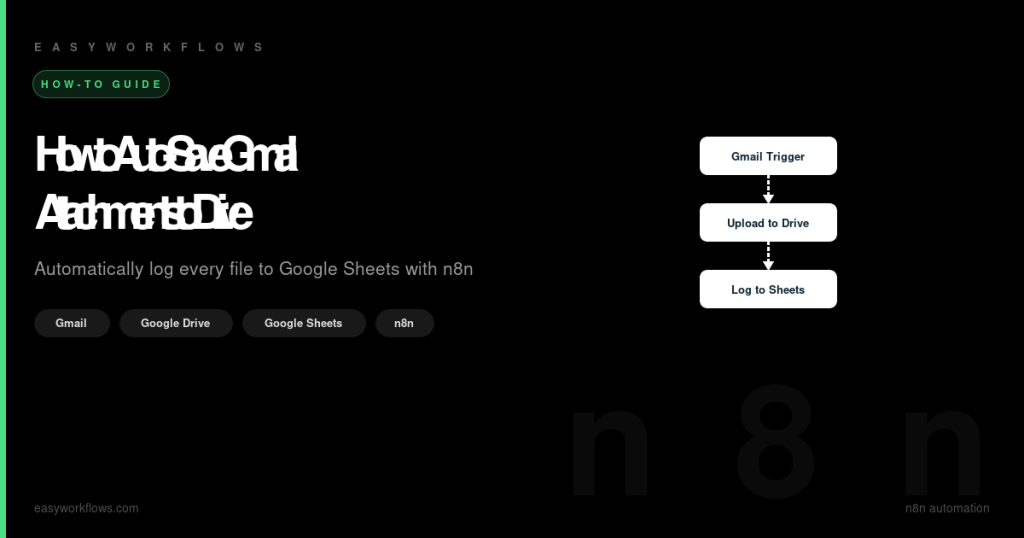
How to Auto-Save Gmail Attachments to Google Drive and Google Sheets
Does your inbox accumulate decks, invoices, and reports from clients& and you spend time each week manually saving them to Drive and updating a spreadsheet? This guide shows you how to build an automation in n8n that watches your Gmail inbox, saves every incoming attachment to a Google Drive folder, and logs the file name, size, sender, and a direct link to a Google Sheets spreadsheet — all without you lifting a finger.
WHat You’ll Build
The completed workflow is a 5-node pipeline that runs every minute:
Gmail Trigger
    |
    v [check has attachment]
IF Node
    |   \
    |    [No] *stop*
    v
Upload to Google Drive
    |
    v
Format Log Entry (Code node)
    |
    v
Log to Google Sheets
Prerequisites
- An n8n instance (self-hosted or n8n Cloud)
- A Gmail account (Google Workspace or personal)
- A Google Drive folder to store attachments
- A Google Sheets spreadsheet with headers:
Date Received,Sender,Subject,File Name,File Size,Google Drive Link,Status - OAuth2 credentials configured in n8n for Gmail, Google Drive, and Google Sheets
Step 1: Set Up the Gmail Trigger
Add a Gmail Trigger node. This is the entry point that polls your inbox on a schedule.
Configuration
- Poll times: Set to
every minute(or adjust to reduce API usage) - Filter : Label IDs:
INBOX - Read status:
unread - Has attachment:
true - Options ‘ Download attachments:
enabled - Attachment prefix:
attachment_
Sample output
{
  "from": "client@example.com",
  "subject": "Q3 Report",
  "date": "2025-07-10T14:24:00Z",
  ...
}
--- binary
{
  "attachment_0": {
    "mimeType": "application/pdf",
    "fileName": "q3-report.pdf",
    "fileExtension": "pdf",
    "fileSize": 245760
  }
}
Step 2: Check for Attachment Data with an IF Node
Even with the filter enabled on the trigger, it is safe practice to confirm that binary attachment data exists before trying to upload anything. Add an IF node after the trigger.
Condition
Set the condition to test whether the $binary object has at least one key:
Left value:  ={{ Object.keys($binary).length > 0 }}
Operator:  equals (boolean)
Right value: true
The True output branch continues to the Drive upload step. The False branch is left unconnected, which means those items silently stop processing.
Step 3: Upload to Google Drive
Add a Google Drive node and set it to upload mode. This node will save the attachment binary data directly to your Drive folder.
Configuration
- Operation:
Upload - File name:
={{ $binary.attachment_0.fileName }} - Drive:
My Drive - Folder: Paste your Drive folder ID
- Input data field name:
attachment_0
Sample output
{
  "id": "1ABCDEFGH_examplefileid",
  "name": "q3-report.pdf",
  "mimeType": "application/pdf",
  "size": "245760",
  "webViewLink": "https://drive.google.com/file/d/1ABCDEFGH_examplefileid/view"
}
Step 4: Format the Log Entry with a Code Node
The Gmail Trigger and the Google Drive node each produce their own data structures. Use a Code node to merge them into a single clean row.
Code
const email = $('Gmail Trigger').item.json;
const driveFile = $('Upload to Google Drive').item.json;

return {
  json: {
    date_received: email.date
      ? new Date(email.date).toLocaleString('en-US', { timeZone: 'America/Chicago' })
      : new Date().toLocaleString('en-US'),
    sender:        email.from || '(unknown sender)',
    subject:       email.subject || '(No Subject)',
    file_name:     driveFile.name || '(unnamed file)',
    file_size_kb:  driveFile.size
      ? Math.round(parseInt(driveFile.size) / 1024) + ' KB'
      : 'N/A',
    drive_link:    `https://drive.google.com/file/d/${driveFile.id}/view`,
    status:        'Saved'
  }
};
$('Gmail Trigger'). If you rename either node, update this reference to match.Step 5: Log to Google Sheets
Add a Google Sheets node and set it to Append Row mode.
Column mapping
| Sheet column | n8n expression |
|---|---|
| Date Received | ={{ $json.date_received }} |
| Sender | ={{ $json.sender }} |
| Subject | ={{ $json.subject }} |
| File Name | ={{ $json.file_name }} |
| File Size | ={{ $json.file_size_kb }} |
| Google Drive Link | ={{ $json.drive_link }} |
| Status | ={{ $json.status }} |
Full System Flow Diagram
Here is what the entire pipeline looks like end-to-end:
[Inbox]           [Inbox]    [Inbox]
   | new email with attachment
   v
[Gmail Trigger]    ------------------- every minute
   |
   v  Has binary data?
[IFNODE]
   | Yes    *stop* (No)
   v
[Google Drive Upload]  -------- POST file to folder
   | receives file ID & metadata
   v
[Code Node]  ----------------- merges email + drive data
   |
   v
[Google Sheets Append]  ------- APPENDs 1 row
   |
   v
[Done]
Testing the Workflow
With the workflow saved, run a manual test:
- Click Test workflow in n8n.
- Send yourself an email with a PDF or image attachment.
- Wait a few seconds for the trigger to pick it up.
- Confirm the file appears in your Drive folder.
- Check your Sheets spreadsheet for a new row with all 7 columns populated.
FAQ
Will this pick up emails that arrived before I activated the workflow?
No. The Gmail Trigger only processes new emails arriving after the workflow is activated. To backfill old emails you would need a separate batch processing step.
What happens if an email has multiple attachments?
This workflow processes only attachment_0 (first attachment) by default. To handle multiple attachments, you can add a Split In Batches node that iterates over Object.keys($binary).
Can I filter by sender or subject?
Absolutely. Add another condition to the IF node — for example {{ $json.from.includes('@example.com') }} — or use Gmail’s built-in search filters on the trigger node itself.
Will files get duplicated?
Only if the same message is picked up twice, which should not happen under normal operation. The Gmail Trigger uses a watermark to track which messages it has already seen.
Can I save to a specific Drive sub-folder based on sender or file type?
Yes. Use a Switch node before the Drive upload to route based on $json.from or $binary.attachment_0.mimeType, and set a different folder ID in each branch.
What happens if the Drive upload fails?
n8n will retry the workflow run according to your instance’s error retry settings. You can also add an Error Workflow in n8n to send an alert email or Slack message if things go wrong.
Save Yourself the Build Time
Get the fully configured workflow JSON + Setup Guide + Credentials Guide in one download. Import it into n8n in minutes.
What’s Next
Nice work! You have a fully operational Gmail automation that saves and logs attachments without any manual intervention. Here are some way to extend it:
- Notifications: Add a Slack or Telegram node at the end for real-time alerts in Drive or Sheets.
- File type routing: Use a Switch node to sort PDFs, XLSX, and images into separate Drive sub-folders.
- Spreadsheet processing: After saving, parse XLSX files with the ReadBinaryFile node and extract data into your Sheets.
- Archiving: Add a cron node that moves old files to an archive folder once a month.
Tags: n8n workflow, Gmail automation, Google Drive automation, Google Sheets automation, auto-save email attachments, n8n Gmail trigger, file pipeline automation, no-code email file management