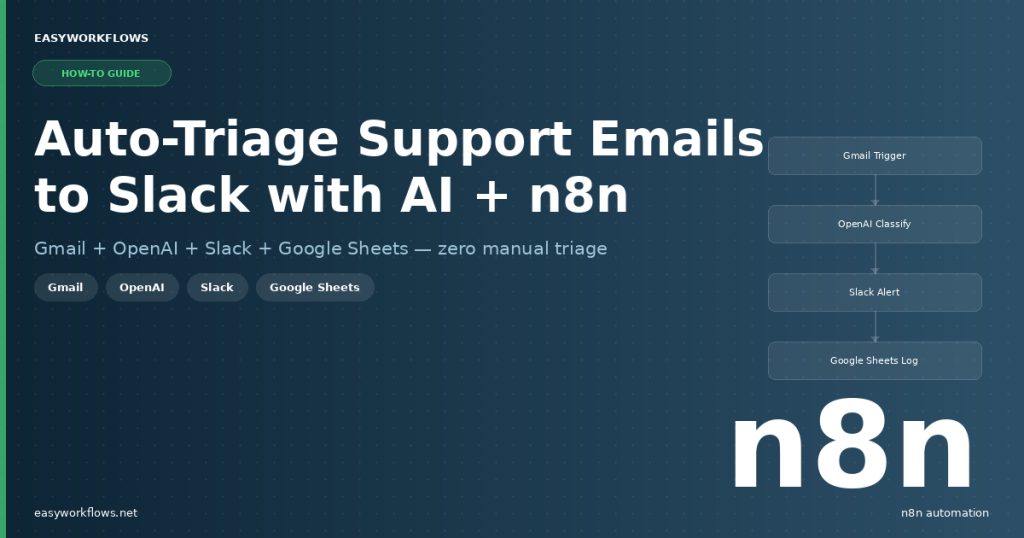
Every support inbox gets noisy fast. A billing question sits next to a frantic “our entire account is locked” message, and both look the same in a Gmail preview. By the time someone reads the urgent one, an hour has slipped by. This tutorial walks you through building an n8n workflow that reads every inbound support email, asks GPT-4o mini to classify it by priority and category, routes the result to the right Slack channel — and logs everything to a Google Sheet so nothing ever disappears.
Prefer to skip the setup? Grab the ready-made template → and be up and running in under 10 minutes.
What You’ll Build
- A Gmail trigger polls your inbox every minute for new unread emails.
- An OpenAI call analyzes the email and returns a priority level (High / Medium / Low), a category (Bug Report, Billing, Feature Request, etc.), a one-sentence summary, and the sender’s detected sentiment.
- A conditional branch routes High-priority tickets to a
#support-urgentSlack channel with a bold alert, and everything else to#supportas a standard notification. - Every ticket — regardless of priority — is appended to a Google Sheet so you have a permanent, searchable log of all incoming requests.
How It Works — The Big Picture
The workflow runs as a polling loop. Think of it as a tireless assistant who checks email every sixty seconds, reads it with an AI brain, and instantly posts into the right Slack channel — then files the paperwork in a spreadsheet.
┌─────────────────────────────────────────────────────────────────────┐
│  GMAIL → SLACK AI SUPPORT TRIAGE                                    │
│                                                                     │
│  [Gmail Trigger]                                                    │
│       │  (new unread email)                                         │
│       ▼                                                             │
│  [Extract Email Fields]                                             │
│       │  (sender, subject, body snippet, timestamp)                 │
│       ▼                                                             │
│  [AI Classify & Summarize]  ←── OpenAI gpt-4o-mini                 │
│       │  (priority, category, summary, sentiment)                   │
│       ▼                                                             │
│  [Parse AI Response]                                                │
│       │                                                             │
│       ▼                                                             │
│  [Check Priority]                                                   │
│       │                        │                                    │
│    priority=High           priority≠High                            │
│       │                        │                                    │
│       ▼                        ▼                                    │
│  [Slack Urgent]          [Slack Standard]                           │
│  #support-urgent          #support                                  │
│       │                        │                                    │
│       └──────────┬─────────────┘                                    │
│                  ▼                                                  │
│         [Log to Google Sheets]                                      │
└─────────────────────────────────────────────────────────────────────┘
What You’ll Need
- n8n — self-hosted or n8n Cloud (any version 1.0+)
- Gmail account — connected via Google OAuth2 in n8n
- OpenAI account — API key with access to
gpt-4o-mini - Slack workspace — with two channels:
#support-urgentand#support - Google Sheets — a spreadsheet with the columns described below
Estimated build time: 40–60 minutes from scratch, or under 10 minutes with the template.
Building the Workflow — Step by Step
1 Gmail Trigger — Watch for New Emails
The Gmail Trigger node polls your inbox every minute and fires once for each new unread email it finds. Connect your Gmail credential via Google OAuth2, set Poll Times to Every Minute, and set Read Status to Unread under Filters.
After a test run, the raw payload looks like this:
{
  "id": "18f4a3b2c1d0e9f8",
  "from": { "value": [{ "name": "Sarah Thompson", "address": "sarah.thompson@outlook.com" }] },
  "subject": "Can't log into my account — urgent!",
  "text": "Hi, I've been trying to log in for the past hour and keep getting an 'Invalid credentials' error...",
  "date": "2026-04-03T14:22:00.000Z"
}Tip: If you only want to monitor a specific support address, route emails to a Gmail label first, then filter by that label in the trigger node.
2 Extract Email Fields — Set Node
The Set node flattens the nested Gmail payload into a clean, flat object for the AI prompt. Configure these assignments:
| Field Name | Expression | Purpose |
|---|---|---|
sender |
={{ $json.from?.value?.[0]?.address ?? $json.from }} |
Sender’s email address |
senderName |
={{ $json.from?.value?.[0]?.name ?? 'Unknown' }} |
Sender’s display name |
subject |
={{ $json.subject ?? '(No Subject)' }} |
Email subject line |
bodySnippet |
={{ ($json.text ?? $json.snippet ?? '').substring(0, 1200) }} |
First 1,200 chars of body |
receivedAt |
={{ $now.format('yyyy-MM-dd HH:mm') }} |
Human-readable timestamp |
messageId |
={{ $json.id }} |
Gmail message ID |
We cap the body at 1,200 characters to keep OpenAI token costs low. Increase this limit if your customers tend to write detailed reports.
3 AI Classify & Summarize — HTTP Request to OpenAI
An HTTP Request node sends the email to OpenAI’s Chat Completions API. Set Method to POST, URL to https://api.openai.com/v1/chat/completions, and Authentication to HTTP Header Auth with Authorization: Bearer YOUR_KEY. Use this JSON body:
{
  "model": "gpt-4o-mini",
  "temperature": 0,
  "response_format": { "type": "json_object" },
  "messages": [
    { "role": "system", "content": "You are a support triage assistant. Return JSON with: priority (High/Medium/Low), category (Bug Report/Billing/Feature Request/General Question/Account Issue), summary (max 120 chars), sentiment (Frustrated/Neutral/Positive). High priority = outage, data loss, billing error, account locked, urgent/ASAP." },
    { "role": "user", "content": "From: {{ $json.senderName }} <{{ $json.sender }}>\nSubject: {{ $json.subject }}\n\n{{ $json.bodySnippet }}" }
  ]
}Tip: Setting temperature: 0 makes classification deterministic. The response_format: json_object parameter guarantees the response is always valid JSON, preventing parse errors downstream.
4 Parse AI Response — Code Node
This Code node extracts the nested JSON, parses it, and merges AI classifications with the original email fields:
const aiRaw = items[0].json.choices?.[0]?.message?.content ?? '{}';
let ai;
try { ai = JSON.parse(aiRaw); }
catch (e) { ai = { priority: 'Low', category: 'General Question', summary: 'Parse error', sentiment: 'Neutral' }; }

const emailData = $('Extract Email Fields').item.json;
return [{ json: {
  sender: emailData.sender, senderName: emailData.senderName,
  subject: emailData.subject, bodySnippet: emailData.bodySnippet,
  receivedAt: emailData.receivedAt, messageId: emailData.messageId,
  priority: ai.priority ?? 'Low', category: ai.category ?? 'General Question',
  summary: ai.summary ?? emailData.subject, sentiment: ai.sentiment ?? 'Neutral'
}}];
The merged output object looks like this:
{
  "sender": "sarah.thompson@outlook.com",
  "senderName": "Sarah Thompson",
  "subject": "Can't log into my account — urgent!",
  "priority": "High",
  "category": "Account Issue",
  "summary": "User cannot log in due to 'Invalid credentials' error persisting for over an hour.",
  "sentiment": "Frustrated",
  "receivedAt": "2026-04-03 14:22",
  "messageId": "18f4a3b2c1d0e9f8"
}Tip: The try/catch block ensures the workflow never crashes if OpenAI is rate-limited or returns an unexpected response — it falls back to Low priority instead.
5 Check Priority — IF Node
The IF node checks whether priority equals "High" (case-insensitive). True branch → urgent Slack alert. False branch → standard notification. Left value: ={{ $json.priority }}, Operation: String equals, Right value: High.
To add a Medium-priority route, swap the IF node for a Switch node with three outputs: High, Medium, and Low.
6 Slack Urgent Alert
Posts to #support-urgent with Block Kit formatting. Set Resource to Message, Operation to Post, Message Type to Blocks. The card shows sender name, category, received timestamp, sentiment, subject, and AI summary — everything your on-call team needs at a glance.
Tip: Add an Action block with a button linking directly to the email: https://mail.google.com/mail/u/0/#inbox/{{ $json.messageId }}
7 Slack Standard Alert
Identical configuration to Step 6, but posts to #support with a gentler 📬 New Support Ticket header and includes the priority level in the fields.
8 Log to Google Sheets
Both Slack branches converge here. The Google Sheets node appends one row per email. Set Operation to Append Row and map all nine columns. This creates a permanent, searchable history of every inbound request.
The Data Structure
Create a Google Sheet named Support Ticket Log with these columns in row 1. Names are case-sensitive and must match exactly.
| Column | Type | Example | Description |
|---|---|---|---|
Received At |
Text | 2026-04-03 14:22 | Timestamp when the email arrived |
Sender |
Text | sarah.thompson@outlook.com | Sender’s email address |
Sender Name |
Text | Sarah Thompson | Sender’s display name from Gmail |
Subject |
Text | Can’t log into my account — urgent! | Original email subject line |
Priority |
Text | High | AI-assigned priority: High / Medium / Low |
Category |
Text | Account Issue | AI-assigned ticket category |
Sentiment |
Text | Frustrated | Detected sender emotion |
AI Summary |
Text | User cannot log in due to… | One-sentence AI summary |
Message ID |
Text | 18f4a3b2c1d0e9f8 | Gmail message ID for deduplication |
Column names are case-sensitive. Leaving out columns won’t break the workflow — n8n simply won’t write to unmapped columns.
Full System Flow
  INCOMING EMAIL
       │
       ▼
  ┌────────────────┐
  │  Gmail Trigger │  (polls every minute)
  └────────┬───────┘
           │ raw email payload
           ▼
  ┌──────────────────────┐
  │  Extract Email Fields │  (Set node)
  └──────────┬───────────┘
             │ {sender, subject, bodySnippet, receivedAt, messageId}
             ▼
  ┌──────────────────────────────┐
  │  AI Classify & Summarize     │  (HTTP → OpenAI gpt-4o-mini)
  └──────────┬───────────────────┘
             │ OpenAI JSON response
             ▼
  ┌──────────────────────┐
  │  Parse AI Response   │  (Code node)
  └──────────┬───────────┘
             │ {priority, category, summary, sentiment, + email fields}
             ▼
  ┌──────────────────────┐
  │    Check Priority    │  (IF node)
  └────┬─────────────────┘
       │                     │
  priority=High         priority≠High
       │                     │
       ▼                     ▼
  ┌────────────┐     ┌────────────────┐
  │ Slack      │     │ Slack          │
  │ #support-  │     │ #support       │
  │  urgent    │     │ (standard)     │
  └─────┬──────┘     └──────┬─────────┘
        │                   │
        └──────────┬────────┘
                   ▼
       ┌────────────────────┐
       │  Log to Google     │
       │  Sheets (append)   │
       └────────────────────┘
Testing Your Workflow
- Activate the workflow (toggle the Active switch in the top-right).
- Send a test email with subject “URGENT: payment failed — please help!” to the monitored inbox.
- Wait up to 60 seconds, then check
#support-urgentin Slack — you should see a card with a bold header. - Check your Google Sheet — a new row should appear with all nine columns filled.
- Send a second email with subject “Feature request: dark mode”. It should appear in
#supportas Low priority.
| Problem | Likely Cause | Fix |
|---|---|---|
| No Slack message received | Slack credential scope missing | Re-authorize Slack and ensure chat:write scope is granted |
| Google Sheets row not appended | Column name mismatch | Check that sheet column headers match exactly (case-sensitive) |
| OpenAI node returns 401 | API key format wrong | Verify the Authorization header value is Bearer sk-… |
| All emails classified as Low | AI parse error falling back | Inspect Code node output — check choices[0].message.content |
| Gmail trigger fires duplicates | Emails re-marked as unread | Enable the Mark as Read option on the Gmail Trigger node |
Frequently Asked Questions
Does this workflow automatically reply to the sender?
No — this workflow focuses purely on triage and notification. You can add a Gmail send node at the end to fire an auto-acknowledgment, wired in parallel with the Slack nodes so both happen simultaneously.
How much does the OpenAI API cost to run this?
GPT-4o mini is very inexpensive — roughly $0.15 per million input tokens. For a typical support email (~200 tokens), you’re looking at fractions of a cent per email. Processing 1,000 emails per month costs less than $0.50 in API fees.
Can I add more priority levels or categories?
Absolutely. Edit the system prompt in the HTTP Request node to include any levels or categories you need. Just make sure your IF or Switch node branches match whatever the AI returns.
What happens if OpenAI is down or rate-limited?
The Code node has a try/catch block that falls back to Low priority if parsing fails. The email still gets logged to Google Sheets and posted to Slack — just without an AI classification.
Can I monitor multiple Gmail inboxes?
Yes. Add a second Gmail Trigger node connected to a different Gmail credential and wire it into the same Extract Email Fields node. Both triggers independently poll their inboxes and feed into the same triage pipeline.
Is my email content sent to OpenAI’s servers?
Yes — the subject and first 1,200 characters of the body are sent to OpenAI’s API. OpenAI’s standard API does not use submitted data to train models. If your emails contain sensitive data, consider a self-hosted local model like Ollama with Llama 3 via the HTTP Request node.
🚀 Get the Gmail → Slack AI Support Triage Template
Skip the build and get a ready-to-import n8n workflow JSON, a step-by-step Setup Guide PDF, and a Credentials Guide PDF — everything you need to be running in under 10 minutes.
Instant download · Works on n8n Cloud and self-hosted
What’s Next?
- Auto-reply on High priority: Add a Gmail send node that fires an immediate acknowledgment to the customer when their ticket lands as High priority.
- Create tickets in a helpdesk: Replace or augment the Google Sheets node with a Zendesk, Freshdesk, or Linear node to create a real ticket with the AI-assigned priority already set.
- Daily digest report: Add a second workflow that runs at 8 AM every morning, reads yesterday’s rows from the Google Sheet, and posts a summary to Slack.
- Sentiment escalation: DM the support manager directly when sentiment is Frustrated AND priority is High.