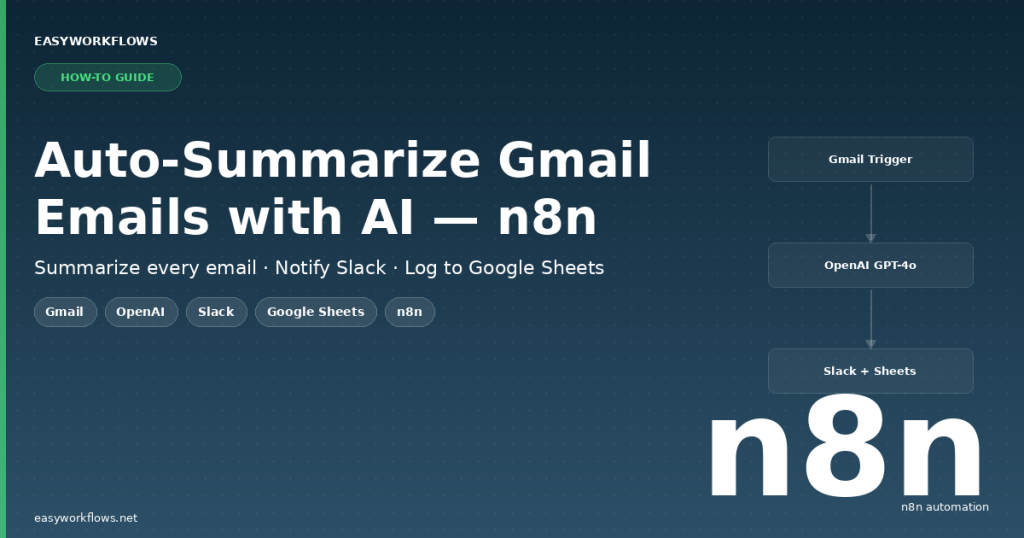
Your inbox is full — important emails are buried, and you’re spending hours skimming threads just to find the ones that actually need your attention. What if every new email was automatically summarized by AI, pinged to your Slack, and logged to a spreadsheet — without you lifting a finger? In this tutorial, you’ll build exactly that using n8n, OpenAI, Slack, and Google Sheets. No code required, and it runs 24/7 in the background while you focus on work that matters.
Prefer to skip the setup? Grab the ready-made template → and be up and running in under 10 minutes.
What You’ll Build
- A Gmail trigger polls your inbox every minute for new unread emails.
- The email content is sent to OpenAI’s GPT-4o-mini model, which generates a crisp 2–3 sentence summary.
- The summary is posted to a Slack channel (e.g.,
#email-digest) so you see it the moment it lands. - The email metadata and AI summary are simultaneously appended to a Google Sheets log — your permanent, searchable email archive.
- You stay on top of every important email without ever opening your inbox to triage.
How It Works — The Big Picture
The workflow is a linear pipeline with one fan-out at the end. Gmail fires the trigger, two Set nodes shape the data, one HTTP Request calls OpenAI, and then both Slack and Google Sheets receive the result in parallel.
┌──────────────────────────────────────────────────────────────────────────┐
│  AUTO-SUMMARIZE GMAIL EMAILS WITH AI                                     │
│                                                                          │
│  [Gmail Trigger]                                                         │
│       │  new unread email detected                                       │
│       ▼                                                                  │
│  [Extract Email Fields]  ← pulls sender, subject, body text             │
│       │                                                                  │
│       ▼                                                                  │
│  [Summarize with OpenAI]  ← POST to GPT-4o-mini API                     │
│       │                                                                  │
│       ▼                                                                  │
│  [Prepare Notification Data]  ← merges summary + email metadata          │
│       │                                                                  │
│       ├──────────────────────────┐                                       │
│       ▼                          ▼                                       │
│  [Send Slack Notification]  [Log to Google Sheets]                       │
│   posts to #email-digest     appends row to "Email Log" sheet            │
└──────────────────────────────────────────────────────────────────────────┘
What You’ll Need
- n8n — self-hosted or n8n Cloud (free tier works)
- Gmail account — connected via Google OAuth2 in n8n
- OpenAI account — API key from platform.openai.com (GPT-4o-mini costs fractions of a cent per email)
- Slack workspace — with a channel like
#email-digestand a Slack app connected in n8n - Google Sheets — a new spreadsheet with a tab named Email Log
Estimated build time: 35–50 minutes from scratch, or under 10 minutes with the ready-made template.
Building the Workflow — Step by Step
1 Gmail Trigger (gmailTrigger)
This is the entry point. The Gmail Trigger node polls your inbox on a schedule and fires whenever it finds a new unread email. Think of it as a quiet watchdog that checks your mailbox every 60 seconds.
How to configure it:
- In your n8n canvas, click + Add node and search for Gmail Trigger.
- Connect your Google account when prompted (you’ll be redirected to Google’s OAuth screen).
- Under Poll Times, set the interval to Every Minute — or adjust to every 5 minutes if you prefer less frequent checks.
- Under Filters → Read Status, choose Unread so already-read emails don’t get processed again.
- Leave Include Spam & Trash unchecked.
When this node fires, the output is a rich object containing the full email. Here’s what a sample output looks like:
{
  "id": "18e5a3b2c7d4e901",
  "subject": "Q2 Budget Review — Action Needed",
  "from": {
    "value": [{ "address": "sarah.thompson@acmecorp.com", "name": "Sarah Thompson" }]
  },
  "date": "2026-04-02T14:23:11.000Z",
  "text": "Hi James,\n\nI've attached the updated Q2 budget spreadsheet for your review..."
}Tip: If you only want to process emails from specific senders or with certain subjects, add a Label filter. Create a Gmail filter that auto-labels those emails, then reference that label ID here. This keeps your workflow laser-focused and avoids processing newsletters or automated notifications.
2 Extract Email Fields (Set)
The raw Gmail output has a lot of nested data. This Set node flattens it into clean, named fields that the rest of the workflow can reference easily.
How to configure it:
- Add a Set node after Gmail Trigger and set mode to Manual Mapping.
- Add the following fields using the expression editor:
| Field Name | Expression | What It Captures |
|---|---|---|
sender |
={{ $json.from.value[0].address }} |
Sender’s email address |
senderName |
={{ $json.from.value[0].name || $json.from.value[0].address }} |
Display name (falls back to email) |
subject |
={{ $json.subject }} |
Email subject line |
bodyText |
={{ ($json.text || '').substring(0, 4000) }} |
Plain text body, capped at 4,000 chars |
receivedAt |
={{ $json.date }} |
Timestamp the email was received |
messageId |
={{ $json.id }} |
Gmail’s unique message ID |
Tip: The substring(0, 4000) cap on bodyText is intentional. Capping at 4,000 characters keeps your API costs minimal while still capturing the meaningful content of any real email.
3 Summarize with OpenAI (HTTP Request)
This is where the magic happens. You’ll make a direct API call to OpenAI’s Chat Completions endpoint using an HTTP Request node — transparent, flexible, and easy to customize.
How to configure it:
- Add an HTTP Request node. Set Method to
POSTand URL tohttps://api.openai.com/v1/chat/completions. - Under Authentication, choose Generic Credential Type → HTTP Header Auth. Create a credential with Name:
Authorizationand Value:Bearer sk-YOUR_OPENAI_API_KEY. - Set Body Content Type to JSON and use this body:
{
  "model": "gpt-4o-mini",
  "messages": [
    {
      "role": "system",
      "content": "You are a concise email assistant. Summarize the following email in exactly 2-3 sentences."
    },
    {
      "role": "user",
      "content": "From: {{ $json.senderName }} <{{ $json.sender }}>\nSubject: {{ $json.subject }}\n\n{{ $json.bodyText }}"
    }
  ],
  "max_tokens": 200,
  "temperature": 0.2
}Cost note: GPT-4o-mini costs roughly $0.15 per million input tokens. A typical email summary costs about $0.00009 — less than a tenth of a cent. Processing 1,000 emails a month costs under $0.10 total.
4 Prepare Notification Data (Set)
After the OpenAI call, the email fields from Step 2 are no longer in scope. This second Set node reassembles everything — it grabs the AI summary and re-references the email metadata using n8n’s node-reference syntax.
| Field | Expression |
|---|---|
summary |
={{ $json.choices[0].message.content }} |
sender |
={{ $('Extract Email Fields').item.json.sender }} |
senderName |
={{ $('Extract Email Fields').item.json.senderName }} |
subject |
={{ $('Extract Email Fields').item.json.subject }} |
receivedAt |
={{ $('Extract Email Fields').item.json.receivedAt }} |
messageId |
={{ $('Extract Email Fields').item.json.messageId }} |
5 Send Slack Notification (Slack)
This node posts the email summary to a Slack channel so your team sees it in real time. Connect your Slack workspace via OAuth, set the channel to #email-digest, and use this message text:
📧 *New Email Summary*
*From:* {{ $json.senderName }} <{{ $json.sender }}>
*Subject:* {{ $json.subject }}
*Received:* {{ $json.receivedAt }}

*AI Summary:*
{{ $json.summary }}
6 Log to Google Sheets (Google Sheets)
The final node appends a new row to your Email Log spreadsheet every time an email is processed — your permanent, searchable archive.
Set Operation to Append or Update Row, select your spreadsheet, set the sheet name to Email Log, and map these columns:
| Sheet Column | n8n Expression |
|---|---|
| Received At | ={{ $json.receivedAt }} |
| Sender Name | ={{ $json.senderName }} |
| Sender Email | ={{ $json.sender }} |
| Subject | ={{ $json.subject }} |
| AI Summary | ={{ $json.summary }} |
| Message ID | ={{ $json.messageId }} |
The Data Structure (Google Sheets)
Your Email Log sheet must have these exact column headers in row 1. Column names are case-sensitive.
| Column | Type | Example Value | Description |
|---|---|---|---|
Received At |
DateTime | 2026-04-02T14:23:11.000Z | ISO timestamp when email arrived |
Sender Name |
Text | Sarah Thompson | Display name from the From header |
Sender Email |
Text | sarah.thompson@acmecorp.com | Sender’s email address |
Subject |
Text | Q2 Budget Review — Action Needed | Email subject line |
AI Summary |
Long Text | Sarah Thompson from Acme Corp sent… | 2–3 sentence AI-generated summary |
Message ID |
Text | 18e5a3b2c7d4e901 | Gmail’s unique internal message ID |
Column header names in Google Sheets are case-sensitive. If there’s a mismatch, data will go into a new column instead of the right one. Double-check spelling before your first test run.
Full System Flow
┌─────────────────────────────────────────────────────────────────────────────────┐
│  FULL SYSTEM FLOW — Gmail AI Summarizer                                         │
│                                                                                 │
│  Gmail Inbox                                                                    │
│     │  (new unread email arrives)                                               │
│     ▼                                                                           │
│  [Gmail Trigger]  ──polls every 60s──►  raw email object (id, from, subject,   │
│                                          date, text)                            │
│     │                                                                           │
│     ▼                                                                           │
│  [Extract Email Fields]  ─────────────► { sender, senderName, subject,         │
│                                           bodyText (≤4000 chars), receivedAt,  │
│                                           messageId }                           │
│     │                                                                           │
│     ▼                                                                           │
│  [Summarize with OpenAI]                                                        │
│     POST https://api.openai.com/v1/chat/completions                             │
│     model: gpt-4o-mini  ──────────────► { choices[0].message.content: "..." }  │
│     │                                                                           │
│     ▼                                                                           │
│  [Prepare Notification Data]  ────────► { summary, sender, senderName,         │
│                                           subject, receivedAt, messageId }      │
│     │                                                                           │
│     ├───────────────────────────────────────────────┐                          │
│     ▼                                               ▼                           │
│  [Send Slack Notification]               [Log to Google Sheets]                 │
│   POST to #email-digest                   APPEND row to "Email Log" tab         │
│                                                                                 │
│  ✅ Done — email summarized, team notified, and permanently archived            │
└─────────────────────────────────────────────────────────────────────────────────┘
Testing Your Workflow
- Send a test email to yourself from another account. Use a realistic subject and write 3–4 sentences of body text.
- In the n8n canvas, click the Gmail Trigger node and press Fetch Test Event. Your test email should appear as the sample data.
- Click Execute from here to run the rest of the workflow with that email.
- Check your
#email-digestSlack channel — the summary should appear within seconds. - Open your Google Sheets Email Log — a new row should be appended with all six columns filled.
- Once confirmed, click Save then toggle the Active switch to start the live workflow.
| Problem | Likely Cause | Fix |
|---|---|---|
| Gmail Trigger finds no emails | No unread emails, or wrong label filter | Send a fresh test email, then click “Fetch Test Event” again |
| OpenAI returns 401 error | API key incorrect or missing “Bearer ” prefix | Regenerate the key and ensure the value starts with “Bearer sk-…” |
| Slack message not appearing | Bot not added to the channel | Type /invite @YourBotName in the #email-digest channel |
| Google Sheets row goes to wrong column | Column header name mismatch | Compare sheet headers letter-for-letter with n8n field names |
| Same email processed multiple times | Email stays unread after processing | Add a Gmail node at the end to mark the email as read |
Frequently Asked Questions
Will this workflow read emails I’ve already seen?
Only if they’re still marked as unread. The Gmail Trigger is filtered to unread emails, so anything you’ve already opened and read won’t be reprocessed. If you want to back-process a batch of old emails, temporarily change the filter to “All Mail” for a one-time run, then switch back.
What if an email has no plain text body — only HTML?
The workflow uses $json.text (plain text) by default. If your email client sends HTML-only, update the bodyText expression to ={{ $json.text || $json.textHtml?.replace(/<[^>]+>/g, '') || '' }} — this strips HTML tags as a fallback.
Can I filter which emails get summarized — for example, only from my boss?
Yes. Create a Gmail filter that auto-labels emails from specific senders, then restrict the Gmail Trigger to only watch that label. Alternatively, add an IF node after “Extract Email Fields” and check if $json.sender matches a list of allowed addresses.
Is my email content sent to OpenAI? Is that safe?
Yes — the email body text is sent to OpenAI’s API. OpenAI’s API does not use your data to train models by default, per their API data usage policy. If your emails contain highly sensitive content, consider running an open-source LLM locally via n8n’s Ollama integration instead.
Can I use a different AI model instead of GPT-4o-mini?
Absolutely. To use GPT-4o, just change "model": "gpt-4o-mini" to "model": "gpt-4o" in the HTTP Request body — expect roughly 10× the cost. For a free option, replace the HTTP Request node with an Ollama node pointed at a local Llama 3 instance.
What happens if the workflow runs while n8n is offline?
n8n stores the last-polled email timestamp internally. When it comes back online, it will catch up on any emails that arrived while it was down. For production use on self-hosted n8n, consider setting up PM2 to auto-restart n8n if it crashes.
🚀 Get the Gmail AI Summarizer Template
Skip the setup and get the pre-built workflow JSON, a step-by-step Setup Guide PDF, and a Credentials Guide that walks you through connecting Gmail, OpenAI, Slack, and Google Sheets — all for less than the cost of a cup of coffee.
Instant download · Works on n8n Cloud and self-hosted · $14.99
What’s Next?
- Auto-reply to routine emails: Add a second AI call that drafts a reply, then use Gmail’s “Create Draft” action so you can review and send with one click.
- Priority scoring: Add a second OpenAI call that rates each email 1–5 for urgency. Route high-priority emails to a dedicated
#urgent-emailsSlack channel. - Weekly digest email: Pair this workflow with a scheduled trigger that reads your Google Sheets log every Friday and emails a formatted weekly summary to your team.
- Notion integration: Replace or supplement the Google Sheets node with a Notion node to create a card in your “Inbox” database for each processed email.